




Most people set up dual monitors to extend their workspace. But there are situations where you want both screens to show the exact same thing.
That’s where duplicating your display comes in.
In Windows 11, this is a built-in feature, and it’s easy to enable. What’s more important is understanding when to use it and how to set it up properly so it doesn’t look off.
What “Duplicate Display” Actually Means
When you duplicate your display:
- Both monitors show the same content
- Your desktop is mirrored across screens
- Any action on one screen appears on the other
This is different from “Extend,” where each monitor acts as a separate workspace.
Think of duplication as:
- One screen copied to another
When You Should Use Duplicate Display
This mode isn’t meant for productivity multitasking. It’s meant for sharing.
Presentations
If you’re:
- Presenting to a group
- Connecting to a projector
You want your screen and the audience’s screen to match exactly.
External Displays or TVs
When connecting your laptop to a TV:
- Duplicate mode ensures both screens show the same content
- Useful for movies, demos, or screen sharing
Simple Setups
If you don’t want to manage multiple screens:
- Duplicate mode keeps things straightforward
How to Duplicate Display in Windows
There are two easy ways to enable this.
Method 1: Quick Shortcut
- Press Windows + P
- Select Duplicate
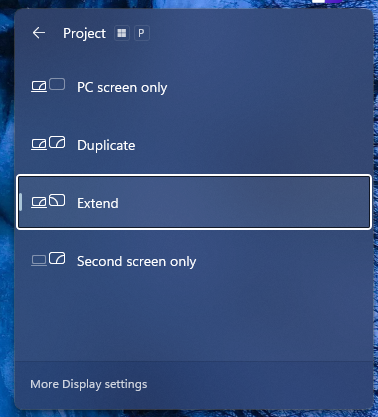
That’s it. Your screens will mirror instantly.
Method 2: Through Settings
- Open Settings
- Go to System > Display
- Scroll to Multiple displays
- Select:
- Duplicate these displays

This method gives you more control if needed.
Fixing Resolution Issues (This Is Where Most Problems Happen)
One of the biggest issues with duplicate display is mismatched resolutions.
If your monitors are different:
- One screen may look stretched
- Text may appear blurry
- Scaling can feel inconsistent
Why This Happens
Windows tries to match both displays to a common resolution.
So if you have:
- One 1080p monitor
- One 1440p monitor
Both may default to the lower resolution.
How to Improve It
- Set resolution manually in Display Settings
- Choose a resolution that works well on both screens
You may need to compromise slightly for consistency.
Refresh Rate and Display Quality
Even if resolution matches, refresh rates can differ.
- Higher refresh rate monitor may feel less smooth in duplicate mode
- Windows syncs both displays to a common setting
This is normal behavior.
Audio and Output Behavior
When duplicating displays to a TV or external device:
- Audio may switch automatically to the external device
- You can change it in Sound Settings
This is useful for media but can catch you off guard.
Common Issues (And Quick Fixes)
Screen Looks Blurry
- Check resolution settings
- Adjust scaling
Displays Not Syncing Properly
- Reconnect cables
- Restart display detection
One Screen Flickers
- Check refresh rate compatibility
- Update graphics drivers
Most issues come from hardware differences, not software bugs.
Real-World Insight
Duplicate display is simple, but it works best when both screens are similar.
If your monitors are:
- Same size
- Same resolution
The experience feels seamless.
If they’re very different:
- You’ll notice compromises
That’s not a flaw. It’s just how mirroring works.
When You Should Avoid Duplicate Mode
Avoid it if you:
- Want to multitask across screens
- Use high refresh rate monitors
- Need maximum resolution on both displays
In those cases, Extend mode is better.
Final Thoughts
Duplicating display in Windows 11 is one of those features that’s incredibly useful in the right situation.
It’s not about productivity. It’s about sharing your screen clearly and simply.
Use it when:
- You need identical output
- You’re presenting or connecting externally
And if something looks off, it’s usually just a matter of adjusting resolution and settings.
Once set up properly, it works exactly as expected and that’s the whole point.
FAQs
What does duplicate display do
It mirrors the same screen on both monitors.
How do I enable it quickly
Press Windows + P and select Duplicate.
Why does my screen look blurry in duplicate mode
Because of resolution differences between monitors.
Can I use different resolutions in duplicate mode
No, both screens must match a common resolution.
Is duplicate mode good for gaming
Not ideal, extend mode is usually better.



Discussion (0)
Be the first to comment.