




Valorant is Riot Games’ popular tactical shooter that runs smoothly even on mid-range hardware. This guide walks you through downloading the game, installing it properly, and fixing any issues that appear during setup.
But before downloading Valorant, make sure your PC can handle it. Below are the minimum requirements your PC must meet:
- OS: Windows 10 or later (64-bit)
- CPU: Intel i3-4150 or AMD equivalent
- GPU: Intel HD 3000 or GeForce GT 730
- RAM: 4 GB
- Storage: At least 30 GB free space
1) Download Valorant on the official Riot Games website
Open your browser and visit the official Valorant download page from Riot Games. Next, click Download and save the installer file to your PC. Now, press Win + E to open File Explorer and go to your Downloads folder.

From here, double-click Install_VALORANT.exe to start the setup and allow the installer to add Riot Client and Vanguard (anti-cheat service). Finally, log in with your Riot account or create one to finish.
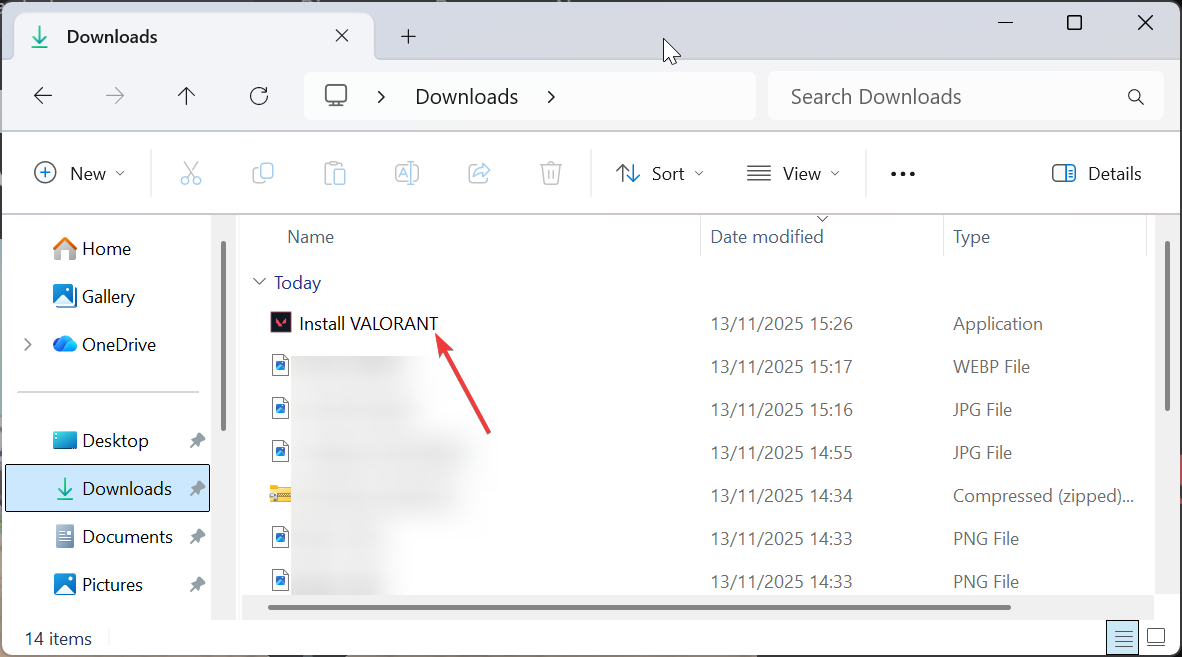
Tip: Valorant’s installer is around 70 MB, but the full download exceeds 30 GB after updates. A 100 Mbps connection typically finishes in under 30 minutes, while slower links may need an hour or more.
2) Install Valorant via the Epic Games Store (alternative method)
Open the Epic Games Launcher, go to the Store tab, and search for Valorant. You can also go to the Epic Games Launcher online store and search for Valorant.
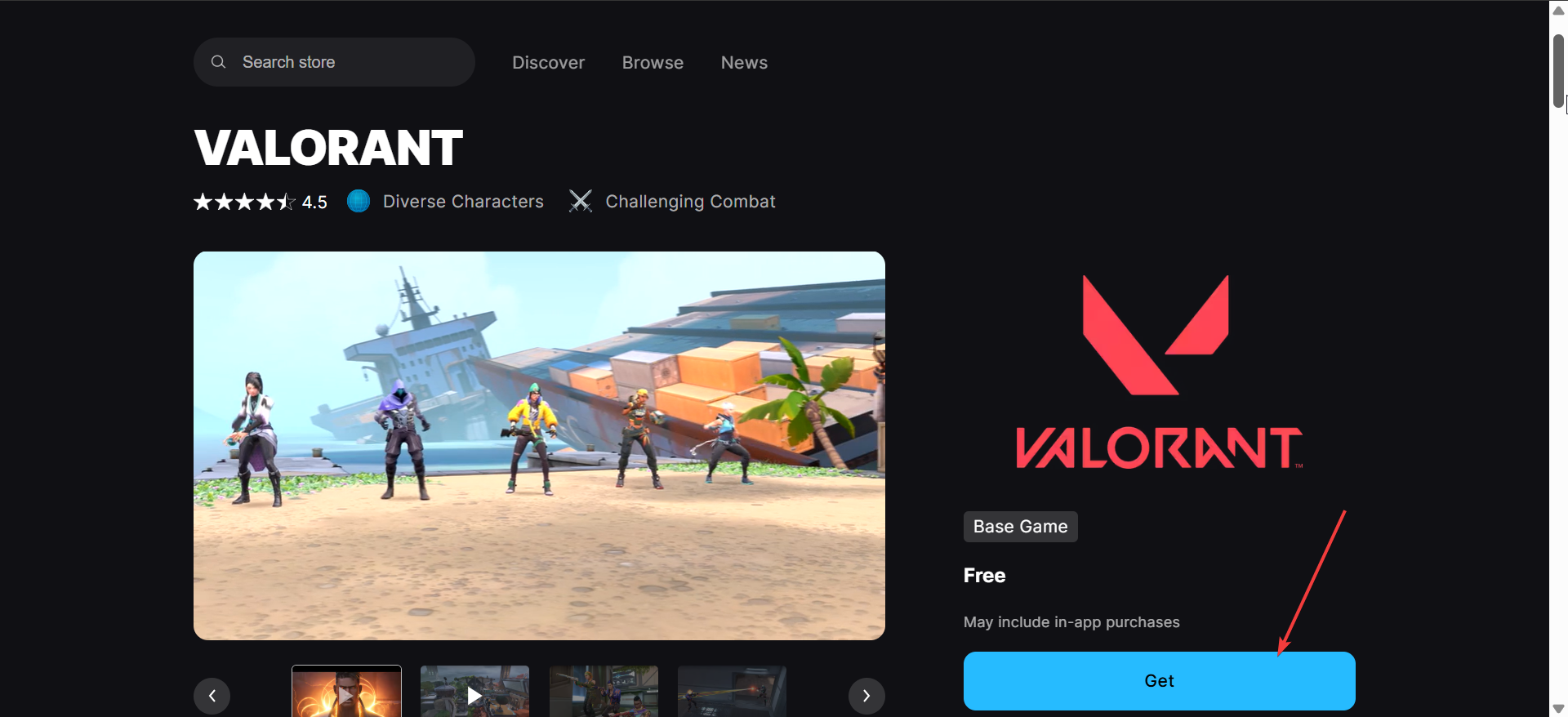
Next, click Get and confirm your free purchase. Finally, click Install once it appears in your library and wait for the Riot Client to finish setup, then launch the game.
3) Verify installation and log in for the first time
Once installed, launch Valorant through the Riot Client. Sign in with your Riot credentials and let Vanguard initialize. The client may download a few small patches before the main menu appears.
4) Troubleshooting common Valorant download errors
- Valorant installer not launching: Right-click the installer and choose Run as administrator. Then disable your antivirus temporarily if it blocks the setup. Delete the installer, re-download it, and try again.
- Vanguard or driver errors: Restart your PC to allow Vanguard to initialize correctly, press Ctrl + Shift + Esc, open Services, and restart VGC. You can also update your graphics drivers via the manufacturer’s software or Windows Update.
- Slow download or update speed: Close background downloads or streaming apps, use a wired Ethernet connection instead of Wi-Fi, and change DNS settings to Google (8.8.8.8) or Cloudflare (1.1.1.1).
Tips to optimize the download and setup
- Use an SSD for faster load times: Installing Valorant on an SSD cuts launch time by nearly half compared to HDDs. It also improves map loading speeds during matches.
- Schedule updates when the network is idle: Riot pushes frequent patches. Setting downloads for off-hours prevents interruptions and ensures faster speeds.
- Keep graphics drivers up to date: Updated GPU drivers improve FPS and fix launch issues. You can also use the built-in Windows driver update tool for quick checks.
FAQs
Can I install Valorant without admin rights? No. Riot Vanguard requires administrative access to install correctly.
Can I move Valorant to another drive? Yes. You can move the Riot Client’s install folder to a new location, then verify files from the launcher.
Does Valorant work on laptops? Yes, as long as your laptop meets the minimum requirements and runs Windows 10 or later.
Summary of steps
- Check your system requirements.
- Download Valorant from the official Riot website or Epic Games Store.
- Run the installer and complete setup.
- Log in with your Riot account.
- Fix any launch issues if they appear.
Conclusion
Installing Valorant on your PC is quick if you follow these steps closely. Once setup is done, adjust your in-game settings for the best performance and dive into competitive matches confidently.

Discussion (0)
Be the first to comment.