




Stampy’s Lovely World remains one of the most popular Minecraft worlds, and many players still want to explore it on a Windows PC. If you learn how to download Stampys Lovely World on PC properly, you can walk through Stampy’s house, visit Funland, and tour the town just like in the videos.
Today, you usually download a fan recreation or a Java port of Stampy’s Lovely World as a custom Minecraft world. You then add that world folder to your Minecraft saves. This guide focuses on Minecraft Java Edition on Windows and shows you how to install a Stampys Lovely World map safely and correctly.
Download And Install Stampys Lovely World Map On PC
Before you start, make sure you use Minecraft Java Edition and choose a Stampys Lovely World download that matches your Minecraft version. At the time of writing, many recreations target recent Java versions, so always read the map description carefully.
Step 1: Prepare Minecraft Java Edition
First, confirm that your PC and Minecraft install can run a custom Stampys Lovely World map smoothly.
- Open Minecraft Launcher on your Windows PC and sign in with your Mojang or Microsoft account.
- Select Minecraft: Java Edition and check which game version your main installation uses.
- Create a separate Installation in the launcher for the version recommended by the Stampys Lovely World map (for example, 1.21 or 1.12.2).
- Click Play once with that version so Minecraft creates all the folders for your saves.
- Close Minecraft after it reaches the main menu so you can copy the Stampys Lovely World download into the correct place.
Step 2: Download A Trusted Stampys Lovely World Map
Next, you need a safe Stampys Lovely World map download for PC. You can find several community recreations and Java ports online.
- Open your preferred browser on Windows and search for Stampys Lovely World map download Java or a similar phrase.
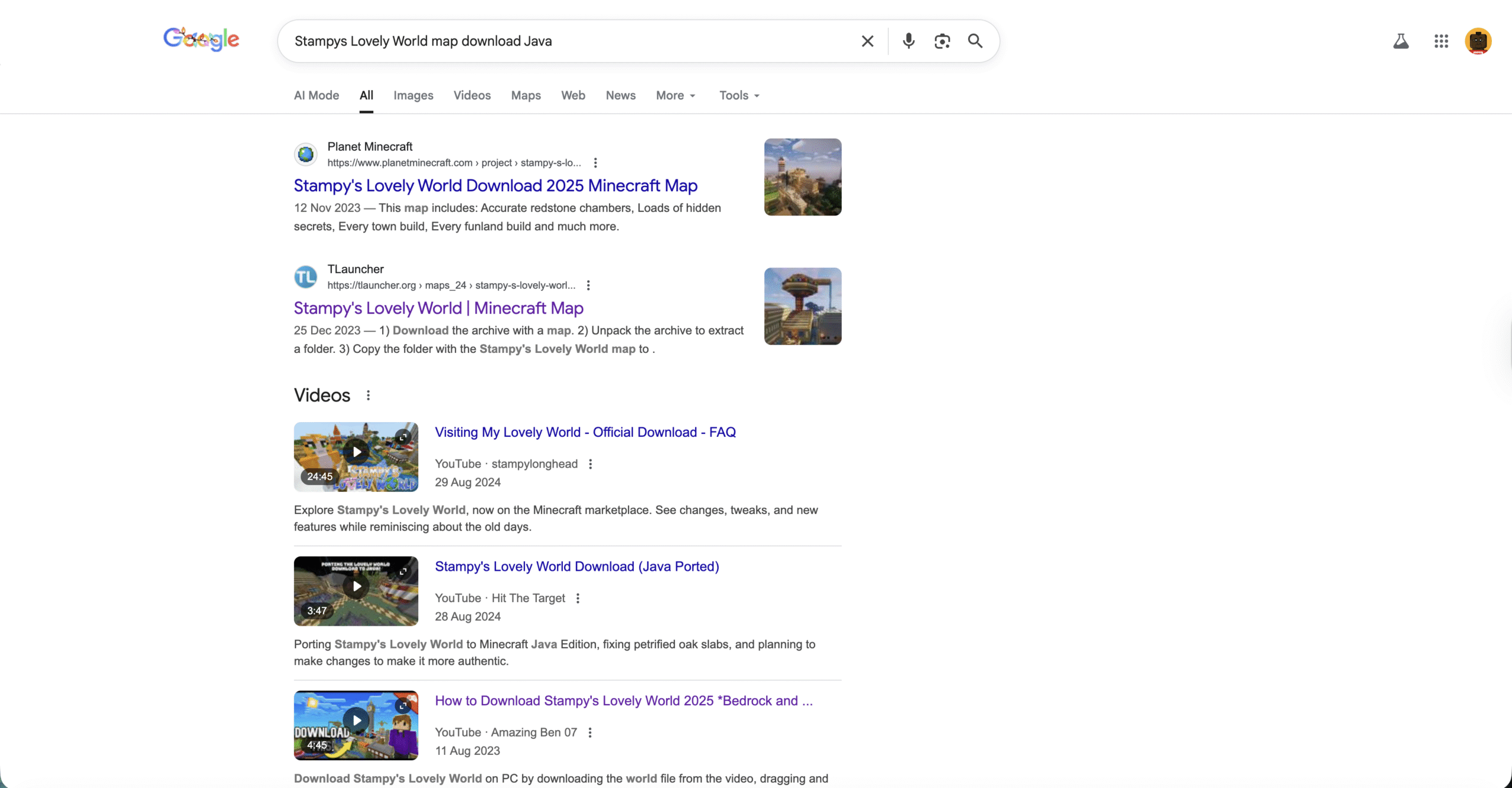
- Choose a well-known Minecraft map site or an established community project with clear version information and screenshots.

- Verify that the map supports Minecraft Java Edition on PC and that the version matches the installation you prepared earlier.
- Download the .zip file for the Stampys Lovely World download and save it to a folder you can find easily, such as Downloads or Desktop.

- If the map author provides both Java and Bedrock versions, make sure you pick the Java download for this guide.
Step 3: Locate Your Minecraft Saves Folder On Windows
To install any custom Minecraft world on PC, you copy the map folder into your saves directory.
- Press Windows + R on your keyboard to open the Run dialog.
- Type %appdata%\.minecraft and select OK to open the main Minecraft folder in File Explorer.
- Find and double-click the saves folder, which stores all your singleplayer worlds.
- Leave this File Explorer window open so you can drag the Stampys Lovely World map into it in the next step.
Step 4: Install The Stampys Lovely World Map
Now you unpack the Stampys Lovely World download and move it into the saves folder so Minecraft can detect it.
- Right-click the downloaded Stampys Lovely World .zip file and choose Extract All or use your preferred unzip tool.
- Open the extracted folder and look for a world folder that contains files like level.dat plus region and data subfolders.
- Select that main world folder (often called something like Stampy’s Lovely World or SLW).
- Drag and drop the world folder directly into the open saves folder from Step 3.
- Confirm that the world folder now appears alongside your other Minecraft worlds in the saves directory.
Step 5: Load Stampys Lovely World In Minecraft
With the map copied into saves, you can load the Stampys Lovely World Minecraft map from the game menu.
- Open Minecraft Launcher and select the Java installation that matches the map version.
- Click Play and wait for the main menu to appear.
- Select Singleplayer to view your list of worlds.
- Look for a world name that matches the Stampys Lovely World download you installed.
- Highlight that world and choose Play Selected World to load into Stampy’s town, house, and Funland on PC.
Troubleshooting Common Problems
Sometimes the Stampys Lovely World download does not appear or refuses to load. These quick checks usually fix the most common issues.
- World Does Not Show Up: Open the world folder inside saves and confirm that level.dat sits directly inside it rather than in a subfolder. If needed, move the innermost world folder up one level.
- Wrong Minecraft Version: If the world crashes or refuses to load, switch to the game version listed in the map description and try again.
- Corrupt Download: If Minecraft reports a corrupted world, delete the map folder, download the Stampys Lovely World PC map again, and copy the fresh folder back into saves.
- Low Performance Or Lag: Lower your render distance and graphics settings in Minecraft, especially if the map contains many large builds and redstone contraptions.
- Bedrock Vs Java Confusion: Make sure you do not try to use a Bedrock Stampy’s Lovely World map file with Minecraft Java Edition. Use a map that specifically supports Java.
Tips
- Keep a backup copy of the original Stampys Lovely World download folder so you can restore it if something breaks in the world.
- Use a dedicated Minecraft Java installation just for custom maps so your main survival worlds stay separate and safer.
- Read the map creator’s notes carefully; some Stampys Lovely World recreations include extra instructions or recommended settings.
- Turn on Peaceful mode at first if you only want to explore Stampy’s house and Funland without hostile mobs.
- Take screenshots or short clips of your favorite builds so you can reference Stampy’s design ideas in your own Minecraft worlds.
FAQ
Can I Download Stampys Lovely World On PC For Free?
You can usually download a Stampys Lovely World Minecraft map for free from fan projects or community recreations. You still need a paid copy of Minecraft Java Edition to play the world on your PC.
Do I Need Minecraft Java Edition Or Bedrock For Stampys Lovely World?
This guide shows you how to download Stampys Lovely World on PC using Minecraft Java Edition. Some creators also provide Bedrock downloads for Windows, but those use a different install process.
What Minecraft Version Works Best With Stampys Lovely World?
The best version depends on the map you choose. At the time of writing, many up-to-date recreations target modern Java versions like 1.21, while older worlds may require 1.12.2. Always follow the map’s version recommendation.
Can I Play Stampys Lovely World With Friends?
You can open your Stampys Lovely World map to LAN from the pause menu and let friends on the same network join. For full online servers, you need extra setup outside the scope of this basic PC download guide.
Is This The Official Stampys Lovely World Save?
Most downloads are community recreations or Java ports based on Stampy’s original world. Check the map description to see whether it is an official port, a fan recreation, or a mix of both.
Summary
1. Prepare Minecraft Java Edition on Windows and create an installation that matches the Stampys Lovely World map version.
2. Download a trusted Stampys Lovely World PC map in .zip format that clearly supports Minecraft Java.
3. Extract the archive, locate the world folder with level.dat, and copy it into your .minecraft\saves directory.
4. Launch Minecraft with the correct Java version and select the Stampys Lovely World map from the Singleplayer list.
5. Troubleshoot missing worlds, version errors, or performance issues by checking the folder structure, game version, and graphics settings.
Conclusion
When you understand how to download Stampys Lovely World on PC, the process feels straightforward: grab a compatible map, drop it into your saves folder, and load it with the right Minecraft version. The key is to choose a safe, up-to-date Stampys Lovely World download that clearly supports Minecraft Java Edition on Windows.
Once you load into the world, you can explore Stampy’s house, town, and Funland at your own pace, study the builds up close, and even borrow ideas for your own creations. With a quick backup of the map and a few basic performance tweaks, you can revisit this classic Minecraft world whenever you want and keep it running smoothly on your PC.


Discussion (0)
Be the first to comment.