




Minecraft runs on almost any modern laptop, but you need the right edition and the correct download steps to install it without errors. This guide walks you through each method for Windows and macOS, including Game Pass, along with quick fixes for common installation issues.
Before you start, note that Minecraft Java requires more RAM and CPU power than Bedrock. You need at least 4 GB of RAM for Java and a modern integrated or dedicated GPU for stable performance. Check available storage to avoid installation errors.
1) Choose the right Minecraft edition for your laptop
You can choose to download the Bedrock Edition of Minecraft, the Java Edition or the Game Pass bundle. Each fits different needs, so you need to decide before downloading.
Minecraft Java Edition
Java runs on Windows and macOS and gives you access to mods, custom servers, and advanced controls. You get the best creative flexibility, but need stronger hardware.
Minecraft Bedrock Edition
Bedrock supports cross-play across Xbox, PlayStation, Switch, and mobile. It runs best on lower-end laptops but only installs on Windows.
Minecraft with PC Game Pass
Game Pass gives you both Java and Bedrock inside the same launcher. This option works well if you already subscribe and want all editions available instantly.
2) Download Minecraft on Windows 10 or 11
You can download Minecraft from the official website, the Microsoft Store, or the Xbox app if you use Game Pass. Each method installs the same Minecraft Launcher.
Method 1: Download from Minecraft.net
Use this method if you want full control over your purchase and launcher settings. Go to the official Minecraft website and sign in with your Microsoft account. Next, select the edition you want and download the Windows installer.

Now, run the setup file and install the Minecraft Launcher. Finally, open the launcher and choose Java or Bedrock to start downloading the game files.
Method 2: Install from the Microsoft Store
Open the Microsoft Store on your PC, search for Minecraft, and select the edition you want. Next, click Install and wait for the launcher to download. Lastly, sign in and launch the game after installation completes.

Method 3: Install through the Xbox app (Game Pass)
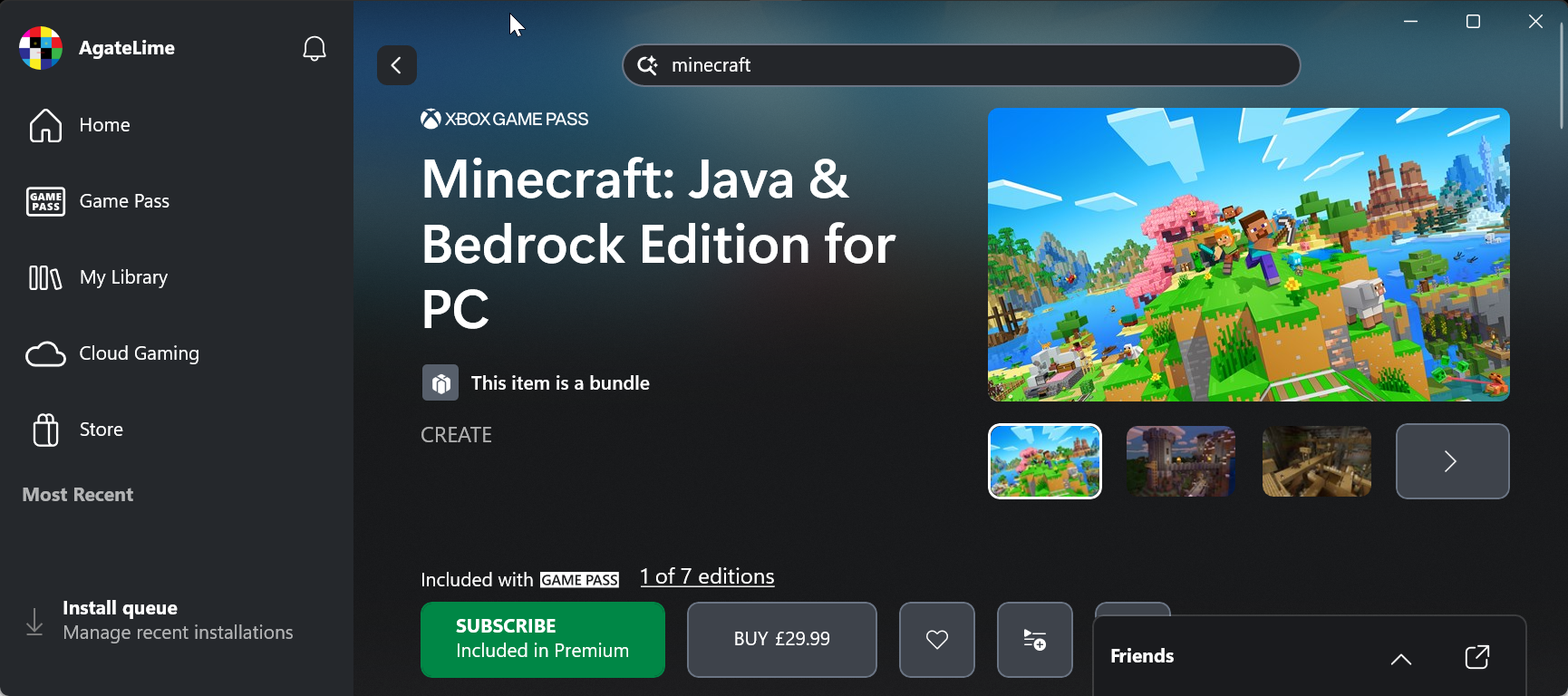
Game Pass subscribers can install both Java and Bedrock instantly from the Xbox app. Just open the Xbox app on your laptop, search for Minecraft, and select the combined Java & Bedrock package.
Now, click Install or Buy and wait for the launcher to finish downloading. You can now pick your edition when the launcher opens.
3) Download Minecraft on macOS
macOS supports only the Java Edition. The download and installation process is simple but may trigger a Gatekeeper warning.
Go to the official Minecraft website to download the Minecraft.dmg file. Next, open the file and drag Minecraft to your Applications folder. Lastly, launch the app and log in with your Microsoft account.

Tip: If macOS blocks the launcher, open System Settings, go to Privacy & Security, and approve the app. Restart the launcher to continue the installation.
4) Download Minecraft on a school or managed laptop
School-issued laptops often use admin restrictions that block installs. Family accounts may also limit access for younger users.
Check Microsoft family restrictions
A parent or guardian may need to approve the download. You can request permission through your Microsoft account if prompts appear.
School laptop limitations
School admins control software installs, so you may need approval from IT. These laptops usually block game downloads completely.
5) Troubleshooting common Minecraft download issues
- Minecraft Launcher stuck on Preparing: Restart the launcher, reboot your laptop, and try again. If it still fails, sign out and sign back in to refresh your account credentials.
- Microsoft Store won’t download Minecraft: Reset the Store cache, reconnect your Microsoft account, and check for Windows updates. These steps usually fix stuck downloads.
- Account mismatch problems: You need the same Microsoft account that owns Minecraft. Using the wrong account blocks the launcher from downloading game files.
- Insufficient storage or hardware: Free up disk space and update your GPU drivers to prevent failed installations. Low-storage laptops often block game downloads.
Tips for downloading Minecraft smoothly
- Use a stable Wi-Fi or Ethernet connection for faster downloads.
- Restart the launcher if a download freezes.
- Update Windows or macOS before installing the game.
- Sign in with the correct Microsoft account to unlock purchased editions.
FAQs
Is Minecraft free on a laptop? No, you need to purchase Java, Bedrock, or subscribe to Game Pass.
What Minecraft version works best on low-end laptops? Bedrock runs smoother on weaker hardware.
How big is the Minecraft download? The launcher is small, but the game files typically use a few gigabytes after installation.
Can you run Minecraft on a Chromebook? Yes, if the device supports Android apps and Google Play.
Summary
- Check your laptop’s system requirements for the correct edition.
- Choose Java, Bedrock, or Game Pass based on your needs.
- Download Minecraft through the official website, Microsoft Store, or Xbox app.
- Follow OS-specific steps for Windows or macOS.
- Fix common installation issues and avoid unsafe download sites.
You now know how to download Minecraft on a laptop using the safest and fastest methods. Your launcher will keep updating automatically, and you can switch editions anytime if you use Game Pass. If you want to improve performance or fix FPS drops, you can check out more troubleshooting guides here: [internal-link-placeholder].


Discussion (0)
Be the first to comment.