




Sims 4 Studio lets you create and edit Sims 4 custom content on your Mac. The Mac setup process differs from Windows, so you need to follow specific steps for downloading, installing, and fixing common launch issues.
In this guide, we have prepared everything you need to get the Studio up and running on your computer.
Step 1: Check your Mac’s requirements
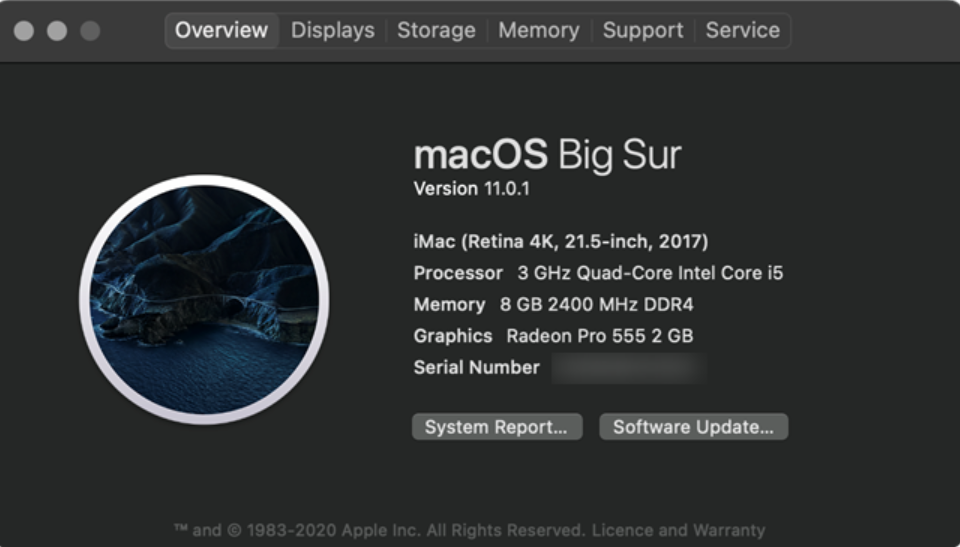
Sims 4 Studio works best on recent versions of macOS. You should confirm your macOS version and hardware before downloading the app.
Supported macOS versions
Most current builds support macOS Sonoma, Ventura, and Monterey. Older systems may still run the app, but can show random errors or crashes.
Requirements for Apple Silicon
M1, M2, and M3 Macs may require Rosetta, so the app can run correctly. If Sims 4 Studio fails to open, installing or reinstalling Rosetta usually fixes the issue.
Step 2: Download Sims 4 Studio for Mac
You should always download Sims 4 Studio from the official project page. The correct Mac build keeps your mods compatible with the latest Sims 4 patch.
Go to the developer’s official release page and look for the Mac section. Check that the listed build matches the latest Sims 4 patch information. Also, if you are asked to join the forum before downloading, do so.
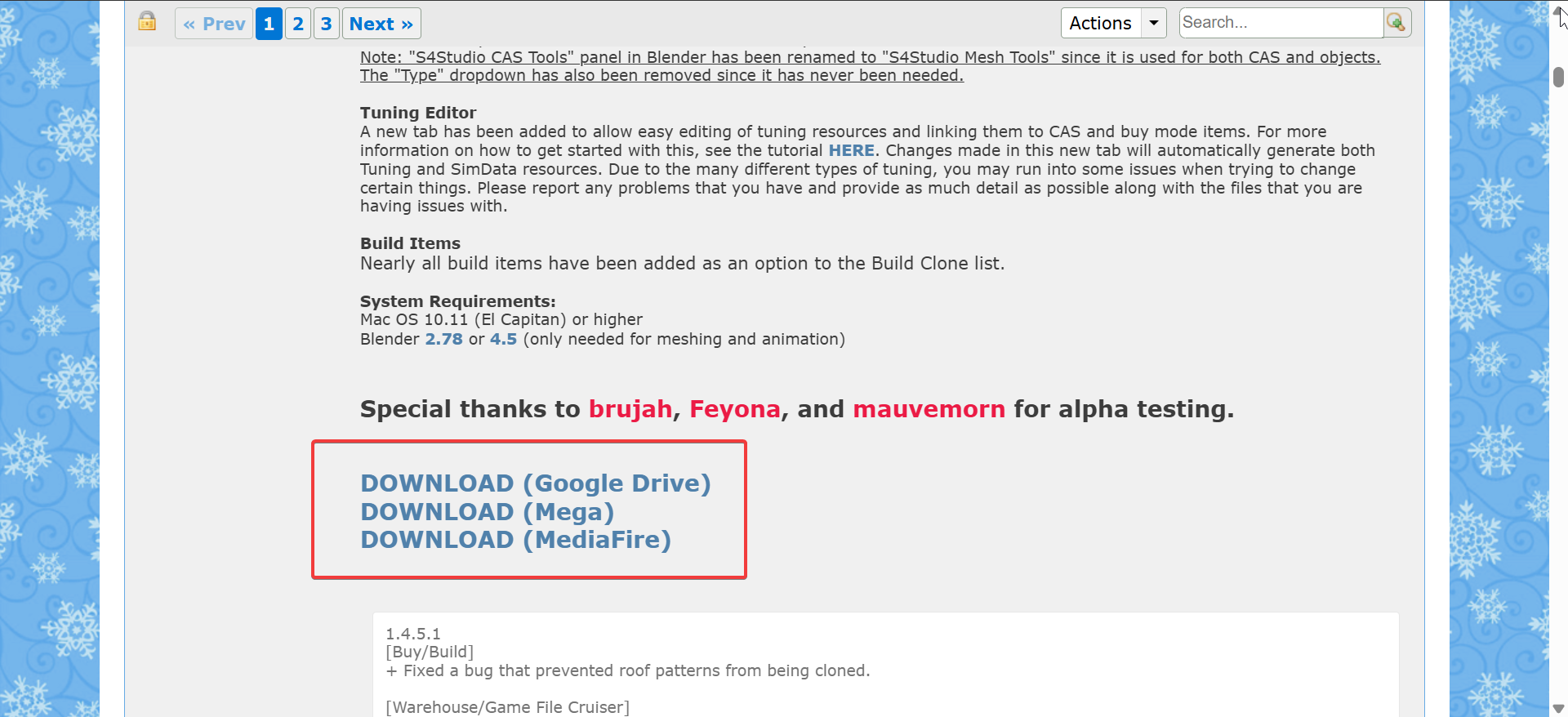
Next, choose the right Mac release. Note that Mac downloads often use names like Apple Blossom or similar release labels. Pick the newest Mac build and select Download. Note that you can either download from Google Drive, MediaFiles, or the Mega file.
Step 3: Install Sims 4 Studio on macOS
After the download finishes, open your Downloads folder in Finder. Drag the Sims 4 Studio app into the Applications folder so macOS handles its permissions correctly.
If macOS blocks the first launch, click the Apple menu and open System Settings. Go to Privacy & Security, scroll to the security message for Sims 4 Studio, and click Open Anyway to approve it.
Step 4: Open Sims 4 Studio for the first time
When the app opens, look for the settings or options panel. Set the path to your Sims 4 Game folder and your Mods folder so Sims 4 Studio can read and write package files.
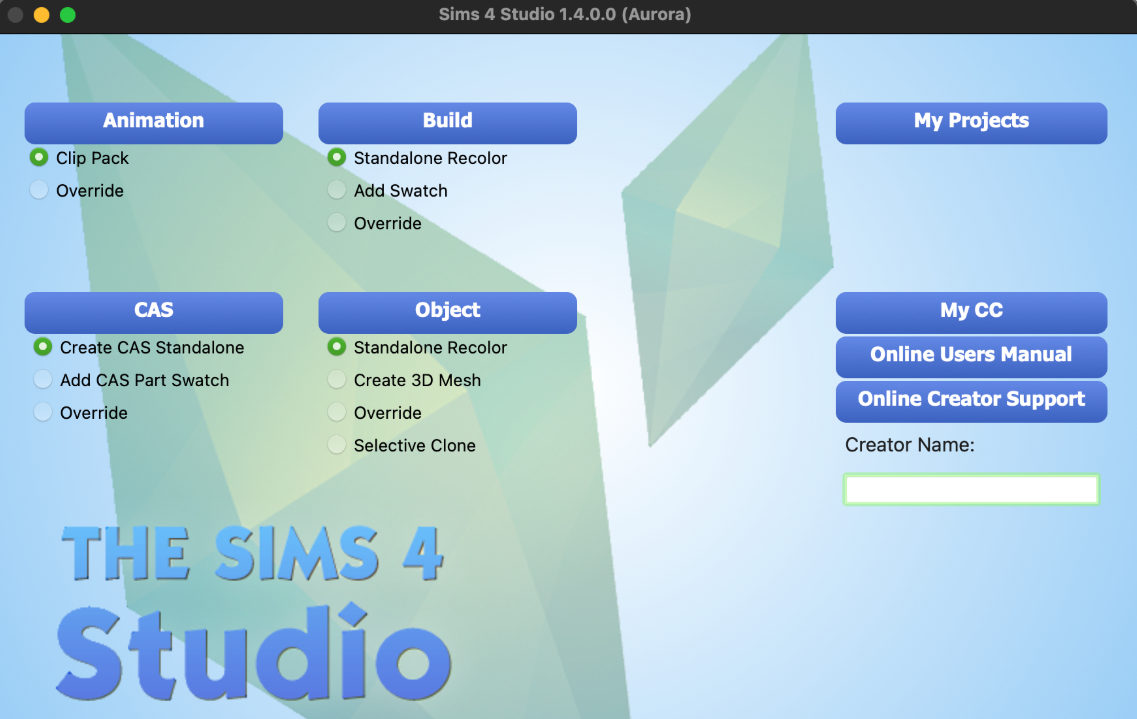
Next, choose default save locations for your projects and backups. These settings help you avoid missing files when you export or update custom content.
Fix Sims 4 Studio not opening on Mac
- Bypass “app cannot be opened” messages: If you see a message that the app cannot open, open System Settings from the Apple menu. Go to Privacy & Security, find the Sims 4 Studio message under security, and click Open Anyway to allow it.
- Install or reinstall Rosetta on Apple Silicon: If your M1, M2, or M3 Mac asks for Rosetta, you need to install it. You can also reinstall Rosetta if the app still fails to launch by running this command in Terminal:
softwareupdate --install-rosetta - Reset folder permissions: If the app cannot see your Mods folder or crashes when scanning, you should check your permissions. Open Finder, right-click the Documents folder, choose Get Info, and confirm that your user account has Read & Write access. If you store Sims 4 or Mods in a different location, repeat the same check on those folders.
Verify you downloaded the correct version
An outdated build or mismatched installer can cause missing features or corrupted packages. Verifying your version helps you avoid long troubleshooting sessions.
Check the build number
Open Sims 4 Studio and look for the version or build number, usually shown in the title bar or about panel. Confirm that this number matches the current Mac release listed on the official page.
Avoid unofficial or modified downloads
You should not install repacked or modified Sims 4 Studio downloads from random sites. These files often break mod paths, bundle malware, or corrupt your Sims 4 custom content.
Tips for using Sims 4 Studio on macOS
These quick tips keep your Sims 4 Studio setup stable and easier to manage over time.
- Update Sims 4 Studio whenever a major Sims 4 patch releases so your tools stay compatible.
- Organize your Mods folder into subfolders to improve scanning and troubleshooting.
- Restart Sims 4 Studio after you change folder locations or permissions.
- Create backups of important package files before you edit large or complex custom content sets.
FAQs
Why does Sims 4 Studio not open on my M1 or M2 Mac? Most of the time, you need Rosetta to run the app on Apple Silicon. Install or reinstall Rosetta, then try opening Sims 4 Studio again.
Why can’t Sims 4 Studio find my Mods folder? Your Documents folder or Sims 4 folder may have incorrect permissions or a cloud sync path. Check your Get Info settings and confirm Read & Write access for your user account.
Is Sims 4 Studio safe to use on Mac? Sims 4 Studio is safe when you download the official Mac build. Avoid unofficial installers that can modify files or add unwanted programs.
Does Sims 4 Studio work on macOS Sonoma? Most recent versions work on Sonoma without issues. If you see crashes or errors, check for a newer release that specifically mentions Sonoma support.
Summary
- Confirm your macOS version and Apple Silicon requirements before you download Sims 4 Studio.
- Download the official Mac build from the developer’s release page.
- Move the app to the Applications folder and approve it in System Settings > Privacy & Security.
- Set your Sims 4 Game and Mods folder paths inside Sims 4 Studio.
- Use Rosetta, proper permissions, and version checks to fix launch or scanning problems.
Sims 4 Studio runs well on Mac when you use the official Mac build and approve it through your security settings. If the app refuses to open, checking Rosetta, folder permissions, and your version number usually restores normal behavior after a few quick adjustments. After you have everything running well, you can now look to download the Sims 4 extension packs for free to take your experience to a whole new level.

Discussion (0)
Be the first to comment.