




ShowBox was once a popular app for streaming movies and TV shows on Android. While it’s no longer available through official channels, many users still look for ways to run it on Windows computers. In this guide, we have detailed how you can safely download and install ShowBox on a PC.
1) Download ShowBox for PC using BlueStacks
BlueStacks is a free, stable Android emulator that works well with most apps. It’s one of the safest options for running ShowBox on a Windows computer. However, your PC needs to meet the following recommended requirements to run an Android emulator smoothly:
- OS: Windows 10 or 11 (64-bit)
- Processor: Intel or AMD with virtualization enabled
- RAM: Minimum 4 GB (8 GB recommended)
- Storage: At least 5 GB free space
- Graphics: Updated DirectX 11 compatible drivers
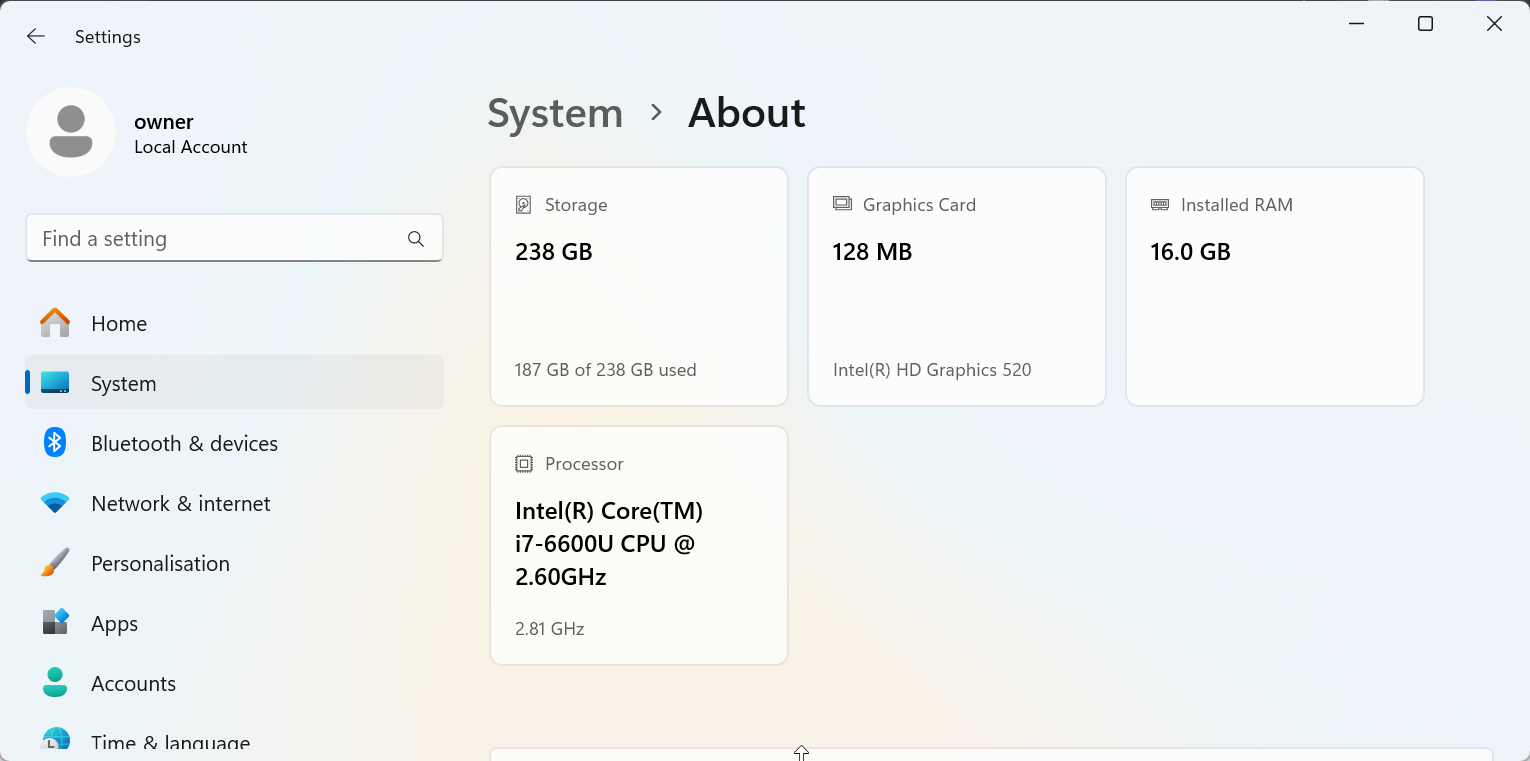
If these requirements are met, proceed to the official BlueStacks website and download the installer. Double-click the downloaded file to run it and follow the onscreen instructions to complete the installation.
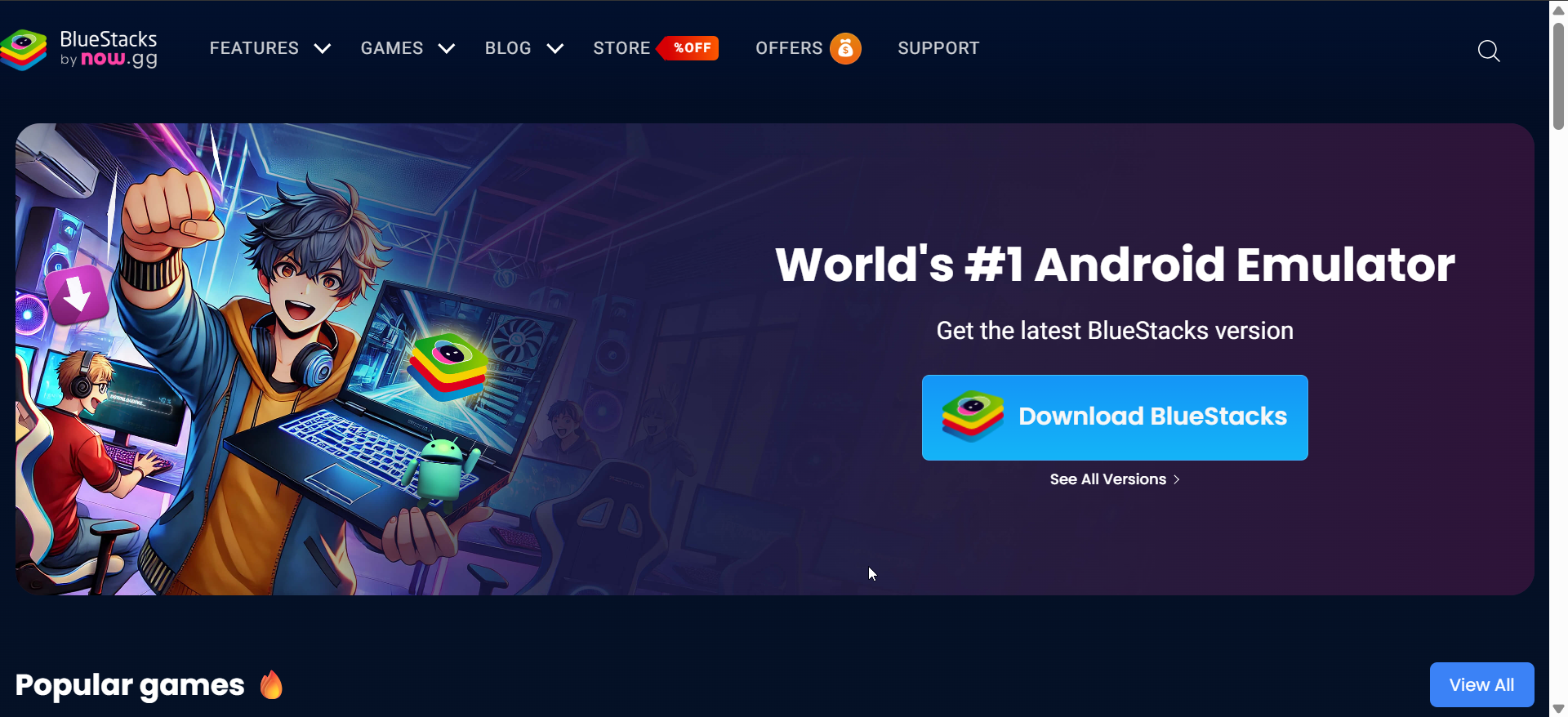
Next, launch BlueStacks and sign in with your Google account. From here, open your browser and download the ShowBox APK from a trusted source. Now, drag and drop the APK into the BlueStacks window to install it.
Finally, open ShowBox from the BlueStacks home screen and start streaming content.
2) Use NoxPlayer or LDPlayer as alternatives
If BlueStacks feels heavy on your system, NoxPlayer and LDPlayer offer lighter emulators with similar functionality. Both support APK installation through drag-and-drop and let you customize CPU and RAM allocation for smoother playback.
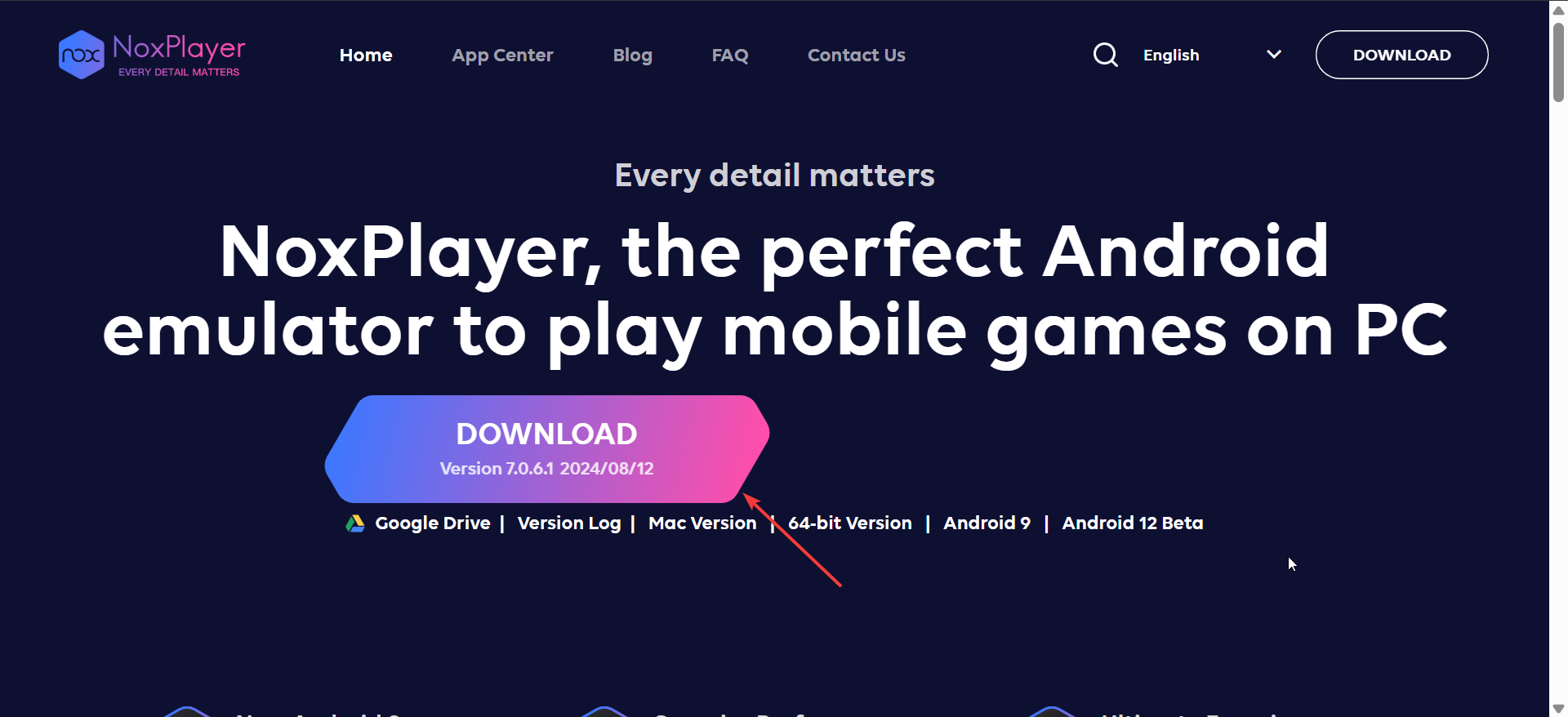
Installation steps are nearly identical: install the emulator, log in with a Google account, and load the ShowBox APK. This flexibility helps older PCs handle media apps more efficiently.
3) Troubleshooting common issues
Problems may occur if your emulator version is outdated or if the APK file is corrupted. Use these quick fixes:
- Clear the emulator’s cache and restart it.
- Re-download the ShowBox APK from a verified site.
- Ensure virtualization is enabled in BIOS.
- Update graphics and network drivers on Windows.
- If playback fails, use a wired Ethernet connection instead of Wi-Fi.
Tips for a better streaming experience on PC
- Enable virtualization in BIOS for faster emulator performance.
- Allocate more RAM and CPU cores to your emulator through its settings.
- Use a wired connection for smoother streaming.
- Keep Windows and graphics drivers up to date.
FAQs
Can I download ShowBox for Mac? Yes. You can install BlueStacks or NoxPlayer on macOS and follow the same steps used for Windows.
Is ShowBox safe to use? Not entirely. Because it’s distributed outside official stores, it may contain malware. Always scan files before installation.
Why is ShowBox not on Google Play? It was removed for violating Google’s content policies regarding copyrighted material.
What’s the best alternative for Windows 11 users? Tubi TV and Pluto TV are reliable and legal streaming options compatible with modern browsers.
Summary
- Install an Android emulator such as BlueStacks, NoxPlayer, or LDPlayer.
- Download the ShowBox APK from a trusted source.
- Open the emulator and install the APK.
- Check your antivirus and enable virtualization for the best performance.
- Consider legal streaming alternatives for a safer experience.
Conclusion
Installing ShowBox on a Windows PC is straightforward when you use an Android emulator like BlueStacks, NoxPlayer, or LDPlayer. These tools let you recreate the Android environment and run apps smoothly on a desktop system. However, because ShowBox sources content from unofficial channels, proceed with caution and always scan any files before installing them.


Discussion (0)
Be the first to comment.