




Need a reliable, up-to-date guide on how to download QuickBooks Desktop? This walkthrough covers the official download route, system checks, installation choices, activation, and first-run setup; so you avoid broken links, trial traps, or partial installs.
Before You Start: Check System Requirements
Confirm your PC meets the current QuickBooks Desktop system requirements (OS version, RAM, disk space, browser, .NET, and admin rights). Close background updaters and temporarily pause non-essential antivirus software to prevent installer conflicts. At the time of writing, Intuit lists the requirements for each edition (Pro, Premier, Enterprise) on its Downloads & Updates page.
- Windows fully updated (restart if pending).
- Free disk space for the installer plus your company file.
- Stable internet for download, license validation, and updates.
- Admin account on the machine (local or domain).
Step 1: Get the Official QuickBooks Desktop Download
Use Intuit’s official Downloads & Updates portal to obtain the correct build for your license. This avoids repackaged installers.
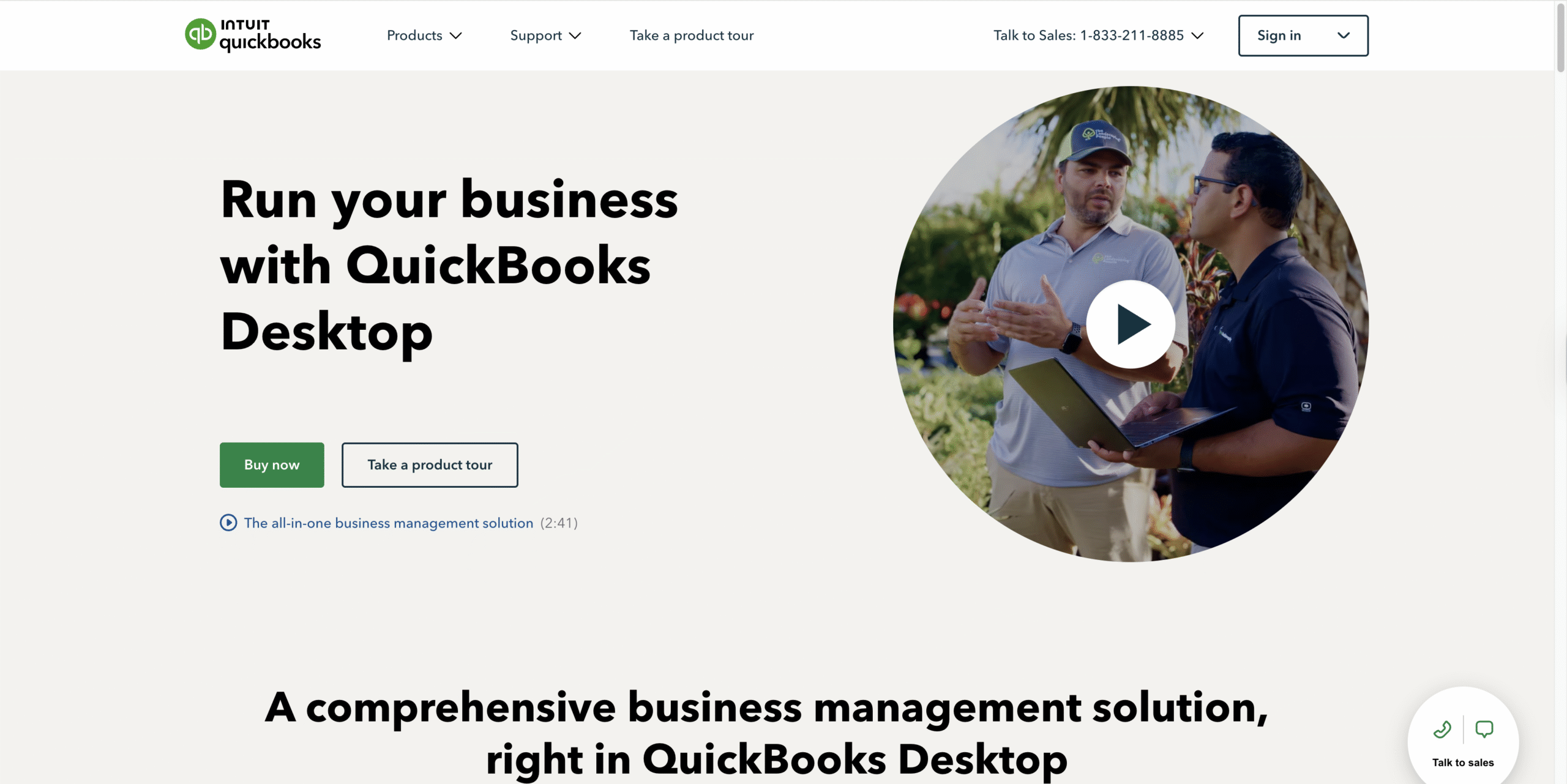
- Open the Intuit Downloads & Updates page and click Buy now.
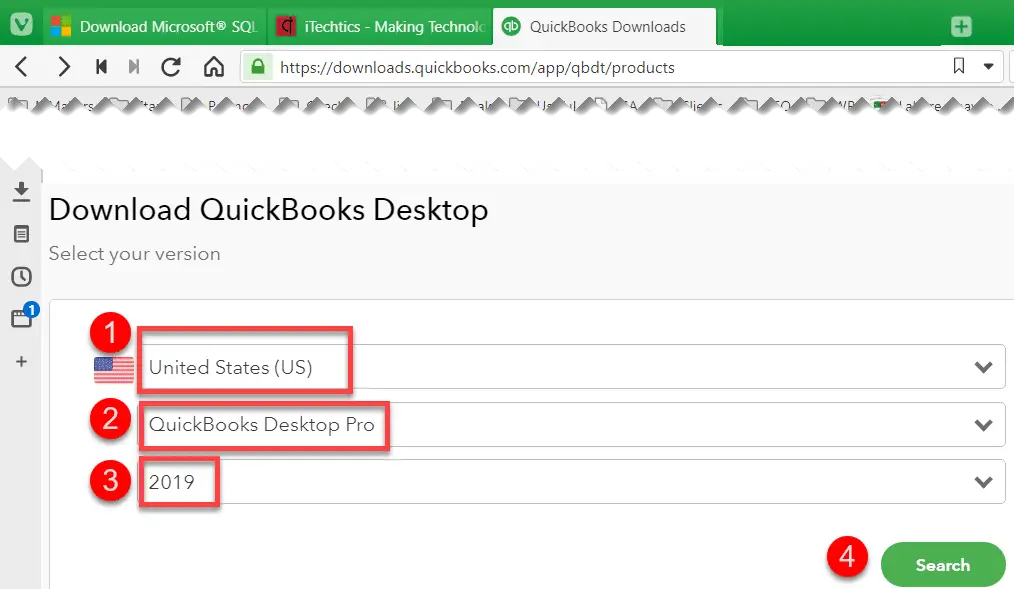
- Select your country, product (Pro, Premier, Enterprise), and version.
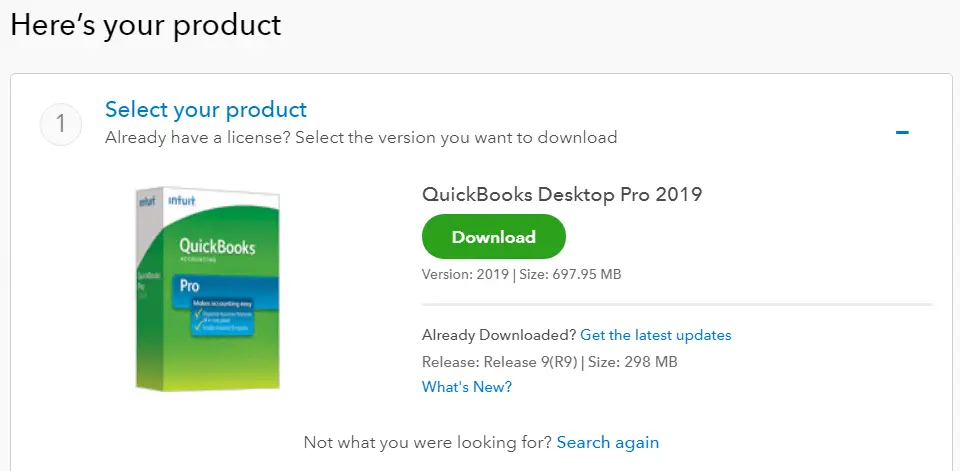
- Click Download to get the installer (QuickBooks.exe).
- Have your license and product number ready (from your Intuit account or purchase email).
Tip: If you’re testing, you can use the official QuickBooks Desktop free trial from Intuit. Trials are time-limited and feature-complete for evaluation.
Step 2: Install QuickBooks Desktop (Express vs Custom)
Run QuickBooks.exe and accept the license. When prompted, choose an install type based on your workflow.
- Express Install - Fast, default settings. Best for a single computer and local company files.
- Custom/Network Install - Choose install path, data location, and whether this PC will host company files for other users.
- Enter your license and product numbers.
- Select Express (most users) or Custom (multi-user/server).
- Complete the wizard and allow any required components to install.
- Restart if the installer requests it.
If you’re deploying QuickBooks Desktop Enterprise in multi-user mode, plan hosting (Database Server Manager), Windows firewall rules, and shared folder permissions before launch.
Step 3: Activate and Update
- Launch QuickBooks Desktop and sign in with (or create) your Intuit account.
- When prompted, Activate using your license details.
- Select Help > Update QuickBooks Desktop and install the latest maintenance release.
Keeping patches current prevents crashes, printing issues, and payroll update errors.
Step 4: Create or Open Your Company File
- Create new: Use the EasyStep Interview to set company info, industry, chart of accounts, and preferences.
- Migrate: If coming from another edition or PC, copy the
.QBW(and related.TLG/.NDif needed) to the data location, then File > Open or Restore Company. - Multi-user: Enable hosting on the server machine only (File > Utilities) and connect workstations to the shared path.
For better performance, store live files on fast local or server storage and schedule regular verified backups.
Common Install/Activation Issues (Quick Fixes)
- Installer won’t start: Right-click > Run as administrator; move the EXE to Downloads or Desktop.
- Validation fails: Double-check license/product numbers; sign into the correct Intuit account; ensure internet access.
- .NET or C++ error: Run Windows Update fully; reboot; rerun installer.
- Can’t find company file: Use File > Open or Restore; search for
*.QBW; confirm permissions on the folder. - Payroll/update errors: Update QuickBooks, sync time and region settings, and retry.
FAQ: QuickBooks Desktop Download & Install
Is QuickBooks Desktop still available to download?
Yes. You can download QuickBooks Desktop from Intuit’s official site. Availability and editions vary by region and plan.
What’s the difference between Pro, Premier, and Enterprise?
Feature depth, user capacity, and advanced tools (e.g., inventory, pricing rules). Choose the edition that matches current needs and growth plans.
Can I reinstall on a new computer?
Yes. Download the correct installer, use your license/product numbers, and migrate your .QBW file. Deactivate the old machine if required by your plan.
Does QuickBooks Desktop work on Mac?
QuickBooks Desktop is Windows-focused. Mac users typically use QuickBooks Online or run Desktop via virtualization/Windows on Mac.
Where do I get a trial?
From Intuit’s trial page. The QuickBooks Desktop download for trials is official and time-limited.
What You Accomplished
You learned how to download QuickBooks Desktop securely, install it with the right options, activate, update, and open or create your company file. If you need more advanced workflows (inventory, multi-user hosting, Enterprise), configure those after your first backup.

Discussion (0)
Be the first to comment.