




Minecraft doesn’t appear in the Meta Quest Store as a native VR download, but you still have two reliable ways to play it on the Quest 2. You can stream Minecraft VR from your Windows PC, or you can install the standalone QuestCraft port directly on the headset. Both methods give you full VR immersion with motion controls.
This guide walks you through how to use both options and fix potential issues you might encounter.
Table of contents
What you need before downloading Minecraft VR
Confirm your device requirements before you start. This saves time and helps you avoid failed installations.
Supported Minecraft versions
Only two versions work in VR. Minecraft for Windows (Bedrock Edition) works through PC VR streaming. Minecraft Java Edition works with QuestCraft on the headset.
Required accounts and licenses
You need a paid Minecraft Java Edition account to use QuestCraft. You also need a Microsoft account for login and verification.
Device and connection requirements
You need a Quest 2, reliable Wi-Fi, and a Windows PC if you want to use PC VR streaming. A USB 3.0 cable or Air Link improves stability during PC-based play.
Method 1: Play Minecraft VR through a PC with Oculus Link
This method uses your gaming PC to run Minecraft VR while the Quest 2 acts as the headset display. To get started, open the Microsoft Store on Windows, search for Minecraft, and download Minecraft for Windows. This version supports VR mode once you pair it with a VR headset.
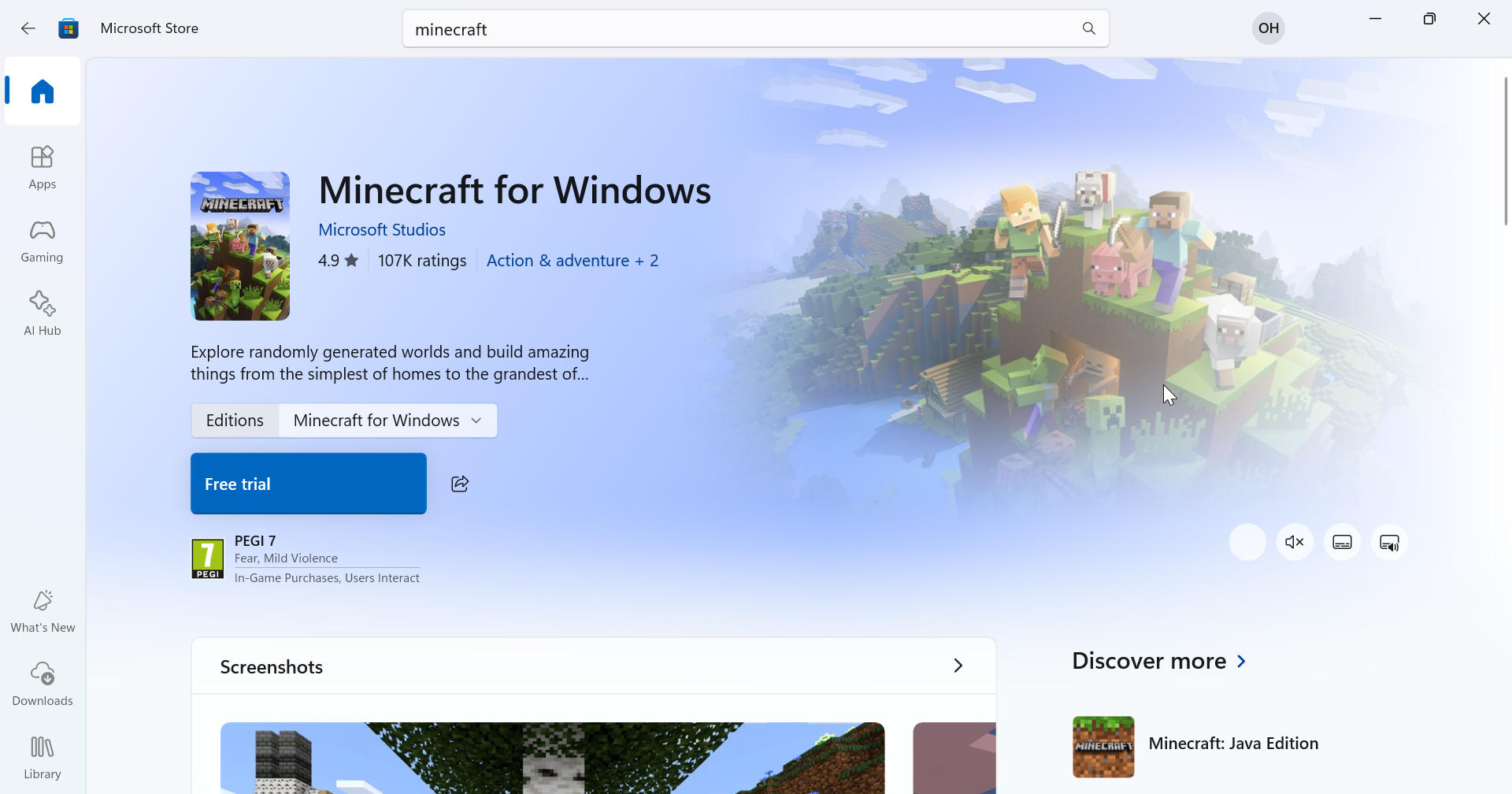
Next, launch the game and choose the VR mode from the settings menu. Now, start the Oculus PC app, then connect the headset with a USB Link cable or Air Link. Once connected, launch Minecraft in VR to start playing.
Method 2: Download Minecraft VR directly on Quest 2 (QuestCraft)
QuestCraft lets you run Minecraft Java Edition directly on your Quest 2 with no PC required. It uses SideQuest to sideload a custom VR launcher onto the headset.
Step 1: Enable developer mode on Quest 2
Connect your Quest 2 to your PC and turn on developer mode from the Meta Quest mobile or desktop app. Developer mode gives you access to sideloading tools such as SideQuest.
Step 2: Install the SideQuest desktop or mobile app
Go to the official SideQuest website and download the app for your computer or Android phone, and sign in. Once the installation is complete, the app detects the connected VR headset and provides you with instructions to complete any incomplete setup steps.

Also, SideQuest works as the installer that pushes the QuestCraft APK to your headset.
Step 3: Activate SideQuest on Quest 2
Now, put on your headset and go to your game library. Click the search bar, but don't type anything; you only need to select the dropdown next to it. Next, select Unknown Sources and locate SideQuest among the apps.

Now, select the SideQuest app to open it, and you will be shown an activation code you need to verify on the official website. Remove your headset and go to the activation page, sign in with your SideQuest account or create one, and verify the app.
Lastly, put on your headset, and SideQuest will open, asking for permissions. Allow everything to complete the setup.

Step 4: Download and install QuestCraft
Open SideQuest on your Oculus Quest 2 and search for QuestCraft in the app list. Select it and click the SIDELOAD button. If you can't install apps from SideQuest or you do not see the SIDELOAD button, go to Quest 2 Settings and allow installation from SideQuest.

You should now be able to download QuestCraft. After downloading, the app should appear under Unknown Sources.

Step 5: Log in to Minecraft Java Edition
Launch QuestCraft from the Unknown Sources section and sign in with the Microsoft account linked to your paid Java Edition license. This unlocks the full game content inside QuestCraft.
Troubleshooting Minecraft VR On Quest 2
- Fix QuestCraft crashes or black screens: Lower the memory usage by turning off shaders and switching graphics presets to low or medium. Restart QuestCraft and the headset if it fails during the Mojang loading screen.
- Fix Microsoft login issues: Log out of your Microsoft account inside QuestCraft, then sign in again carefully. If the loop continues, reboot the headset, check your password on another device, and retry the login flow.
- Improve performance and FPS: Reduce render distance, particle density, and fancy graphics options. Avoid heavy shader packs or large modpacks that increase CPU and GPU load in VR.
Performance optimization tips
Small tuning changes can improve frame rate and comfort while you play Minecraft in VR.
Best settings for QuestCraft
Use low or medium graphics presets and keep render distance on the lower side. Disable dynamic shadows and advanced lighting to reduce stutter in busy areas.
Best settings for PC VR streaming
Connect to a Wi-Fi 6 router when possible and keep the headset near the access point. Reduce the Oculus Link or Air Link bitrate and lower SteamVR resolution scaling if you see frequent frame drops.
FAQs
Is Minecraft available as a native app on Oculus Quest 2?
No, Minecraft is not available as a native download from the Meta Quest Store. You can only play it in VR on Quest 2 through PC VR streaming or by using the QuestCraft port.
Do I need a PC to play Minecraft VR on Quest 2?
You need a Windows PC if you want to stream Minecraft for Windows in VR using Oculus Link or Air Link. If you install QuestCraft, you can run Minecraft Java Edition directly on the headset without a PC after setup.
Which Minecraft edition do I need for QuestCraft?
QuestCraft requires a paid Minecraft Java Edition license that uses a Microsoft account. You must sign in with that account in QuestCraft to unlock the full game and access your worlds.
Why does Minecraft VR lag or stutter on my Quest 2?
Lag usually comes from high graphics settings, weak Wi-Fi, or limited PC performance. Lower render distance and graphics, move closer to your router, and reduce streaming bitrate or resolution to improve frame rate.
Summary
- Minecraft VR is not available as a native Quest Store download on Oculus Quest 2.
- You can play Minecraft VR through PC VR streaming with Minecraft for Windows.
- You can install QuestCraft with SideQuest to run Minecraft Java Edition directly on Quest 2.
- Adjust VR graphics and streaming settings to improve performance and comfort.
- Use trusted QuestCraft builds and keep backups of your Minecraft worlds to avoid data loss.
Minecraft VR runs well on the Quest 2 when you pick the method that fits your setup. PC VR streaming gives you higher image quality if you own a capable gaming PC, while QuestCraft delivers full standalone gameplay from the headset. With careful installation and a few performance tweaks, you can turn your Oculus Quest 2 into a comfortable and immersive way to explore Minecraft in virtual reality.


Discussion (0)
Be the first to comment.