




Microsoft Word is an essential tool for students, whether you're writing papers, collaborating on projects, or organizing notes. Fortunately, there are several ways students can download Microsoft Word for free.
As a student, you can use Microsoft 365 Education, which offers free access to Microsoft Office applications, including Word, Excel, PowerPoint, and more. But you will need to have a valid school email address from an accredited institution to qualify. You can also use the free web version, which is available for all users. In this guide, we will show you how to use Microsoft Word as a student for free.
Step 1: Go to the official Microsoft Education website
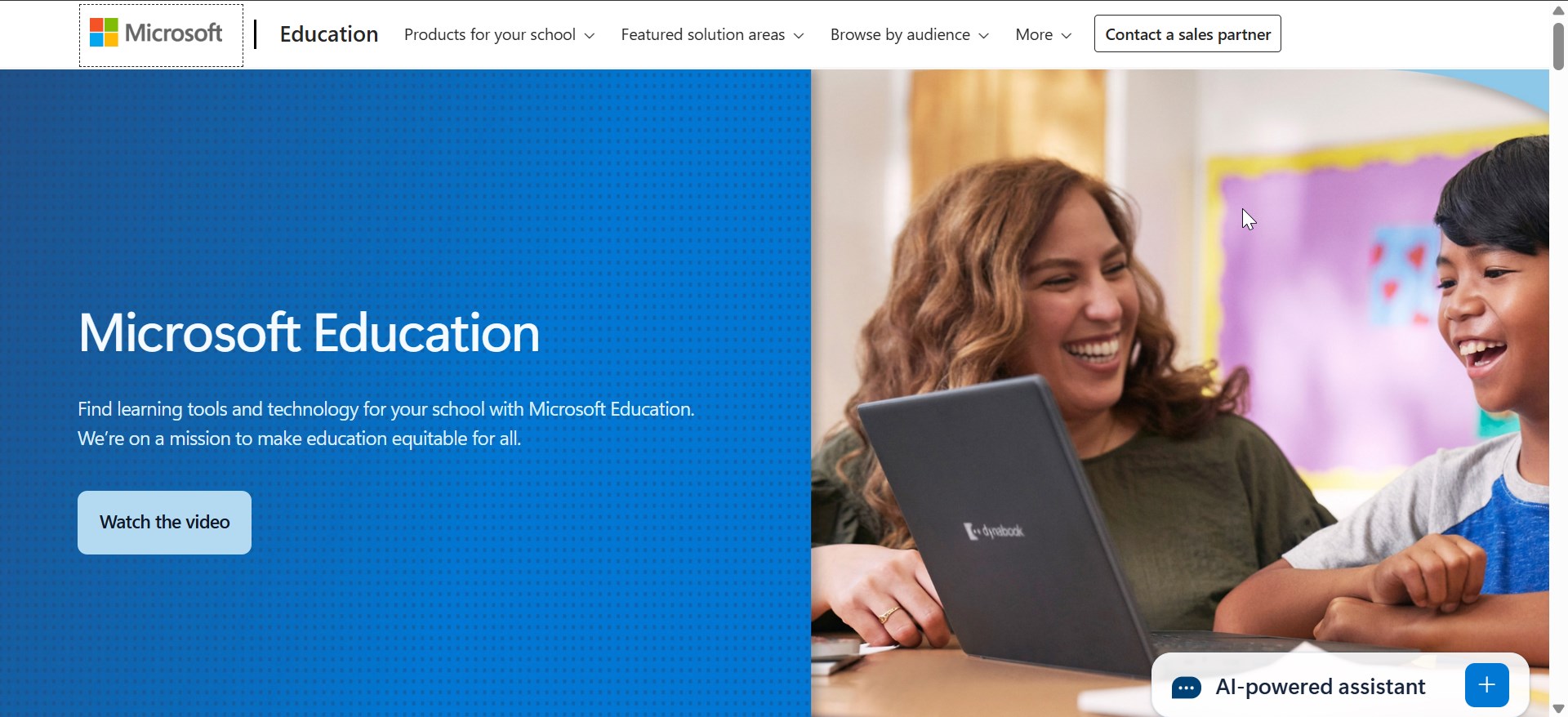
First, visit the official Microsoft Education page. You need to search for Microsoft Education in your browser and select the right link. This page is dedicated to students and educators who wish to access Microsoft Office tools for free.
Step 2: Create or sign in to your Microsoft account

If you don’t already have a Microsoft account, you will need to create one. On the homepage, click the Browse by audience option at the top and select the Student option.
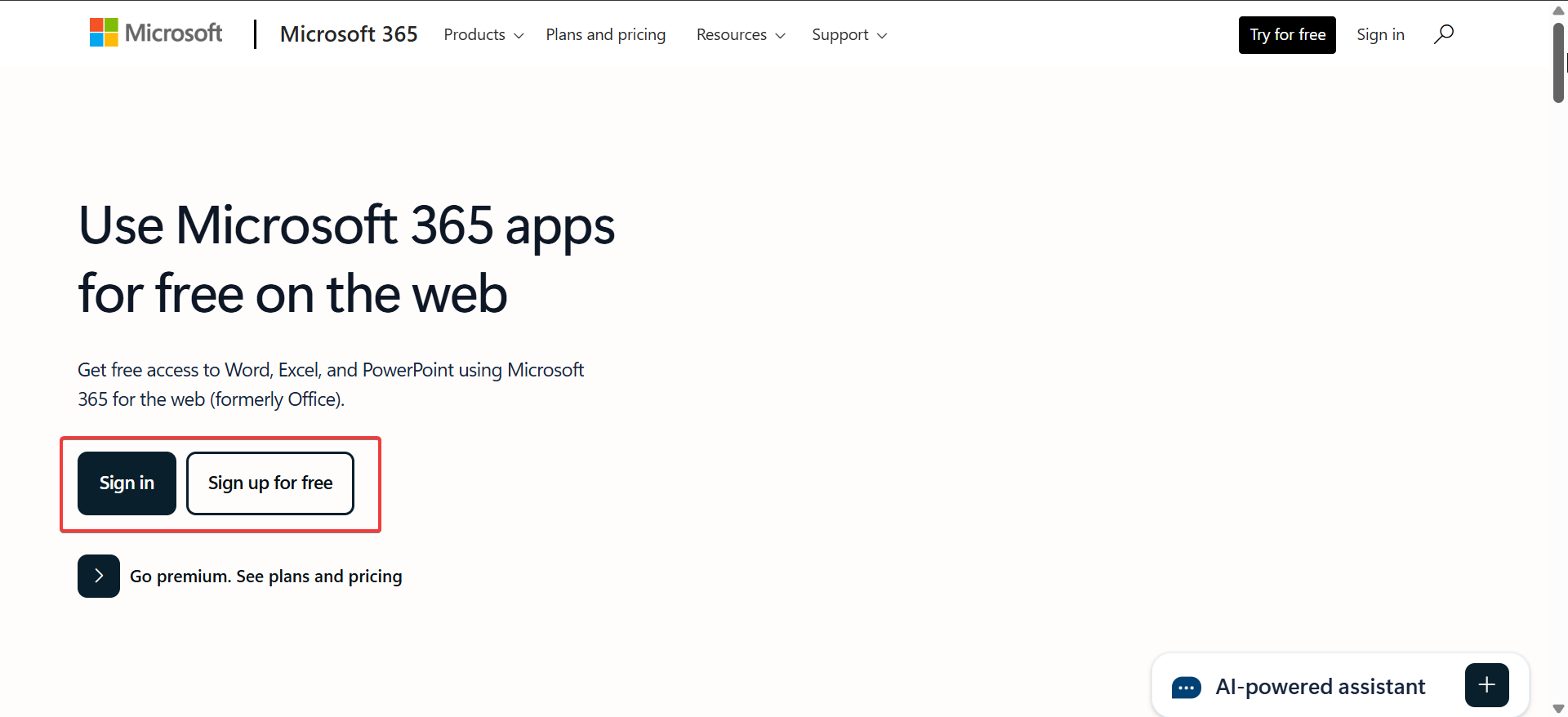
On the next page, click the Get Office free button. Now, click the Sign in or Sign Up button if you do not have an account yet. Remember to use your school-issued email (like [email protected]) to create the account or log in if you already have one.
Step 3: Verify your student status
To confirm your eligibility, Microsoft will ask you to verify your student status. You'll need to check your school email for a verification code that Microsoft sends. Enter this code in the provided field on the site to complete the verification process.
Step 4: Download and install Microsoft Word
Once your student status is verified, you’ll be granted access to the full suite of Office apps, including Word, directly from the Microsoft Education portal. If you're using a desktop, the download will install the full version of Microsoft Word on your computer. Alternatively, you can use the web-based versions of Word and other Office applications if you prefer working in your browser.
Alternative free Microsoft Word for students
Use Office for the web
If you don’t want to download software, you can also use Microsoft Word through Office for the Web. This free option allows students to use Word online via a browser, without needing to install anything on their device. You only need to sign in to your Microsoft account, and you are good to go.
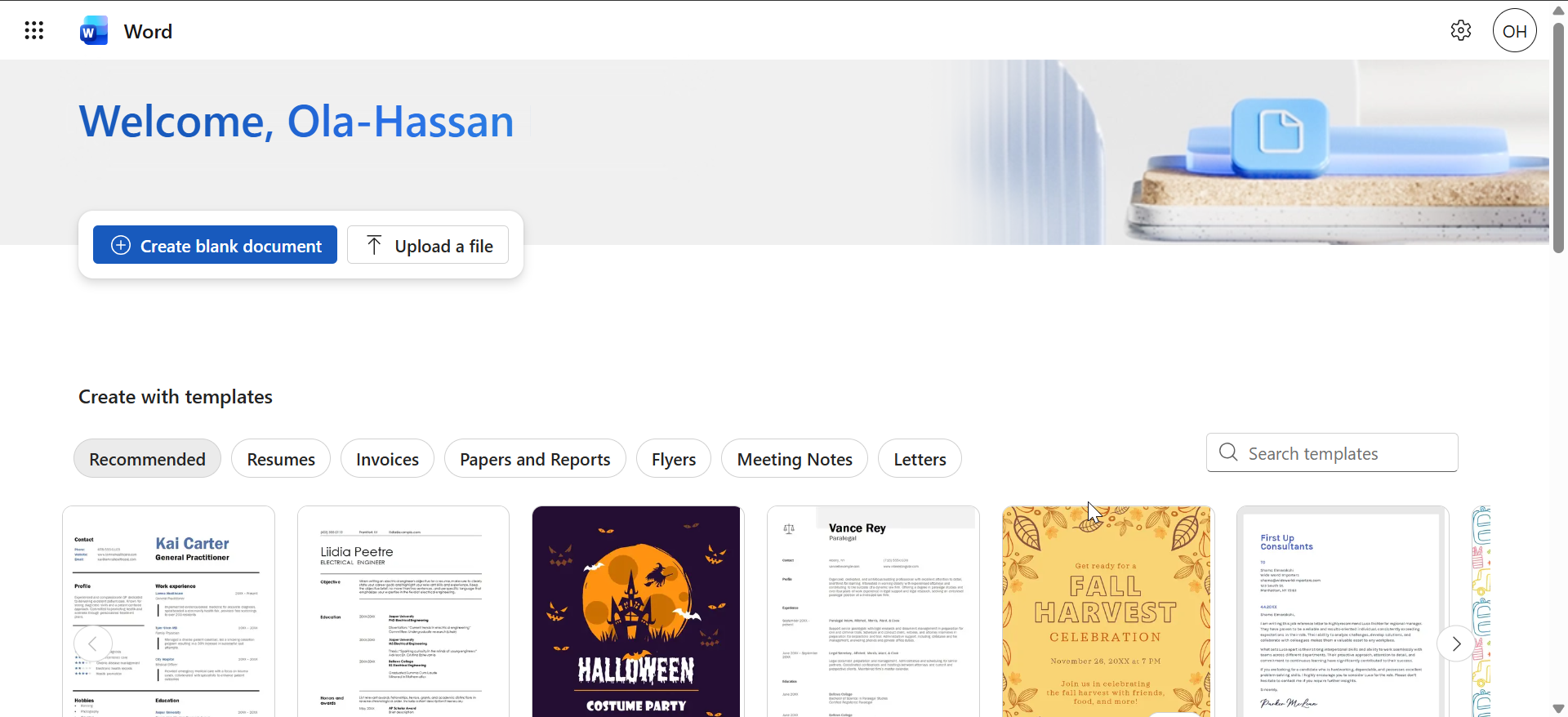
However, it’s important to note that the web version lacks some of the advanced features that the desktop version offers. But for most academic tasks, the online version is more than enough.
Use the free trial version of Microsoft Word
For students who need access to the full desktop version of Microsoft Word but are not eligible for Microsoft 365 Education, the Microsoft Store offers a one-month free trial.
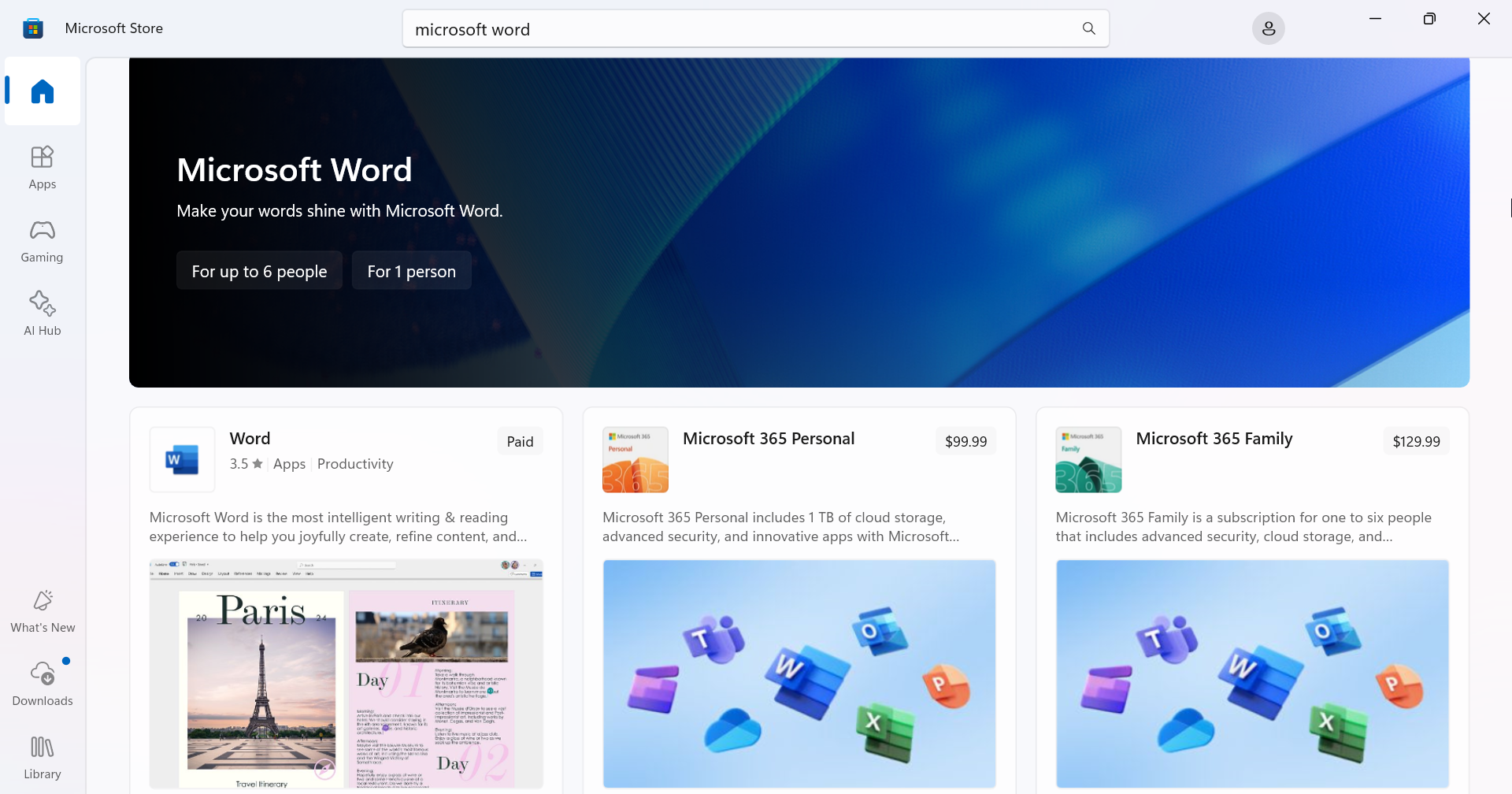
To use this, visit the Microsoft Store, search for Microsoft 365 or Microsoft Word. Click the app and check that you are eligible for the free trial. Now, click the Get button to download and install the app. button to begin the installation process.
Tips for maximizing your free access to Microsoft Word
- Check for school-specific licensing agreements: Many universities and colleges provide students with free access to Microsoft Word and other Office applications through campus-wide licensing agreements. If your school offers this benefit, take advantage of it. Reach out to your school’s IT department for more information on how to access these resources.
- Use free add-ons and features: Don’t forget to explore other free features Microsoft offers. For instance, if you’re using Word online, you can also access OneDrive for cloud storage, enabling you to save and share your work effortlessly. These tools can significantly enhance your productivity as a student.
FAQs
Do I need to be enrolled in a specific school to access the free version of Microsoft Word? Yes, to access Microsoft 365 Education, you need to have a valid school email address from an accredited institution. This ensures you are eligible for the free program.
Can I use Microsoft Word offline for free? To use Microsoft Word offline, you need to download the full desktop version through Microsoft 365 Education. The web-based version does not offer offline functionality but is available for free with an internet connection.
Are there any free alternatives to Microsoft Word? Yes, if you cannot access Microsoft Word, you can use alternatives like LibreOffice Writer, which is free and supports Microsoft Word file formats, or Google Docs, which is a cloud-based option great for collaboration.
How long does the free Microsoft Word trial last? The free Microsoft Word trial available through the Microsoft Store lasts for one month. After the trial period, you’ll need to purchase a subscription to continue using the full version of Microsoft Word.
Summary
- Microsoft 365 Education is the best option for students with a valid school email, offering free access to Microsoft Word and other Office apps.
- The web-based version of Microsoft Word is free through Office for the Web but lacks offline access and some features.
- Students can also take advantage of a free trial for Microsoft Word through the Microsoft Store for full access for one month.
Conclusion
There are several ways for students to download and use Microsoft Word for free. Whether through Microsoft 365 Education, Office for the Web, or a free trial from the Microsoft Store, you have options to suit your needs. Whatever method you choose, these solutions will help you stay productive without having to pay for Microsoft Word.

Discussion (0)
Be the first to comment.