




Downloading your Medal clips lets you save gameplay locally, edit highlights, or share them across your social channels. This guide shows every method across desktop, mobile, and the web, so you never lose a moment.
1) Download Medal clips on desktop (Windows/macOS)
Desktop gives you the most control over your exports. You see both published and unpublished clips, which helps you grab the highest-quality version quickly.
Download a published clip
Open Medal on your PC or Mac, go to Library, and select a published clip. Next, click More Options and choose Download Clip. Now, save the MP4 file to your preferred folder and open the file to confirm that the export works correctly.

Download an unpublished clip
Open Medal and go to the Library. Right-click the clip marked as unpublished and select Open file Location from the clip’s menu. Now, choose a destination folder and confirm the file opens normally.
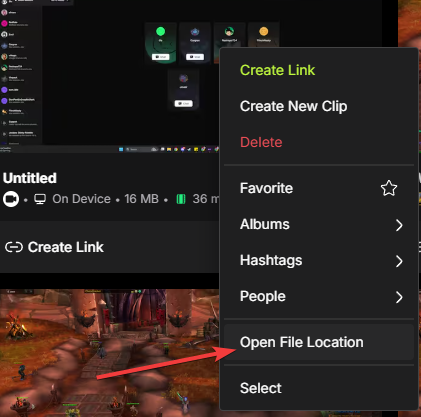
Tip: Medal exports clips as MP4 files. You can pick higher-quality settings or remove the watermark if you use Premium.
2) Download Medal clips on the website
Log in to Medal through your browser, open Library, and select your clip. Next, click Download under the video and save the file to your device.
3) Download Medal clips on Android
Android lets you download individual clips or multiple clips at once. To download a single clip, open the Medal app, tap Library, and choose a clip. Next, tap the three dots icon in the bottom right corner and hit the Download option.

If you want to download multiple clips at once, long-press one clip in your Library and select additional clips. Now, tap Download at the bottom of the screen and confirm that Android saves each clip locally.
4) Download Medal clips on iPhone (iOS)
Open Medal on your iPhone, tap Library, and open a clip. Next, tap Download under the playback window, and Medal will save the file to your Photos app.
5) Remove watermarks when downloading (Medal Premium)
Medal Premium lets you export clips without watermarks or outros. You can use this option if you create polished content or upload clips to video editors.

6) Can you download other people’s Medal clips?
You can only download another user’s clip if the creator enabled downloads. If the download icon doesn’t appear, the creator has restricted access.
7) Troubleshoot the clip download not working
- Download button missing: You won’t see the button when a clip stays private, restricted, or is still processing. You can refresh the Library or publish the clip to unlock the option.
- Corrupted or partially downloaded files: Interrupted downloads cause broken MP4s. Retry the export and confirm you have enough storage before you save the clip again.
Tips for downloading Medal clips
- Keep enough free storage so downloads don’t fail.
- Rename your clips immediately to stay organized.
- Use Medal Premium if you need watermark-free exports.
- Download large clips on Wi-Fi to avoid slowdowns.
- Back up important clips to cloud storage.
FAQs
Why can’t I download my Medal clip? The clip may still process or have privacy restrictions. Try publishing the clip or refreshing your Library.
Where do downloaded clips go on Windows? Medal saves clips to your default Downloads folder unless you pick another location.
Does Medal reduce video quality when downloading? Published clips may compress slightly, but unpublished clips give you the raw local file.
Can I download clips on a Chromebook? Yes, as long as you use the Medal web dashboard.
Summary
- Use a desktop for the best control over quality.
- Use the website if you don’t want the app installed.
- Use Android or iOS for quick one-tap downloads.
- Use Premium to remove watermarks and outros.
- Use local folders to recover clips when downloads fail.
Conclusion
You can download your Medal clips easily on desktop, mobile, or the web. Each platform gives you quick access to your gameplay, making it simple to save, edit, or share highlights. Follow these steps and you’ll keep every moment ready for uploads or long-term storage.

Discussion (0)
Be the first to comment.