




Custom skins let Minecraft players personalize their character and stand out in multiplayer worlds. Whether you play on Java Edition, Bedrock Edition, or Pocket Edition, Minecraft supports custom skins across all platforms.
Below is the safest and most reliable way to download free Minecraft skins and install them correctly on every supported version.
How To Download Free Minecraft Skins
Before installing a skin, you need to download one in PNG format from a trusted Minecraft skin library. Most skins are compatible across Java and Bedrock editions.
- Open a trusted Minecraft skin website
- Select a skin you like or search by character or theme
- Click the download button to save the PNG file
- Keep the file in an easy-to-find folder such as Downloads
How To Install Skins On Minecraft Bedrock Edition
Minecraft Bedrock Edition includes an in-game dressing room that allows you to import custom skins directly.
- Launch Minecraft and open the Dressing Room
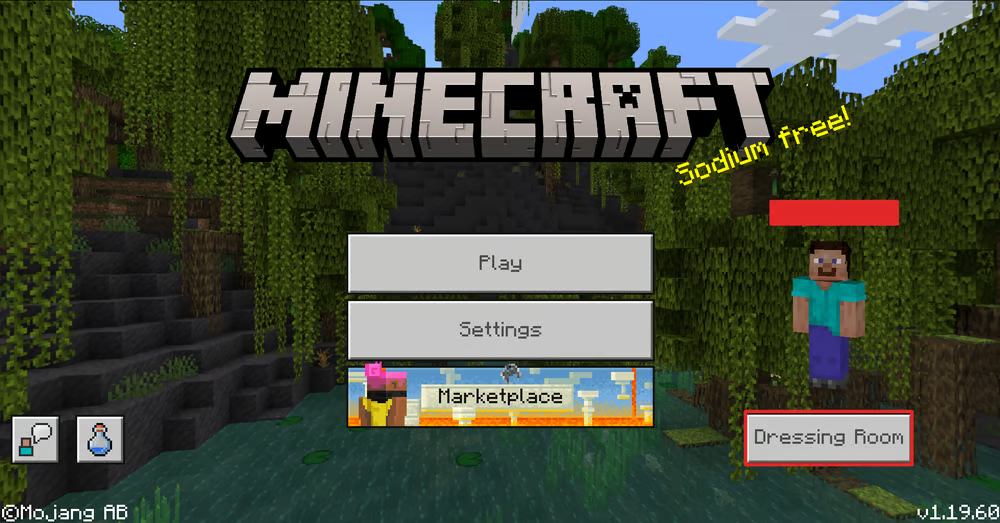
- Select the character you want to edit
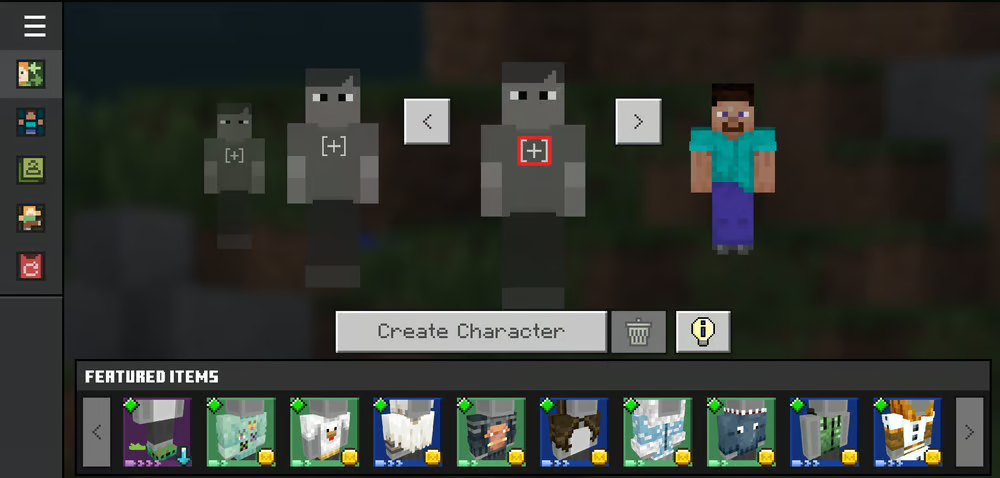
- Choose the option to change your classic skin
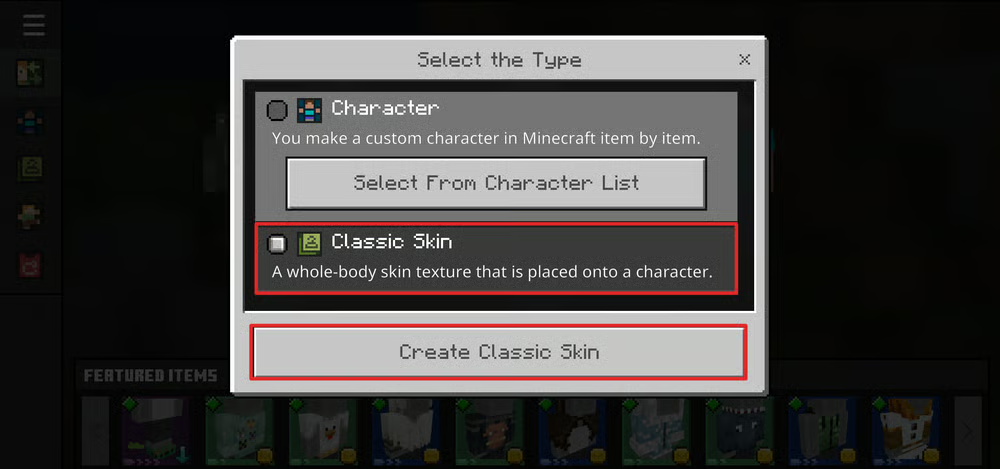
- Select a blank or custom skin slot
- Browse for the downloaded PNG skin file
- Choose the classic or slim model and confirm
How To Install Skins On Minecraft Java Edition
Java Edition allows skin changes through the official account page or directly inside the Minecraft Launcher.
- Sign in to your Minecraft account
- Open the profile or skins section
- Select the option to upload a custom skin
- Choose the downloaded PNG file
- Select the correct skin model
- Save changes and launch the game
How To Change Skins Using The Minecraft Launcher
If the website method is unavailable, the launcher provides an offline-friendly alternative for Java Edition players.
- Open the Minecraft Launcher
- Go to the Skins tab
- Create a new skin profile
- Upload your downloaded PNG skin
- Save and activate the skin
How To Install Skins On Minecraft Pocket Edition
Minecraft Pocket Edition shares the same skin system as Bedrock Edition across mobile devices.
- Open Minecraft on your mobile device
- Tap the hanger or profile icon
- Choose to edit your character
- Import the downloaded skin file
- Select the appropriate skin model
How To Create Your Own Minecraft Skin
Players can design custom skins using online editors or image editing software. Custom skins must match Minecraft’s standard dimensions and transparency rules.
- Open a Minecraft skin editor
- Edit the base character template
- Save the skin as a transparent PNG file
- Upload and install it like any other skin
Troubleshooting Common Problems
If your skin does not appear in-game, confirm that the file is in PNG format and matches Minecraft’s skin dimensions.
Multiplayer servers may override skins if offline mode is enabled.
Tips
- Use official account methods to avoid skin reset issues
- Keep backups of your favorite skin files
- Check model type if arms appear misaligned
- Avoid unofficial launchers that block skin syncing
FAQ
Are Minecraft skins free? Yes, most community-made skins are free to download and use.
Can the same skin work on Java and Bedrock? Yes, as long as the file format is supported.
Is it safe to download Minecraft skins? It is safe when using reputable skin libraries.
Summary
- Minecraft skins allow full character customization
- Skins work across Java, Bedrock, and mobile editions
- Installation methods vary slightly by platform
Conclusion
Installing Minecraft skins is a simple way to personalize your gameplay experience. With official tools built into Minecraft and safe community resources, changing your skin takes only a few minutes.
Once installed, your custom skin follows you across worlds and multiplayer servers.


Discussion (0)
Be the first to comment.