




Twitter GIFs look like standard GIF files, but Twitter stores them as short looping videos. That difference changes how downloads work on iPhone, iPad, and Mac. Use the steps below to save the file fast and find it afterward.
Table of contents
Understand how Twitter GIFs work on Apple devices
Twitter converts GIFs into MP4 videos to improve playback and reduce file size. Your download will usually save as an MP4, not a .gif file. You can convert that MP4 back to a GIF when you need a true GIF file.
Download a Twitter GIF on iPhone
Pick the method that matches how often you download GIFs. Shortcuts works well for repeat use, while Safari tools work for one-off saves.
Use a third-party app from the App Store
Downloader apps handle Twitter links and save the result to Photos or Files. This option fits frequent downloading and saves time after setup.
- Open X and find the tweet with the GIF.
- Tap Share and select Copy link.
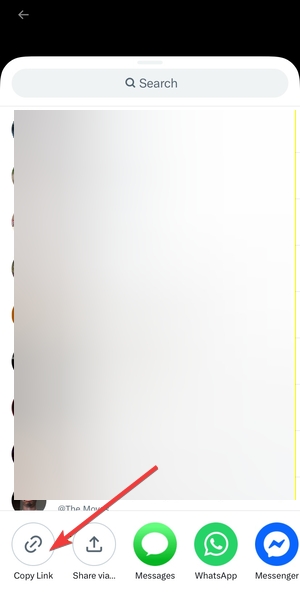

- Open your downloader app and paste the link.


- Select a quality option if the app shows choices.
- Tap Save, then check Photos or Files.
Use Apple Shortcuts
Shortcuts can extract the video behind a Twitter GIF and save it for you. You get a repeatable workflow without relying on a dedicated downloader app.
- Open X and copy the tweet link from Share.
- Open Shortcuts and run your Twitter downloader shortcut.
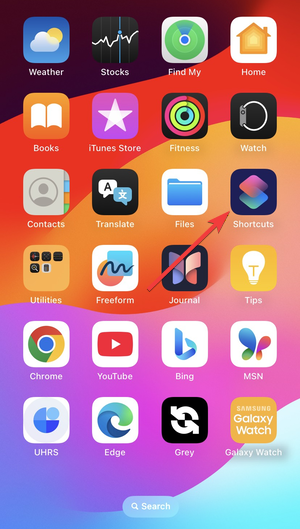

- Allow any prompts for network access when asked.
- Choose Save to Photos or Save to Files if the shortcut asks.
- Open Photos or Files to confirm the saved MP4.
Use Safari and online download tools
Safari tools work when you do not want extra apps or shortcuts. You paste the tweet link into a downloader site and save the resulting MP4.
- In X, tap Share and select Copy link.
- Open Safari and visit a Twitter video downloader site.
- Paste the tweet link and tap Download.


- Select a quality option if the site offers choices.
- Tap the download result, then save it to Files or Photos.
Download a Twitter GIF on iPad
iPadOS routes most downloads through the Files app. You can move the saved video to Photos after the download finishes.
Save GIFs using Safari and the Files app
Safari saves downloads into Files, usually under Downloads. This method works well because you control the save location.
- In X, copy the tweet link from Share.
- Open Safari and use a Twitter downloader site.
- Paste the link, then tap Download.
- Open Files and go to Browse > Downloads.
- Open the MP4, tap Share, then choose Save Video if you want it in Photos.
Use Shortcuts with multitasking
Split View helps you copy links and run shortcuts faster. This setup works great when you download multiple GIFs in one session.
- Open X and Shortcuts in Split View.
- Copy the tweet link from Share in X.
- Run your Twitter downloader shortcut in Shortcuts.
- Save the result to Files for easy organization.
- Move it to Photos if you plan to share it as a video.
Download a Twitter GIF on Mac
macOS makes file handling easier because Finder shows you every download. Use your browser first, then switch to a downloader site when needed.
Save Twitter GIFs using Safari or Chrome
Some tweets let you save the video directly from the browser. When that fails, copy the tweet link and use an online downloader.
- Open the tweet in Safari or Chrome.
- Try a right-click on the video and look for a save option.
- If you do not see one, copy the tweet URL from the address bar.
- Paste the URL into a Twitter downloader site and start the download.
- Open Finder > Downloads to find the saved MP4.
Use online tools for bulk or high-quality downloads
Online tools help when you need multiple files or quality options. You can pick a higher resolution and keep everything in a single folder.
- Copy several tweet links into a notes app.
- Open a downloader site in your browser.
- Paste a link, then choose the highest quality option you need.
- Repeat for each link and save files to Downloads.
- Rename files in Finder to keep them organized.
Where downloaded Twitter GIFs are saved
On iPhone, you will usually find saved files in Photos or Files, depending on the method. On iPad, check Files > Downloads first. On Mac, check Finder > Downloads.
Convert downloaded Twitter videos back to GIF format
Some websites and chats require a real GIF file instead of an MP4 loop. Convert the MP4 to GIF when you hit an upload limit or a format restriction. Keep in mind that GIF conversion can increase file size.
Tips for downloading Twitter GIFs reliably
- Use Shortcuts when you download often and want consistent results.
- Save to Files first when Photos fails to import the video.
- Pick the highest quality option when the downloader offers choices.
- Confirm your Safari download location in iOS and iPadOS settings.
FAQs
Why does a Twitter GIF download as a video? Twitter stores GIFs as MP4 videos, so your device downloads an MP4 instead of a .gif file.
Can I download GIFs from private or protected accounts? Most tools cannot access protected tweets. You need access to the content, and many downloaders will fail.
Why can’t I find the file after downloading? Check Files > Downloads on iPhone and iPad. On Mac, check Finder > Downloads.
Do I need to convert the file back to a GIF? You only need conversion when a platform rejects MP4 loops. Otherwise, the MP4 works for most sharing.
Summary
- Twitter saves GIFs as MP4 videos on Apple devices.
- Use apps, Shortcuts, or Safari tools on iPhone and iPad.
- Use browser tools and Finder for the fastest workflow on Mac.
- Convert MP4 to GIF only when a platform requires a true GIF file.
Once you understand the MP4 format, you can pick one method and repeat it every time. Save to Photos for quick sharing, or save to Files for better organization. Stop once you confirm the file in Photos, Files, or Downloads.
Lastly, if you are looking to customize your account further, check our guide on how to use an NFT as your Twitter profile picture.


Discussion (0)
Be the first to comment.