



GarageBand is one of the most popular digital audio workstations (DAWs) for Mac users, but Windows users often find it challenging to run it on their systems. While there's no official version of GarageBand for Windows, there are workarounds using emulation and virtual machines. This guide will walk you through the step-by-step process of getting GarageBand on your Windows PC.
Before you start: System requirements
While there is no official system requirement for using GaragrBand on Windows, as the app is not natively available for PCs, below are the safe requirements:
- Operating System: Windows 10 or later.
- Processor: At least Intel i5 or equivalent.
- RAM: Minimum 8GB for smooth performance.
- Storage: Ensure you have 15GB of free space for the virtual machine or emulator setup.
Method 1: Using an iOS emulator for GarageBand
While GarageBand is designed for macOS and iOS, one way to run it on a Windows PC is through an iOS emulator. This method simulates the iOS environment on your PC, allowing you to install and run GarageBand just like on an iPhone or iPad.
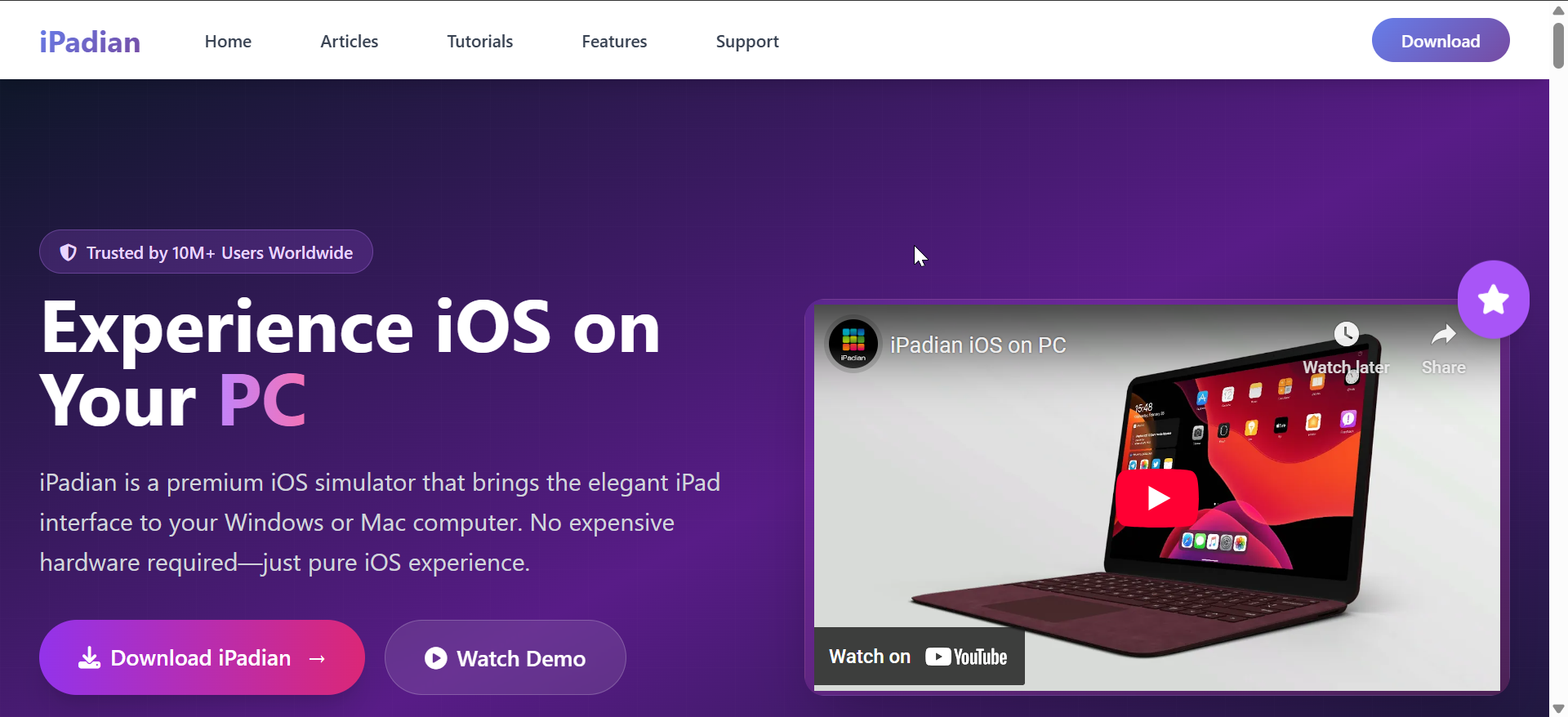
To do this, first, go to the Ipadian official website and download the installer. Run the downloaded file and follow the on-screen instructions to install the emulator on your system.
After installation, open the emulator and sign in with your Apple ID (or create one if you don't have one). Once logged in, navigate to the emulator's app store and search for GarageBand. Finally, click Install to download and install GarageBand on the emulator.
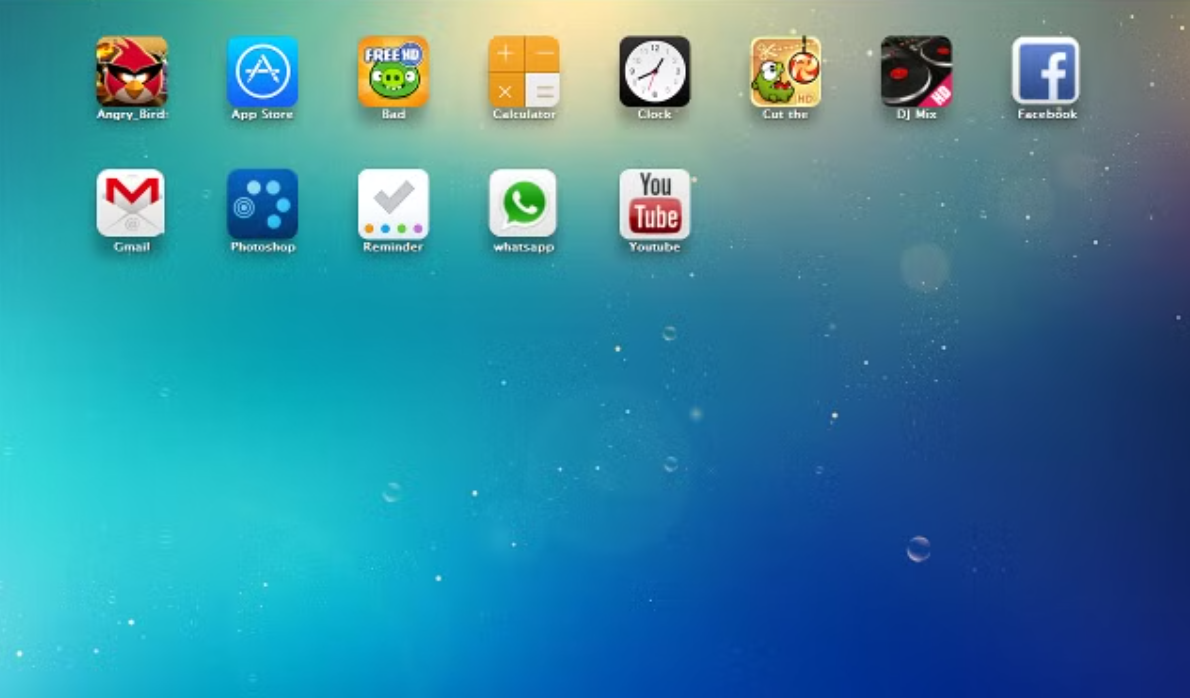
Tip: Using an emulator like iPadian can be slow, especially if your system isn't equipped with enough processing power. You may also experience audio lag, which can affect music production.
Method 2: Using a Virtual Machine (VM) to run macOS
If you’re looking for a more reliable method to run GarageBand, consider using a virtual machine (VM). A VM allows you to run macOS within your Windows environment, giving you access to all macOS applications, including GarageBand.
To set up a virtual machine, visit the official website of either VMware or VirtualBox and download either of the tools. Run the installer and follow the onscreen instructions to install the Virtual Machine on your PC.
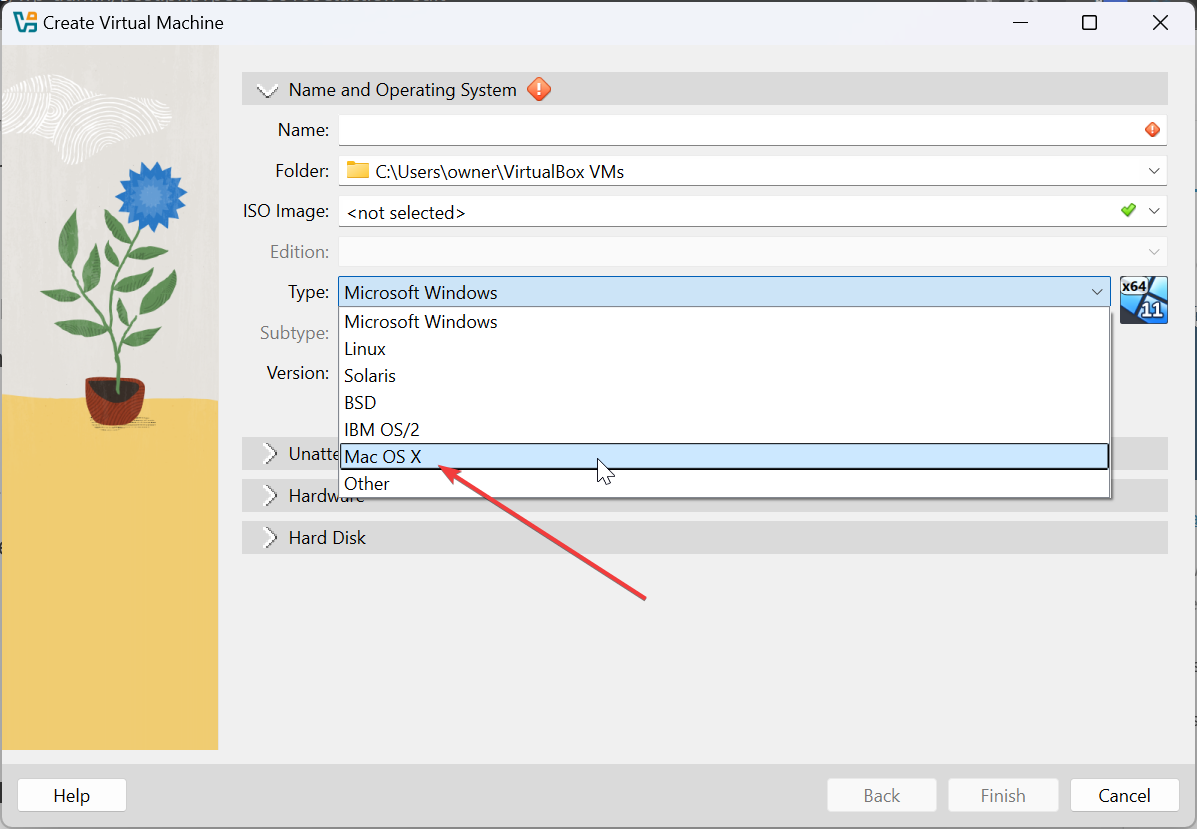
Next, search online for a macOS image and download it. Then follow your virtual machine's instructions on how to install images. When all is set up, go to the App Store to download and install the GarageBand app.
Pro tip: Assign at least 4GB of RAM and 20GB of storage to the virtual machine for smooth performance.
Troubleshooting GarageBand download on Windows
- Installation Fails: Ensure that your system meets the minimum requirements and that you're following the steps correctly.
- Slow Performance: If you're using an emulator or VM, allocate more resources to the software, such as RAM or processor power, to improve performance.
- GarageBand Crashes: This could be due to system limitations. Consider lowering the performance settings on your emulator or VM to improve stability.
If you continue experiencing issues, check the user forums or consult the troubleshooting sections of your emulator or VM software.
Tips for downloading GarageBand
- Close unnecessary apps and allocate more RAM to the emulator or virtual machine for better performance.
- Ensure your PC meets the minimum requirements (8GB RAM, at least 4GB of available storage, etc.) before starting the installation process.
- When using a virtual machine, allocate at least 4GB of RAM and 20GB of storage for smooth performance of macOS and GarageBand.
- Keep your emulator or virtual machine software up to date to avoid bugs and compatibility issues with the latest versions of GarageBand.
FAQs
Is it safe to use a virtual machine for GarageBand? Yes, but be aware of the legal implications of running macOS on non-Apple hardware.
Can I use GarageBand for professional music production on Windows? While it’s possible, performance might not be as stable or reliable as it would be on a native Mac.
Are there better alternatives to GarageBand on Windows? Yes, DAWs like FL Studio, Audacity, and Ableton Live are all great alternatives that work natively on Windows.
Summary
- Use an emulator
- Use a Virtual Machine (VM):
- If you can't get to use GarageBand, consider alternatives like Audacity, FL Studio, or Ableton Live, which are all compatible with Windows and offer robust music production features.
Conclusion
Getting GarageBand on your Windows PC is possible with either an emulator or a virtual machine. Both methods have their pros and cons, so it’s essential to choose the one that works best for your system and your needs. If GarageBand proves too complicated or resource-draining, consider exploring native Windows DAWs like FL Studio or Ableton Live for a smoother experience.


Discussion (0)
Be the first to comment.