




RetroArch gives you a single place to run classic games, but new users often feel confused about how to add content. Most issues come from missing cores, bad file locations, or not knowing where to get legal ROMs. This guide shows how to download games for RetroArch, place them correctly, and scan them so they appear in playlists.
Table of contents
- What you need before downloading games in RetroArch
- How to download games for RetroArch legally
- How to add downloaded games to RetroArch
- Where to download BIOS files for RetroArch cores
- How to download games for RetroArch on different platforms
- How to fix RetroArch not detecting games
- Tips for downloading games in RetroArch
- FAQs
- Summary
What you need before downloading games in RetroArch
RetroArch needs a few components before it can load games. You need the right cores, supported ROM formats, and a clear folder structure. Setting these up prevents scanning and loading errors.
Install and update RetroArch
Download the latest version of RetroArch for your device to ensure new cores work correctly. Updates fix scanning problems and improve compatibility.

Download the right emulator cores
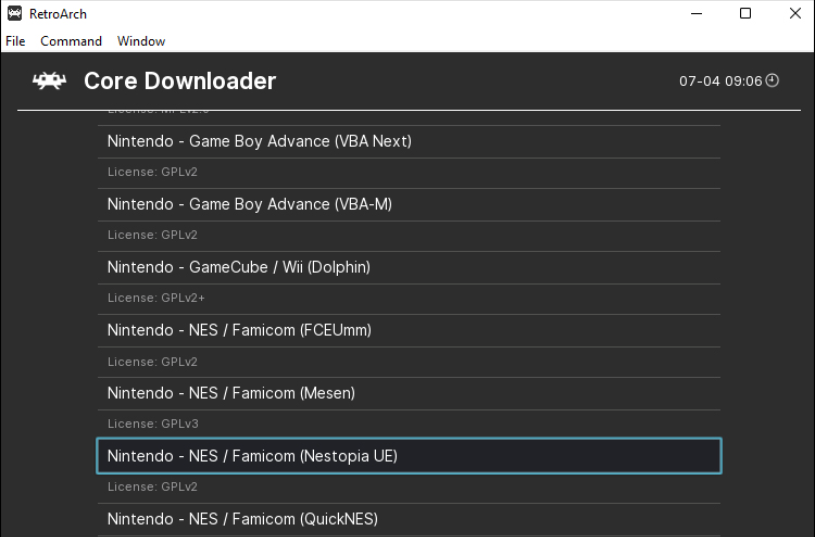
Each system needs its own core. Open the Core Downloader and pick the core that matches your console. A matching core improves stability and reduces loading failures.
Check ROM format and file structure
RetroArch supports formats such as ZIP, 7Z, NES, SNES, GBA, and CHD. Organize ROMs by console so RetroArch can scan them quickly.
How to download games for RetroArch legally
RetroArch does not provide games, so you must download ROMs legally. Public domain titles and homebrew projects are safe options. You can also dump your own games if you own the original media.
Download public-domain and homebrew games
Several classic games and fan projects are freely distributed by their creators. These files work like regular ROMs after downloading.
Create legal backups of your physical games
You can dump cartridges or discs using compatible hardware. This gives you a personal backup that RetroArch can load without problems.
How to add downloaded games to RetroArch
After downloading games, you need to place them in the correct folder and scan them. RetroArch then creates playlists for easy access.
Place ROMs into the correct folder
Create folders for each console, such as SNES or PlayStation. Place ROM files inside these folders to help RetroArch scan them faster. Keep file names simple and consistent.
Scan ROMs to create playlists
Open Import Content, choose Scan Directory, and pick the folder with your ROMs. RetroArch adds each game to a playlist with artwork where available.

Load a core and launch the game
Open the playlist, select a game, and choose Run. RetroArch loads the correct core automatically if it is installed.
Where to download BIOS files for RetroArch cores
Some systems need BIOS files before they can load games. RetroArch will not boot these games if BIOS data is missing or placed incorrectly.
Systems that require BIOS files
PlayStation, Sega CD, Dreamcast, and similar systems use BIOS files. Without them, RetroArch cannot start the game or may crash.
How to place BIOS files correctly
Place BIOS files inside the RetroArch system folder. Keep the original file names and make sure the files match the core’s requirements.
How to download games for RetroArch on different platforms
RetroArch uses different folder paths depending on your operating system. Follow the correct path so your ROMs scan without issues.
Windows
Save ROMs anywhere on your PC, then scan that folder from Import Content. RetroArch builds playlists automatically.

Android and iOS
Place ROMs in a storage location RetroArch can access, such as Downloads or an SD card. Grant storage permissions if the app requests them.
Steam Deck and Linux
Flatpak and Linux builds use sandboxed folders. Use the RetroArch file browser to select your ROM directory.
How to fix RetroArch not detecting games
- ROM scan errors: Extract compressed files like 7Z or RAR if the scanner fails. Make sure the ROM format matches the core’s supported list.
- Missing cores or wrong core assignment: If RetroArch cannot find a core, install or update it from the Core Downloader. You can switch cores from the Run menu.
- Unsupported file formats: Convert unsupported disc images to ISO or CHD formats. RetroArch loads these formats more reliably.
Tips for downloading games in RetroArch
- Use clear folder names for each console.
- Update RetroArch and cores often.
- Verify BIOS files match your core version.
- Extract ROM archives when scanning fails.
- Keep ROM files on local storage rather than cloud drives.
FAQs
Can RetroArch download games directly? No. It only downloads emulator cores, not games.
Why does my game not show in playlists? The format may be unsupported or the folder was not scanned.
Does every console core need a BIOS file? No. Only certain systems require BIOS files.
Can I use ROMs from my old consoles? Yes, if you dump the games yourself.
Summary
- Install RetroArch and download the correct cores.
- Obtain legal ROMs from homebrew, public-domain, or personal backups.
- Place ROMs in organized folders.
- Scan directories to create playlists.
- Launch games with the matching core.
RetroArch becomes much easier once you understand how it handles folders, cores, and scanning. Set up your ROMs correctly, keep your cores updated, and use legal game sources for the best results.
Finally, if you are looking to download games on Citra emulator too, you can check our guide on the topic.


Discussion (0)
Be the first to comment.