




Downloading music on Audiomack helps you listen offline without using mobile data. The app supports offline playback on Android and iPhone, but downloads stay inside the app and do not create shareable MP3 files. This guide shows the correct methods for each platform and clears up common issues users face.
Audiomack uses protected offline storage to respect artist rights. You can save tracks, albums, and playlists, but you cannot extract them as standalone audio files. The steps below explain everything you need to know to download safely and correctly.
1) Downloading songs on Android
Android users get full download support with optional SD card storage. These steps help you save individual tracks, albums, and playlists.
Download individual songs
Open the Audiomack app and browse to the song you want. Next, tap the Download icon and wait for the indicator to turn solid, confirming it saved offline.
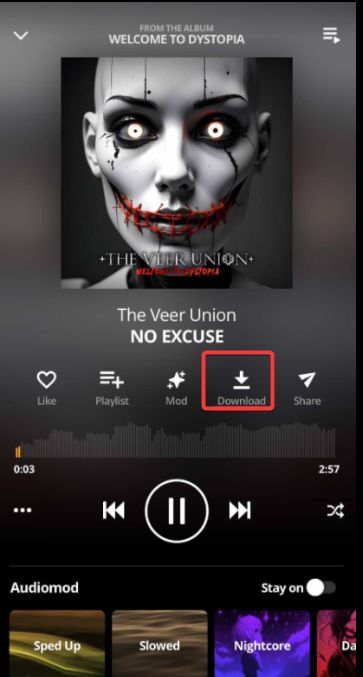
Download albums and playlists
Open any album or playlist page and tap Download at the top. Now, Audiomack saves all tracks inside the Offline section of your Library tab.
Choose internal vs SD card
Go to Settings in Audiomack and select Storage. Now, choose Internal or SD card if supported.
2) Downloading songs on iPhone
iOS saves all offline tracks inside the Audiomack app itself. The process mirrors Android, but there is no SD card option.
Just open Audiomack on your iPhone and find the track, album, or playlist. Next, tap the Download icon to save it for offline playback. To manage your storage on iOS, open Audiomack Settings, select Offline or Downloads.

Finally, remove large items when your iPhone storage gets low.
3) Using Audiomack on web or desktop
Audiomack’s website supports streaming but does not support downloads. You must use the mobile app to save songs offline.
Download to mobile from the web
If you prefer browsing on a computer, you can add songs to your Library or playlists on the web. Your mobile app will sync these lists, allowing you to download them from your phone.
4) How to find your downloaded songs
Audiomack keeps all offline items in a single area of the app. This makes it easy to review your library and remove items you no longer need.
View all offline tracks
Open the Library tab and tap Offline or Downloads. You will see songs, albums, and playlists saved on your device.

Remove offline downloads
Open the Downloads list and tap the three dots next to a song or album. Next, select Remove Download.
5) Troubleshooting Audiomack downloads
- Download button not showing: Some artists disable downloads for specific tracks. Make sure you are logged in and using the latest version of the app.
- Downloads not playing offline: An outdated app, revoked content, or corrupted cache can cause issues. Try updating the app or reconnecting to refresh your license.
- Not enough storage: Audiomack needs free internal space. Delete old downloads or clear temporary cache files to free up room.
- Slow download speeds: Weak Wi-Fi or battery-saving modes slow down downloads. Use a stable connection and disable aggressive power-saving features.
Tips for using Audiomack offline
- Use Data Saver mode
- Download on Wi-Fi only
- Keep the app updated
FAQs
Why can’t I download certain songs? Artists choose whether their songs can be downloaded. Some tracks allow streaming only.
Does Audiomack allow free downloads? Yes, standard users can save music for offline playback inside the app without paying.
Where are downloads stored? Audiomack saves offline content inside its protected app folder.
Can I transfer downloads to another phone? Offline files do not transfer. You must re-download after signing in on your new device.
Summary
- Use the Audiomack app to download songs on Android or iPhone.
- Tap the Download icon on any track, album, or playlist to save it offline.
- Android users can choose SD card or internal storage when supported.
- The web version supports streaming only and cannot download music.
- All offline files stay inside the Audiomack app and cannot be extracted.
Conclusion
Audiomack makes offline listening simple across Android and iPhone. You can download music directly inside the app, manage your library from the Offline tab, and avoid data usage while traveling or commuting.
Keep the app updated and ensure your device has enough storage for the best experience. If the download option disappears or stops working, quick troubleshooting usually resolves the issue.


Discussion (0)
Be the first to comment.