




Buying and downloading a digital game on your Nintendo Switch works smoothly once you link your account and confirm your network connection. This guide shows you how to download a new title, redownload older purchases, fix slow or stuck downloads, and manage your storage to avoid errors.
Table of contents
Prepare your Switch for digital downloads
You need a few things in place before your system can download a digital game. These quick checks prevent most download issues.
Check your Nintendo Account
Make sure your Nintendo Account is linked to your user profile. You need this to open Nintendo eShop and access your purchases.
Connect to the internet
Open System Settings and confirm your Wi Fi connection. A stable network ensures faster downloads and fewer interruptions.
Update system software
Go to System Settings and check for system updates. Up to date firmware prevents installation errors and improves performance.
Download a new digital game from Nintendo eShop
You can buy and download a game in a few steps. The console starts downloading as soon as you complete your purchase.
Open Nintendo eShop
Select the orange eShop icon from the Home screen. Choose the correct user profile when prompted.

Search for the game
Use the search bar or browse categories to find your title. Each game page shows price, file size, and supported play modes.
Complete the purchase
Select proceed to purchase and choose your payment method. You will see a confirmation once the transaction completes.
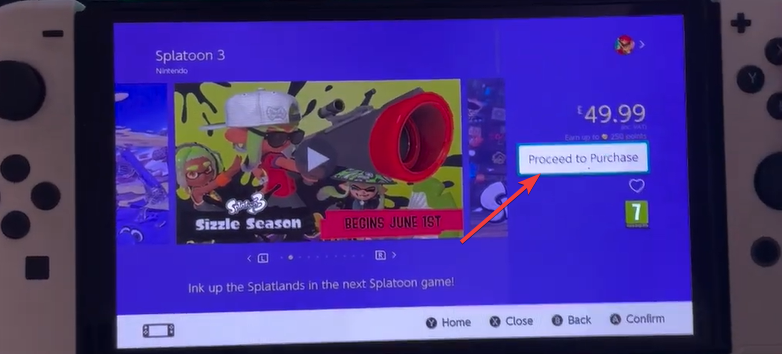
Start the download
Your Switch usually starts downloading automatically. If it does not, open the Home menu, select the game icon, and choose download.
Redownload a game you already own
You can reinstall any purchased title without paying again. This works even if you deleted the game to free space.
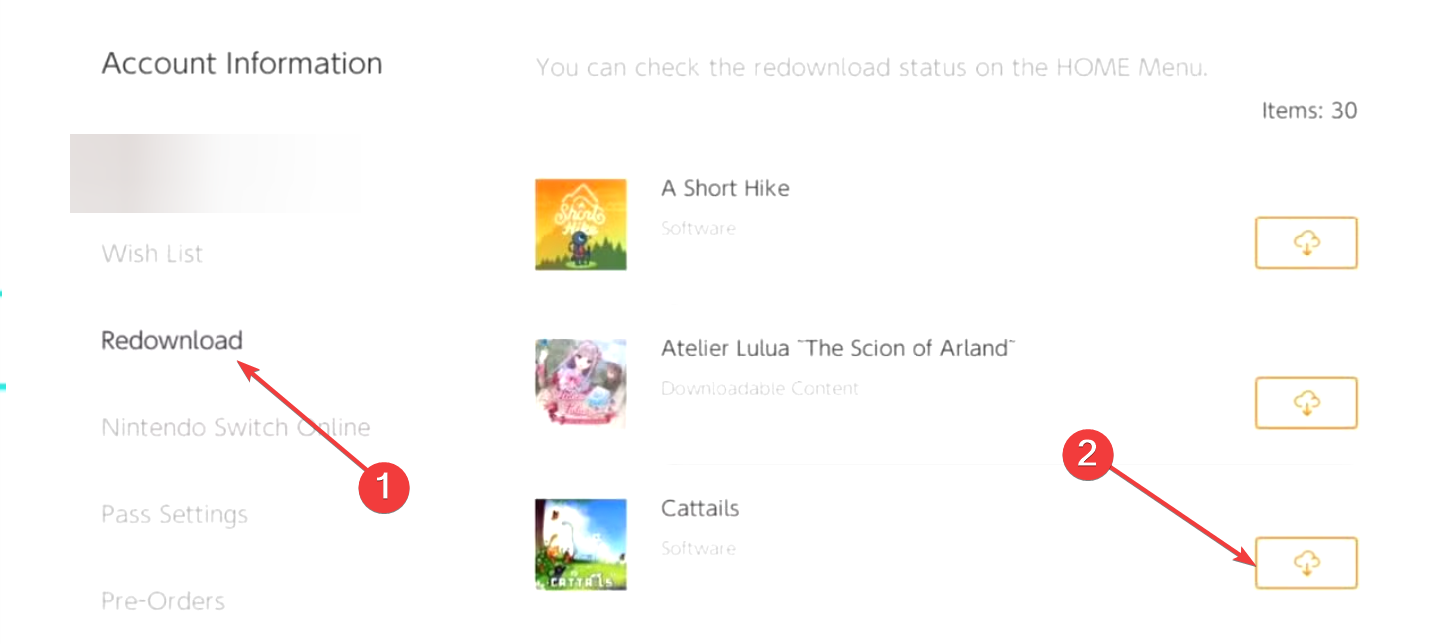
Go to the Nintendo eshop and click the User icon in the top right corner. Next, select Redownload to view the list of games you own and can redownload. Finally, click the cloud icon in fron of the game to begin the download process. reinstall.
Manage storage for digital downloads
Storage often blocks downloads, so it helps to track your available space and manage apps you no longer need.
Check available storage
Open System Settings and select data management. This screen shows internal and microSD storage usage.
Use a microSD card
A microSD card adds extra space for larger games. Insert the card and format it using the Switch to avoid compatibility issues.
Archive or delete games
Archiving removes the game but keeps its icon and save data. Deleting removes everything, but you can redownload anytime.
Fix slow or stuck game downloads
Slow downloads usually relate to Wi Fi or temporary network issues. These quick fixes improve speed and stability.
Restart the console
Hold the power button and choose restart. This clears temporary glitches that may stop downloads.
Improve Wi Fi performance
Move closer to the router or switch to a 5 GHz network. These adjustments increase download speed.
Change DNS or reboot the router
Try a different DNS provider if pages load slowly on other devices. A router reboot also clears congestion.
Check Nintendo server status
Nintendo sometimes experiences outages. If servers run slowly, download issues often resolve on their own.
Troubleshooting errors that prevent downloading
- Resolve insufficient storage: Delete or archive unused games when space runs low. You need enough free space before downloads can start.
- Parental controls blocking downloads: Restricted accounts cannot access all eShop content. Adjust settings in the parental controls app if your download is blocked.
- Region or account restrictions: If you have a mismatched account region, some purchases might not download. Check your Nintendo Account region and correct it if needed.
Tips for faster and more reliable digital downloads
- Prefer 5 GHz Wi Fi when available.
- Close any running software to free bandwidth.
- Download games during low traffic hours for better speeds.
FAQs
Can I download a game while playing another one? Suspended games can slow downloads, so close active software for better performance.
Can I share digital games between consoles? You can share titles between a primary and non primary console, but access rules vary between profiles.
Does the Switch download games in sleep mode? The system continues downloading in sleep mode as long as Wi Fi remains active.
Why does my Switch say "Unable to download"? Common causes include low storage, poor connectivity, or parental control limits.
Summary
- Prepare your Switch by linking your account, connecting to Wi Fi, and updating the system.
- Download new games through Nintendo eShop or redownload older purchases.
- Manage storage by checking free space, adding a microSD card, or archiving games.
- Fix slow or stuck downloads by improving your network connection or restarting your device.
- Address errors by adjusting storage, parental controls, or region settings.
Your Switch should handle digital downloads smoothly once you organize your storage and confirm your account and network settings. These steps help you install new games, redownload older ones, and resolve common download issues quickly. Once you follow the steps correctly, you can download Minecraft for Switch and every other game of your choice.


Discussion (0)
Be the first to comment.