




If you are getting started with API development or testing on Windows, Postman is one of the first tools worth having on your machine. It is free, straightforward to install, and ready to use within minutes. This guide walks you through downloading and installing Postman on Windows from start to finish.
What You Need Before Installing
Postman runs on Windows 10 and Windows 11, both 64-bit. Your machine needs at least 4GB of RAM, though 8GB or more is recommended if you plan to work with large collections or complex environments. A stable internet connection is needed for the download and for signing into your account after installation.
You do not need a Postman account to install the application, but you will need one to save work to the cloud, sync across devices, and access team workspaces. Creating a free account takes about a minute and can be done during first-time setup.
How to Download Postman on Windows
Open your browser and go to Link. Click the Download the App button on the homepage. Postman's website detects your operating system automatically and offers the correct Windows installer. The file will be named something like Postman-win64-Setup.exe and is around 150MB in size.
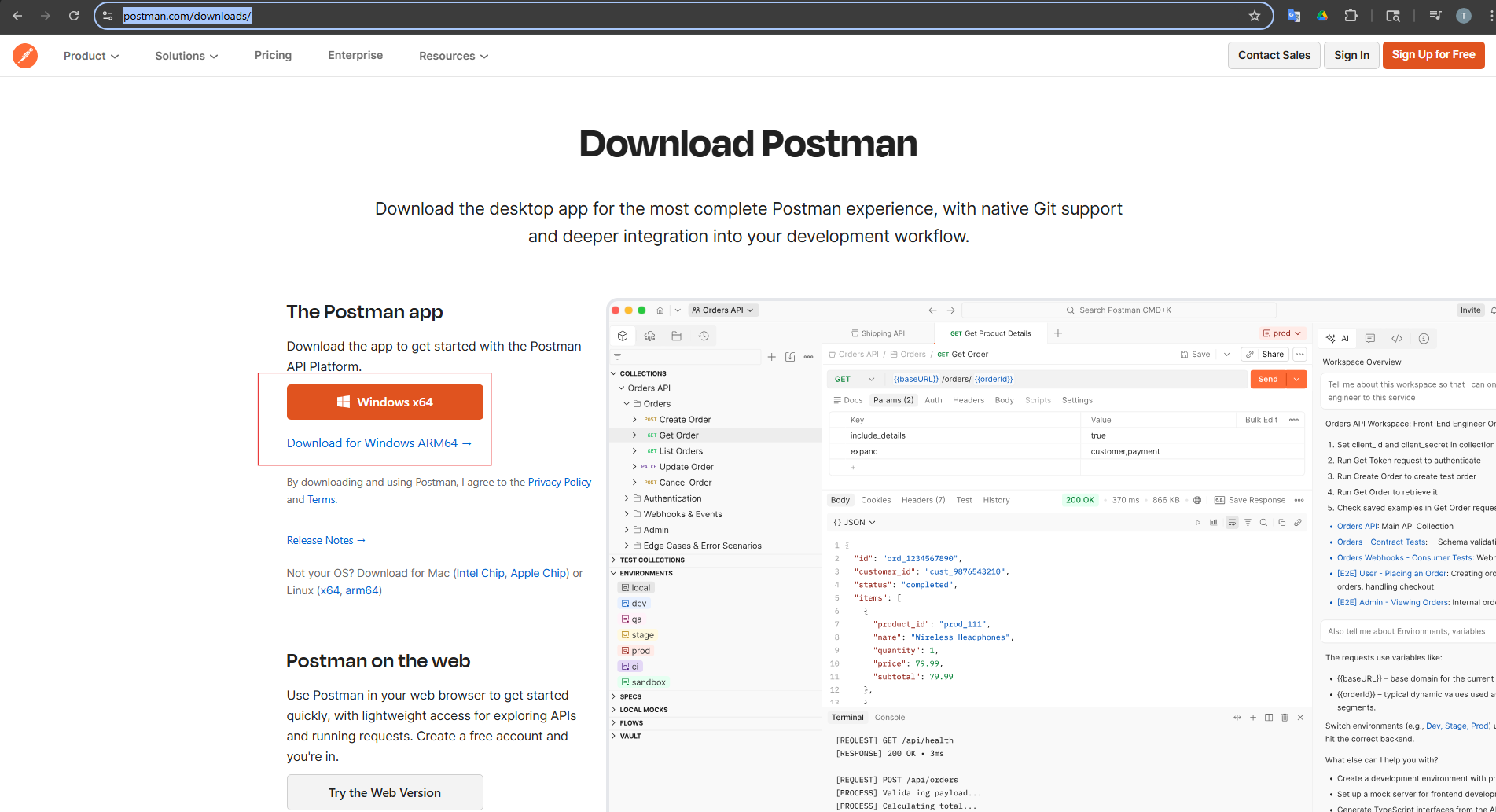
If the website does not offer the Windows version automatically, click the dropdown next to the download button and select Windows 64-bit from the list.
How to Install Postman on Windows
The installation process on Windows is fully automated and requires no configuration.
- Open your Downloads folder and double-click the Postman-win64-Setup.exe file you just downloaded.
- Windows may show a User Account Control prompt asking if you want to allow the app to make changes to your device. Click Yes to proceed.
- The installer runs automatically. You will see a brief progress screen while Postman extracts and sets itself up. There are no options to configure and no next-next-finish wizard to click through.
- Once installation is complete, Postman launches automatically. A shortcut is also added to your desktop and Start menu for future access.
The entire process takes under a minute on most machines. Postman installs to your user profile folder rather than Program Files, which means administrator privileges are not required and the application updates itself automatically in the background without UAC prompts.
First-Time Setup
When Postman opens for the first time you will see a welcome screen with two options.
The first is to sign in or create a free account. Signing in connects Postman to your profile and enables cloud sync, so your collections and environments are backed up and accessible from any device. If you are new to Postman, creating a free account here takes about thirty seconds.
The second option is to skip sign-in and use Postman in lightweight mode. This lets you start immediately without an account, but everything is stored locally only and you cannot access collaboration or sync features.
For most users, signing in with a free account is the better starting point. After signing in, Postman may show a short onboarding flow asking about your role. This is optional and can be skipped entirely to go straight to the main workspace.
Verifying the Installation
Once Postman is open, a quick test confirms everything is working correctly.
Click the plus icon next to the welcome tab to open a new request tab. In the URL bar at the top, type https://postman-echo.com/get and make sure the method dropdown to the left of it shows GET. Click the Send button.
If Postman is installed and connected correctly, a response will appear in the lower panel showing a status code of 200 OK and a JSON body with details about your request. Postman Echo is a public testing endpoint maintained by Postman specifically for this kind of verification. A successful response means your installation is working perfectly.
Keeping Postman Updated on Windows
Postman checks for updates automatically in the background. When a new version is available, a notification appears in the bottom right corner of the application. Click it to restart Postman and apply the update. The process takes about thirty seconds and your work is preserved.
You can also check for updates manually at any time by clicking the settings icon in the top right corner of the app, selecting Settings, and then clicking the Update tab.
Final Thoughts
Installing Postman on Windows is about as simple as software installation gets. Download the installer, run it, and Postman is ready. There are no dependencies to install separately, no configuration steps, and no administrator privileges required. Once your free account is set up and your first test request returns a 200 OK, you are ready to start building and testing APIs.
Frequently Asked Questions
Is Postman free to download and install on Windows?
Yes. Postman is completely free to download and install. The free tier includes the API client, collections, environments, and basic testing features. Paid plans are available for teams needing advanced collaboration and enterprise features, but are not required for individual use.
Does installing Postman on Windows require administrator privileges?
No. Postman installs to your user profile folder rather than Program Files, so administrator privileges are not required. The installer runs without elevated permissions and updates itself automatically without UAC prompts.
Can I use Postman on Windows without creating an account?
Yes. You can skip account creation during setup and use Postman in lightweight mode, which stores everything locally on your device. However, creating a free account enables cloud sync, workspaces, and collaboration features that most users find useful over time.
Which Windows versions does Postman support?
Postman supports Windows 10 and Windows 11, both in 64-bit editions. It does not support 32-bit versions of Windows or Windows versions earlier than Windows 10.
How do I update Postman on Windows?
Postman updates itself automatically in the background. When an update is ready, a notification appears in the bottom right corner of the app. Click it to restart and apply the update. You can also check manually through Settings and then the Update tab.



Discussion (0)
Be the first to comment.