



High DPC latency can cause audio crackling, USB dropouts, mouse hitches, short freezes, and game stutters even when your CPU and GPU usage look normal. The best way to fix it is to identify the driver, device, or system setting causing the delay instead of applying random Windows tweaks.
DPC stands for Deferred Procedure Call. Windows uses it when hardware drivers need the CPU’s attention but can postpone some less urgent work. Problems begin when a driver spends too long processing an interrupt or DPC task. That can temporarily delay time-sensitive activity such as audio playback, USB devices, network traffic, game frame delivery, and streaming software.
The symptoms can feel vague because the PC may otherwise appear healthy. A game can show high frame rates while still suffering from uneven frame pacing, or an audio device can crackle even when system resource usage is low.
Check Memory Pressure Before Blaming Drivers
Not every audio pop or short freeze is caused by DPC latency. Heavy memory usage and hard page faults can create nearly identical symptoms.
A hard page fault happens when Windows must retrieve data from your SSD instead of system memory. This can delay the affected application, especially when you are gaming while using a browser, Discord, OBS, RGB software, launchers, overlays, and other background apps.
| Possible issue | Common symptoms |
|---|---|
| High DPC latency | Audio crackles, mouse hitches, USB dropouts |
| Hard page faults | App stalls, short freezes, audio glitches |
| Low available RAM | Stuttering during multitasking |
| Storage activity | Delays when loading or switching tasks |
Open Task Manager and check memory use before changing drivers. If your RAM is close to full, close unnecessary apps and test again. Systems with 16GB of memory can run into trouble when several demanding programs are active at once.
Use LatencyMon While Reproducing the Problem
LatencyMon is one of the easiest ways to investigate DPC latency. Do not run it while your PC is idle and assume everything is fine. You need to test under the same conditions where the glitch appears.
For example, play the game that causes audio problems, use your USB DAC, start an OBS recording, or make a Discord call while downloading files over Wi-Fi.
Follow this process:
- Restart your PC.
- Close unnecessary background apps.
- Open LatencyMon as administrator.
- Start monitoring.
- Reproduce the issue for at least five to ten minutes.
- Stop the test and check the Main, Drivers, Stats, and Processes tabs.
The Drivers tab can point toward the part of the system causing delays.
| Driver or file name | Possible area to investigate |
|---|---|
| ndis.sys or tcpip.sys | Wi-Fi, Ethernet, or network drivers |
| usbxhci.sys | USB controller or connected USB device |
| dxgkrnl.sys | Windows graphics stack |
| GPU driver modules | NVIDIA, AMD, or Intel graphics driver |
| Wdf01000.sys | A device using the Windows Driver Framework |
| Audio driver modules | Sound card, USB DAC, or audio interface |
A listed driver is not always the exact cause. It is a clue that helps narrow down the affected hardware or software path.
Test Devices One at a Time
Once you have a likely suspect, change only one variable and rerun the same test.
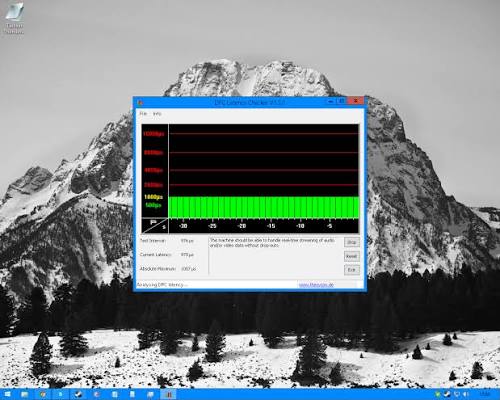
If networking appears involved, disable Wi-Fi and test with Ethernet. If Ethernet is already active, try temporarily disconnecting the network to see whether the latency spikes disappear.
For USB issues, remove non-essential devices such as hubs, webcams, capture cards, controllers, wireless dongles, external storage, and USB audio hardware. Add them back one at a time until the issue returns.
If the problem happens during games, test a clean GPU driver installation or roll back to an older stable driver. Disable overlays, recording tools, RGB utilities, monitoring software, and browser hardware acceleration during testing.
Apply Fixes in a Sensible Order
Start with the least invasive options before touching BIOS settings or registry values.
| Fix to test | When it may help |
|---|---|
| Update or roll back drivers | Problems started after a driver change |
| Update BIOS and chipset drivers | USB, PCIe, power, or platform instability |
| Test another USB port | USB audio or peripheral glitches |
| Disable USB selective suspend | USB controller latency issues |
| Test Ethernet instead of Wi-Fi | Network driver latency spikes |
| Use a different Windows power plan | Problems linked to aggressive power saving |
| Clean-install GPU drivers | Gaming or graphics-related stutter |
| Test Memory Integrity temporarily | Latency began after a security configuration change |
For USB testing, use rear motherboard ports where possible instead of front-panel ports or hubs. For laptops, test while plugged in and use the manufacturer’s highest-performance mode.
Avoid applying large collections of registry changes, timer tweaks, HPET modifications, or interrupt affinity tools unless you understand what each setting does. These changes may help in rare cases, but they can also create new problems.
Use WPA for Difficult Cases
If LatencyMon points to a problem but does not give a clear answer, use Windows Performance Recorder and Windows Performance Analyzer. These Microsoft tools can capture detailed system traces and show which driver was active when a glitch occurred.
The important goal is correlation. A large DPC spike only becomes meaningful when it happens at the same moment as the audio crackle, mouse freeze, or game hitch.
High DPC latency is usually not a mysterious Windows problem. It is often connected to a driver, USB device, network adapter, graphics stack, power setting, security layer, or memory shortage. Measure the issue, isolate one variable at a time, and retest after every change. That approach is slower than random optimization tips, but it is far more likely to find the real cause.

Discussion (0)
Be the first to comment.