



Gmail saves your searches in more than one place, which explains why deleted entries often come back. You need to clear both Gmail app suggestions and your Google Account activity to fully remove Gmail search history and keep it from returning.
This guide walks you through the steps to get rid of your Gmail search history for good in a few minutes.
Table of contents
- Delete Gmail search history on desktop
- Delete Gmail search history on Android
- Delete Gmail search history on iPhone and iPad
- Why Gmail search history keeps coming back
- How to stop Gmail from saving search history permanently
- Things deleting Gmail search history does not do
- Tips for managing Gmail search privacy
- FAQs
- Summary
Delete Gmail search history on desktop
Clearing Gmail search history from your Google Account removes searches everywhere at once.
Clear Gmail searches from Google My Activity
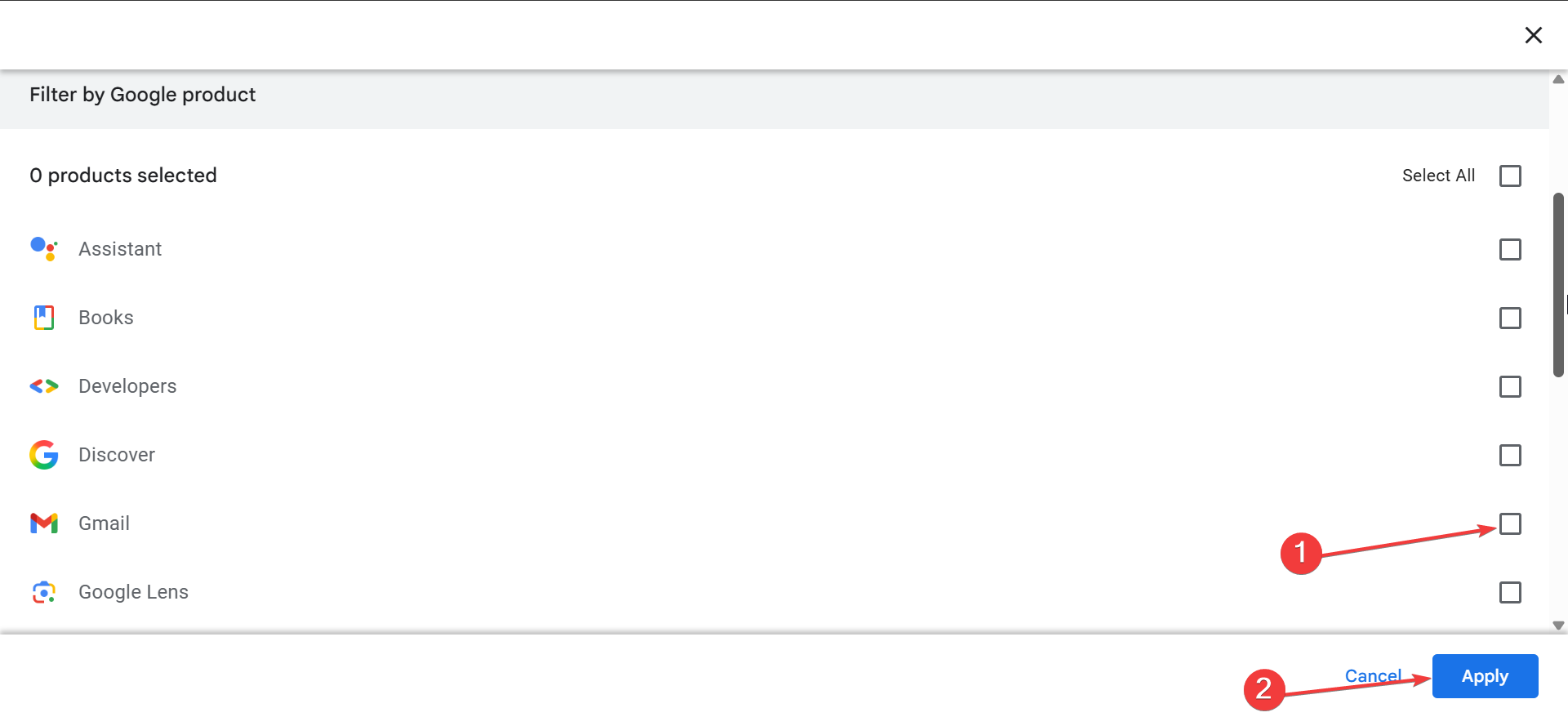
Go to the Google My Activity page on your browser, filter results by Gmail, then delete search entries individually or in bulk. This step clears Gmail search history across desktop, Android, and iOS.
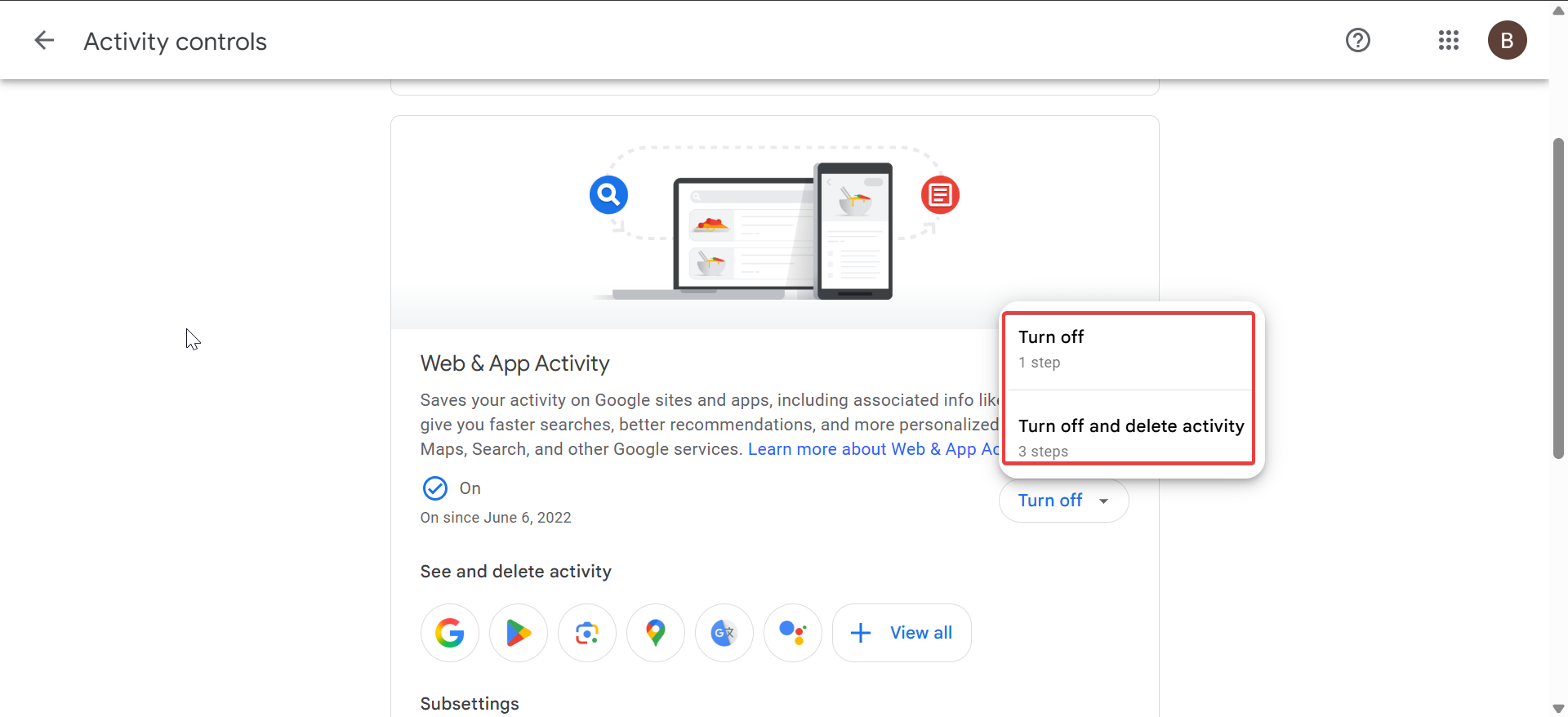
Turn off Gmail search saving for the future
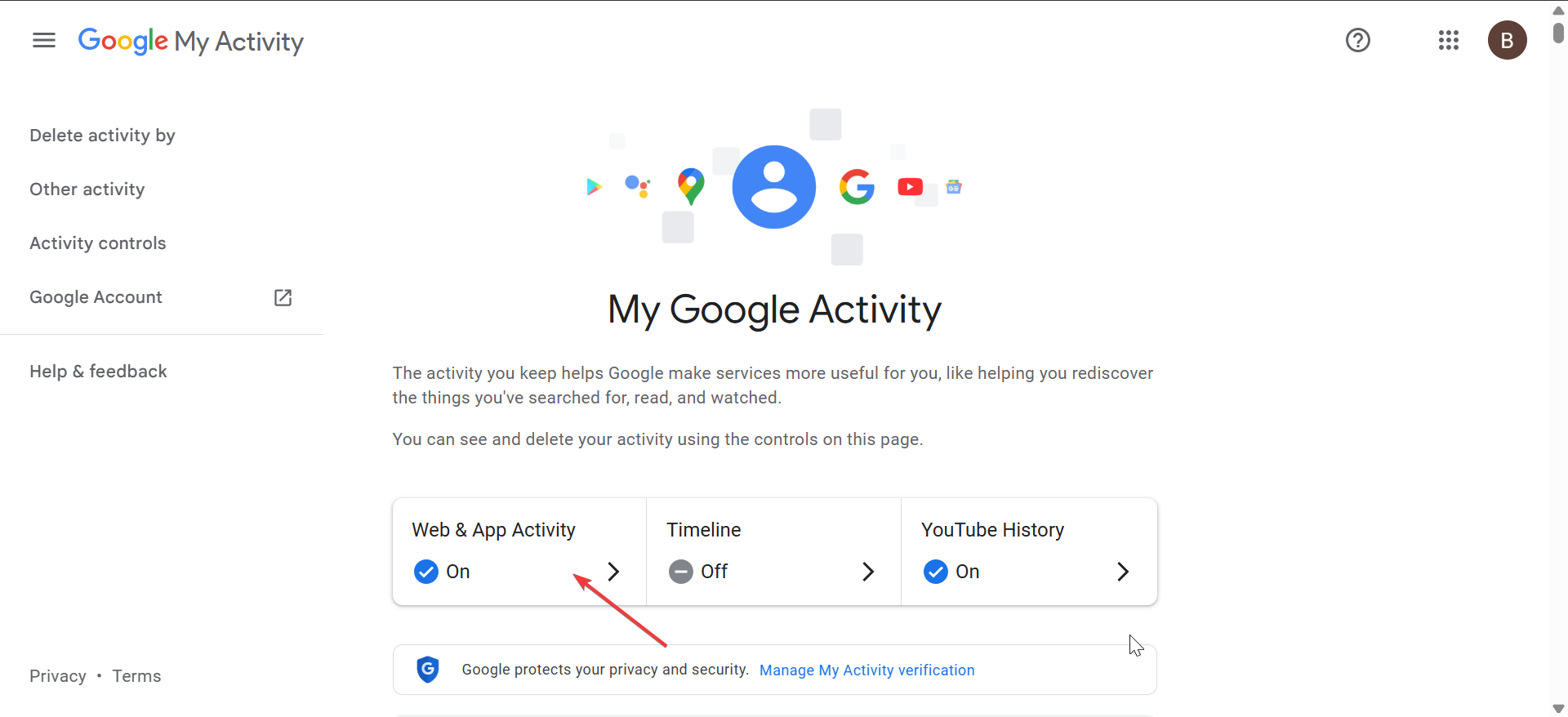
On the Google My Activity page, click Web & App Activity. Click the Turn off dropdown on the next page and select Turn off or Turn off and delete activity.
Delete Gmail search history on Android
Android devices store Gmail searches both in the app and your Google Account.
Clear search suggestions inside the Gmail app
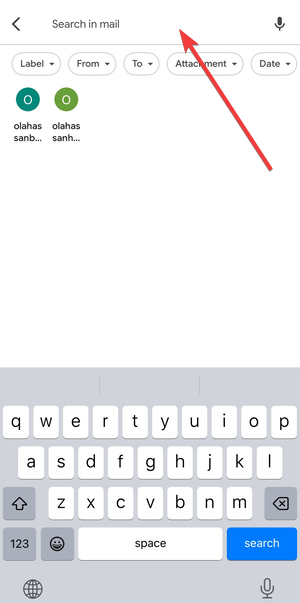
Open the Gmail app, tap the search bar, then remove recent searches shown in the suggestions list. This only clears local app history.

Remove Gmail searches from your Google account
Go to your Google Account activity from Android settings and delete Gmail-related searches to stop them from syncing back.
Delete Gmail search history on iPhone and iPad
Gmail on iOS handles search history slightly differently but still relies on account-level activity.
Clear Gmail app search suggestions on iOS
Tap the Gmail search bar and remove recent searches shown in the list. The app does not offer advanced controls beyond this.
Delete Gmail search history from Google account
Use Google My Activity in a browser to remove Gmail searches at the account level, which updates Gmail on iOS as well.
Why Gmail search history keeps coming back
Gmail often restores search suggestions after users think they deleted everything.
Sync across multiple devices
When you stay signed in on multiple devices, Gmail pulls search data from the account and repopulates suggestions.
Web & App Activity still enabled
If Web & App Activity stays active, Gmail continues logging searches and restoring them automatically.
How to stop Gmail from saving search history permanently
You can prevent Gmail from storing searches going forward.
Pause Web & App Activity
Pausing or stoping this setting stops Gmail and other Google services from recording search activity. You can easily do this from the Google My Activity page.
Use auto-delete for Gmail activity
Set automatic deletion to remove Gmail search history after a fixed time period, such as three or eighteen months.
Things deleting Gmail search history does not do
Clearing search history does not change how Gmail handles your emails.
It does not delete emails or conversations
Search history removal only affects suggestions, not stored messages.
It does not hide messages from senders
Clearing searches does not block contacts or remove emails from your inbox.
Tips for managing Gmail search privacy
- Clear Google Account activity instead of only app suggestions
- Sign out of unused devices
- Review Google Activity regularly
FAQs
Does deleting Gmail search history remove all Google searches?
No. It only removes Gmail-related searches unless you delete other activity manually.
Can Gmail search history be deleted automatically?
Yes. Auto-delete settings remove Gmail activity on a schedule.
Why can’t I find the delete option in the Gmail app?
The Gmail app only clears local suggestions. Account-level deletion happens in Google My Activity.
Is Gmail search history saved in Incognito mode?
Incognito limits local storage, but Google may still log activity at the account level if you stay signed in.
Summary
- Gmail search history exists in the app and your Google Account.
- Clearing Google My Activity removes searches across all devices.
- Web & App Activity causes deleted searches to return.
- Pausing activity or using auto-delete prevents future logging.
Clearing Gmail search history works best when you address both the app and your Google Account. Delete Gmail searches from Google My Activity, then adjust privacy settings to stop them from coming back. This approach gives you full control and prevents repeated cleanup.
Finally, if you are looking to view your Gmail sign-in history to know which devices are currently connected to your account, check our detailed guide on the topic.


Discussion (0)
Be the first to comment.