




Archived messages in Facebook Messenger do not disappear. Messenger only hides them from the main chat list. To remove them permanently, you must open the archived conversation first and then delete it using the correct option for your device.
This guide walks you through how to find the archived conversations and delete them on different devices.
Table of contents
- Understand archived vs deleted messages
- Find archived messages in Facebook Messenger
- Delete archived messages on mobile devices
- Delete archived messages on desktop
- Why you can’t delete archived messages sometimes
- Can you delete individual messages inside archived chats?
- Tips for managing archived Messenger conversations
- FAQs
- Summary
Understand archived vs deleted messages
Archiving and deleting do very different things in Messenger. Many users expect archived messages to disappear forever, which causes confusion.
What happens when you archive a conversation
Messenger moves the chat out of your main inbox and keeps the full message history. The conversation still syncs across your phone, tablet, and desktop.
What deleting an archived message actually does
Deleting removes the entire conversation from your account. The other person still keeps their copy unless they delete it as well.
Find archived messages in Facebook Messenger
You cannot delete an archived chat until you locate it. Messenger hides this section deeper than most users expect.
Locate archived chats on mobile
Open Messenger and tap Menu in the bottom right corner. Next, tap Archive to see all hidden conversations.

Locate archived chats on Messenger.com
Open Messenger.com on your desktop or mobile browser and click the Archive icon in the left pane. This will bring up your hidden conversations. For the best experience, you can open the desktop site of Facebook on mobile.
Delete archived messages on mobile devices
Messenger requires opening the archived chat before deletion. Swiping alone does not always work.
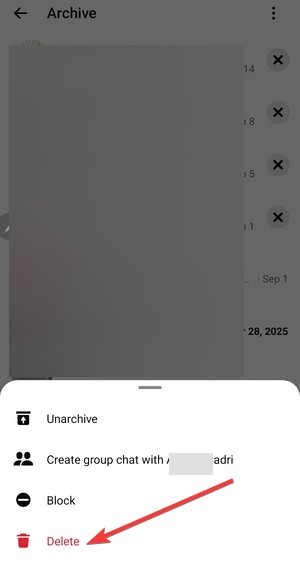
Delete an archived chat on Android
- Open Archived chats in Messenger.
- Tap and hold the archived conversation.
- Tap Delete and confirm.

Delete an archived chat on iPhone
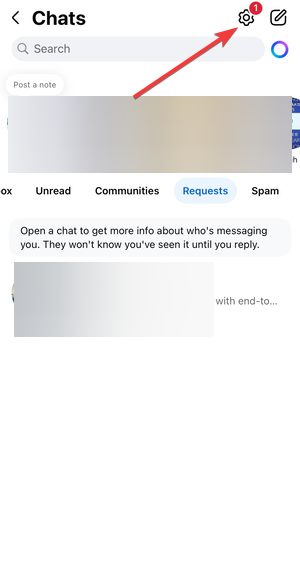
- Open the Facebook app and tap the Messenger icon in top right corner.
- Tap the gear icon in the top right corner.

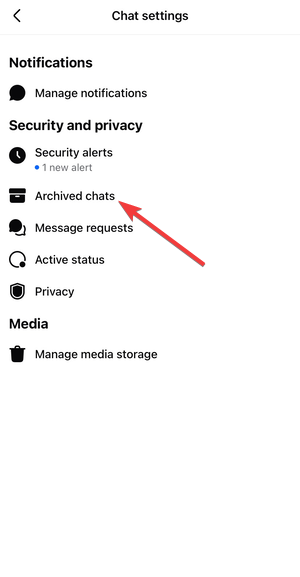
- Next, select Archived chats.

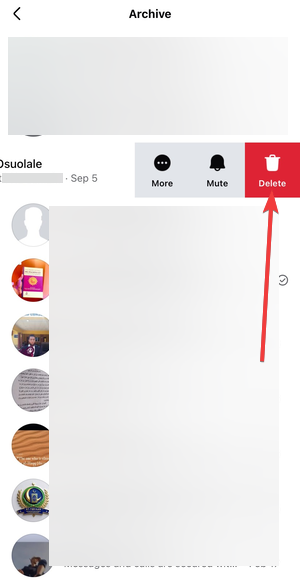
- Swipe left on the conversation.
- Tap Delete and confirm.

Delete archived messages on desktop
The desktop interface places deletion inside the chat menu, not the chat list.
Remove archived chats from Messenger.com
- Click the Archive option in the left pane.
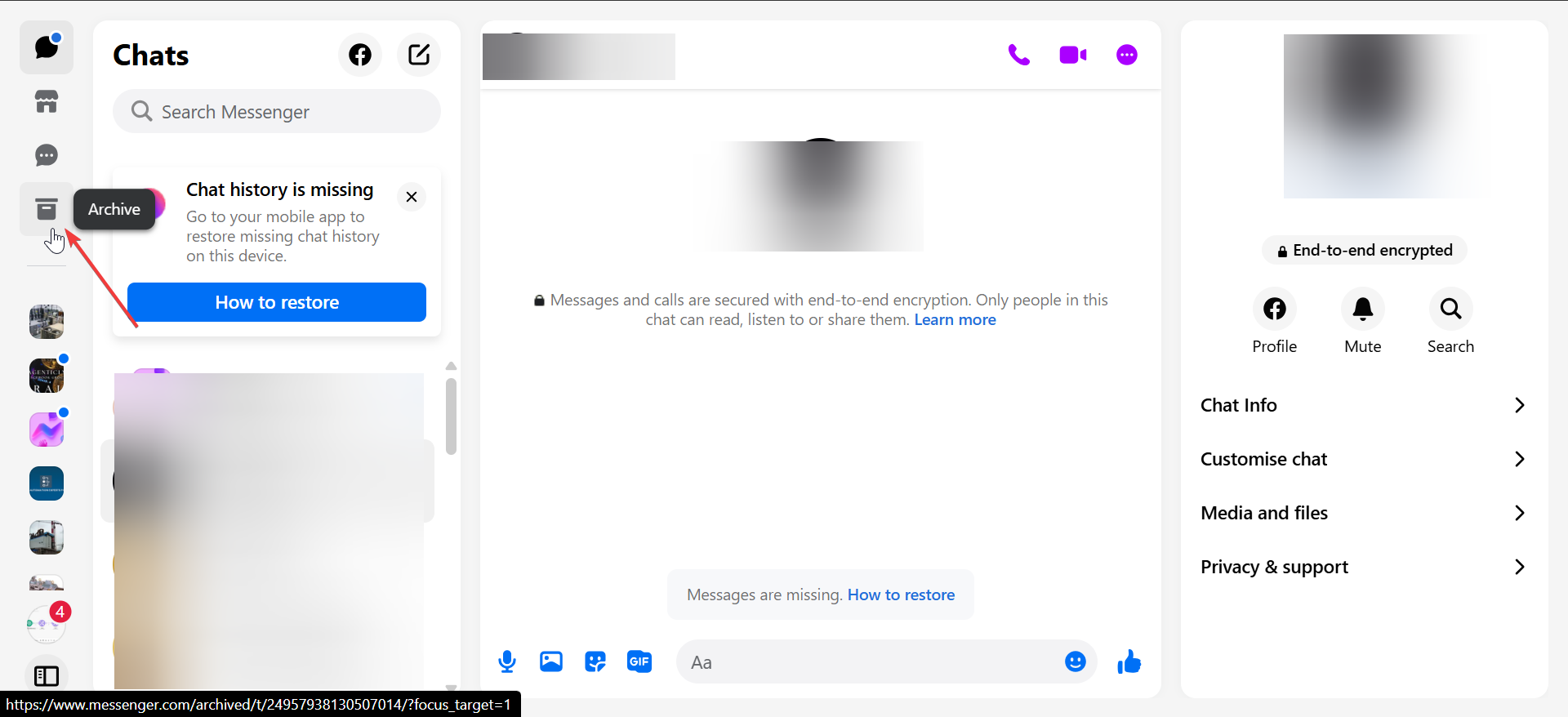

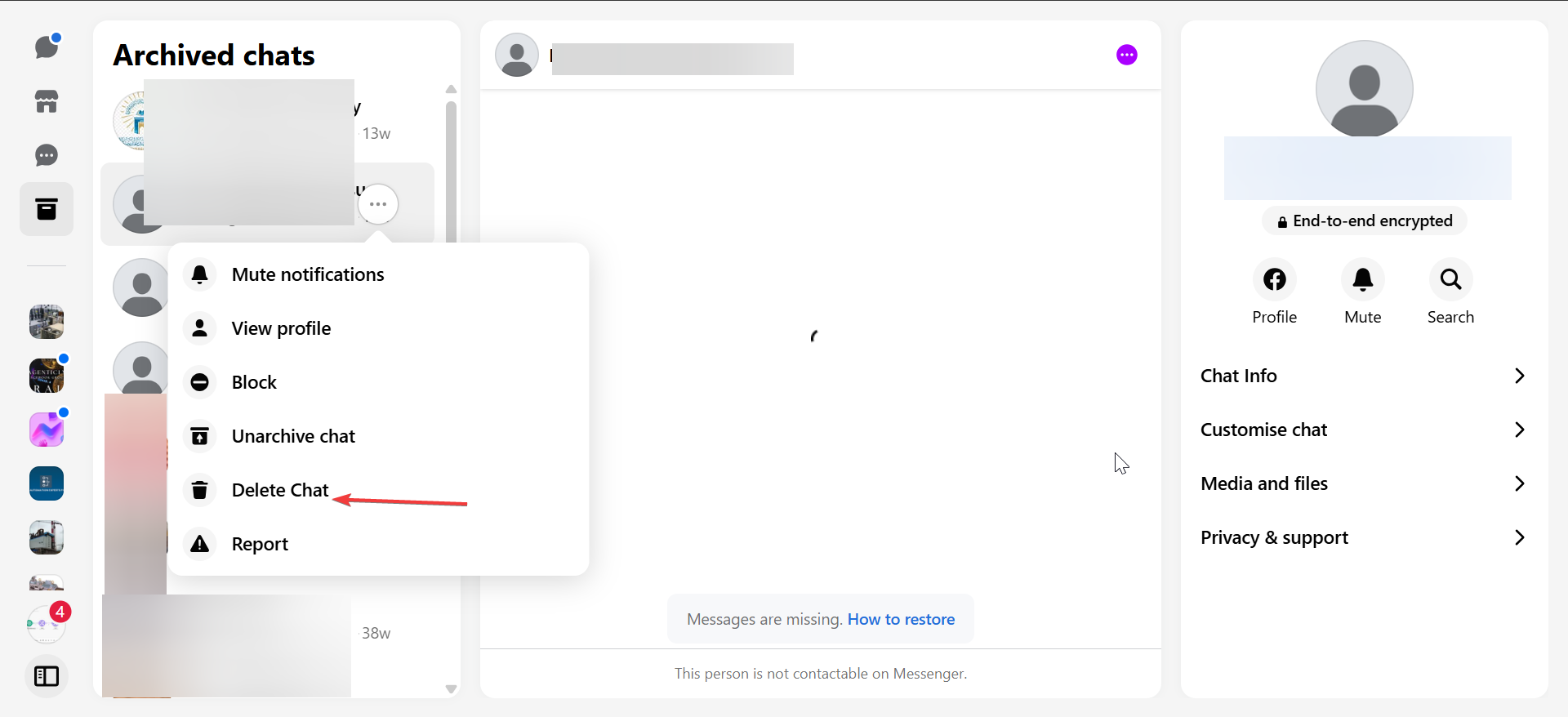
- Next, hover on the chat you want to delete and click the three dots.

- Finally, select the Delete chat option and confirm.
Why you can’t delete archived messages sometimes
Deletion fails for specific, fixable reasons. Messenger usually does not explain them.
Delete option missing
Messenger hides the delete option if the chat fails to load fully. Open the conversation first, wait a few seconds, then try again.
Archived chat reappears after deletion
Sync delays cause this issue. Log out of Messenger on other devices, close the app, then reopen it to force a refresh.
Can you delete individual messages inside archived chats?
Messenger treats message-level deletion differently from conversation deletion.
Delete one message vs entire conversation
You can delete individual messages only inside an open chat. Archived status does not block message-level deletion.
Limits of unsend and delete
Unsend works only within Messenger’s time limit and removes messages for everyone. Regular delete removes messages only from your view.
Tips for managing archived Messenger conversations
- Use Delete instead of Archive for sensitive chats
- Review archived chats monthly to prevent buildup
- Sign out of unused devices to avoid sync issues
FAQs
Can archived messages be permanently deleted?
Yes. Open the archived chat and delete the conversation.
Does deleting an archived chat notify the other person?
No. Messenger does not send notifications for deletions.
Can archived messages be recovered after deletion?
No. Messenger does not offer recovery once you delete a chat.
Is there a way to bulk delete archived chats?
No. Messenger requires deleting conversations one by one.
Summary
- Archiving hides chats but keeps all messages.
- You must open archived chats before deleting them.
- Steps vary slightly across mobile and desktop.
- Sync issues often cause deletion problems.
Deleting archived messages in Facebook Messenger works once you access the archived inbox directly. After confirmation, Messenger removes the conversation from your account and does not bring it back.


Discussion (0)
Be the first to comment.