




If your browser usually has 15–30 tabs open, you already know the problem. You don’t lose tabs because you close them. You lose them because they disappear into the clutter.
Tab groups in Google Chrome are meant to fix exactly that. Not by giving you more control, but by helping you structure what’s already open.
The difference is subtle, but once you use them properly, your browser feels far more manageable.
What Tab Groups Really Solve
Most people think tab groups are about organization. They’re not.
They’re about context.
When you group tabs, you’re not just arranging them. You’re telling your browser:
- These tabs belong to the same task
- Everything else is secondary right now
That makes switching between work, research, and personal browsing much cleaner.
How to Create a Tab Group
The process is simple and quick once you’ve done it once.
Create a New Group
- Right-click any tab
- Click Add tab to new group
- Give it:
- A name
- A color
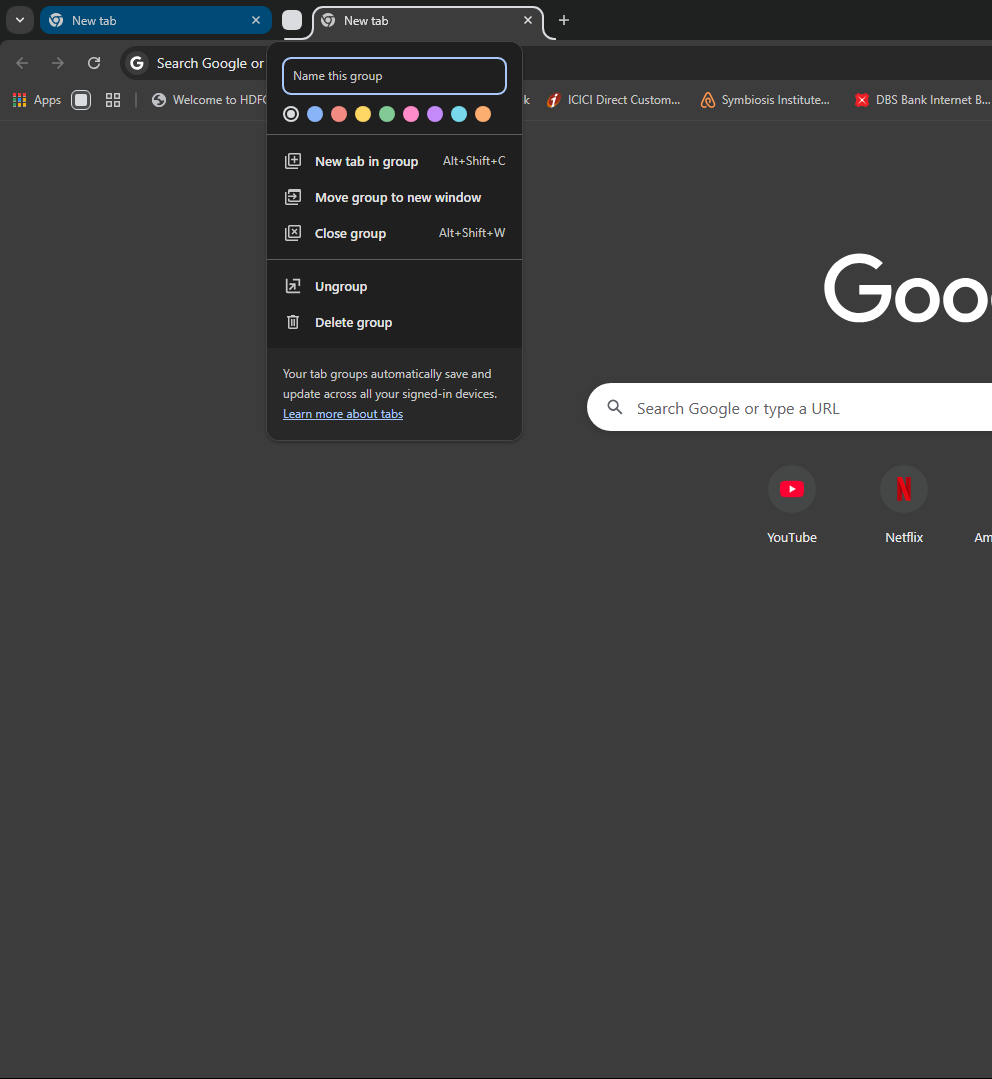
You’ll immediately see the group label appear on your tab bar.
Add More Tabs to the Group
- Drag any tab into the group
- Or right-click → Add tab to group
This part becomes instinctive after a few uses.
The Feature That Actually Matters: Collapse
Creating groups is easy. The real value comes from collapsing them.
- Click the group name
- All tabs inside it collapse into a single label
Now instead of 20 tabs, you might only see 3–4 groups.
This is what reduces visual noise.
How to Use Tab Groups Without Overcomplicating It
This is where most people go wrong.
They either:
- Don’t use groups at all
- Or create too many and lose track
A simple structure works best.
Keep Groups Based on Tasks, Not Topics
Good examples:
- Work
- Research
- Personal
- Temporary
Avoid overly specific groups like:
- “Article ideas Q2 marketing draft”
Those become hard to maintain.
Limit the Number of Active Groups
If you have more than 4–5 groups open, you’re back to clutter.
The goal is not perfect categorization. It’s reducing what’s visible.
Rearranging and Managing Groups
Once you start using groups, small controls matter.
Move an Entire Group
- Drag the group label
- All tabs move together
This is useful when reorganizing your workspace quickly.
Change Name or Color
- Right-click the group label
- Rename or recolor
Color matters more than you think. It helps you identify groups without reading labels.
Saving Tab Groups (The Underrated Feature)
If you right-click a group, you’ll see the option to Save group.
This changes how useful tab groups are.
- Saved groups appear in the bookmarks bar
- You can reopen them later
- You don’t lose your setup when you close Chrome
This is especially useful if you:
- Work on recurring tasks
- Revisit the same set of tabs regularly
Where Tab Groups Actually Help
You’ll feel the benefit most when:
- You multitask across different types of work
- You keep tabs open for long sessions
- You switch contexts frequently
Without groups, everything blends together. With them, each task stays contained.
Where They Don’t Help
Tab groups are not a replacement for everything.
They’re not ideal for:
- Long-term storage (use bookmarks instead)
- Managing hundreds of tabs
- Completely eliminating clutter
They are a short-term organization tool, not a permanent system.
Real-World Insight
Most people don’t need complex setups.
A simple pattern works:
- One group for what you’re doing now
- One for what you’ll return to later
- Everything else closed or bookmarked
That alone reduces friction more than any advanced setup.
Final Thoughts
Tab groups in Google Chrome are one of those features that seem minor until you use them consistently.
They don’t make your browser faster.
They make it easier to think inside your browser.
And that’s what actually matters.
FAQs
How do I create a tab group in Chrome
Right-click a tab and select “Add tab to new group.”
How do I collapse a tab group
Click the group name.
Can I save tab groups
Yes, and reopen them later from the bookmarks bar.
How many tab groups should I use
Ideally 3–5 active groups at most.
Are tab groups better than bookmarks
No, they serve different purposes. Groups are for active work, bookmarks are for storage.



Discussion (0)
Be the first to comment.