



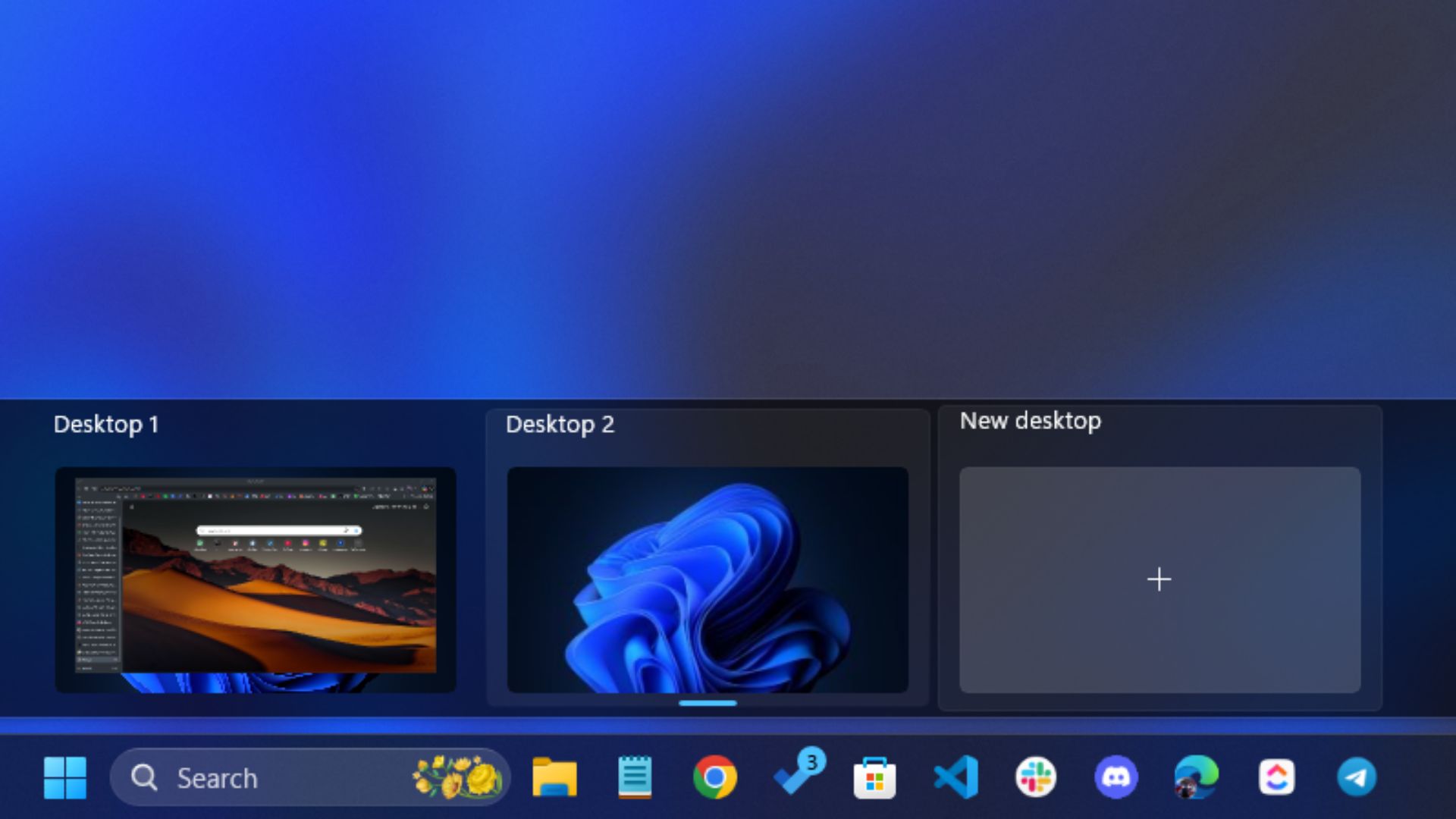
Windows 11 lets you create virtual desktops so you can split your work into separate spaces on the same monitor. You can keep a work desktop open with your tools, a personal desktop with chat and music, and switch between them in seconds.
To create a virtual desktop, open Task View with Windows key + Tab, then select New desktop. You can also skip Task View and press Windows key + Ctrl + D to create a new desktop instantly.
After you create desktops, you can move windows between them, rename them, set different wallpapers, and choose whether the taskbar and Alt+Tab show apps from one desktop or all desktops.
Create a new virtual desktop
You have two fast ways to do it.
Method 1: Use Task View
- Click the Task View button on the taskbar, or press Windows key + Tab.
- Select New desktop.


- Open the apps you want to use on that desktop.
Method 2: Use a keyboard shortcut
- Press Windows key + Ctrl + D to create a new desktop.
If you do not see the Task View button, open Taskbar settings and turn Task view on.
Switch between desktops
You can switch from the taskbar or the keyboard.
- Press Windows key + Ctrl + Left arrow or Windows key + Ctrl + Right arrow.
- Or open Task View with Windows key + Tab, then select the desktop thumbnail you want.
Move an app window to another desktop
Task View gives you a clean way to reorganize windows without closing anything.
- Open Task View with Windows key + Tab.
- Right-click the window you want to move.
- Select Move to, then pick the destination desktop.
You can also drag a window and drop it onto a different desktop thumbnail inside Task View.
Show an app on all desktops
This helps when you want one app available everywhere, like a music player, chat app, or a timer.
- Open Task View with Windows key + Tab.
- Right-click the window.
- Select Show this window on all desktops or the option to show all windows from that app on all desktops.
Rename desktops and set different wallpapers
Names and backgrounds help you spot the right desktop quickly.
Rename a desktop
- Open Task View.
- Right-click the desktop thumbnail.


- Select Rename, type a name, then press Enter.
Change the background per desktop
- Open Task View.
- Right-click a desktop thumbnail.
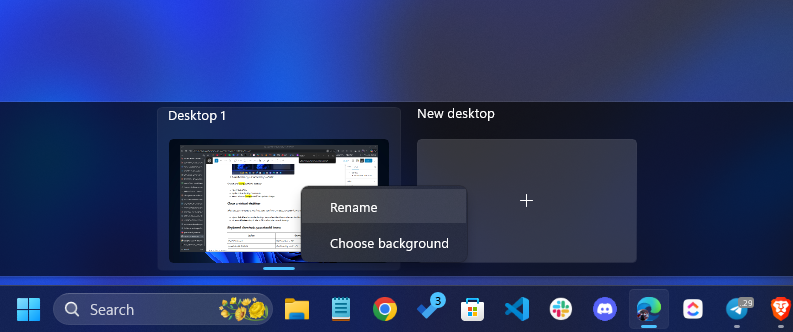

- Select Choose background, then pick an image.
Close a virtual desktop
When you close a desktop, Windows does not close your apps. It moves them to another desktop.
- Open Task View, hover the desktop, then select the Close button on the thumbnail.
- Or press Windows key + Ctrl + F4 to close the current desktop.
Keyboard shortcuts you should know
| Action | Shortcut |
|---|---|
| Open Task View | Windows key + Tab |
| Create a new desktop | Windows key + Ctrl + D |
| Switch desktops | Windows key + Ctrl + Left or Right arrow |
| Close current desktop | Windows key + Ctrl + F4 |
Control what the taskbar and Alt+Tab show
Windows 11 lets you decide whether you want to see windows from only the desktop you are using, or from all desktops.
- Open Settings
- Go to System
- Select Multitasking
- Expand Desktops
- Set:
- On the taskbar, show all the open windows: choose current desktop or all desktops
- Show all open windows when I press Alt+Tab: choose current desktop or all desktops
FAQs
How many virtual desktops can you create on Windows 11?
Windows does not set a small fixed limit in the UI. Most people run out of practical screen management before they hit a technical ceiling.
Do virtual desktops affect performance?
Desktops mainly change how Windows groups and shows your open apps. Performance depends on the apps you run, not the number of desktops you created.
Will Windows remember my desktops after a restart?
Windows can keep the desktops you created, but app behavior varies by app and update. If you rely on a specific layout, test it after major Windows updates.
What is the difference between Alt+Tab and Task View?
Alt+Tab switches between open windows. Task View shows windows plus your desktop thumbnails and management options.

Discussion (0)
Be the first to comment.