



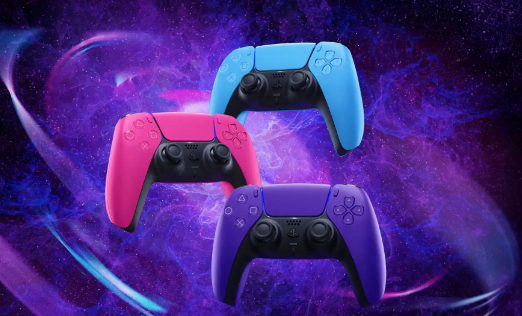
The PS5 DualSense is one of the best controllers ever made. Its adaptive triggers and haptic feedback set it apart from anything else available, and the ergonomics are excellent for long sessions. The good news is that you do not need to keep it exclusive to your PlayStation. The DualSense works on Windows 10 and 11 out of the box, with no drivers to download and no complicated setup.
There are three ways to connect it. Here is how each one works and when to use each.
What You Need Before You Start
For a wired connection, you need a USB-C to USB-A cable if your PC has standard USB ports, or a USB-C to USB-C cable if your PC has a USB-C port. The DualSense does not include a cable in the box when sold separately, but any USB-C data cable works. Charge-only cables do not. If you plug in and nothing happens, try a different cable before troubleshooting anything else.
For wireless Bluetooth, your PC needs a Bluetooth adapter supporting Bluetooth 4.0 or higher. Most laptops built after 2015 have this built in. Desktop PCs often do not, in which case a USB Bluetooth dongle costing around ten dollars is all you need.
Method 1: USB Cable (Fastest and Most Reliable)
This is the best method for competitive gaming. Zero wireless latency, full support for adaptive triggers and haptic feedback, and the controller charges while you play.
Step 1: Plug In the Controller
Connect the USB-C end of the cable to the top of the DualSense. Connect the other end to any USB port on your PC.
Step 2: Wait for Windows to Detect It
Windows recognises the DualSense automatically within two to three seconds. A notification appears saying Setting up a device, followed by Device is ready. No driver installation required.
Step 3: Confirm the Connection
Open Settings and go to Bluetooth and Devices, then Devices. You see Wireless Controller listed, confirming the connection is active.
That is everything. The controller is ready to use. Open any game and it works immediately.
Method 2: Bluetooth (Wireless Freedom)
Bluetooth is convenient for couch gaming or any setup where a cable is awkward. The connection is stable for most gaming situations, though adaptive triggers and haptic feedback require a USB connection in most games.
Step 1: Open Bluetooth Settings on Your PC
Press Windows and I together to open Settings. Click Bluetooth and Devices. Make sure Bluetooth is toggled on. Click Add Device.
Step 2: Put the DualSense Into Pairing Mode
On the controller, hold the Create button and the PS button simultaneously for three seconds. The Create button is the small button to the left of the touchpad. The light bar flashes blue rapidly, indicating the controller is in pairing mode.
Step 3: Select the Controller on Your PC
In the Add a Device window that opened on your PC, click Bluetooth. Windows searches for nearby devices. Wireless Controller appears in the list within a few seconds. Click it.
Step 4: Confirm the Pairing
Windows connects to the controller and the light bar stops flashing, settling into a steady glow. The pairing is complete.
The DualSense now connects to your PC automatically whenever you press the PS button, as long as Bluetooth is enabled on your computer.
A Note on Adaptive Triggers and Haptic Feedback
The DualSense's standout features work differently on PC depending on how you connect.
Via USB cable, adaptive triggers and haptic feedback work in games that natively support them. This includes titles like Returnal, Death Stranding Director's Cut, and an expanding list of PC ports of PlayStation games.
Via Bluetooth, most games do not support adaptive triggers. The connection works for standard rumble vibration but the resistance mechanics and precise haptic feedback require USB in most implementations.
If you specifically want the full DualSense experience with adaptive triggers on PC, use a USB cable.
What to Do if Your PC Does Not Recognise the Controller
Try a different cable first. This resolves the vast majority of wired connection failures. Some USB-C cables only carry power and not data. Swap to a known-good cable before assuming anything else is wrong.
Restart Bluetooth on your PC. If the controller is not appearing during Bluetooth discovery, toggle Bluetooth off and back on in Settings, then try putting the controller into pairing mode again.
Remove old pairings. If the DualSense has been paired to multiple devices, it can struggle to connect to the right one. In Windows Bluetooth settings, find Wireless Controller in the list, click the three-dot menu, and select Remove Device. Then pair fresh from scratch.
Reconnect to your PS5 if needed. After using the controller on PC via Bluetooth, it will try to connect to your PC the next time you turn it on. To reconnect it to your PS5, plug it into the console with a USB cable and press the PS button.
Using the Controller With Non-Steam Games
Windows recognises the DualSense as a standard gamepad, so most games work without any additional software. The limitation is that many games display Xbox button prompts instead of PlayStation labels, since Windows is built around Xbox controller compatibility.
DS4Windows is a free open-source tool that solves this for non-Steam games. It emulates an Xbox controller in the background, improving compatibility with games that have poor generic controller support. The trade-off is that emulation mode disables adaptive triggers and haptic feedback. For most games where those features are not supported anyway, DS4Windows is a practical solution.
Frequently Asked Questions
Does the DualSense work with all PC games?
The DualSense works as a standard gamepad with virtually all games that support controller input. What varies is how well each game presents the experience. Steam games with PlayStation controller support show correct button prompts and may support adaptive triggers. Non-Steam games typically show Xbox button labels and use standard rumble rather than the DualSense's advanced haptics, but the controls still function correctly.
Can I connect multiple DualSense controllers to one PC?
Yes. You can connect up to four DualSense controllers simultaneously, which is useful for local multiplayer. Each controller is assigned a different player slot. Wired connections are more reliable for multiple controllers simultaneously. Bluetooth connections for four controllers simultaneously can sometimes introduce latency on PCs with budget Bluetooth adapters.
Does Bluetooth add noticeable input lag?
For most gaming purposes, no. The DualSense uses Bluetooth 5.1, which provides a stable low-latency connection. The difference between wired and wireless is typically under 5 milliseconds, which is imperceptible in casual and single-player gaming. For competitive multiplayer where input timing is critical, a wired connection is the safer choice.



Discussion (0)
Be the first to comment.