




Streaming devices continue growing in popularity, and Google’s Chromecast remains one of the simplest ways to move your favorite content from a phone, tablet, or laptop onto your TV. If you're learning how to connect Chromecast to TV with HDMI for the first time, the setup process only requires a few essential components and a few minutes of your time.
Before diving into the steps, make sure your television has at least one open HDMI port and that your home Wi-Fi network is active. Chromecast relies on HDMI for video output and Wi-Fi for streaming, so both must be ready before setup begins. Once everything checks out, you can complete the entire Chromecast HDMI setup using the Google Home app on your mobile device.
Getting Started With Chromecast Requirements
A quick review of the basics ensures your installation goes smoothly. Chromecast works with nearly any modern TV as long as an available HDMI port is present, and it can be powered through a USB port or a wall outlet using the included adapter.
What You Need Before You Begin
Make sure the following items are ready so you can move directly into the setup steps without interruption.
- A Chromecast device with its USB power cable and adapter
- A TV with an open HDMI port
- A mobile device with the Google Home app installed
- A stable Wi-Fi network
- Access to a power outlet or powered USB port
How To Connect Chromecast To TV With HDMI
Once you have everything ready, connecting Chromecast to your TV only takes a few quick steps. These steps work across all modern Chromecast models at the time of writing.
- Locate an open HDMI port on your TV and insert the Chromecast into it.
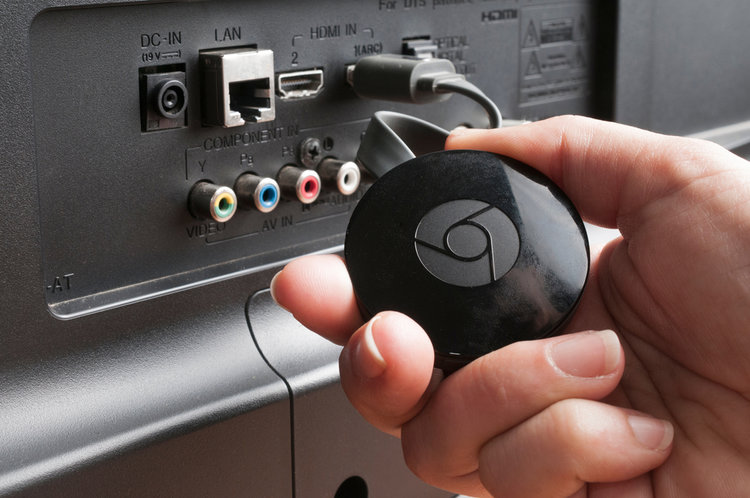
- Connect the USB power cable to your Chromecast and plug the other end into a wall outlet or USB port.
- Turn on your TV and switch the input to the HDMI port where Chromecast is connected.
- Verify that the Chromecast startup screen appears on your TV.
Setting Up Chromecast Through The Google Home App
After your Chromecast appears on the TV screen, the rest of the installation happens through the Google Home app. This connects your device to Wi-Fi and prepares it for casting.
- Open the Google Home app on your phone or tablet.
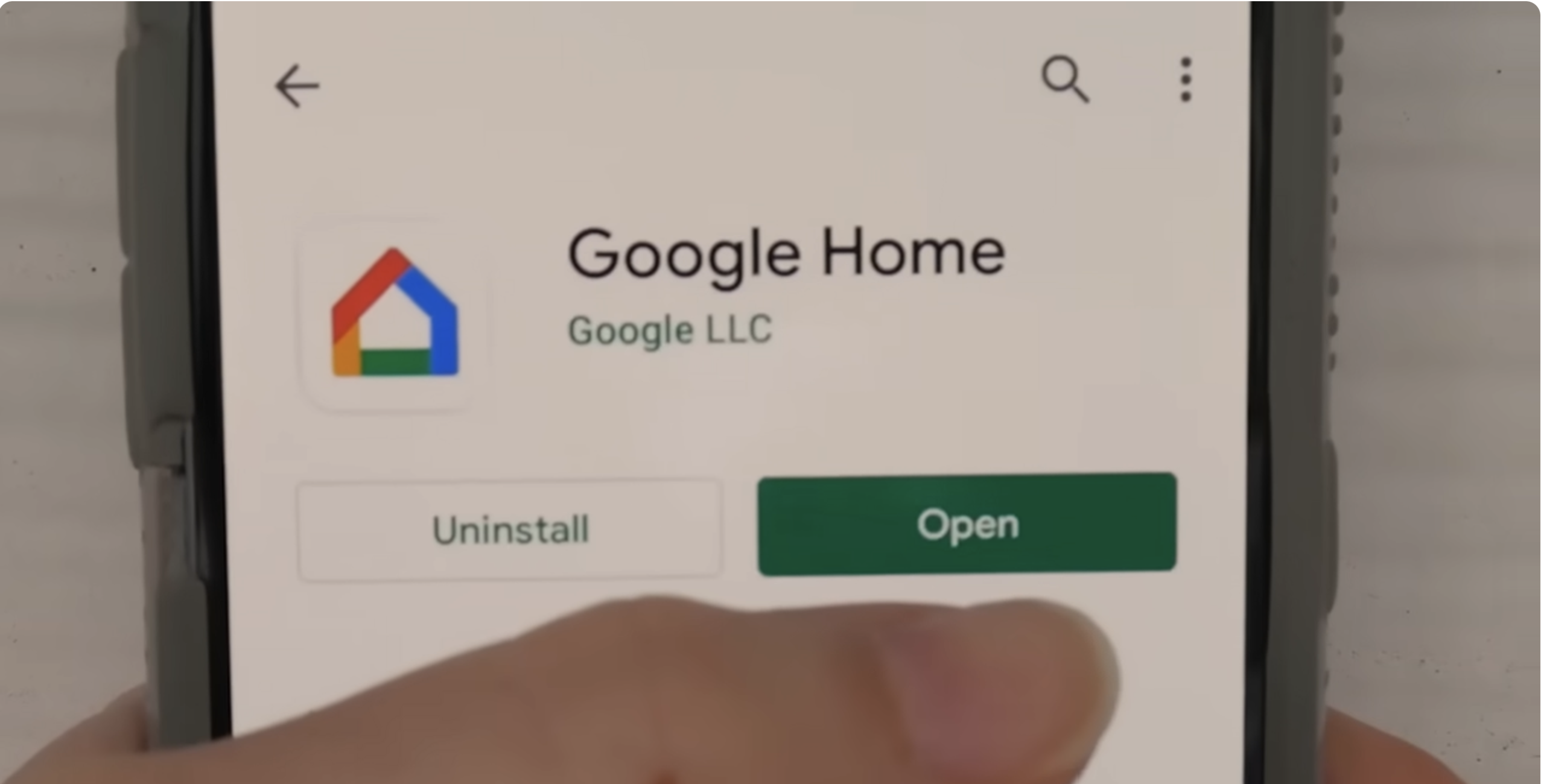
- Tap the “+” icon and select “Set up device.”

- Choose “New device” and allow the app to scan for your Chromecast.
- Select the Chromecast that appears and confirm the pairing code shown on your TV.
- Choose your Wi-Fi network and enter your password when prompted.
- Wait for Chromecast to complete installation and any required updates.
Casting From Your Phone, Tablet, Or Computer
Once Chromecast connects to Wi-Fi, you can start casting right away. Most supported apps display a Cast icon when both your device and Chromecast share the same Wi-Fi network.
- Open a supported app like YouTube, Hulu, or Spotify.
- Tap the Cast icon and select your Chromecast.
- Choose any video, show, song, or webpage to send it to your TV.
Troubleshooting Common Problems
- If Chromecast is not detected, verify that your phone and Chromecast are on the same Wi-Fi network.
- If no signal appears on your TV, try switching to another HDMI input or reseating the Chromecast.
- If streaming stutters, restart your router and ensure your Wi-Fi signal is strong.
- If the Google Home app cannot find your device, reboot the Chromecast by unplugging it for 10 seconds.
Tips
- Use the included power adapter instead of your TV’s USB port for the most reliable power source.
- Place your router in an open area to improve Chromecast streaming quality.
- Rename your Chromecast in the Google Home app to keep multiple devices organized.
FAQ
Why won’t my Chromecast show up on my TV? Make sure the TV input is set to the correct HDMI port and confirm the device is powered on.
Can I use Chromecast without Wi-Fi? Not for standard casting. Chromecast requires Wi-Fi for setup and streaming.
Does Chromecast work with any TV? Yes, as long as the TV has an open HDMI port.
Why does my video lag? Weak Wi-Fi is the most common cause. Move your router closer or switch to a faster network band.
Summary
- Connect Chromecast to an HDMI port and power it on.
- Switch your TV to the correct HDMI input.
- Set up Chromecast using the Google Home app.
- Connect it to your home Wi-Fi network.
- Start casting from supported apps.
Conclusion
By following these steps, you can connect Chromecast to your TV with HDMI, configure it through the Google Home app, and start streaming content across your devices.
Once everything is set up, casting becomes an effortless part of your daily routine, letting you enjoy movies, shows, music, and more on the biggest screen in your home.

Discussion (0)
Be the first to comment.