



Gemini becomes a lot more useful when it knows what is going on in your life. By default, it does not have access to your Gmail, Google Drive, Calendar, or any other app you use. It just answers questions from general knowledge. Connecting your apps changes that completely. Once connected, Gemini can read your emails, find your files, check your schedule, and give you answers based on real information from your accounts. This guide shows you exactly how to connect apps to Gemini, whether you are on a desktop, Android, or iPhone.
What Are Connected Apps in Gemini?
Connected Apps is a feature inside Gemini settings. It lets you choose which services Gemini can access and use when answering your questions.
Think of it as giving Gemini a key to specific rooms. You decide which rooms it can enter. It cannot go anywhere you have not approved.
Google used to call this feature Gemini Extensions. It was later renamed to Connected Apps. The name is different but the idea is the same. You browse a list of available apps and switch on the ones you want. Gemini only accesses an app after you turn it on.
You can change your choices at any time. Turning an app off disconnects it immediately. Your chat history stays untouched either way.
What Apps Can You Connect to Gemini?
The apps you can connect depend on your device, your location, and the type of Google account you use. Here is what is generally available across platforms.
Google Workspace apps are the most commonly used. You can connect Gmail, Google Calendar, Google Drive, Google Docs, Google Keep, and Google Tasks. With these turned on, Gemini can summarize your emails, find documents in your Drive, and create calendar events for you without switching apps.
GitHub is available in the Gemini web app. You can import a code repository directly into a chat and ask Gemini to explain or review the code.
For media, you can connect YouTube Music and Spotify. Gemini can then play songs for you when you ask. Google Photos is also available, letting Gemini search through your image library.
Android users get more options. WhatsApp, your default phone app, your messages app, and Google Home are all available on Android. The Utilities connection lets Gemini set alarms and change device settings through simple text or voice commands. Some Android devices also support third-party apps like Asana.
On iOS, the list is shorter. Google apps work well, but device-level connections like WhatsApp and Google Home are not available on iPhone or iPad.
What You Need Before Connecting Apps
Before you start, two things need to be in place.
You need to be signed into your Google account inside the Gemini app or on gemini.google.com. Connected Apps will not appear at all if you are not logged in.
You also need to have Keep Activity turned on. This is a Google setting that allows Gemini to remember context between conversations. Without it, Connected Apps will not load on the web, on iOS, or on smartwatches. On Android, only a handful of apps will work if Keep Activity is off.
To check this, go to myactivity.google.com. Look for Gemini Apps Activity. If it is off, turn it on before continuing.
If you use Gemini through a work or school Google account, your Workspace administrator controls which apps are available to you. Some apps may be greyed out or missing entirely. In that case, contact your administrator and ask them to enable access.
How to Connect Apps to Gemini on Desktop
Connecting apps on the desktop is quick. Follow these numbered steps to get started.
- Open your browser and go to Gemini. Sign in to your Google account. If you have more than one account saved, check the icon in the top right corner to make sure the right account is selected.
- Look at the bottom left of the screen. Click on Settings and help. A small menu will pop up.
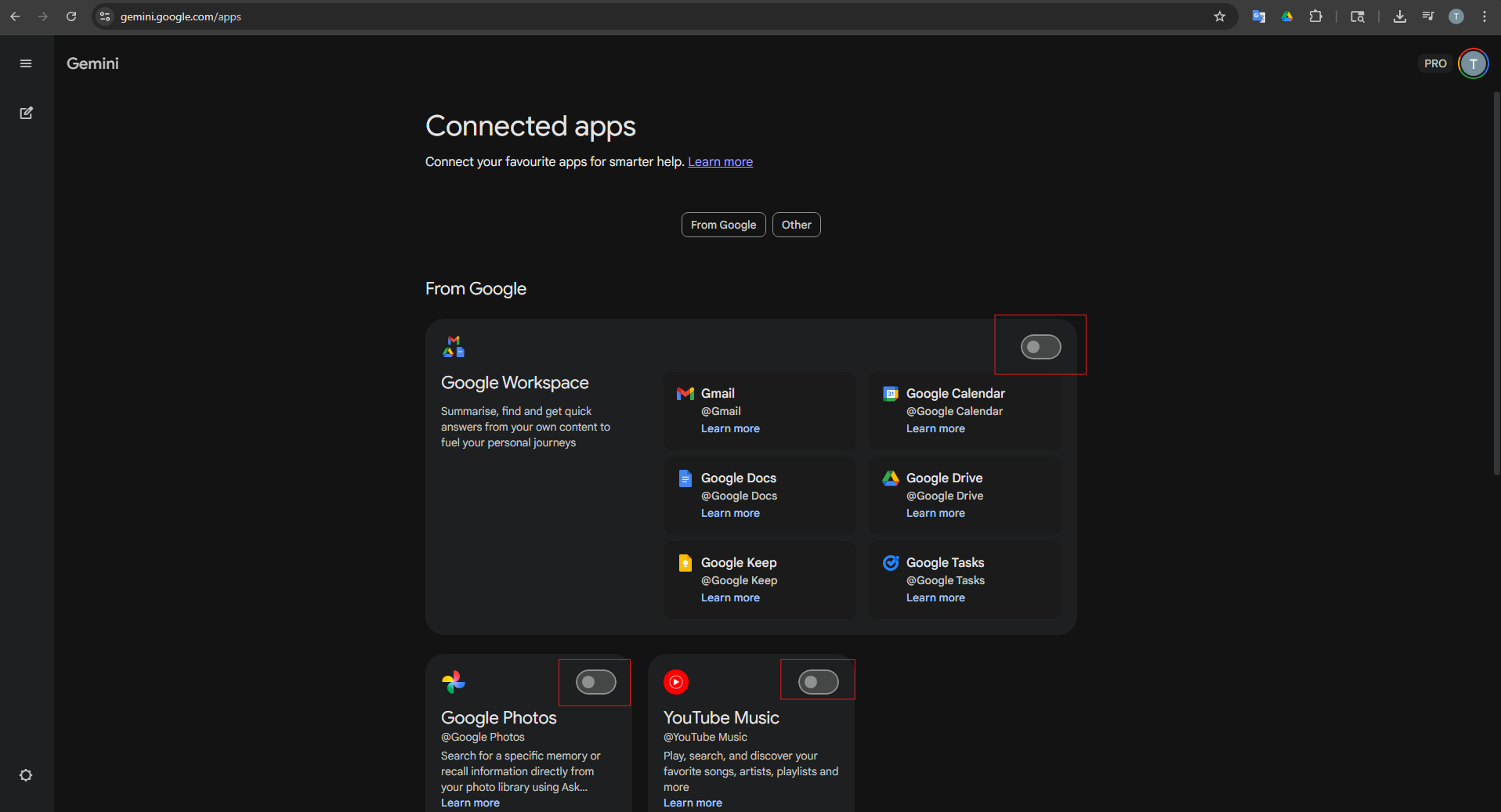
- In that menu, click Connected Apps. This opens the full Connected Apps page where you can see everything available. If Connected Apps is not visible in the menu, click on Personal Intelligence first. Connected Apps will be listed inside that section.
- Browse through the list of apps. Each one has a toggle on the right side. A grey toggle means the app is not connected. A blue or coloured toggle means it is active.
- Click the toggle next to the app you want to connect. For Google apps like Gmail, Drive, and Calendar, it activates right away with no extra steps. For some third-party apps, a prompt will appear asking you to sign in or approve permissions. Follow those instructions and the app will connect.
- To check that the connection worked, go back to the Gemini chat. Ask something that requires the app you just connected. If you connected Gmail, try asking Gemini to summarize your unread emails. If it pulls results from your inbox, you are good to go.
How to Call a Connected App Directly in Gemini
Once an app is connected, Gemini will often use it on its own when it seems relevant. Ask it to find a file and it checks Google Drive. Ask it to play something and it opens Spotify or YouTube Music.
But you can also call a specific app directly. Type the at symbol followed by the app name at the start of your prompt. For example, type "@Gmail show me emails from last week" or "@GoogleDrive find the project brief." This tells Gemini exactly where to look instead of guessing on its own. It is a useful habit to build, especially when you have multiple apps connected at the same time.
How to Disconnect an App from Gemini
Disconnecting is just as easy as connecting. Go back to the Connected Apps settings page using the same path you used to connect. Find the app you want to remove and tap or click the toggle to turn it off.
After you disconnect an app, Gemini will not access it in any new conversations. Old chats that already used data from that app will still be visible in your history. Disconnecting the app does not automatically delete those conversations. If you want to remove them, you need to delete those chats manually from Gemini Apps Activity at myactivity.google.com.
Connected Apps and Personal Intelligence
Google has a newer feature called Personal Intelligence. It works on top of Connected Apps and takes things a step further.
With Personal Intelligence enabled, Gemini does not just retrieve data from individual apps. It connects the dots across Gmail, Google Photos, YouTube, and your Search history together. The result is much more personal and context-aware responses.
For example, you could ask Gemini about photos from a holiday you took two years ago. With Google Photos connected and Personal Intelligence on, it will find them without needing any description from you. Or you could ask about a specific email conversation and Gemini will pull it up directly.
Personal Intelligence is currently available only in the United States. You need to be 18 or older, signed into a personal Google account, and have Keep Activity turned on. It does not work with work or school accounts.
Your Data and Privacy When Using Connected Apps
It is natural to wonder what happens to your data when Gemini has access to your apps. Here is what Google says about it.
When you connect an app, Gemini uses data from that app only to respond to your prompts. It reads the relevant information, generates a response, and delivers it to you. Google states that personal data accessed through Connected Apps is not used to train the Gemini model directly.
You stay in control. You can disconnect any app at any time. If you also want to remove past conversations where Gemini used your app data, go to myactivity.google.com and delete those specific chats from Gemini Apps Activity.
If you are on a managed work or school account, remember that your Workspace administrator may have already restricted which apps are available. You cannot override those restrictions from your own settings.
Final Thoughts
Connecting apps to Gemini is one of the best things you can do to make it work for you. Without connected apps, Gemini gives you general answers. With them, it gives you answers based on your actual emails, files, photos, and calendar. Setup takes just a few minutes. Start with the Google apps you rely on most, test that each connection works, and add more from there when you are ready.
Frequently Asked Questions
Where do I find Connected Apps in Gemini settings?
On desktop, go to gemini.google.com and click Settings and help at the bottom left of the screen. Then click Connected Apps. On mobile, tap your profile picture at the top of the app and select Connected Apps. If you do not see it right away, tap Personal Intelligence first and look for Connected Apps inside that section.
Why is Connected Apps not showing up in my Gemini settings?
The most likely reason is that Keep Activity is turned off. Go to myactivity.google.com, find Gemini Apps Activity, and turn it on. You also need to be signed into your Google account. If you are on a work or school account, your administrator may have disabled access. Contact them to find out.
Does connecting an app share my personal data with Google?
Gemini uses data from connected apps only to respond to your prompts. Google states that this personal data is not used to train the Gemini model. You can disconnect any app at any time and delete related chats from Gemini Apps Activity if you want to remove past data references.
Can I connect apps to Gemini on an iPhone?
Yes. Open the Gemini app, tap your profile picture, and go to Connected Apps. Google apps like Gmail, Drive, and Calendar are available on iOS. However, Android-only connections such as WhatsApp, Google Home, and the Phone app are not available on iPhone or iPad.
Do connected apps work with Gemini scheduled actions?
Yes. If a scheduled action in Gemini needs data from an app, that app must be connected first. For example, a daily Gmail summary will only pull real email data if Gmail is connected. If the required app is not connected, Gemini will ask you to connect it before saving the scheduled action.



Discussion (0)
Be the first to comment.