



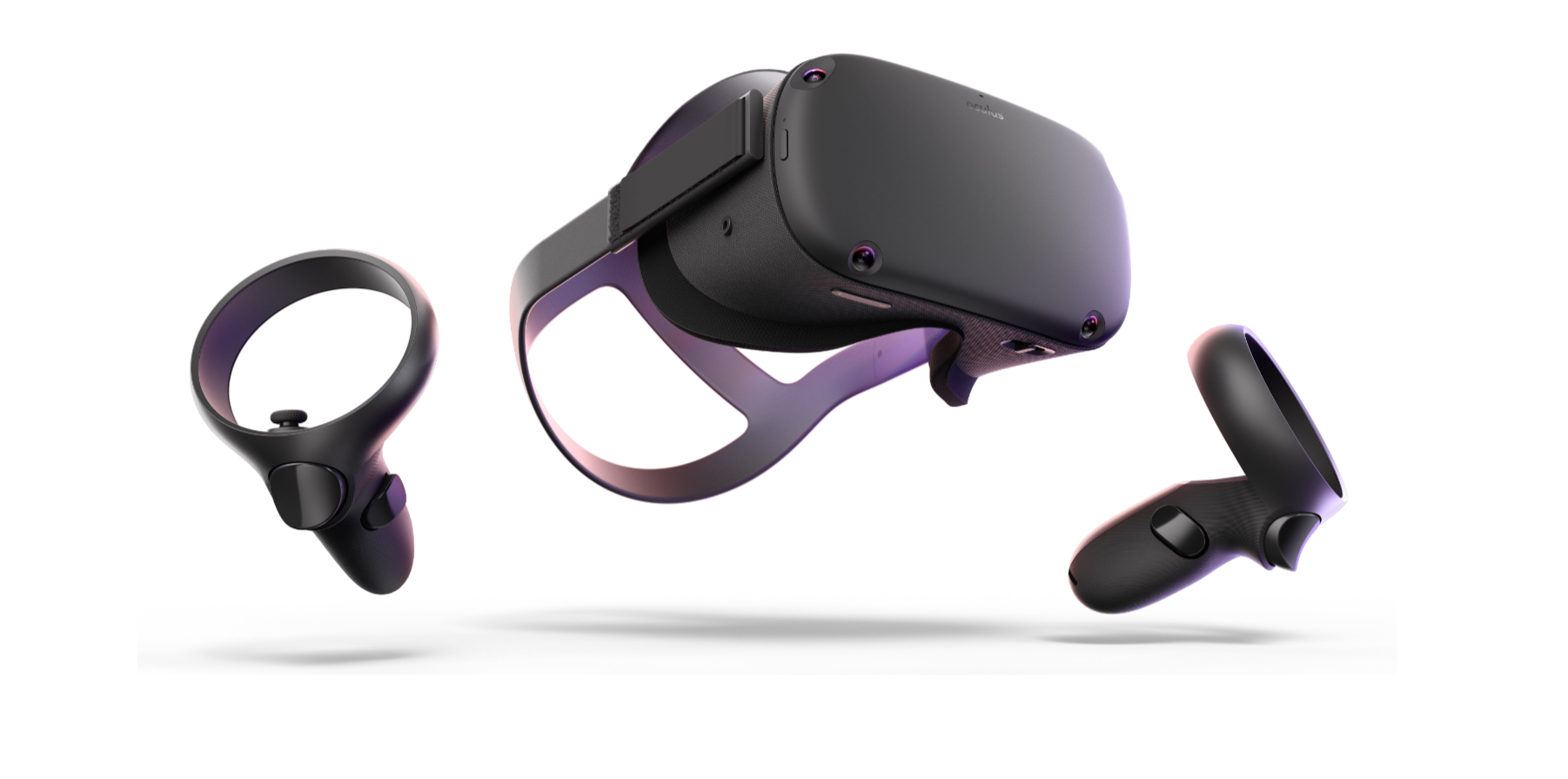
Windows Mixed Reality allows you to use compatible VR headsets for immersive experiences such as gaming, virtual tours, and productivity apps. Once your headset is connected, you can adjust various Mixed Reality settings to improve performance and comfort.
This guide explains how to configure Mixed Reality settings in Windows 10 and Windows 11.
What Is Windows Mixed Reality
Windows Mixed Reality is a platform that supports virtual reality headsets on Windows PCs. It enables:
- Virtual reality gaming
- 3D environments
- Mixed reality applications
- Integration with SteamVR
Compatible headsets include models from HP, Lenovo, Acer, Dell, and others.
System Requirements for Mixed Reality
Before configuring settings, ensure your PC meets basic requirements:
- Windows 10 or Windows 11
- Compatible VR headset
- Updated graphics drivers
- Adequate GPU performance
- USB and HDMI or DisplayPort support
You can check compatibility using the Mixed Reality Portal app.
How to Open Mixed Reality Settings
To access settings:
- Press Windows + I
- Click Mixed reality (Windows 10)
or - Open Mixed Reality Portal from Start menu
In Windows 11, Mixed Reality settings may appear inside the Mixed Reality Portal app rather than a separate Settings section.
Set Up Your Headset
If setting up for the first time:
- Connect the headset to your PC
- Open Mixed Reality Portal
- Follow on-screen instructions
- Complete room boundary setup
Choose between seated or room-scale experience.
Adjust Headset Display Settings
You can configure display quality:
- Open Mixed Reality Portal
- Go to Settings
- Adjust visual quality settings
- Choose between performance and visual clarity
Higher settings require stronger GPU performance.
Configure Input and Controllers
To manage controllers:
- Turn on motion controllers
- Pair them via Bluetooth
- Check controller battery level
- Calibrate if needed
Make sure Bluetooth is enabled on your PC.
Adjust Boundary Settings
For room-scale experiences:
- Open Mixed Reality settings
- Select Boundary setup
- Redraw your play area
Ensure adequate lighting for accurate tracking.
Optimize Performance Settings
If you experience lag:
- Lower visual quality
- Close background applications
- Update GPU drivers
- Ensure USB ports are functioning properly
Performance issues are often hardware-related.
Troubleshoot Mixed Reality Issues
If Mixed Reality is not working:
- Restart Mixed Reality Portal
- Reconnect headset
- Update Windows
- Reinstall graphics drivers
- Check USB and display cables
Compatibility issues are often fixed with updates.
Final Thoughts
Configuring Mixed Reality settings in Windows 10 and Windows 11 ensures a smoother and more immersive VR experience. Proper setup, boundary configuration, and performance adjustments help optimize gameplay and comfort. Always keep drivers and Windows updated for the best results.
FAQs
Does Windows 11 support Mixed Reality
Yes, but configuration is managed mainly through the Mixed Reality Portal app.
Do I need a powerful GPU for Mixed Reality
Yes, VR performance depends heavily on graphics hardware.
Can I use Mixed Reality seated
Yes, you can choose seated or room-scale setup.
How do I fix tracking issues
Ensure proper lighting and recalibrate boundary settings.
Is Mixed Reality free
The software is included in Windows, but a compatible headset is required.


Discussion (0)
Be the first to comment.