




Comparing two versions of the same document used to require manual scrolling and guesswork. Google Docs now includes a built-in comparison tool that highlights every change for you, line by line, in seconds.
This guide shows exactly how to compare documents in Google Docs, how to read the results correctly, and what limitations you should know before relying on it.
Table of contents
- What the document comparison feature does in Google Docs
- How to compare two documents in Google Docs
- How to read and understand the comparison results
- Common limitations of comparing documents in Google Docs
- Troubleshooting issues with document comparison
- Google Docs vs Microsoft Word document comparison
- Best use cases for comparing documents in Google Docs
- Tips for better comparison results
- Summary
What the document comparison feature does in Google Docs
Google Docs compares two documents and generates a third file that shows all differences as suggestions and comments. Insertions, deletions, and edits appear clearly, without modifying the original files.
You keep both source documents untouched, which makes this feature safe for reviews, approvals, and collaboration.
How to compare two documents in Google Docs
Step 1: Open the original document
Open the document you want to use as the base version. Google Docs treats this file as the reference point for all detected changes.
Make sure you own the document or have edit access, or the compare option may not appear.
Step 2: Open the compare documents tool
Click Tools in the top menu, then select Compare documents. Google Docs opens a comparison dialog.

If you do not see this option, check permissions or switch to a desktop browser.
Step 3: Select the document to compare against
Click My Drive and choose the second file from your Drive. Google Docs supports Docs files and compatible Word uploads.

Avoid heavily formatted files for cleaner results.
Step 4: Choose how changes are attributed
Enter a name in the Attribute differences to field. Google Docs assigns all detected changes to this name in comments.

This step matters when multiple editors review the output.
Step 5: Run the comparison and review results
Click Compare. Google Docs creates a new document showing all differences as suggestions.

The original files remain unchanged.
How to read and understand the comparison results
What suggestions and comments mean
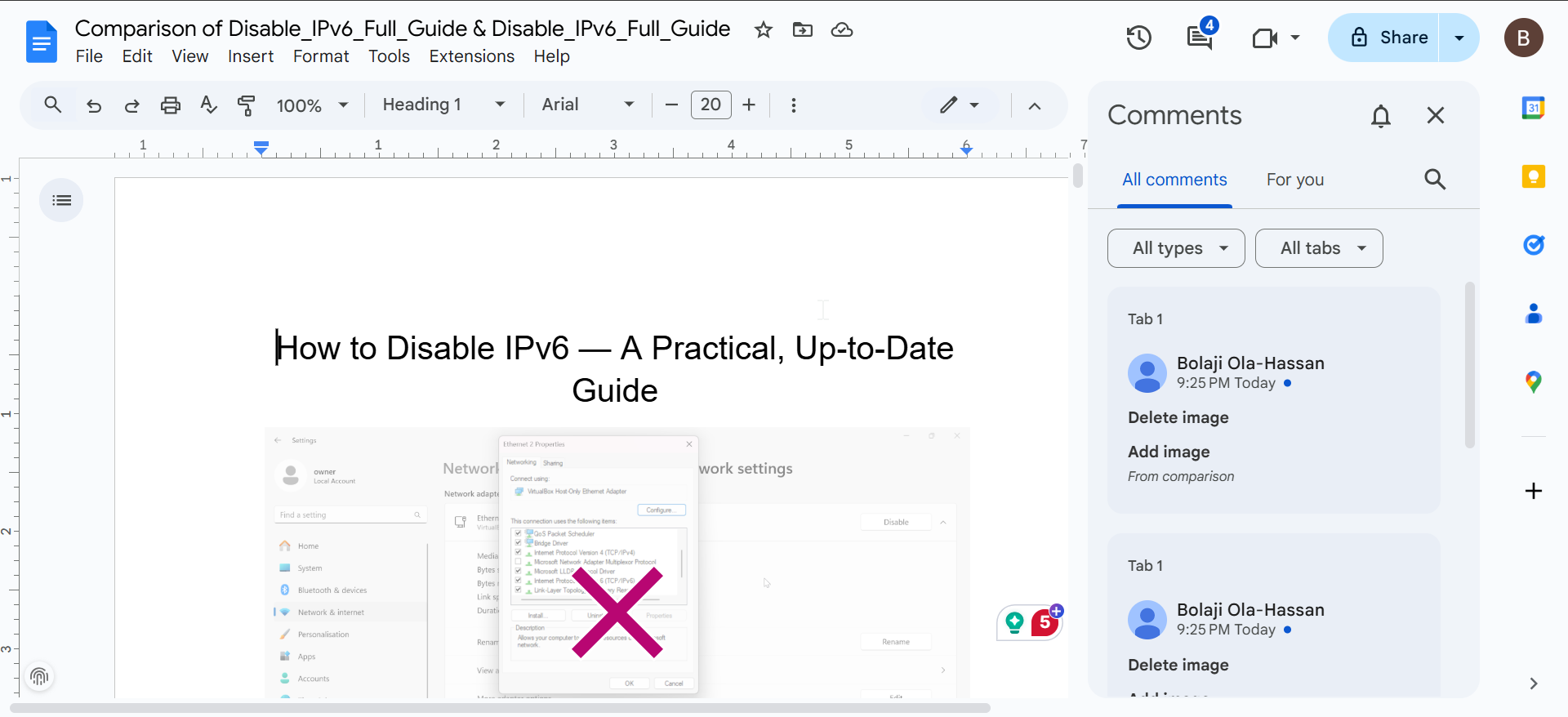
Inserted text appears as suggested additions, while removed text shows as suggested deletions. Formatting changes appear as comments instead of inline edits.
You can accept or reject each suggestion individually.
Who owns the compared document
Google Docs treats the comparison output as a brand-new document. You control sharing and permissions independently from the originals.
This setup prevents accidental overwrites.
Common limitations of comparing documents in Google Docs
Supported files and formats
Google Docs compares Docs files and compatible Word documents. It does not support PDFs, Sheets, or Slides for comparison. So, ensure to save the Google Doc file as docx on your Google Drive before comparison.
Also, note that converted files may produce inconsistent results.
Formatting and layout differences
Tables, images, headers, and spacing changes may appear as comments instead of precise edits. Google Docs focuses on text accuracy over layout precision.
Word processors handle complex layouts better.
File size and performance limits
Very large documents may take longer to process. In some cases, Google Docs may skip minor formatting changes.
Split large files for better accuracy.
Troubleshooting issues with document comparison
Compare option missing or greyed out
Use a desktop browser and confirm edit access to the document. Google Docs hides the option for view-only users and some Workspace restrictions.
Switching accounts often resolves the issue.
Changes not showing correctly
Ensure both documents use similar formatting and language settings. Converted Word files may introduce hidden formatting differences.
Clean formatting before comparing.
Google Docs vs Microsoft Word document comparison
When Google Docs is the better choice
Google Docs excels at collaboration, shared reviews, and cloud-based workflows. Teams can review suggestions together in real time.
No local files or installs required.
When Microsoft Word works better
Microsoft Word handles complex layouts, legal formatting, and offline comparisons more accurately. Large enterprise documents benefit from Word’s advanced tools.
Choose based on document complexity.
Best use cases for comparing documents in Google Docs
Editing and content review
Editors can quickly validate revisions without reading entire documents line by line. Suggestions keep feedback structured.
Academic and student work
Students can compare drafts before submission. Instructors can verify revisions efficiently.
Business and legal reviews
Teams can confirm contract changes and policy updates while preserving an audit trail.
Tips for better comparison results
- Use clean formatting in both documents
- Compare text-first versions before adding layout elements
- Name attribution clearly for multi-review workflows
- Split very large documents into sections
- Accept or reject suggestions gradually to avoid mistakes
Summary
- Open the original document and access Tools → Compare documents.
- Select the second file and assign attribution before running the comparison.
- Review suggestions in the newly generated document.
- Watch for formatting limitations and permission issues.
Google Docs makes document comparison fast, safe, and collaborative for most everyday workflows. For complex layouts or legal formatting, dedicated desktop tools still offer better precision.


Discussion (0)
Be the first to comment.