



Importing a Google Docs document into Google Sheets sounds simple, but Google does not offer a true one-click import option. The result depends entirely on how the content is structured and which method you choose. The good news is that tables, lists, and well-formatted data can move cleanly with the right approach.
This guide explains what actually works, what does not, and how to pick the best method for your document.
Table of contents
- Understand what can and cannot be imported
- Method 1: Copy and paste tables from Google Docs
- Method 2: Export doc as plain text, then import into Sheets
- Method 3: Use Google Apps Script for advanced imports
- Method 4: Automate Docs-to-Sheets imports with third-party tools
- Troubleshooting common import problems
- Best method comparison
- Tips for maintaining clean data in Google Sheets
- FAQs
- Summary
Understand what can and cannot be imported
Google Sheets works best with structured data like rows and columns. Google Docs focuses on text formatting, which causes problems during transfers.
Structured content vs unstructured content
Tables, simple lists, and evenly spaced data usually transfer correctly. Paragraphs, headings, images, and mixed layouts often break or flatten into a single column.
Why Google Docs does not have a true import option
Google treats Docs and Sheets as separate editors. Sheets can pull data from files and URLs, but it cannot directly parse a live Google Doc into rows and columns.
Method 1: Copy and paste tables from Google Docs
This method works best for most users and requires no extra tools. Use it when your Google Doc contains one or more clean tables.
Step-by-step copy and paste workflow
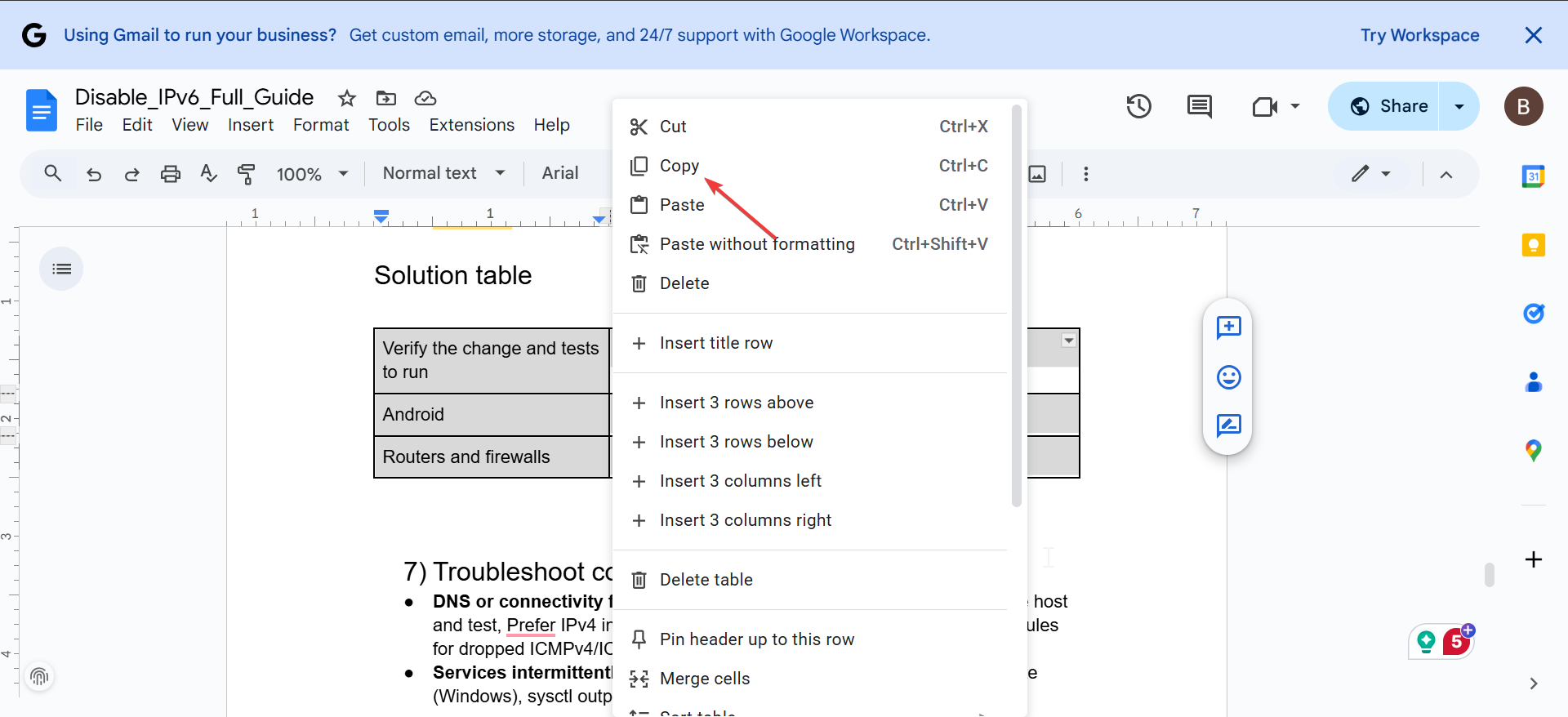
- Open the Google Docs document.
- Click inside the table and drag to select all cells.
- Right-click and choose Copy.

- Open Google Sheets and click the target cell, usually A1.
- Right-click and choose Paste.
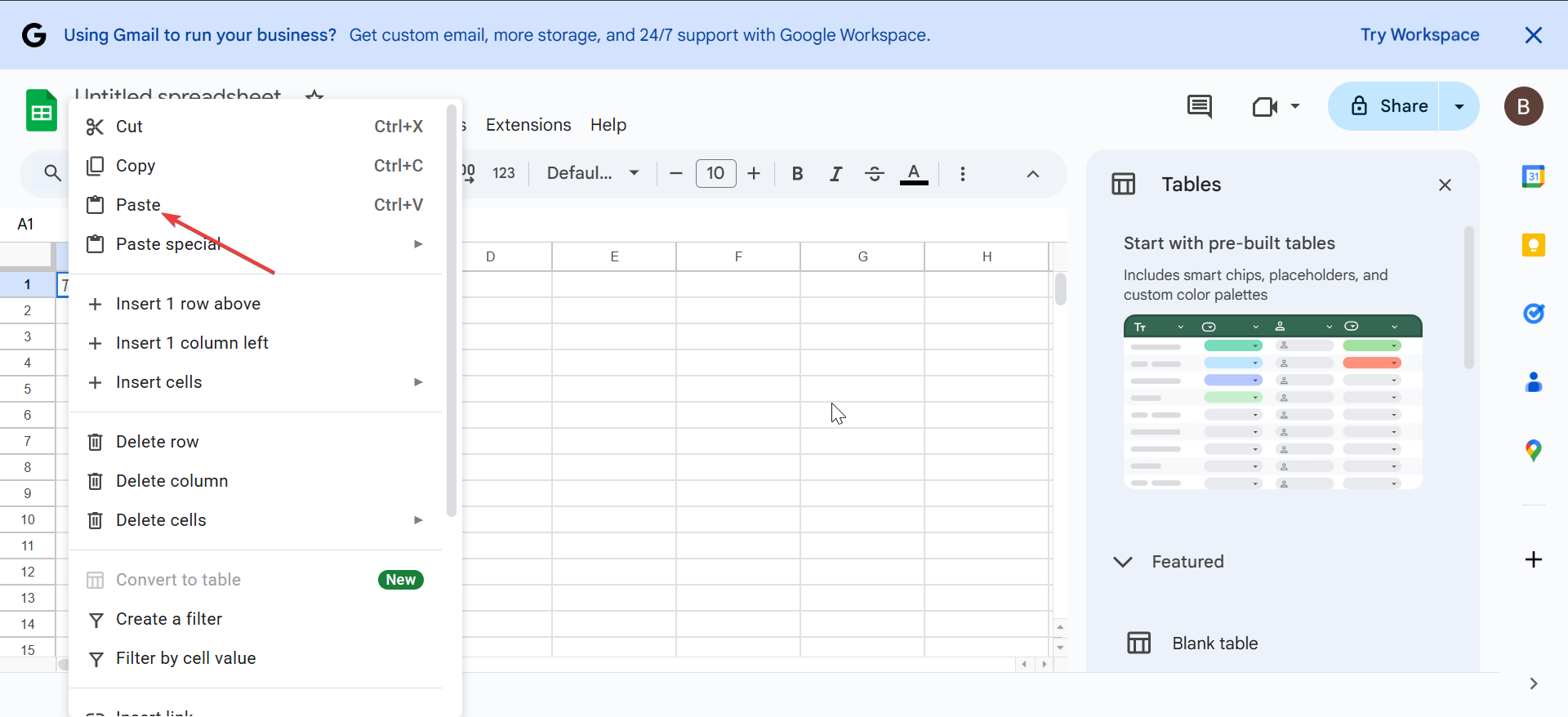
Sheets preserves rows and columns when the table structure stays intact.
Common formatting issues and fixes
Merged cells may split into separate columns, and line breaks inside cells may create extra rows. Use Format - Merge cells or Data - Trim whitespace to clean the layout.
Method 2: Export doc as plain text, then import into Sheets
This workaround helps when copy and paste fails or when you need a file-based workflow.
Exporting the document as plain text
- Open the Google Docs file.
- Click File - Download - Plain Text (.txt).

Google converts tables into spreadsheet format during export. Make sure not to download the Google Docs file as .docx but .txt file. This is because Google Sheets only recognizes the .txt file.
Importing the Excel file into Google Sheets
- Open Google Sheets.
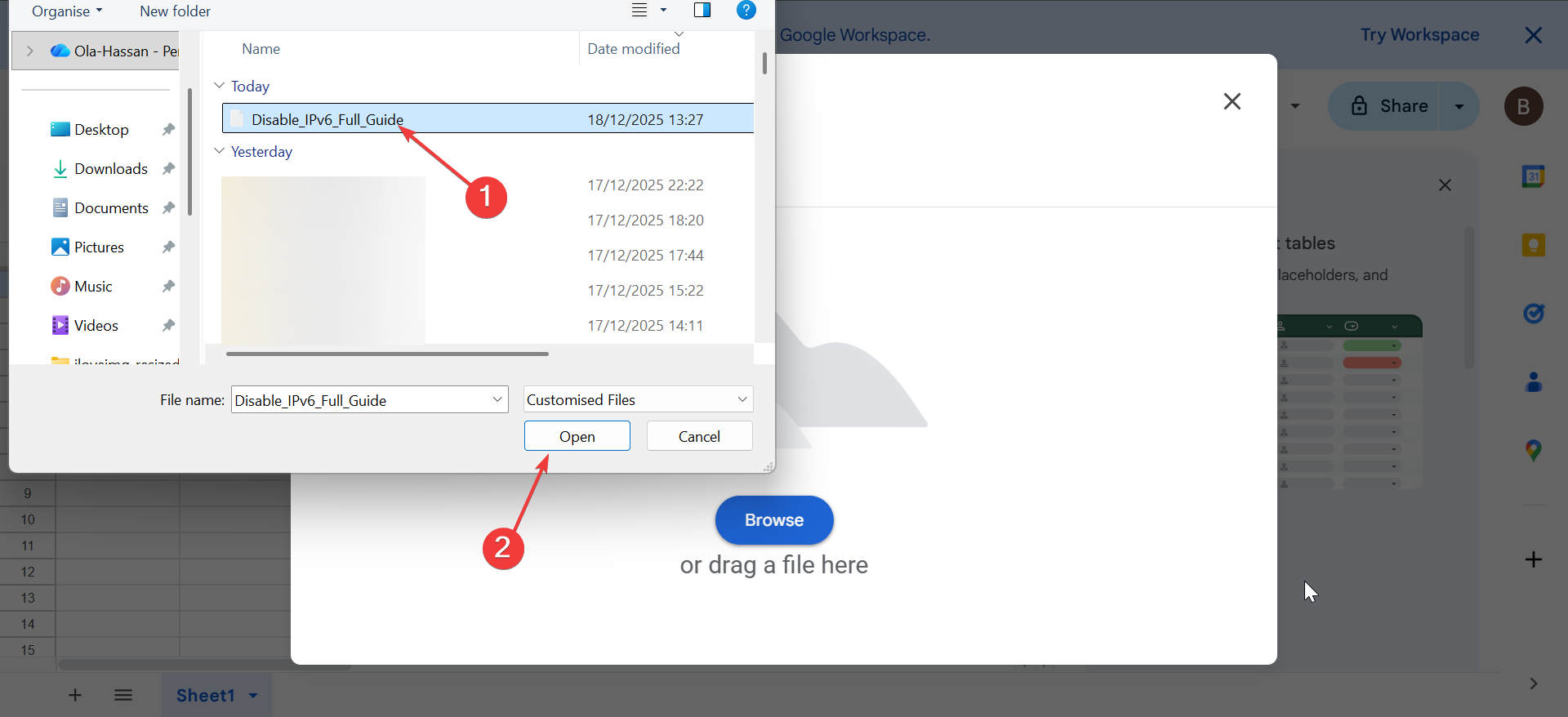
- Click File - Import.

- Next, click the Upload tab, select the .txt file, and click Open.
- Now, choose the Separator type or leave it as Detect automatically.
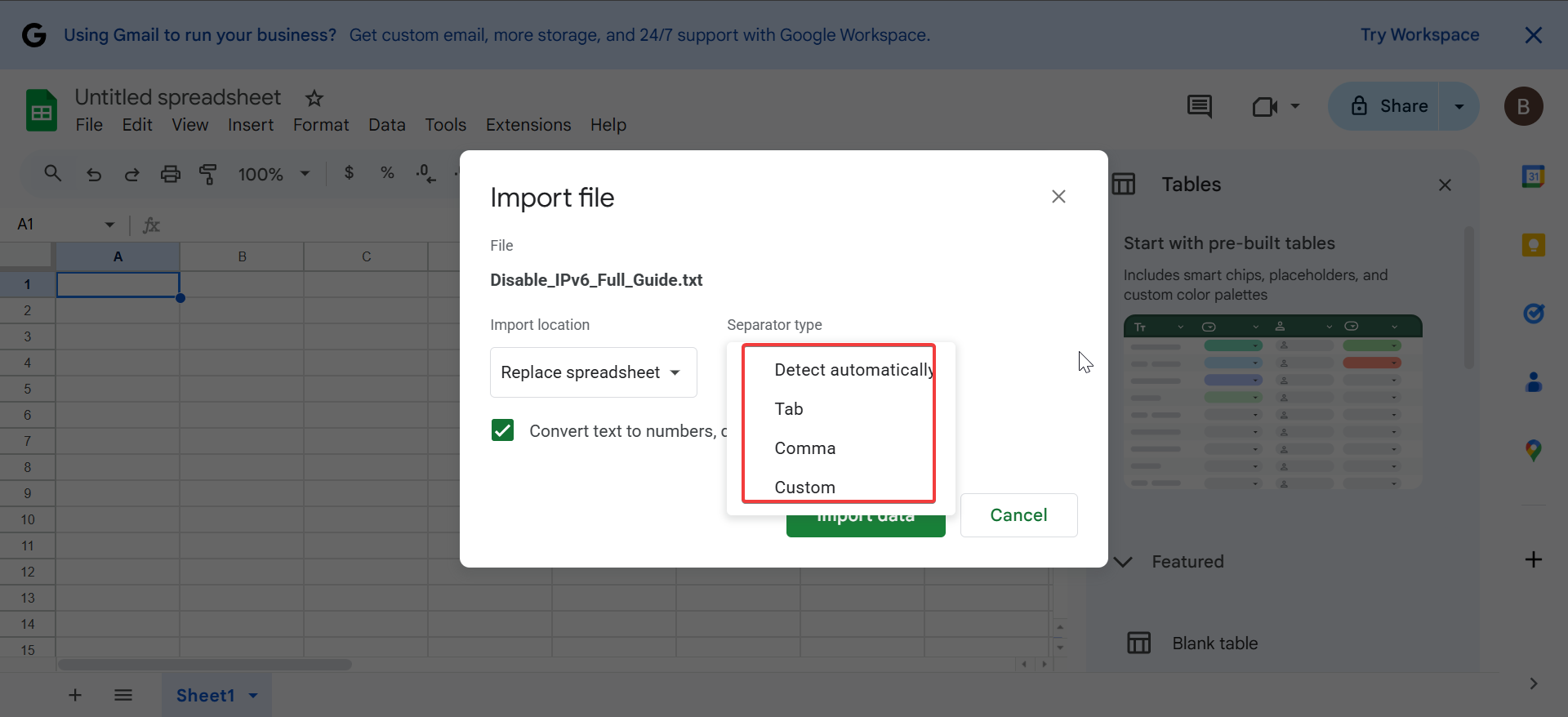
- Finally, select whether to insert into a new sheet or an existing one and click the Import button.
This method works better for multiple tables in a single document.
Limitations of this method
Text outside tables often disappears or becomes unusable. Complex formatting still breaks, and images never transfer.
Method 3: Use Google Apps Script for advanced imports
Use scripting when the document updates frequently or when manual copying wastes time. It suits power users and teams.
What Apps Script can extract from Google Docs
Scripts can read tables, paragraphs, and headings programmatically. Developers often loop through tables and push each row into Sheets.
Risks and maintenance considerations
Scripts require permissions and ongoing maintenance. Any structural change in the Doc may break the script logic.
Method 4: Automate Docs-to-Sheets imports with third-party tools
Automation platforms like Zapier, Make, and n8n offer no-code solutions for syncing data. A typical automation will be triggered on document edits or scheduled checks.
Depending on your automation, you can extract tables or marked sections and push them into Sheets automatically.
Pros and cons of automation platforms
Automation saves time but adds cost and setup complexity. Reliability depends on how clean the source document stays.
Troubleshooting common import problems
- Tables paste as a single column: This happens when cells contain manual line breaks. Paste using Paste special - Split text to columns if needed.
- Extra rows, broken lines, or misaligned cells: Use Find and replace to remove line breaks. Apply Data - Cleanup suggestions for quick fixes.
- Large documents fail or freeze: Split large Docs into smaller sections. Import one table at a time to avoid browser slowdowns.
Best method comparison
Speed vs accuracy vs automation
Copy and paste works fastest for clean tables. File export offers better consistency for multiple tables. Scripts and automation work best for recurring imports.
Tips for maintaining clean data in Google Sheets
- Keep tables simple inside Google Docs
- Avoid merged cells before importing
- Use one table per section
- Label columns clearly in the Doc
FAQs
Can Google Sheets pull data directly from a Google Doc?
No. Sheets cannot reference a live Google Doc as a data source.
Does importing keep formatting from Google Docs?
Only basic table structure transfers. Text styling does not.
What is the most reliable method overall?
Copying tables directly works best for most users.
Summary
- Google Sheets cannot truly import Google Docs automatically.
- Copy and paste tables works best for structured data.
- Exporting to Excel helps with multi-table documents.
- Apps Script and automation suit recurring workflows.
The best approach depends on how your document is structured. If the data lives in tables, simple copy and paste usually solves the problem. For recurring or large-scale imports, automation or scripting delivers better long-term results without repeated cleanup.


Discussion (0)
Be the first to comment.