




If Microsoft Edge’s Game Assist widget is stuck on your screen or popping up mid-game, you can hide it fast or turn it off for good. Below are quick, reliable methods to close, unpin, remove, or fully disable Game Assist and the Xbox Game Bar overlay on Windows 11.
Before you start
- Game Assist is an Edge-powered widget that lives inside the Xbox Game Bar overlay.
- Press Windows + G to open the Game Bar at any time in a game.
- If you don’t see a widget’s title bar, move your mouse to the very top edge of that widget to reveal it.
1) Close or hide Game Assist quickly (best immediate fix)
- Press Windows + G to open Game Bar.
- On the Game Assist panel, click the Unpin icon (next to the X). This makes it disappear when you close Game Bar.
- Click the X or press Windows + G again to dismiss the overlay.
2) Stop it from returning by removing the widget from Game Bar
- Press Windows + G.
- Open the Widget menu → Widget Store.
- Locate Microsoft Edge Game Assist and choose Uninstall (or Remove).
3) Uninstall Microsoft Edge Game Assist from Windows Settings
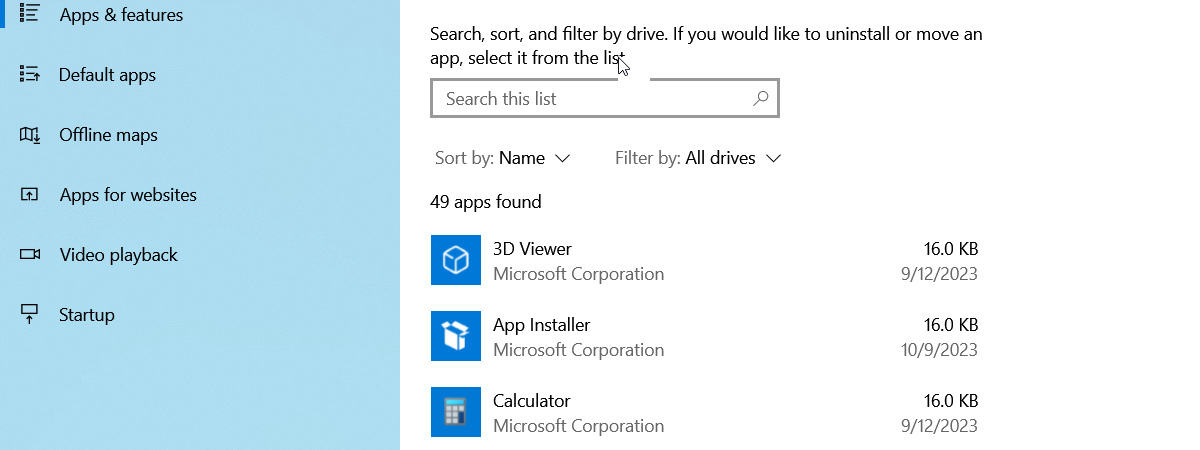
- Press Windows + I → Apps → Installed apps.
- Search for Microsoft Edge Game Assist (or Game Assist).
- Select Uninstall and follow the prompts.
4) Disable the Xbox Game Bar overlay system-wide
- Press Windows + I → Gaming → Xbox Game Bar.
- Toggle Open Xbox Game Bar and related capture options to Off.
- (Optional) Under Gaming → Captures, turn off any background recording to prevent pop-ups.
5) Force-close if Game Assist is frozen
- Press Ctrl + Shift + Esc to open Task Manager.
- End tasks for Xbox Game Bar and any Microsoft Edge (Game Assist) processes you see.
- Reopen the game and apply one of the persistent fixes above (Steps 2–4).
Tips for an overlay-free session
- Pro tip: Unpin first, then close. If you only close, a pinned widget can reappear next session.
- Note: You can reinstall Game Assist later from the Game Bar Widget Store if you miss it.
- Heads-up: Some controller mappings open Game Bar with the Xbox button; disabling Game Bar prevents that pop-up too.
FAQs
What exactly is Game Assist? It’s a game-aware Edge widget inside Game Bar that can surface guides and tips in an in-game browser.
Does uninstalling Game Assist remove Edge? No. It only removes the widget; Microsoft Edge remains installed.
Why can’t I see the Unpin or Close buttons? Hover your mouse at the very top of the widget to reveal its title bar, then click Unpin or X.
Can I get it back later? Yes—open Game Bar, go to the Widget Store, and reinstall Microsoft Edge Game Assist.
Summary
- Press Windows + G → Unpin Game Assist → close the overlay.
- Remove it from Widget Store inside Game Bar.
- Uninstall Microsoft Edge Game Assist from Settings → Apps.
- Disable Xbox Game Bar under Settings → Gaming if you never want overlays.
- Use Task Manager to force-close if the widget ever freezes.
Conclusion
Start with Unpin + Close for a quick fix, then remove or uninstall the widget so it won’t reappear. If you prefer a clean desktop when gaming, disable the Xbox Game Bar entirely. After this, overlays should stay gone unless you reinstall the widget or re-enable Game Bar.


Discussion (0)
Be the first to comment.