




To clear Chrome’s cache and cookies on Windows 11, open Chrome, go to Settings, then Privacy and security, and use the Clear browsing data tool. You can choose what types of data to remove and for how long. This process fixes loading errors, frees space, and resets stored site data like logins and preferences.
Here’s the path you will take in Chrome:
Menu (three dots) > Settings > Privacy and security > Clear browsing data. From there, choose a time range and the data you want to remove, then confirm.
Quick Steps to Clear Cache and Cookies
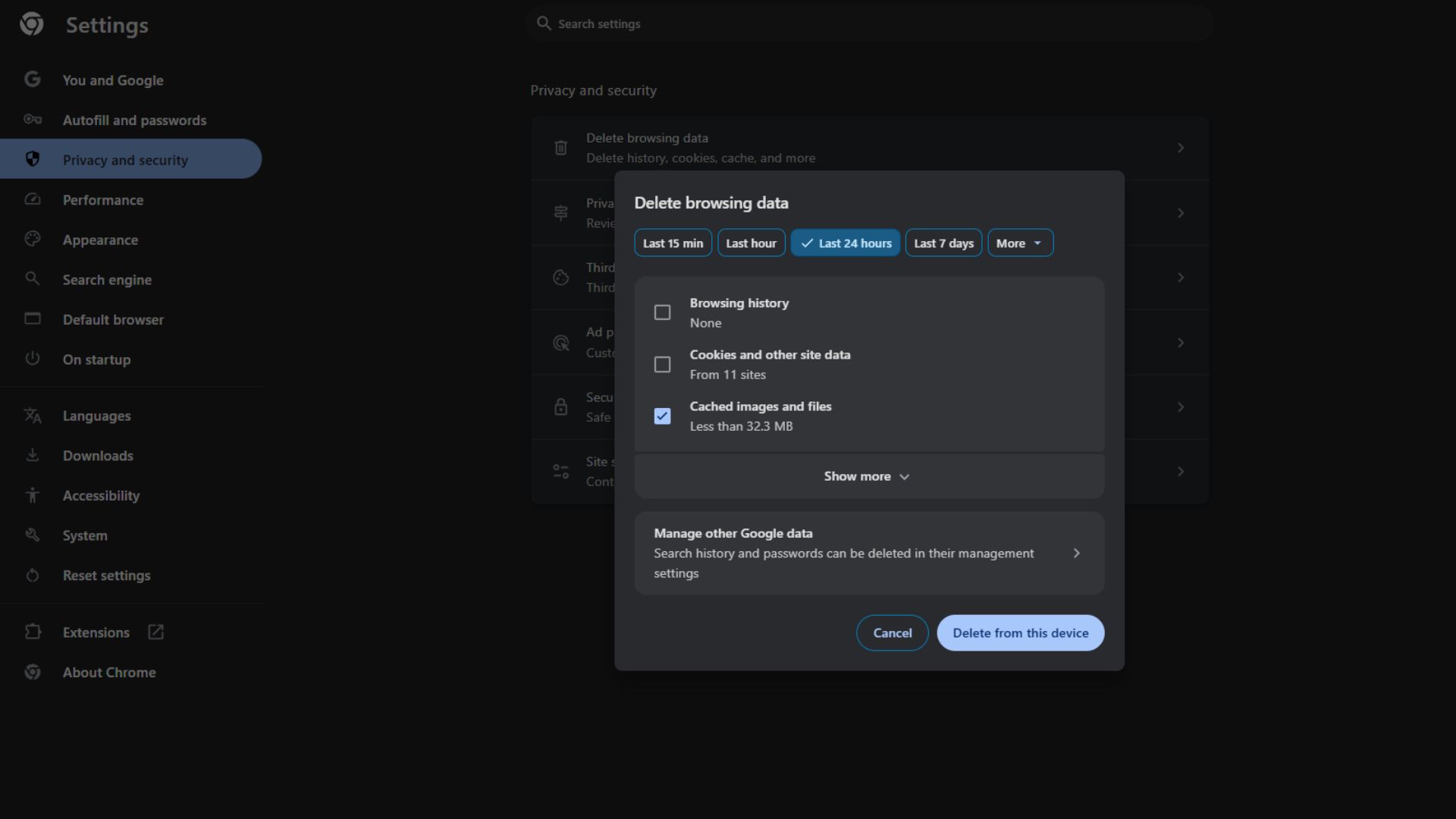
- Open Google Chrome on your Windows 11 PC.
- Click the three dot menu in the top right corner.
- Select Settings.
- Choose Privacy and security from the left menu.
- Click Delete browsing data.
- Set Time range (Last hour, Last 24 hours, Last 7 days, Last 4 weeks, All time).
- Select Cookies and other site data and Cached images and files.
- Click Delete from the Device.
Windows 11 itself has no separate setting for Chrome. Clearing data happens only inside the Chrome browser.
What Each Setting Removes
| Data type | What it does | Result |
|---|---|---|
| Browsing history | List of visited sites | Removes records that appear in the history bar |
| Cookies and other site data | Login info, site preferences | Signs you out of sites |
| Cached images and files | Stored page content | Frees space, refreshes pages |
| Passwords and sign in data | Saved passwords | Erases saved credentials |
| Site settings | Permissions like camera and mic | Resets site permissions |
| Hosted app data | Stored app data | Removes local app files |
You don’t need to clear everything every time. If you want just the cache, check only Cached images and files. If you want only cookies, check that box and leave others unchecked.
Shortcut Method
- Press Ctrl + Shift + Delete while Chrome is open.
- The Clear browsing data window will open.
- Choose your options and clear.
How to Delete Data for a Single Site
- Open Settings in Chrome.
- Go to Privacy and security > Site settings > Cookies and site data.
- Select See all cookies and site data.
- Search for the site name.
- Click the trash icon next to its entry.
This removes data only for that site. Other sites remain unaffected.
Time Range Options
| Option | What it removes |
|---|---|
| Last hour | Data from the past hour |
| Last 24 hours | Data from yesterday and today |
| Last 7 days | A week of data |
| Last 4 weeks | A month of data |
| All time | Everything stored by Chrome |
What Happens After You Clear
- Some websites will require you to sign in again.
- Pages may load slower the first time as Chrome rebuilds cache.
- Old corrupted files or scripts that caused problems will be removed.
FAQ
Yes. Corrupted cache files can stop pages from loading or showing updated content. Clearing them forces Chrome to fetch fresh files.
Yes. In the clear data window, uncheck everything except Cached images and files. This keeps saved passwords.
Yes. Cookies store login details. Removing them signs you out.
Clear when you face loading errors, slow performance, or site issues. Routine clearing is not required for most users.
Summary
Clearing Chrome’s cache and cookies on Windows 11 takes a few clicks in the browser settings. You pick a time range, choose the data to remove, and confirm. This fixes issues, refreshes content, and frees space. Use the shortcut Ctrl + Shift + Delete to open the clear data tool quickly. You can also delete data for a specific website without affecting everything else.


Discussion (0)
Be the first to comment.