




Checking the CPU temperature directly in Windows Task Manager is still not possible on most PCs. Task Manager shows utilization and speed, and other factors that can give you a hint at the temperature. To read the actual CPU temperature, use BIOS/UEFI or a monitoring utility, as shown in this guide.
Before you start
Note that the Task Manager does not read CPU sensor data. It tracks workload, not heat. Some OEM or Insider builds may show a temperature field if firmware supports it, but most systems do not. However, there is another native method and other free tools you can use to check your CPU temperature.
1) Use Task Manager to Spot Overheating Signs
Press Ctrl + Shift + Esc. Click the three horizontal lines in the top left corner and select Performance. Now, click CPU and check the Utilization, Speed, and Threads.

Sustained 90–100% usage or sudden spikes often signal excess heat. Pair those signs with loud fans or UI lag to confirm potential overheating.
2) Better Ways to Check Real CPU Temperature
Use free tools: Core Temp, HWMonitor, and Speccy read motherboard sensors for accurate per-core temps in real time. You can also check this guide on the best software to monitor CPU temperature for more recommendations.
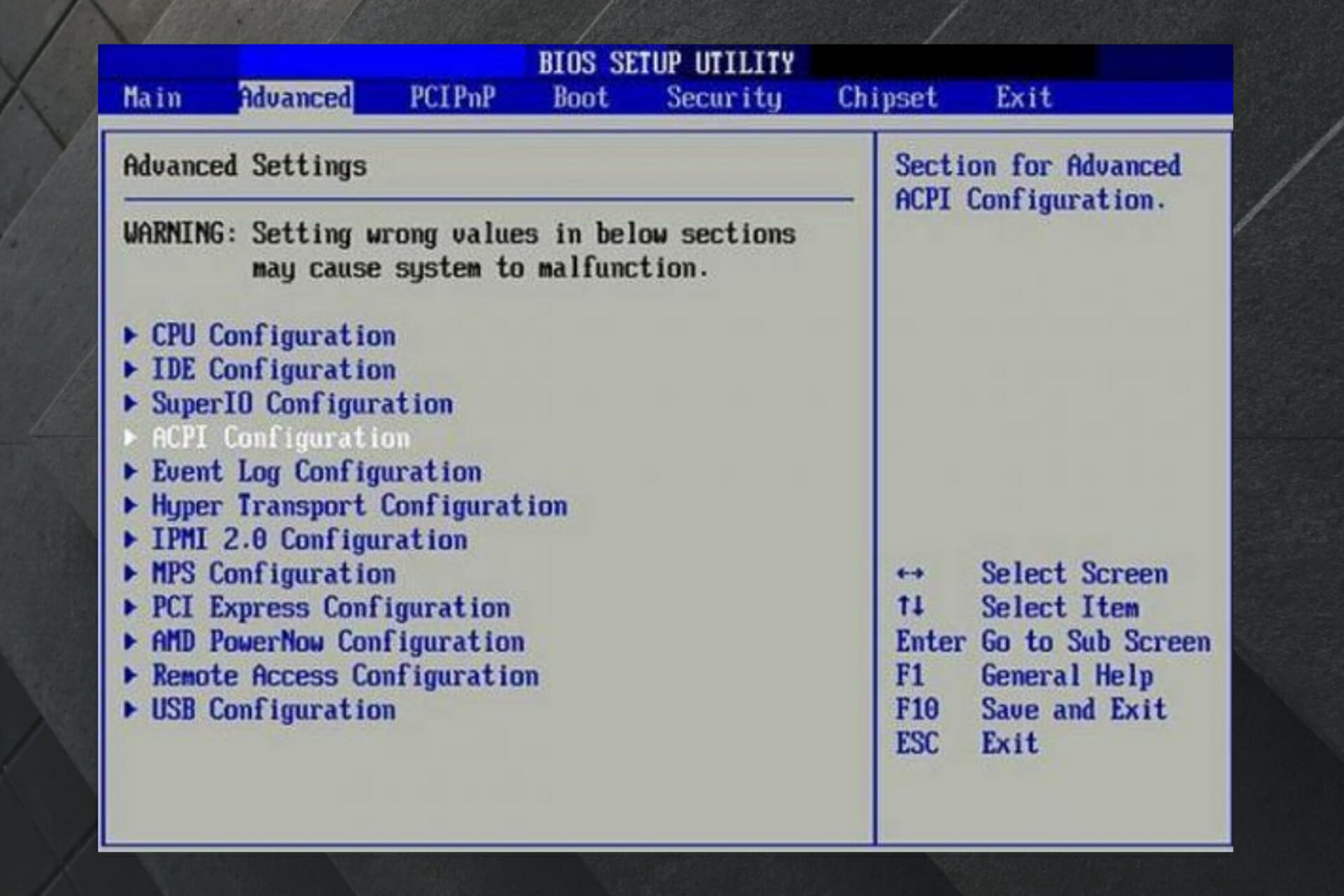
Check BIOS/UEFI: Restart your PC and press Del or F2 (can also be F10, F12, or Esc) immediately it powers on to enter BIOS/UEFI. Go to the hardware monitor page, and you will be able to view your CPU temperature there.
Correlate with Task Manager: When Task Manager shows load spikes, confirm matching temperature jumps in your monitoring tool to understand load-to-heat behavior.
3) Fix and Prevent High CPU Temperatures
- Clean dust from fans and vents.
- Replace thermal paste on older builds.
- Close background apps that sit at high CPU in Task Manager.
- Improve airflow with better case positioning or a laptop stand.
Tips
- Run weekly checks and keep drivers and BIOS current.
- Expect 30–50 °C at idle and 60–85 °C under load. Brief peaks near 95 °C can occur during heavy work but should not persist
- Know your CPU strength and monitor the combinations of apps you use at once
- Once the CPU temperature is over 90°C for an extended period, restart or power off your PC
FAQs
Why can’t I see CPU temperature in Task Manager? Windows does not expose CPU sensor data in Task Manager on most devices.
Is 100 °C dangerous? Yes. Continuous operation near that level causes throttling or shutdowns. You can lower the CPU temperature by following our guide.
Can I add temperature to Task Manager? Windows offers no native option. Use BIOS/UEFI or a monitoring utility instead.
Quick Checklist
- Open Task Manager → Performance > CPU.
- If “Temperature” is missing, confirm in BIOS/UEFI or with a monitoring tool.
- Compare readings to safe ranges.
- Clean fans and improve airflow if temps exceed 85 °C under load.
Key Takeaway
Task Manager cannot display CPU temperature on most PCs, but it helps flag heat issues. For precise readings, use BIOS/UEFI or a trusted monitor and maintain clean, well-ventilated hardware.


Discussion (0)
Be the first to comment.