



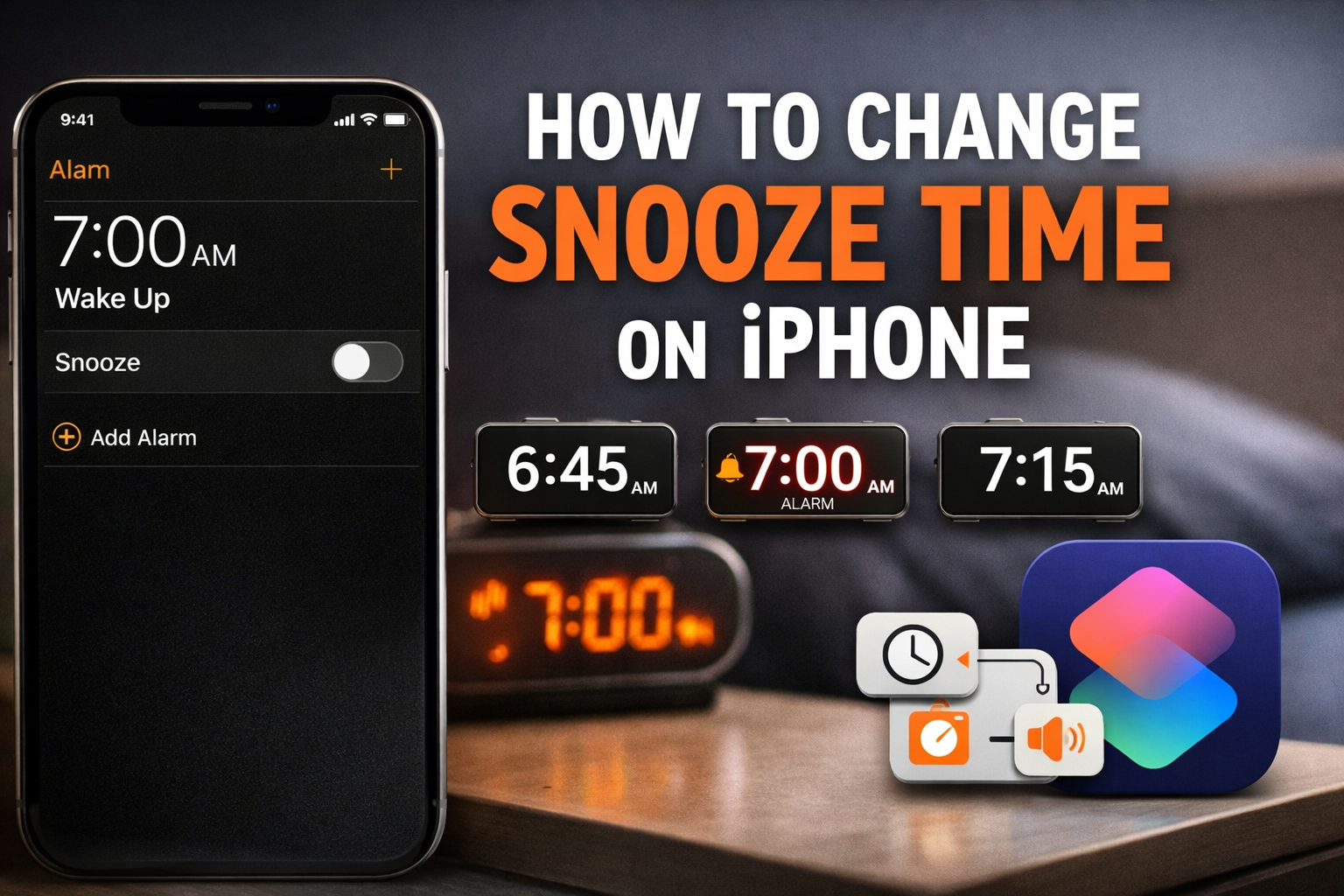
If you want to change the snooze time on an iPhone, iOS does not offer a built-in setting. Apple locks the snooze duration at 9 minutes, and no system menu lets you adjust it. You can still control your wake-up timing using reliable workarounds that achieve the same result, as detailed in this guide.
Table of contents
- Can you change snooze time on iPhone?
- How snooze works on iPhone alarms
- Workaround 1: Use multiple alarms instead of snooze
- Workaround 2: Change snooze behavior using Shortcuts
- Workaround 3: Turn off snooze and reschedule alarms manually
- Common mistakes when trying to change snooze time
- Best snooze alternatives based on your goal
- Tips for waking up without relying on snooze
- FAQs
- Summary
Can you change snooze time on iPhone?
You cannot change the snooze duration natively on an iPhone. The Clock app fixes snooze at 9 minutes for all standard alarms.
Why iPhone snooze is locked to 9 minutes
Apple keeps the snooze length consistent to reduce oversleeping and maintain predictable alarm behavior. iOS does not expose snooze timing controls to users or developers.
How snooze works on iPhone alarms
When you enable Snooze on an alarm, iPhone repeats the alert exactly 9 minutes after dismissal. This behavior stays the same across all standard alarms.
Clock app alarms vs bedtime alarms
Regular alarms and Sleep schedule alarms both use the same 9-minute snooze rule. Sleep alarms add health tracking and reminders, but they do not change snooze duration.
Workaround 1: Use multiple alarms instead of snooze
Multiple alarms provide the most reliable way to control wake-up intervals.
Set alarms at custom intervals
- Open the Clock app.
- Tap Alarm.
- Tap the + button.
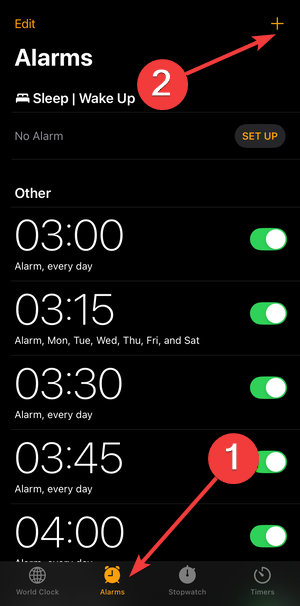

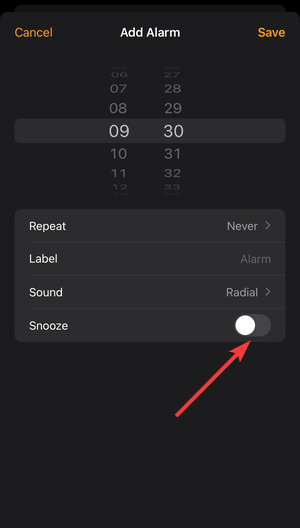
- Set your first alarm time, then turn Snooze off.
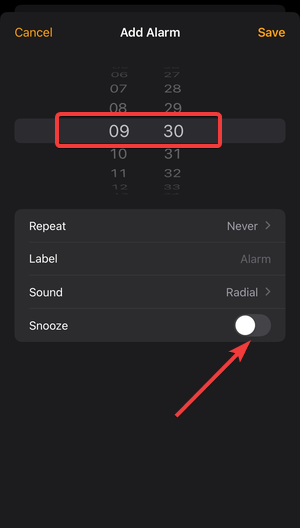

- Tap Save.
- Create additional alarms spaced 5, 10, or 15 minutes apart, and keep Snooze off for each one.
When this method works best
This approach works best for heavy sleepers or strict schedules. Each alarm rings once and forces an active response.
Workaround 2: Change snooze behavior using Shortcuts
The Shortcuts app can simulate a custom snooze with a timed delay and a follow-up alert.
Create a custom snooze shortcut
- Open the Shortcuts app.
- Tap + to add action.
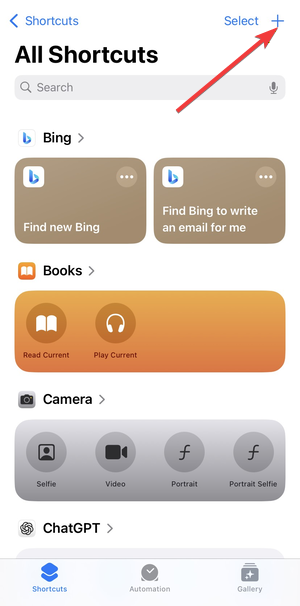
- Search for Wait, then add it.
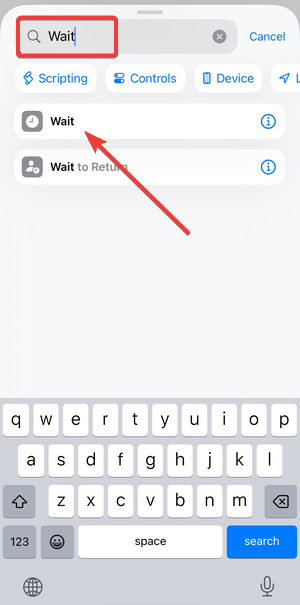

- Set the wait time to your preferred snooze length, like 5 or 15 minutes.
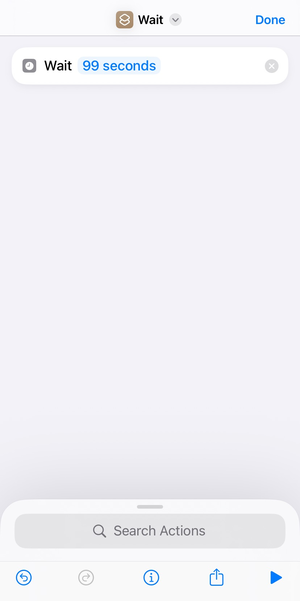

- Tap Add Action again.
- Add Play Sound or Speak Text to create a wake-up alert.
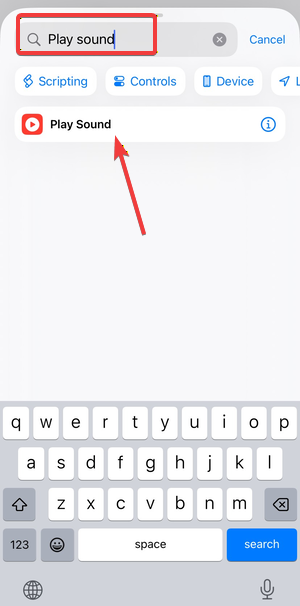
- Tap the shortcut name, rename it, then tap Done.
- Run the shortcut when your alarm goes off to start your custom delay timer.
Limitations of Shortcuts snooze
Shortcuts can break if the iPhone restarts or if battery restrictions interfere. The follow-up alert also does not behave exactly like a native alarm.
Workaround 3: Turn off snooze and reschedule alarms manually
Turn Snooze off, dismiss the alarm, then set a new alarm for your preferred interval. This option keeps full control without automation or stacked alarms.
Common mistakes when trying to change snooze time
Many users search in the wrong places or rely on features that do not affect alarms.
Why Settings and Focus modes do not help
Settings, Focus modes, and changing the alarm sound options on iPhone do not change snooze duration. These features only affect notifications and alert volume behavior.
Best snooze alternatives based on your goal
Pick the method that matches how you like to wake up. Each option below replaces snooze in a different way.
Want a shorter snooze
Use stacked alarms set 5 minutes apart with Snooze disabled.
Want a longer snooze
Set alarms 10 to 15 minutes apart, or use a Shortcuts delay.
Want no snooze at all
Disable Snooze and rely on a single alarm with a strong tone.
Tips for waking up without relying on snooze
- Place your iPhone away from the bed.
- Use louder or escalating alarm tones.
- Stick to consistent sleep and wake times.
FAQs
Why is iPhone snooze always 9 minutes?
Apple uses a fixed 9-minute snooze for consistency and behavioral reasons. iOS does not expose snooze controls to users or app developers.
Do Sleep Schedule alarms use a different snooze time?
No, Sleep Schedule alarms follow the same 9-minute snooze rule. The Health app adds tracking features, not custom alarm timing.
What is the best way to get a custom snooze time on iPhone?
The most reliable method is setting multiple alarms at custom intervals. You can also use the Shortcuts app, but it has reliability limits.
Do third-party alarm apps allow custom snooze times?
Some third-party apps offer custom snooze options, but iOS background restrictions can prevent them from working consistently.
Summary
- iPhone locks snooze time at 9 minutes.
- Multiple alarms offer the most reliable workaround.
- Shortcuts allow custom delays with limitations.
- Disabling snooze often improves wake-up consistency.
The iPhone does not let you change snooze time through settings. Using stacked alarms or Shortcuts gives you control over wake-up timing and helps you avoid oversleeping.


Discussion (0)
Be the first to comment.