




Changing your Amazon country lets you shop local stores, see regional prices, use the correct currency, and access country-specific products and digital content. Whether you moved abroad, are traveling long-term, or simply want to browse another Amazon marketplace, Amazon allows you to switch regions on mobile and desktop.
This guide explains how to change your Amazon country on iPhone, Android, and the web, what actually changes after switching, and how to avoid common issues.
Why You Might Want To Change Your Amazon Country
Amazon automatically assigns a region based on your account settings, but that region does not always match where you currently live or shop.
Changing your Amazon country helps when you relocate, want local pricing, need region-exclusive items, or plan to send gifts internationally.
Things To Know Before Switching Amazon Country
Switching regions affects more than just prices. Amazon treats each country store as a separate marketplace.
Your language, currency, shipping availability, taxes, and digital content access may change after the switch.
How To Change Amazon Country On iPhone Or iPad
The Amazon iOS app lets you change your shopping region directly from account settings.
- Open the Amazon app and tap the profile icon
- Tap the flag icon in the top corner
- Select Country or Region
- Choose your new country from the list
- Adjust language and currency if prompted
The app refreshes automatically and shows the new regional storefront.
How To Change Amazon Country On Android
On Android, Amazon redirects you to the selected regional store instead of permanently changing the app’s default region.
- Open the Amazon app and sign in
- Tap the profile icon
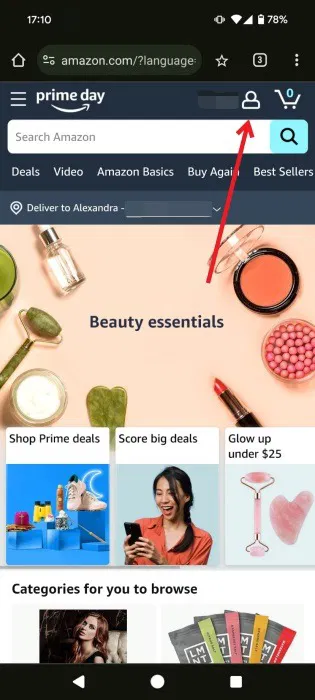
- Select the country flag
- Scroll and choose a different Amazon region
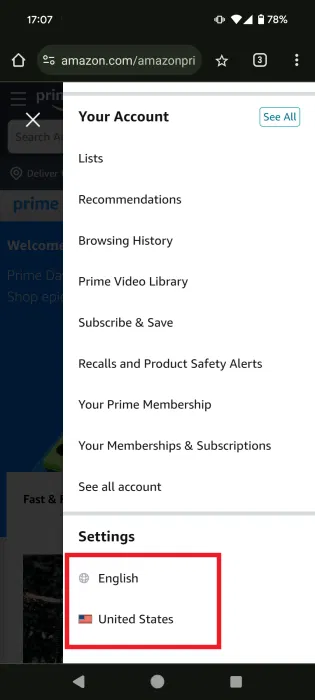
- Confirm to open the store in your browser
This method works well for browsing prices or placing occasional orders.
How To Change Amazon Country On Desktop Or Laptop
Using a web browser gives you the most control over Amazon country settings.
- Go to Amazon.com or your local Amazon site
- Hover over the flag icon near the search bar
- Select Change Country or Region
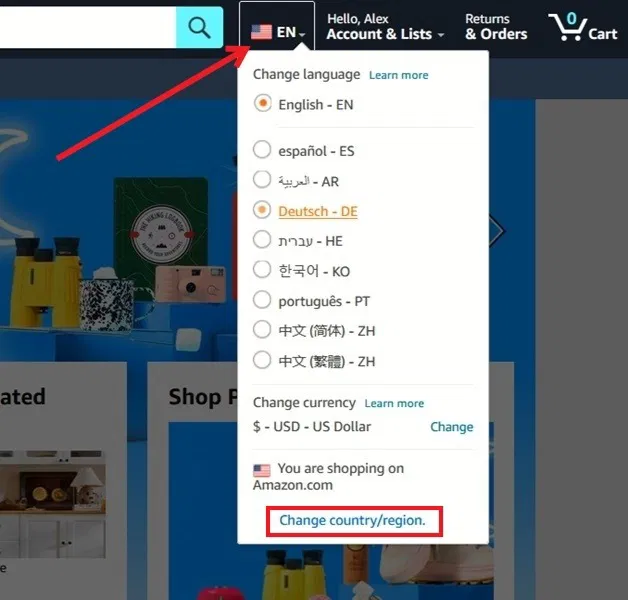
- Pick a new country and confirm
You will be redirected to the correct Amazon storefront in a new tab.
How To Transfer Your Amazon Account To Another Country
If you permanently moved, transferring your account updates billing details and region-linked services.
- Open Your Account settings
- Go to Preferences
- Select Country or Region Settings
- Enter a new billing address
- Confirm the change
Account transfers can take up to 24 hours to complete.
Troubleshooting Common Problems
If the country option is missing, update the Amazon app or use a desktop browser instead.
Errors usually happen when billing addresses, payment methods, or active subscriptions do not match the new country.
Tips
- Use up gift cards before switching regions
- Cancel subscriptions before transferring your account
- Change only the shipping address for short trips
- Check digital content availability beforehand
FAQ
Can I switch back to my original Amazon country later?
Yes, but Amazon limits how often you can change regions.
Does changing language also change my country?
No, language and country settings are separate.
Can I use a VPN to change my Amazon country?
No. Amazon requires official account settings changes.
Summary
- Amazon country controls pricing, shipping, and content
- You can switch regions on iPhone, Android, and desktop
- Account transfers affect digital purchases and subscriptions
- Temporary travel usually only requires address changes
Conclusion
Changing your Amazon country helps you shop smarter when moving, traveling, or buying internationally. Review what transfers, update billing details carefully, and switch regions only when necessary for the smoothest experience.


Discussion (0)
Be the first to comment.