




Google Chrome does not offer a built-in option to automatically delete full browsing history when you close the browser. You can still automate parts of the cleanup process using privacy settings, trusted extensions, or browsing modes that avoid storing history.
Chrome only deletes cookies and site data automatically, so you must combine several tools to achieve full privacy. This guide shows practical steps for every method.
Table of contents
- Why Chrome cannot fully auto-delete browsing history
- Clear cookies and site data automatically on exit
- Use trusted extensions to auto-delete Chrome history
- Turn off Chrome sync to avoid history being retained online
- Use Incognito mode for sessions you never want saved
- Automate history deletion with system scripts (advanced)
- Tips
- FAQs
- Summary
Why Chrome cannot fully auto-delete browsing history
Chrome stores history in its internal database and does not expose a native delete-on-exit toggle. Google designed this behavior to preserve sync features, suggestions, and browsing continuity.
This design makes history harder to remove automatically, so you must rely on workarounds.
What Chrome can and cannot clear automatically
Chrome can delete cookies, site data, and permissions when you close the browser. Chrome cannot automatically delete browsing history, download history, cache, or form data without an extension or manual action.
Clear cookies and site data automatically on exit
Chrome includes a privacy option that clears site data when you close the browser. This method helps you avoid tracking cookies and persistent logins.
It does not remove your browsing history, but it improves overall privacy.
Step-by-step to enable site data auto-delete
- Open Chrome.
- Click Menu and select Settings.
- Open Privacy and security.
- Select Site settings.


- Next, click Additional content settings to expand the option.

- Now, select the On-device site data option.
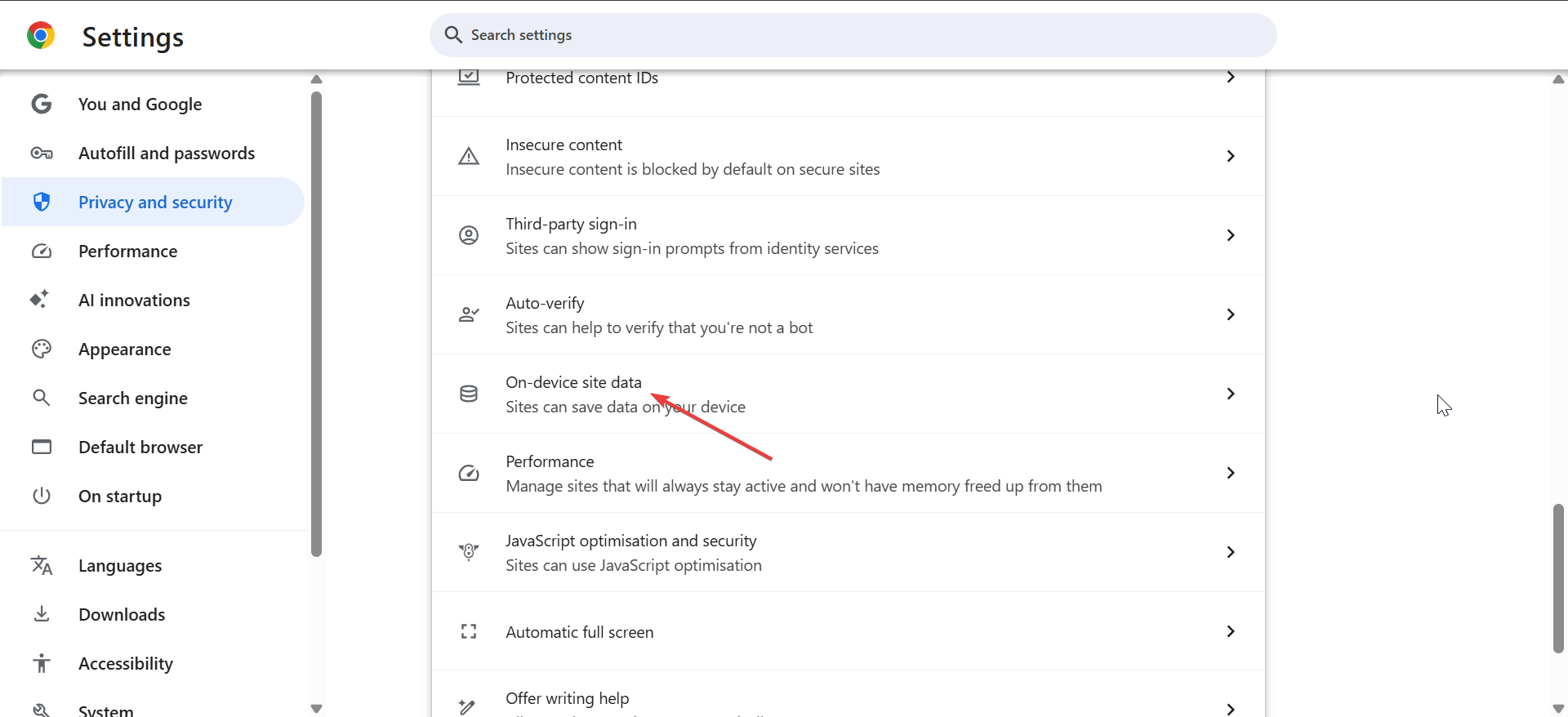
- Finally, tick the radio button for Delete data sites that have been saved to your device when you close all windows.
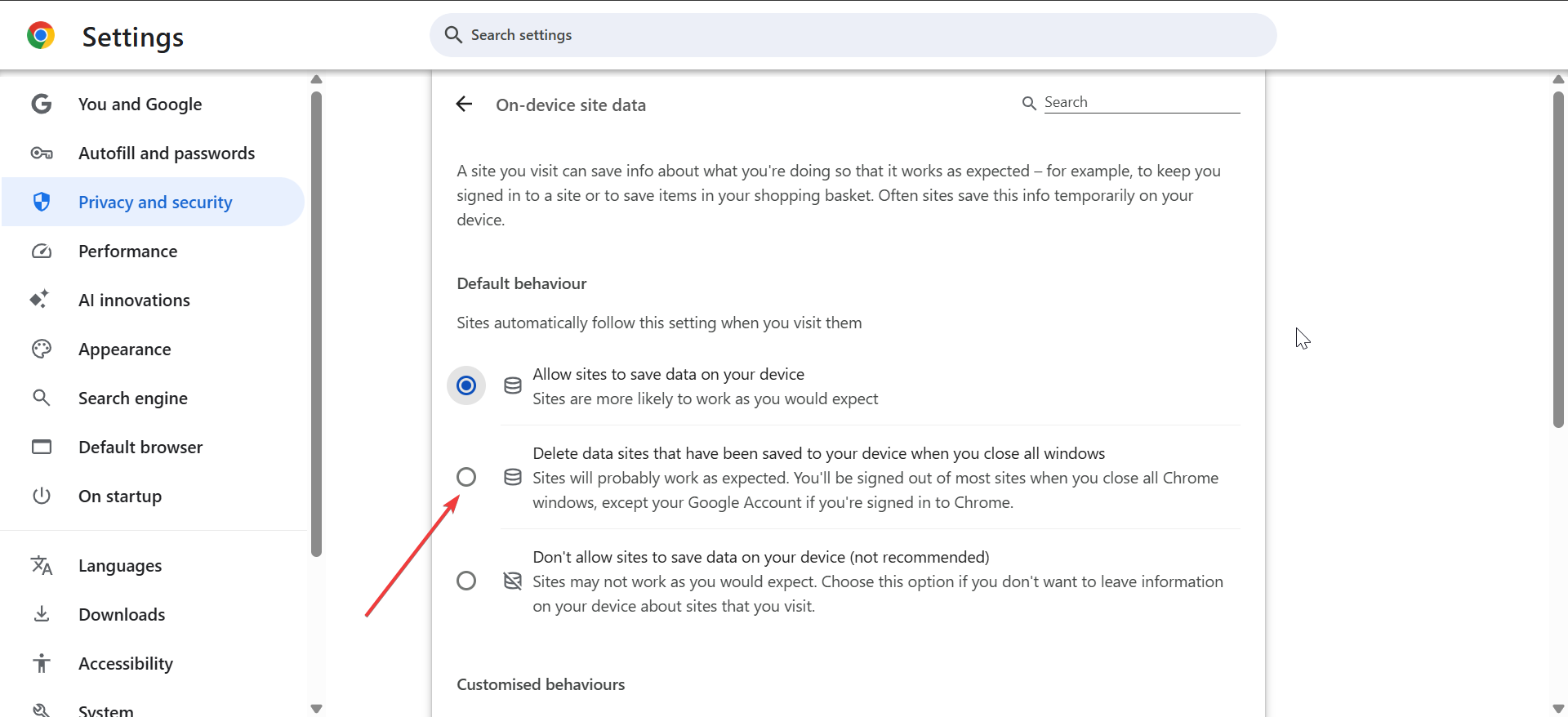
This setting ensures websites cannot retain login sessions or cookie trackers after you close Chrome.
When this method is useful
Use this feature on shared computers or when you want each session to end cleanly. It also helps reduce online tracking.
Use trusted extensions to auto-delete Chrome history
You can automate history deletion with extensions built for privacy cleanup. These tools remove history, cache, or entire sessions when Chrome closes.
Choose extensions with strong reviews and transparent permissions to reduce risk.

Best extension options and what they wipe
Look for extensions that support:
- Clearing browsing history
- Removing cache and cookies
- Deleting download history
- Wiping specific time ranges
Many privacy extensions offer a complete session wipe when Chrome shuts down.
Limitations of auto-delete extensions
Chrome restricts background activity during shutdown, so some extensions only run cleanup when Chrome starts again. Others run cleanup on a timer if they cannot detect a full browser exit.
This limitation affects reliability, so you should test each extension to confirm it works as expected.
Turn off Chrome sync to avoid history being retained online
Even if you delete local history, Chrome may still sync your browsing data to your Google account. Disabling sync prevents remote retention of your activity.
This step is essential if you want complete control over your browsing data.
Delete synced history in My Activity
- Visit myactivity.google.com.
- Open Web & App Activity.
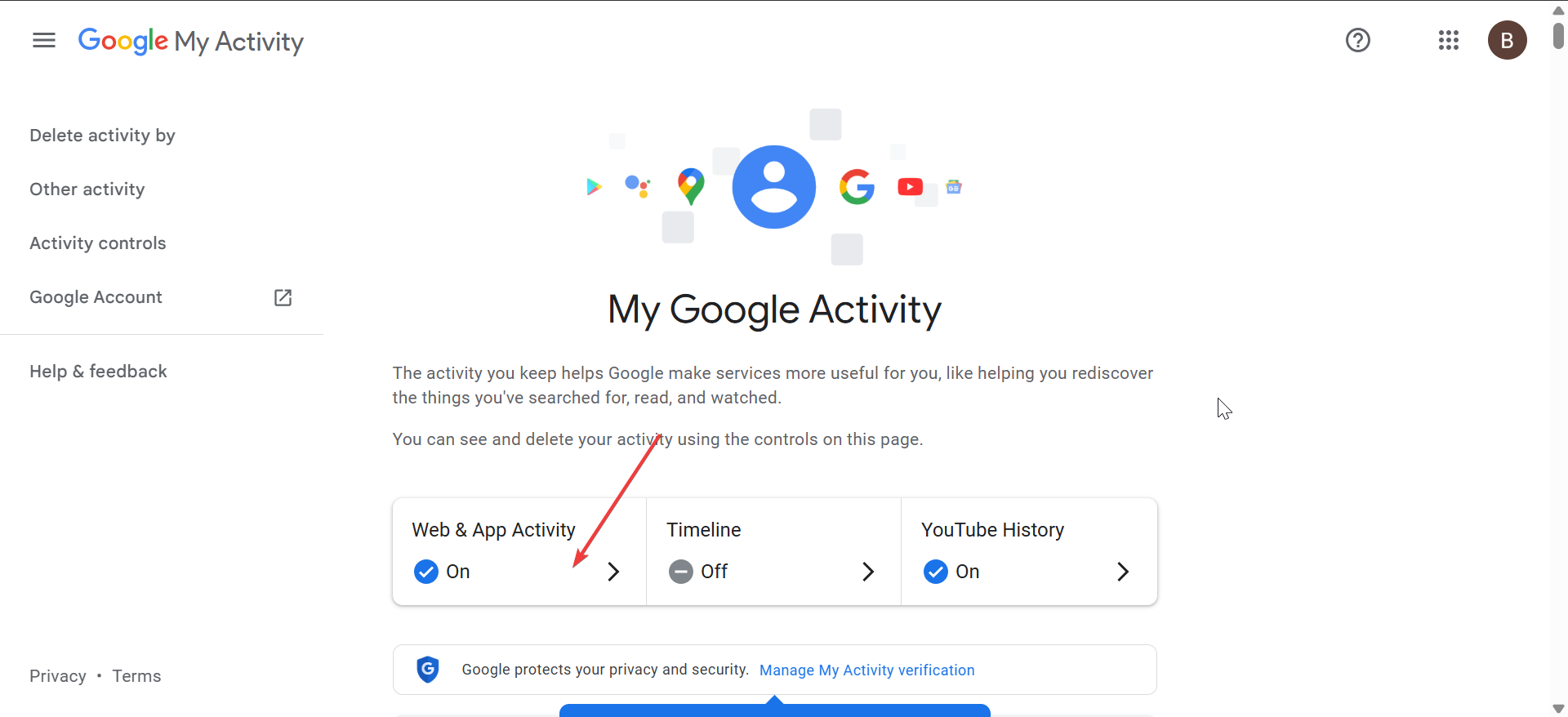
- Select Manage all Web & App Activity.

- Delete browsing entries or set auto-delete preferences.
This process removes stored search and browsing data from your Google account.
Use Incognito mode for sessions you never want saved
Incognito mode avoids saving browsing history entirely. Chrome also avoids storing cookies, cache, and form entries once you close the window.
This option gives you the simplest way to run fully private sessions.
When Incognito is the better choice
Use Incognito for banking, research, shopping, or any sensitive browsing. It guarantees nothing persists once you close the window.
Automate history deletion with system scripts (advanced)
Advanced users can set scripts that wipe Chrome’s local history database at shutdown. These scripts run at the operating system level and do not rely on Chrome.
Use caution with this method because it removes all browsing data without confirmation.
Tips
- Use Incognito mode for sessions where you want zero trace.
- Turn off Chrome Sync if you want to avoid storing history online.
- Review extension permissions before installing any privacy tools.
- Pair cookie auto-delete with history cleanup extensions for the best results.
- Clear history manually if you suspect an extension did not run properly.
FAQs
Why doesn’t Chrome delete history automatically? Chrome does not include a built-in delete-on-exit feature for history, and its architecture reserves history for suggestions and sync features.
Can extensions fully wipe Chrome history? Some extensions can delete history, but reliability varies because Chrome limits background processes during shutdown.
Does Incognito mode hide browsing activity from networks? No. Incognito hides browsing from your device but not from internet providers, workplaces, or schools.
Why do websites stay logged in even after clearing history? Login persistence comes from cookies, not history. You must clear cookies or enable cookie auto-delete.
Summary
- Chrome cannot automatically delete browsing history on exit.
- You can auto-delete cookies and site data using Chrome settings.
- Extensions can automate history removal but have reliability limits.
- Turn off Chrome Sync to prevent storing history online.
- Use Incognito mode for sessions you want to leave no trace.
Complete privacy depends on combining Chrome’s tools with trusted extensions and good browsing habits. With the options provided in this guide, your browsing history will be automatically deleted immediately you close the browser.


Discussion (0)
Be the first to comment.