




Instagram Stories do not include a built-in option to upload an audio file like an MP3 or WAV. However, you can still add your own audio using a few reliable workarounds that Instagram fully supports. The methods below work on both iPhone and Android and cover voice notes, music tracks, and custom recordings.
Table of contents
- Can you add your own audio to an Instagram Story?
- Method 1: Add your own audio using a video file
- Method 2: Record your own audio using Instagram’s voiceover tool
- Method 3: Use a Reel with original audio, then share it to Stories
- iPhone vs Android differences
- Common problems and fixes
- Tips for using custom audio effectively
- FAQs
- Summary
Can you add your own audio to an Instagram Story?
Instagram limits Stories to visual uploads only, meaning photos and videos. Because of this restriction, Stories cannot accept standalone audio files. To add your own audio, you must attach it to a video or record it directly inside the app.
Method 1: Add your own audio using a video file
This is the most reliable method because Instagram treats audio as part of the video.
Prepare a video with your audio
Create a short video using any editor and place your audio underneath it. You can use a static image, slideshow, or short clip as the visual layer.
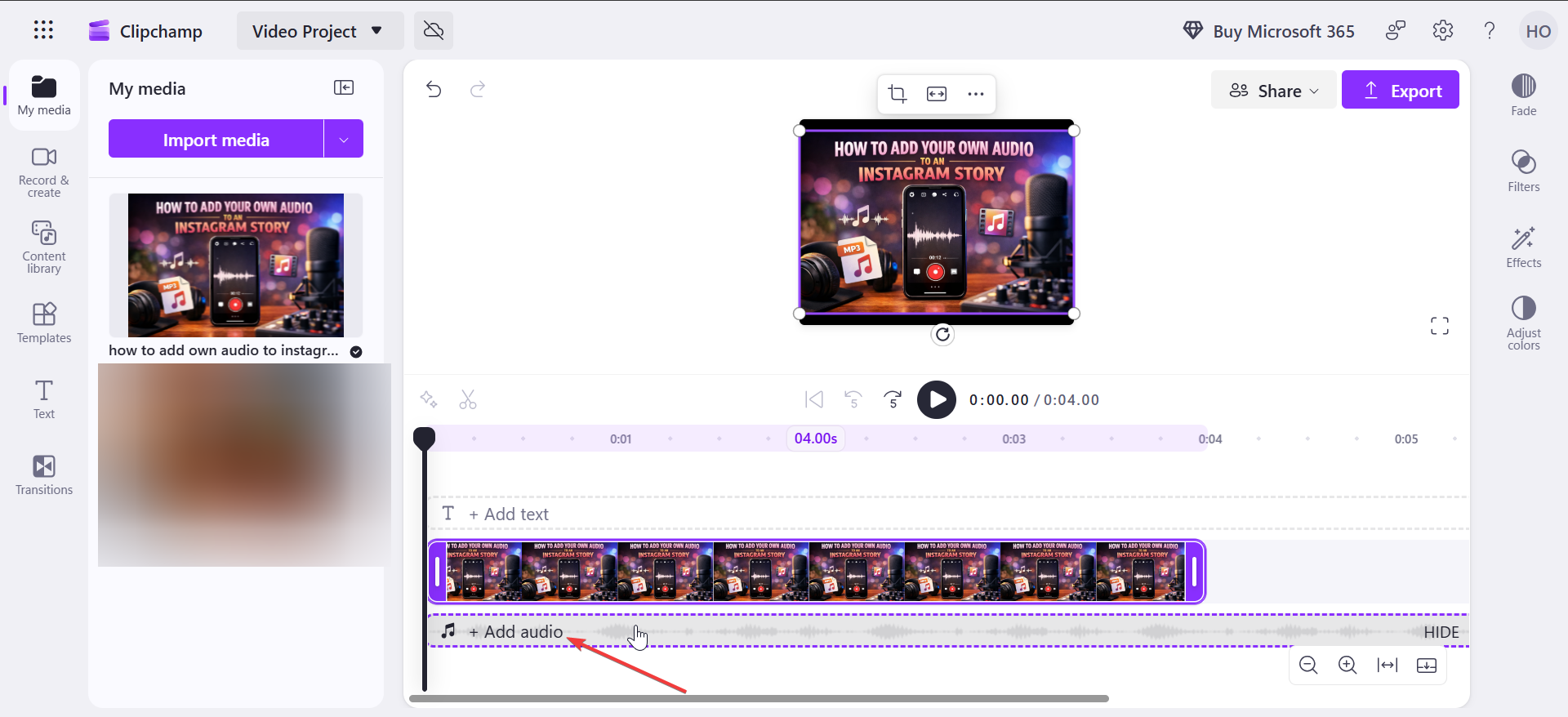
Upload the video as a Story
Open Instagram, tap the plus icon, and select Story. Choose the video and adjust length or volume before posting.
Method 2: Record your own audio using Instagram’s voiceover tool
This method works best for voice notes, explanations, or commentary.
Add a voiceover to a Story
Upload a photo or video, then tap the microphone icon. Hold to record your voice directly into the Story.

Adjust voiceover timing and volume
Drag the audio track to sync it with visuals. Use the volume slider to balance voice and background sound.
Method 3: Use a Reel with original audio, then share it to Stories
Reels handle original audio better than Stories and preserve sound quality more consistently.
Create a Reel with your own audio
Upload a video that already contains your custom audio. Instagram labels it as original audio automatically.

Share the Reel to your Story
Tap the paper airplane icon and choose Add to Story. The audio remains intact and playable.

iPhone vs Android differences
The steps remain the same across platforms, but button placement can differ slightly. Android users often see the microphone tool inside the sticker menu, while iPhone shows it directly in the top toolbar.
Common problems and fixes
- Audio is muted after upload: Check the volume slider before posting. Instagram sometimes defaults video audio to zero.
- Voiceover button missing: Update the Instagram app and check account region. Some features roll out gradually.
- Audio quality sounds compressed: Instagram compresses audio aggressively. Use higher-quality source audio and avoid re-encoding multiple times.
Tips for using custom audio effectively
- Keep audio under 60 seconds for better reliability
- Normalize volume before uploading
- Avoid copyrighted music to prevent muting
- Add captions for accessibility and clarity
FAQs
Can I upload an MP3 directly to Instagram Stories?
No. Instagram only accepts audio when it is embedded in a video or recorded inside the app.
Does Instagram remove original audio automatically?
Instagram may mute audio if it detects copyright issues or playback errors.
Can I add music and my own audio together?
Yes. You can combine background music and voiceover using video editing tools.
Why does my Story lose sound after posting?
Low volume, compression issues, or copyright detection usually cause this problem.
Summary
- Instagram does not allow direct audio uploads to Stories
- Videos with embedded audio work consistently
- Voiceovers handle spoken audio well
- Reels provide the best support for original audio
Instagram limits how Stories handle sound, but you still have full control with the right method. For voice notes, use the built-in voiceover tool. For music or polished audio, upload a video or share a Reel. Start with the approach that matches your audio type, and you will avoid most issues entirely.
If you are still facing issues, check the troubleshooting section of this guide to fix them quickly. Finally, if your Instagram story is not showing, you can fix it by following the steps in our detailed guide.


Discussion (0)
Be the first to comment.