




Quick Settings in Windows 11 is one of those features you use dozens of times a day without really noticing it. You click it to switch Wi-Fi, adjust brightness, toggle Bluetooth, and move on.
But here’s the thing most people don’t realize: the default layout is generic. It’s not built for how you use your system. And unless you adjust it, you’re adding small amounts of friction every time you open it.
This guide is not just about how to edit Quick Settings. It’s about making it genuinely useful.
What Quick Settings Is Meant to Be
Quick Settings is not a mini control panel. It’s a shortcut layer.
You open it when you want to:
- Toggle something quickly
- Make a small adjustment
- Avoid digging into Settings
If you find yourself opening full Settings frequently, your Quick Settings panel is probably not set up well.
How to Open Quick Settings (The Fast Way)
You don’t need to hunt for it.
- Press Windows + A
- Or click the network / volume / battery icons on the taskbar
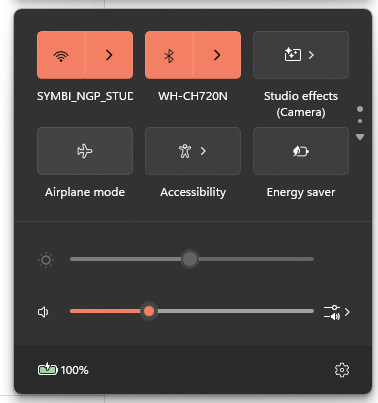
Once you build the habit, this becomes muscle memory.
How to Add or Remove Quick Settings
Customization is built in, but slightly hidden.
Step-by-step
- Open Quick Settings
- Click the pencil icon (Edit quick settings)
- Now you can:
- Add new tiles
- Remove existing ones
- Rearrange everything
Adding a Tile
Click Add, then choose what you want.
Common options include:
- Wi-Fi
- Bluetooth
- Night light
- Airplane mode
- Accessibility
Removing a Tile
Click the unpin icon on any tile you don’t need.
Rearranging
Drag tiles into your preferred order.
There’s no right layout. Only what feels natural to you.
Where Most People Get It Wrong
This is where quality setup actually matters.
Most users either:
- Leave everything as default
- Or add too many toggles
Both approaches make Quick Settings less useful.
If you have to scan the panel to find what you need, it’s already inefficient.
A Setup That Actually Works
Think in terms of frequency, not features.
Keep What You Use Daily
- Wi-Fi
- Bluetooth
- Volume
- Brightness
These should always be visible and easy to reach.
Add What You Use Occasionally
- Night light
- Airplane mode
- Accessibility
Only include these if you genuinely use them.
Remove Everything Else
If you haven’t used a toggle in the last week, it probably doesn’t belong here.
Why Order Matters More Than You Think
It’s not just about what’s in the panel. It’s about where it is.
Place:
- Most-used controls in the top-left area
- Secondary controls below or to the right
Over time, you stop looking and start clicking automatically. That’s when Quick Settings is working properly.
The Subtle Benefit: Less Mental Load
A well-configured Quick Settings panel does something small but important.
It removes micro-decisions.
You’re not:
- Searching
- Thinking
- Adjusting
You just open, click, and move on.
That’s the difference between a feature that exists and one that actually improves your workflow.
Limitations (And Why They Exist)
Quick Settings is intentionally limited.
- You cannot add custom apps
- You cannot create advanced shortcuts
- Not all system settings are available
This is by design. The goal is consistency and speed, not flexibility.
When It’s Worth Customizing
You’ll feel the impact most if:
- You’re on a laptop and frequently adjust brightness or connectivity
- You switch networks or devices often
- You prefer keyboard-driven workflows
If your usage is static, the default setup might feel fine. But even then, a small adjustment usually improves things.
Final Thoughts
Customizing Quick Settings in Windows 11 is not about personalization for its own sake. It’s about reducing friction in actions you repeat every day.
Done right, it disappears into your workflow.
Done wrong, it slows you down slightly, every single time.
It’s a small change, but one that compounds.
FAQs
How do I open Quick Settings quickly
Press Windows + A.
Can I add any app to Quick Settings
No, only system toggles are supported.
How do I remove a tile
Enter edit mode and unpin it.
Does rearranging tiles matter
Yes, it improves speed and usability over time.
Should I keep all options visible
No, keep only what you actually use.



Discussion (0)
Be the first to comment.