




If your iPhone shows the “Message Blocking is Active” error, iOS cannot send an SMS text using your cellular plan. The issue usually links to carrier restrictions, plan limits, or incorrect messaging settings, even when iMessage still works normally.
This guide walks through the fixes in the right order, starting with quick checks and ending with carrier-level solutions, so you know exactly when to stop troubleshooting.
Table of contents
- What “message blocking is active” actually means
- Quick checks before deeper fixes
- Fixes you can do directly on your iPhone
- Carrier-related fixes that usually solve the issue
- Dual SIM and eSIM-specific problems
- Why the error happens only with certain contacts
- When you must contact your carrier
- Tips to prevent the error from happening again
- FAQs
- Summary
What “message blocking is active” actually means
The error appears when your carrier blocks outgoing SMS or MMS messages on your line. iOS shows this alert when it tries to send a green-bubble text and the carrier rejects it.
iMessage vs SMS: why some texts send and others fail
Blue iMessage texts use Apple’s servers and your internet connection. Green SMS texts rely entirely on your carrier, so carrier restrictions only affect messages sent to non-iPhone users.
Quick checks before deeper fixes
These checks rule out common mistakes that trigger the error without any carrier problems.
Confirm you’re sending an SMS, not iMessage
Open the conversation and check the message bubble color. Green bubbles mean SMS, which triggers the error if the carrier blocks messaging.
Check if the contact is blocked
Go to Settings > Apps > Messages > Blocked Contacts. Remove the contact if it appears in the list, then try sending the message again.

Fixes you can do directly on your iPhone
These steps reset messaging services and clear temporary network issues.
Turn iMessage off and back on
To turn off iMessage, open Settings > Apps > Messages, toggle off the switch for iMessage, wait 30 seconds, then turn it back on. This forces iOS to refresh message routing.

Restart your iPhone
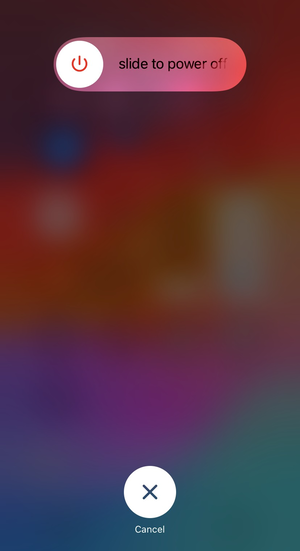
Hold the side button and volume button, power off the device, then turn it back on. A restart clears stuck carrier sessions and background messaging errors.
Reset network settings
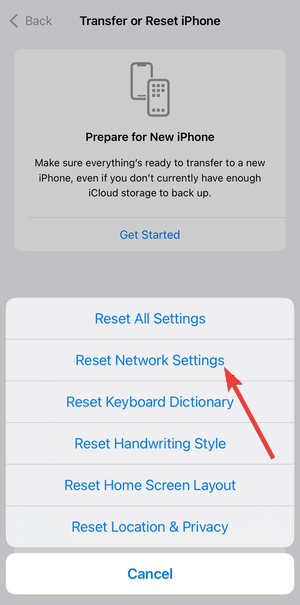
Go to Settings > General > Transfer or Reset iPhone > Reset > Reset Network Settings. This removes saved Wi-Fi networks but fixes broken cellular and SMS configurations.
Carrier-related fixes that usually solve the issue
Most cases trace back to carrier-level restrictions rather than iOS bugs.
Check your cellular plan for SMS restrictions
Prepaid plans, unpaid bills, or expired packages often block outgoing texts. Log into your carrier account and confirm SMS messaging remains active.
Verify SMS and MMS are enabled on your line
Some carriers disable SMS by default or after account changes. Ask support to confirm outbound SMS and MMS are fully provisioned on your number.
Dual SIM and eSIM-specific problems
iPhones with multiple lines often show this error even when one line works normally.
Set the correct line for SMS messaging
Go to Settings > Apps > Messages > Send & Receive and confirm the active phone number supports SMS. iOS may default to a blocked line.

Disable the secondary line temporarily
Open Settings > Cellular and turn off the secondary SIM or eSIM. Send a test message to confirm which line causes the block.
Why the error happens only with certain contacts
The issue often looks contact-specific, which confuses many users.
Messaging Android users vs iPhone users
Messages to Android phones always use SMS or MMS. Carrier blocks only appear when texting non-Apple devices.
Previously blocked or ported numbers
Numbers that were blocked, recycled, or recently ported can trigger carrier filters. Support teams usually need to refresh routing for these cases.
When you must contact your carrier
Stop troubleshooting once device-side fixes fail, since iOS cannot override carrier restrictions.
What to tell carrier support
Ask them to check outbound SMS blocks, account restrictions, and SMS provisioning on your line. Mention the exact error message for faster resolution.
Tips to prevent the error from happening again
- Keep one default SMS line selected on dual-SIM iPhones
- Monitor prepaid balances and renewal dates
- Restart your iPhone after SIM or plan changes
FAQs
Why does the message blocking error show for only one contact?
The issue usually appears only for contacts that require SMS, such as Android users or ported numbers.
Can the error fix itself?
Temporary carrier outages can resolve automatically, but account-level blocks require manual changes.
Does resetting network settings delete personal data?
It removes Wi-Fi passwords and VPNs but keeps apps, photos, and messages intact.
Can iMessage hide SMS problems?
Yes. iMessage may work normally while SMS remains blocked by the carrier.
Summary
- Confirm whether the message uses SMS or iMessage.
- Fix iPhone settings and network issues first.
- Contact your carrier if SMS remains blocked.
Once carrier restrictions lift or messaging settings refresh, SMS texts should send immediately. If the error returns, review your plan status or dual-SIM configuration before repeating deeper fixes.


Discussion (0)
Be the first to comment.