




Opening Google Chrome in Incognito mode keeps your browsing activity off your local history. It helps when you share a device, troubleshoot browsing issues, or want a clean session that doesn’t store cookies or searches.
This guide shows simple ways to open Incognito mode on Windows, Mac, Android, and iOS. It also covers advanced methods, what Incognito doesn’t hide, and how to fix common problems.
1) How to open Incognito on Windows and Mac
The process of opening Chrome, Firefox, Edge, and Opera in Incognito mode is pretty similar. Just open the Chrome browser and click the vertical three-dot menu in the upper right. Next, select New Incognito window. This option works best if you prefer navigating the interface.
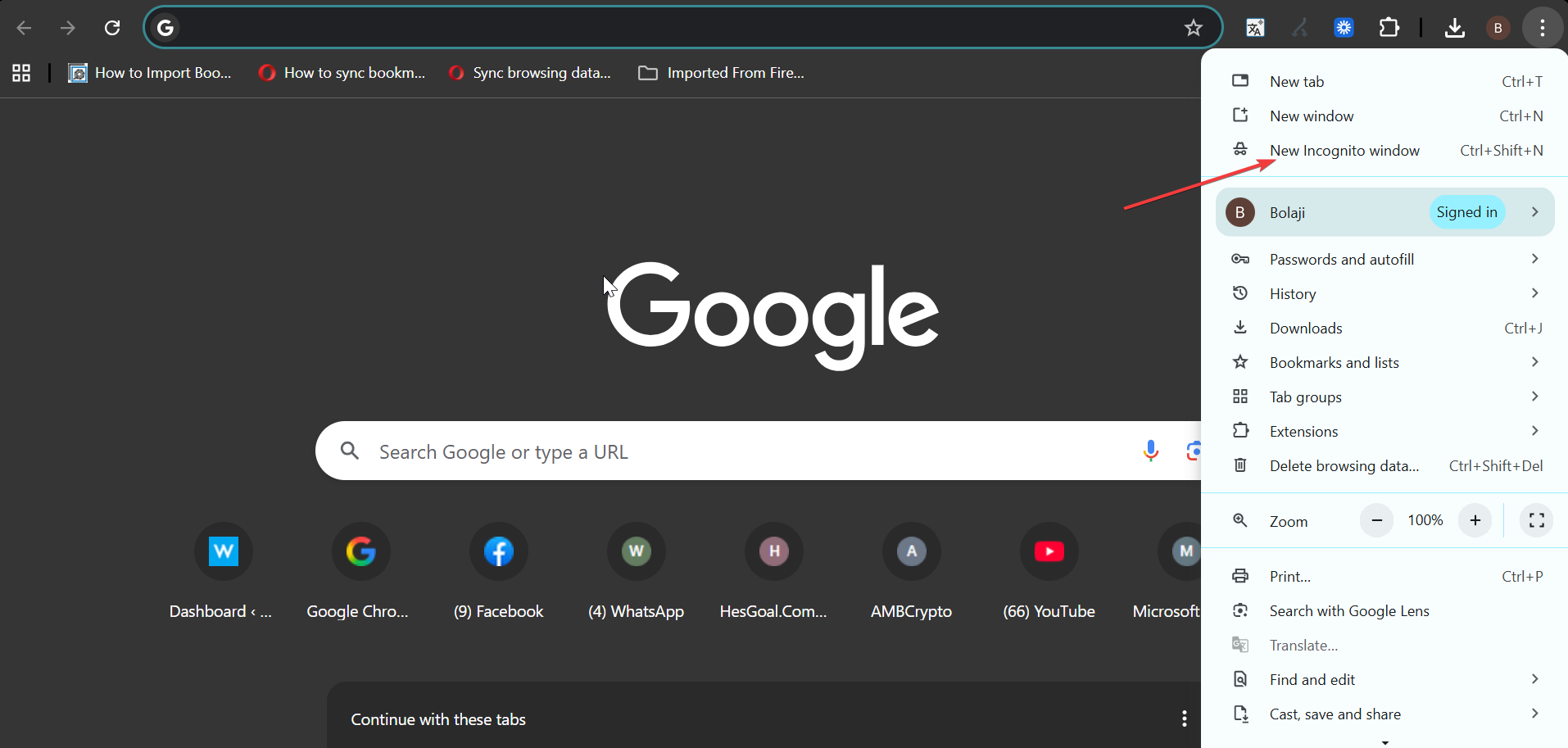
Alternatively, you can press Ctrl + Shift + N to open an Incognito window instantly. On Mac, press Command + Shift + N for a quick Incognito launch. Shortcuts help when you launch private windows frequently.
2) How to open Incognito on Android
Android users can open private tabs through the Chrome app or by using a shortcut on the home screen. Open Chrome on your phone, tap the three-dot menu in the upper right, and tap New Incognito tab. This method works across most Android devices.
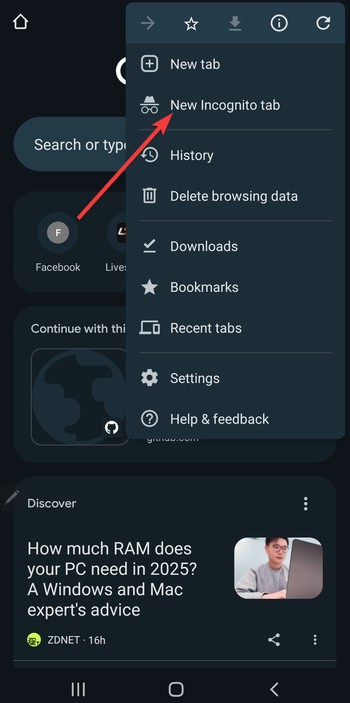
Alternatively, long-press the Chrome app icon, tap New Incognito tab, and drag this option to the home screen to create a one-tap shortcut. This gives you faster access if you use Incognito regularly.
3) How to open Incognito on iPhone or iPad
Chrome on iOS offers easy access to private tabs through the app or a long-press shortcut. Open Chrome on your iPhone or iPad, tap the three-dot menu at the bottom, and select New Incognito Tab.
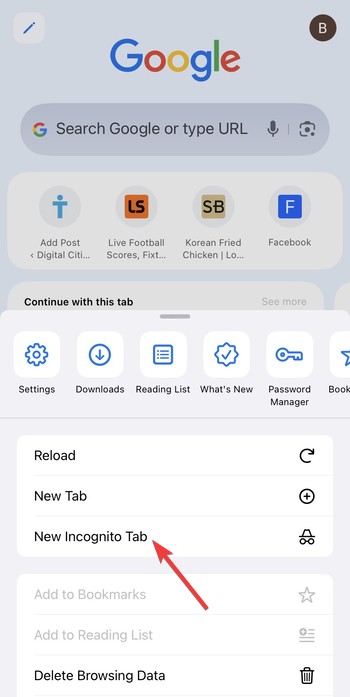
To use the shortcut, long-press the Chrome app icon on your Home Screen and tap New Incognito Tab. This shortcut speeds up private browsing on iPhones and iPads.
4) How to always launch Chrome in Incognito (advanced)
Advanced users can set Chrome to open in Incognito by default. These steps help if you prefer privacy-first sessions or troubleshoot extension conflicts.
Set a Windows shortcut to Incognito
- Right-click your Chrome shortcut.
- Select Properties.
- Add
--incognitoat the end of the Target field. - Click Apply.
Chrome will now launch directly into Incognito when using that shortcut.
Use Android shortcuts or widgets
- Long-press Chrome and select New Incognito Tab.
- Drag it to your home screen.
This creates a dedicated icon that opens Incognito every time.
Command-line flag for Mac or Linux
Running Chrome from Terminal with the --incognito flag forces a private session. This works well for developers and Linux users who launch Chrome via command.
5) How to verify you are in Incognito
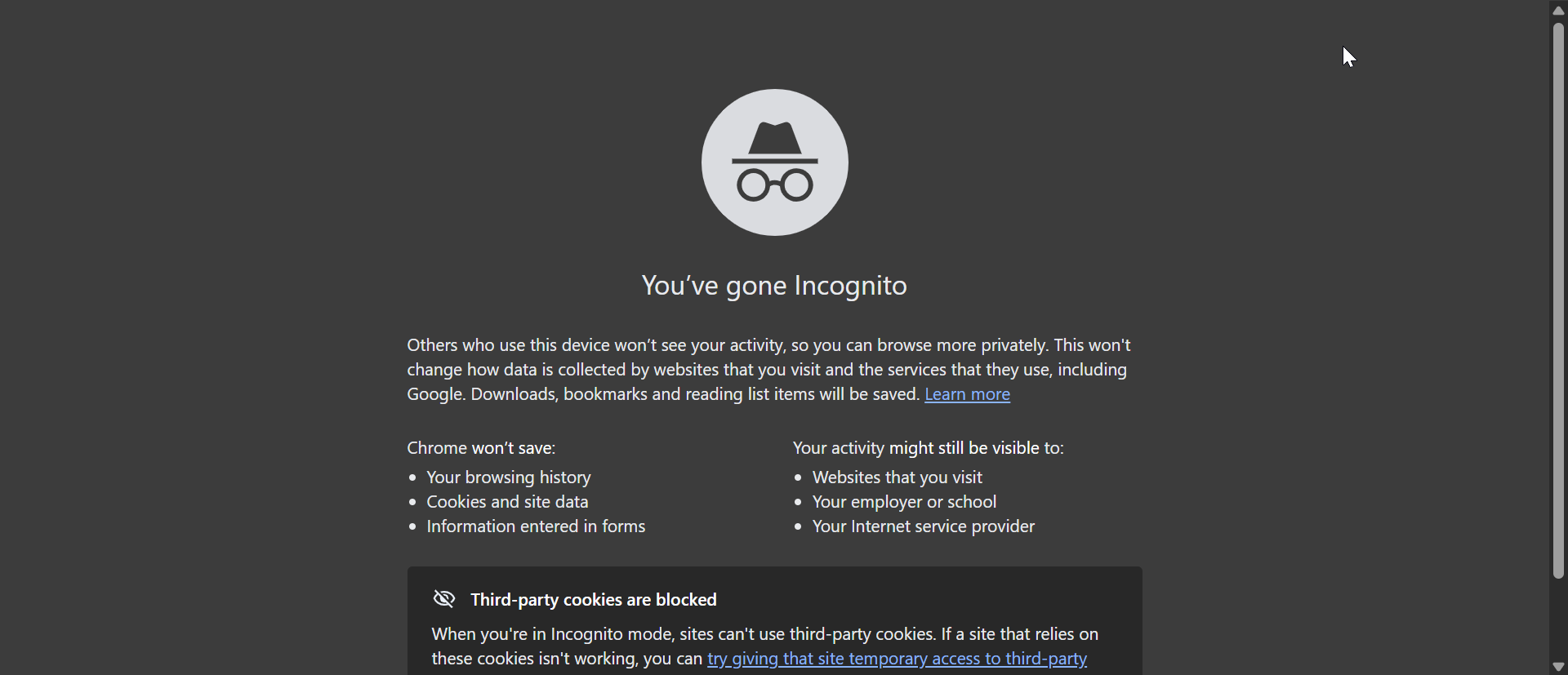
Incognito windows show a dark theme and a hat-and-glasses icon. The address bar also changes color depending on your platform. If the window looks identical to a normal session, verify that the icon appears in the top corner.
6) What Incognito does not hide
Incognito does not hide your activity from websites, your ISP, your employer, or your school. It only prevents Chrome from storing local data. For deeper privacy, consider tools like VPNs or encrypted DNS settings.
7) Troubleshooting Incognito mode
If Incognito windows don’t open, a policy or extension may block them. Managed school or work devices often disable private browsing. Some security extensions also prevent Incognito windows from launching unless allowed in settings.
FAQs
Why can’t I open Incognito mode? A system admin or parental controls may have disabled private browsing. Check Chrome’s policies or your device’s restrictions.
Does Incognito mode hide my IP address? No. Websites still see your IP unless you use additional privacy tools.
How do I enable Incognito if an admin disabled it? On personal devices, adjust Chrome policies or registry settings. Managed devices can’t override organization restrictions.
How do I open multiple Incognito windows? Repeat the same steps from the menu or use the shortcut again. Chrome allows unlimited Incognito windows.
Summary
- Windows: Ctrl + Shift + N or Menu → New Incognito window
- Mac: Command + Shift + N
- Android: Menu or long-press → New Incognito tab
- iPhone/iPad: Menu or long-press → New Incognito Tab
- Advanced: Add
--incognitoto shortcut or Terminal command
Conclusion
Learning to open Chrome Incognito mode helps you browse without leaving local traces. Whether you use a computer, phone, or tablet, the methods above give you fast access to private windows whenever you need them.


Discussion (0)
Be the first to comment.