Virtual Private Networks (VPNs) are useful to encrypt your traffic, when you connect to public Wi-Fi, or to access your company's network while traveling. Odds are that, besides your Windows devices, you want to use a VPN on your Android smartphone or tablet. Here is how to set up a VPN on your Android device, connect and disconnect from the VPN, and remove the VPN connection from Android:
NOTE: This guide covers smartphones with Android 8 Oreo and Android 9 Pie. In our screenshots, Android 8 Oreo is always on the left, while Android 9 Pie is on the right. If you do not know what version of Android you are using, read How to check the Android version on your smartphone or tablet?
What you need to connect to a VPN
To use a Virtual Private Network (VPN) on your Android smartphone or tablet, you have to know a few details before making the connection:
Android works natively with the following types of VPN protocols: PPTP, L2TP, and IPSec. If you need to use OpenVPN, then you should install OpenVPN for Android, and use that instead of the steps shared in this guide.
The IP address or the domain URL of the VPN server to which you want to connect.
The VPN authentication credentials, usually in the form of a username and password.
Other configuration options related to the VPN connection you are about to set up. These include things like the VPN server type, encryption type, or specific DNS servers that the VPN connection must use.
Once you have all the information needed by the VPN connection that you're going to set up, go ahead, and follow the steps from the next section.
How to set up a VPN connection in Android
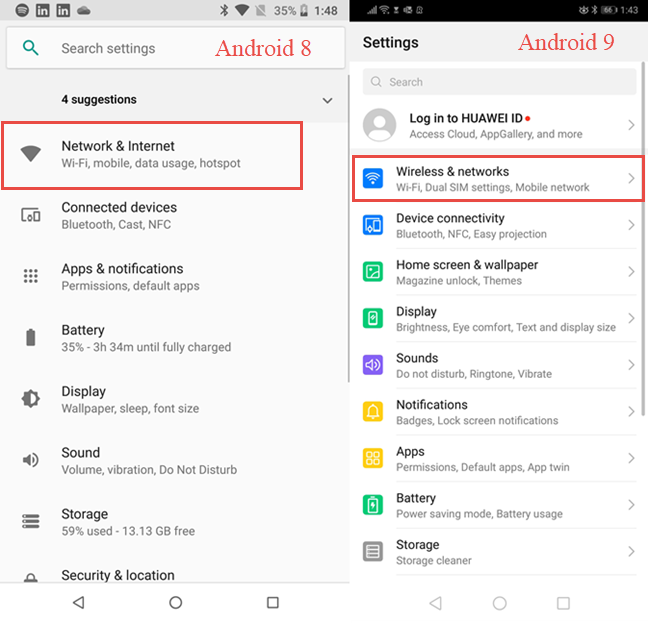
To create a VPN connection on your Android smartphone or tablet, start by opening the Settings. In Android 8 Oreo, tap Network & Internet, while in Android 9 Pie, tap Wireless & networks.
The Settings app in Android
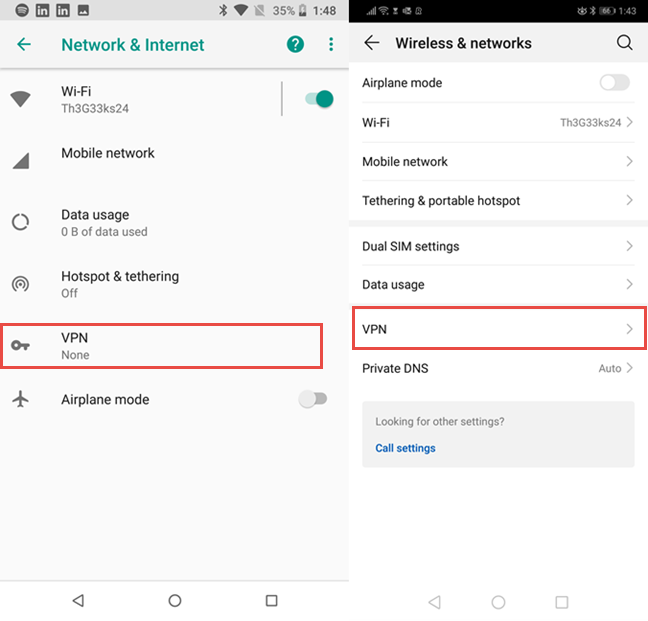
You see several settings related to networks. In both Android versions, tap VPN.
Tap VPN in Android's settings
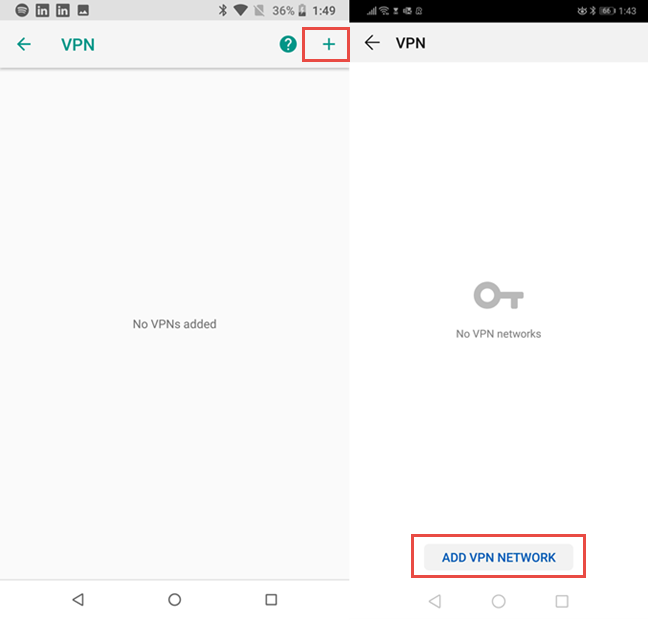
This opens a screen where you see all the VPN connections that are configured on your Android smartphone or tablet. Unless you or one of the apps used on your Android device created VPN connections in the past, this screen should be empty. To create a new VPN connection, tap the + (plus) button from the top right corner of the screen (in Android 8 Oreo) or tap "Add VPN Network" (in Android 9 Pie).
Tap the button to add a VPN in Android
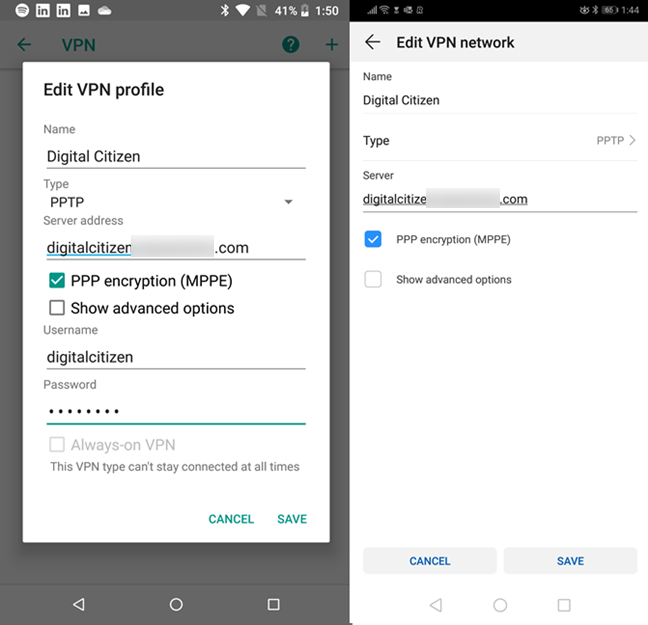
Android opens a dialog where you must enter all the details of the VPN connection that you want to create. The basic configuration options are:
Name - enter a name that helps you identify this VPN connection.
Type - the type of VPN connection that you are setting up (PPTP, L2TP, and IPSec).
Server - the address of the VPN server which you'll connect to. This can be either a URL like vpn.digitalcitizen.life or a numerical IP address like 40.84.48.70.
PPP encryption (MPPE) - specifies whether the VPN server to which you want to connect requires that the connection be encrypted. This option should be ticked by default.
One difference between Android 8 Oreo and Android 9 Pie is that Android 8 asks you to enter the username and password of the VPN, while Android 9 does not.
Enter the details of the VPN connection
If you check "Show advanced options," you can configure other details for the VPN connection: the "DNS search domains,""DNS servers," and "Forwarding routes." If the VPN connection that you're creating requests that you enter these details, do so now. However, these are usually not required. When you are done entering all the details of the VPN connection, tap Save. The VPN connection is now created and can be used at any time.
NOTE: If you want to set up a similar VPN connection on your Windows 10 PCs, read: How to create, configure, use, and delete a VPN connection in Windows 10.
How to connect to a VPN in Android
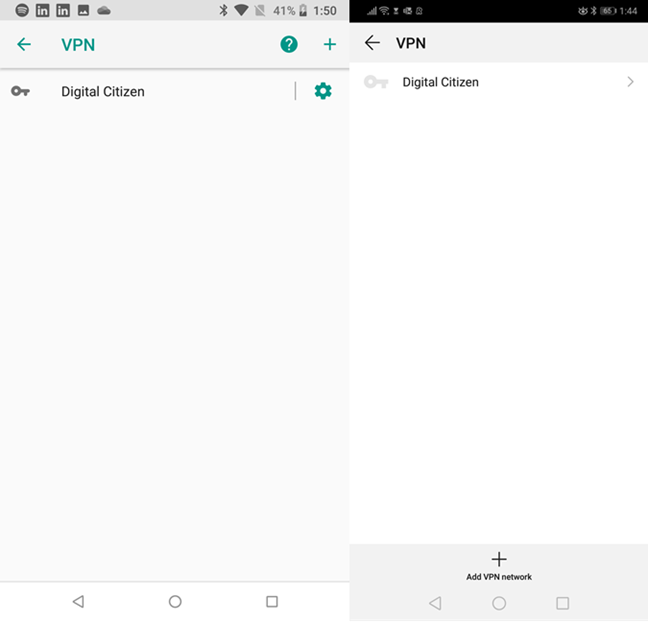
After the VPN connection is configured, tap on its name in the VPN list.
The VPN connections that were configured in Android
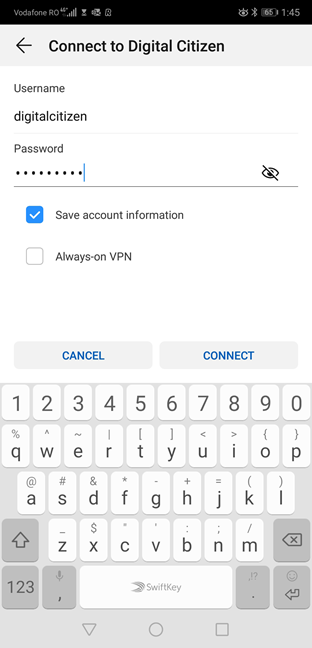
In Android 9 Pie, you are asked to enter the username and password of your VPN account. If you want to, you can save this information instead ofentering it again the next time you connect to the same VPN. Tap Connect and wait for a few moments for the VPN connection to be established. In Android 8 Oreo, this step has the username and password already completed, so you just need to tap Connect.
Connecting to a VPN in Android 9 Pie
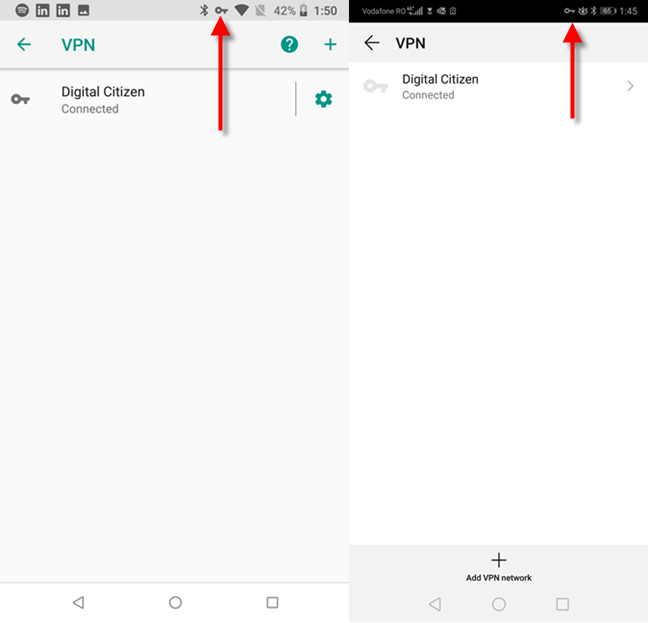
After your Android device has connected to the VPN server, you see the label Connected written beneath the VPN connection name and a key symbol in the status bar on the top side of the screen.
How to tell when you are connected to a VPN in Android
While the VPN is connected, every bit of information you receive or send on the internet using your Android device is relayed via the VPN server you're connected to. That is, of course, until you decide to disconnect from the VPN server.
How to disconnect from the VPN server in Android
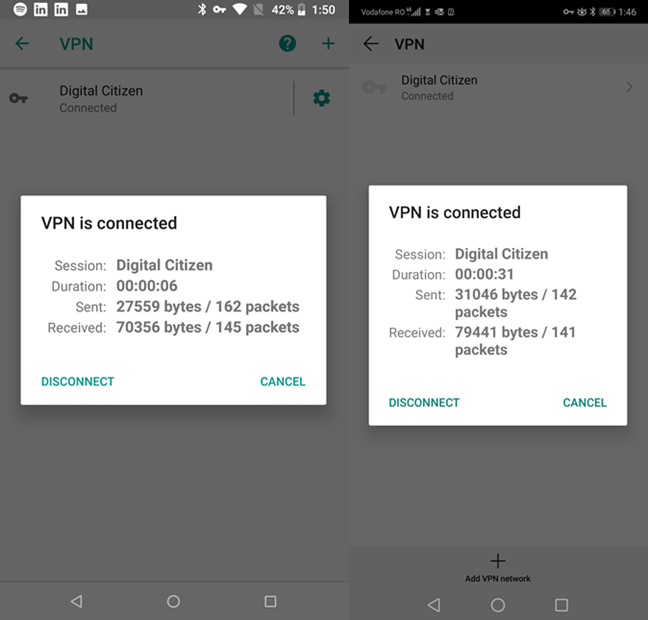
To disconnect from the VPN server, go back to the VPN screen and tap the running VPN connection. You see some information about the Duration of the VPN connection, as well as details about the data that was Sent and Received using the VPN connection. Below this information, you see a button called Disconnect. Tap on it, and the VPN connection closes immediately.
Details about your VPN connection, in Android
How to remove a VPN server from Android
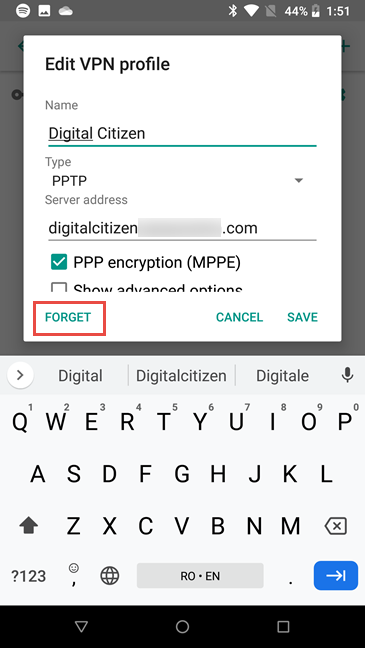
If you want to delete a VPN from your Android device so that it is never used again, go back to the VPN screen from Settings. First, make sure that you are disconnected from the VPN. Then, in Android 8 Oreo, tap the name of the VPN connection. In the prompt where you see details about the VPN profile, tap the Forget button.
Forgetting a VPN in Android 8 Oreo
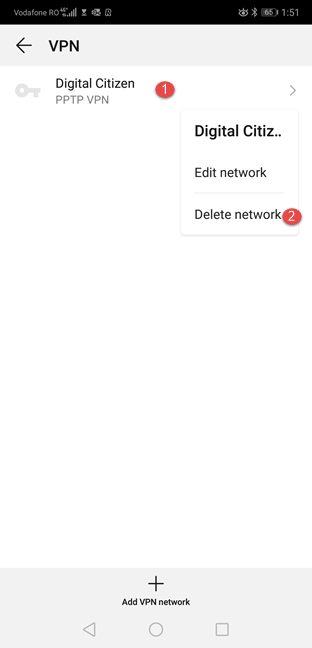
In Android 9 Pie, press and hold the name of the VPN connection, and, in the contextual menu that opens, tap Delete network.
Forgetting a VPN in Android 9 Pie
The VPN is now removed from Android, and it can no longer be used.
Why do you use a VPN on your Android smartphone?
Creating, configuring, and using VPN connections on Android smartphones or tablets is not that difficult. Everyone can do it as long as you follow the instructions we shared. Before closing this tutorial, tell us why and how you use a VPN on your Android device. Is it to connect to your business network, your home network, or a specialized VPN provider? Also, what do you use the VPN for? Comment below and let's discuss.













Discussion (0)
Comments are closed.