




Most people use Gemini the same way they use any chatbot: open it, type a question, read the answer, close it. That is a perfectly fine way to use it, but it is also the most limited way. Google introduced Gemini scheduled actions to push the experience further. Instead of waiting for you to ask, Gemini can now perform tasks on a schedule you set, automatically, without you needing to open the app or type a single prompt. This guide covers what Gemini scheduled actions are, how they work, how to set one up, and what you can realistically do with them.
What Are Gemini Scheduled Actions?
Gemini scheduled actions is a feature in the Gemini app designed to handle tasks on your behalf at times you define. With scheduled actions, you can automate routine work or receive personalized updates from Gemini on a recurring basis without lifting a finger each time.
In practical terms, it means you tell Gemini what you want and when you want it, and Gemini takes care of the rest. Once set, the task runs automatically with no need to re-prompt. That is the core shift this feature represents. Gemini stops being purely reactive and starts behaving more like an assistant that works in the background.
The feature went live on June 6, 2025, for both the Gemini app and web client. A dedicated settings panel lists all your upcoming scheduled jobs, their next run time, and quick controls to pause, resume, rename, or delete each one.
How Gemini Scheduled Actions Work
The underlying mechanic is straightforward. You type a prompt into Gemini the same way you normally would, but instead of asking for an immediate response, you include a timing instruction. Gemini reads that instruction, confirms the schedule with you, and saves the action. From that point on, it runs on its own.
You can set tasks as a one-off or as a recurring action. You can also take an existing conversation and turn it into a scheduled task. At any given time, you can have up to 10 active scheduled actions running simultaneously.
Before the action is saved, Gemini replies with a summary of what it understood from your request. If the timing or instructions are not quite right, you can click Edit before confirming, or ask Gemini to update the action at any point within the scheduled action chat.
Completed tasks are delivered as push notifications on mobile or in the Gemini interface on the web. The notification contains the output Gemini generated for that run, whether it is a summary, a list of ideas, a briefing, or whatever you asked for.
Google supports daily, weekly, and monthly recurring patterns. Complex scheduling like every second Tuesday is not currently supported. For most practical use cases, daily and weekly intervals cover the majority of what people actually need.
How to Set Up Gemini Scheduled Actions
Setting up a scheduled action takes less than a minute once you know the process.
Step 1: Open Gemini
Go to Gemini on your browser or open the Gemini app on your Android or iOS device. Make sure you are signed into your Google account before proceeding.
Step 2: Type Your Prompt With a Timing Instruction
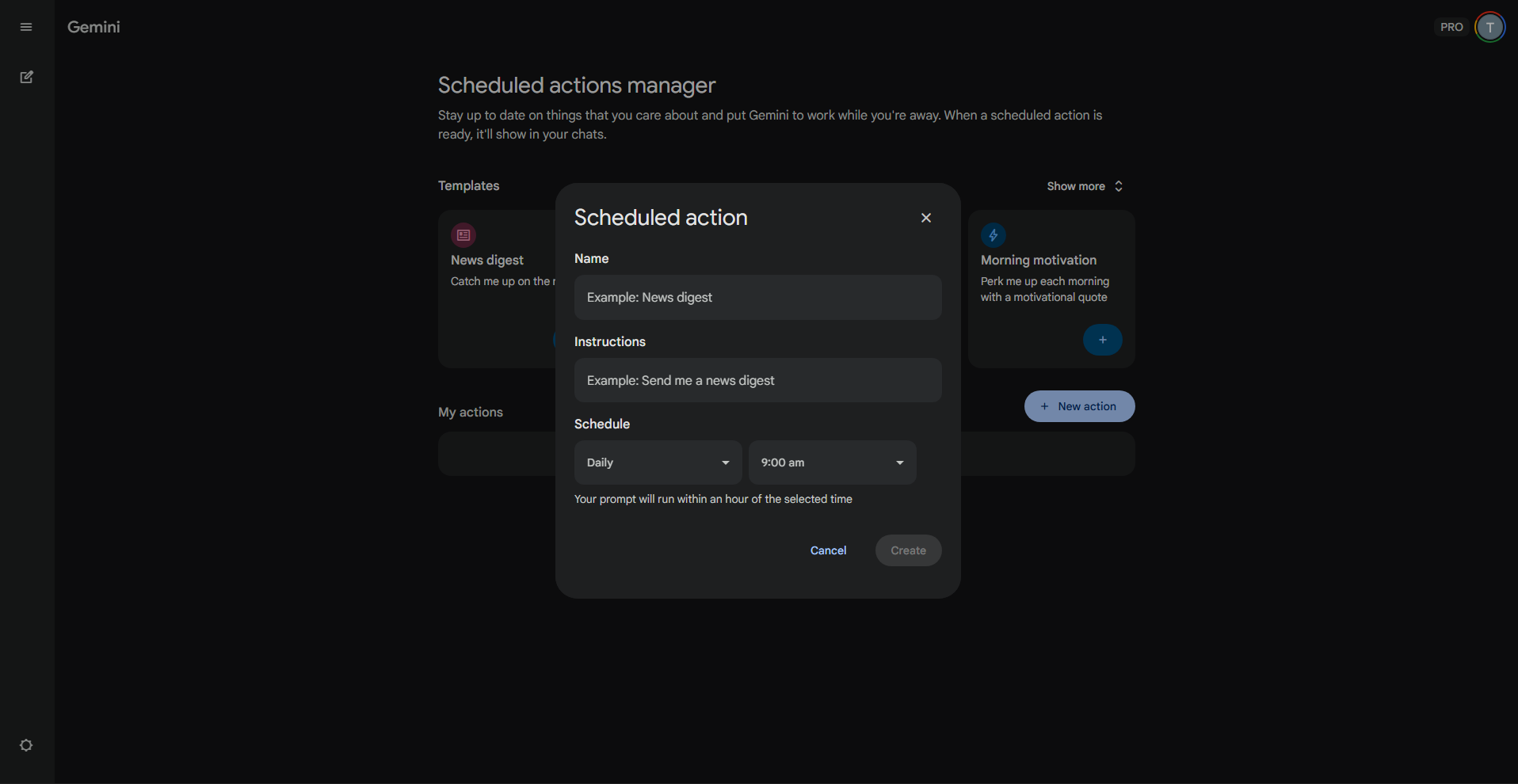
Go to Scheduled action manager there in new actions fill in the given parameters i.e just type in your prompt as you normally would, but include when and how often you want the task to run. For example, you could type "Give me a summary of my calendar and unread emails every morning at 8am" or "Send me five blog post ideas every Monday morning." The more specific you are about the timing, the more accurately Gemini will set up the schedule.
Step 3: Review and Confirm the Scheduled Action
After you submit the prompt, Gemini displays a summary of the scheduled action it understood from your request. Review the details carefully. If the timing or instructions are not quite right, click Edit to make changes before confirming. Once satisfied, confirm the action to save it.
Step 4: Connect Apps If Required
If your scheduled action involves another Google app such as Gmail, Google Calendar, or Google Docs, that app must be connected to Gemini first. If it is not already connected, Gemini will prompt you to connect it before saving the action. Connecting these apps allows Gemini to pull in real data from your account rather than generating generic responses.
Step 5: Manage Your Scheduled Actions
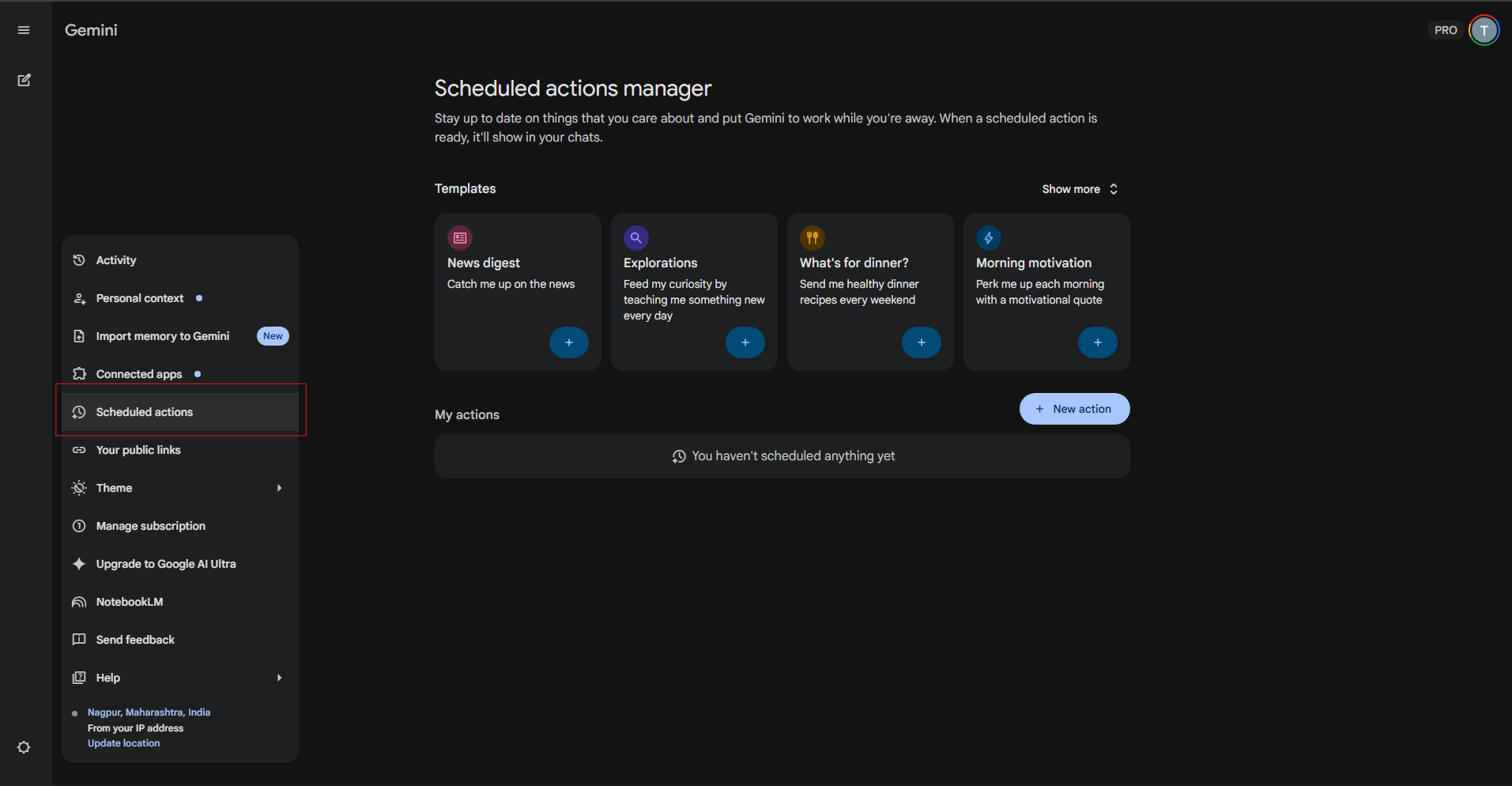
To manage your scheduled actions at any time, go to gemini.google.com, click Settings, then select Scheduled Actions. From that panel you can view all active actions, pause or resume them, edit the prompt or timing, or delete them entirely. Pausing an action keeps it saved without running it, which is useful if you temporarily do not need a recurring task but do not want to lose the setup.
What You Can Do With Gemini Scheduled Actions
The range of tasks you can schedule is broader than it might first appear. Here are some of the most practical use cases.
Morning Briefings
One of the most popular uses is setting up a morning briefing. You can have Gemini deliver a summary of your calendar and unread emails automatically each morning. Because Gemini has access to Gmail and Google Calendar when those apps are connected, the briefing pulls in actual data from your account rather than producing a generic response. For anyone with a packed morning routine, having that summary waiting rather than piecing it together manually saves real time.
Weekly Content and Creative Tasks
You can have Gemini generate five blog post ideas every Monday, or produce social media content, newsletter topics, or product descriptions on a recurring schedule. Setting this up once means you always have a starting point at the beginning of each work week without having to think about it.
News and Topic Updates
This works well for professionals who need to stay current on a specific field or topic. You can set Gemini to deliver updates on an industry, a subject area, or a topic you follow regularly, without dedicating time each day to manually searching for information.
One-Off Scheduled Tasks
Not everything needs to recur. You can schedule a one-off task, such as asking Gemini to give you a summary of an event the day after it happens. This is useful for situations where you know something is coming and you want a digest of it without having to remember to ask at the right time.
Business and Productivity Use Cases
Business users can set up scheduled actions for regular sales reports, meeting digests, or automated team reminders. For anyone managing a team or tracking ongoing projects, having Gemini surface a structured update at a fixed time each week reduces the overhead of pulling that information together manually.
The Scheduled Actions Manager Tab
Google is working on a dedicated Scheduled Actions manager tab that will appear directly on the Gemini navigation bar. This will not only display existing scheduled tasks but will also introduce a selection of ready-made templates to help users get started quickly.
Templates in the pipeline include options such as Daily Briefing, News Digest, Joke of the Day, Morning Motivation, and Sunday Comic, among others. Selecting a template allows quick customization where you can edit the prompt and save it as your own recurring task.
This addition makes the feature significantly more accessible. Rather than needing to know exactly how to phrase a scheduling prompt, users can start from a template and adjust it to suit their needs. It lowers the barrier for new users and makes it more likely that people will actually engage with scheduled actions as a regular part of how they use Gemini.
Who Can Use Gemini Scheduled Actions?
The feature is available on both Android and iOS, but only for users on a paid Gemini subscription or a supported Google Workspace plan. Specifically, scheduled actions are available to users with a Google AI Pro or Ultra subscription and qualifying Google Workspace plans such as Business Standard or Education Plus. Free-tier users do not currently have access, and Google has not confirmed whether that will change.
The subscription sits at around 20 dollars per month for Google AI Pro, which is consistent with what ChatGPT Plus charges for its equivalent task scheduling feature.
Limitations of Gemini Scheduled Actions
Gemini scheduled actions is a useful feature, but it has real constraints worth understanding before you start relying on it.
The ten-action cap is the most immediate limit. You can have up to 10 active scheduled actions at a time. For personal use that is usually sufficient, but for power users or business workflows that need more automation, it becomes a meaningful ceiling.
The feature produces AI-generated output delivered on a schedule. It is not a full automation engine that takes actions across platforms on your behalf. You cannot use it to compose and send emails automatically, create calendar events, upload files, or trigger workflows in third-party apps. What you get is Gemini-generated content delivered at the time you specified, nothing more.
If you schedule an action related to your location, Gemini uses the location from when the action was originally created for all future responses. If you need a different location for a specific task, you either create a new scheduled action or update the existing one to specify the correct location.
There is also an inactivity cutoff to be aware of. If a scheduled action goes unengaged for a period of time, Gemini may automatically pause it without explicit notice.
Finally, the feature is only available through the Gemini app and web client. It does not extend to Gemini embedded within other Google products like Gmail or Docs in the same integrated way.
Gemini Scheduled Actions vs. ChatGPT Tasks
The comparison is worth making because both platforms now offer similar functionality at the same price point. Gemini offers direct editing of scheduled actions on the web version, while ChatGPT requires users to navigate to a dedicated management panel through Settings, then Notifications, then Manage tasks. Gemini's approach is slightly more accessible in that regard.
Where Gemini has a clear advantage is its native integration with Google services. Because Gemini connects to Gmail, Google Calendar, and Google Docs, its scheduled outputs can reference real data from your account. A morning briefing from Gemini can pull your actual emails and meetings rather than producing something generic. ChatGPT, without the same depth of Google Workspace integration, produces more general outputs for similar prompts.
Both platforms cap scheduled tasks at ten active actions and sit at the same monthly subscription price. The choice between them largely comes down to which ecosystem you are already working in. If you live in Google Workspace, Gemini scheduled actions is the more contextually useful option.
Final Thoughts
Gemini scheduled actions is one of the more practical features Google has added to its AI assistant in recent memory. It does not require any technical knowledge to set up, it integrates with tools most Google users already rely on, and it genuinely reduces the manual effort involved in staying on top of recurring information and tasks.
The limitations are real. The ten-action cap, the lack of deep third-party integration, and the requirement for a paid subscription all narrow the audience. But for someone who is already paying for Gemini and wants to get more out of it beyond reactive question-and-answer sessions, scheduled actions is the feature that starts to make Gemini feel like a proper assistant rather than just a smarter search box.
Frequently Asked Questions
How many scheduled actions can I have active at once? You can have up to 10 active scheduled actions running at any one time. If you want to add a new one beyond that limit, you need to delete or pause an existing action first.
Can Gemini scheduled actions send emails or complete tasks in other apps? Not directly. Gemini scheduled actions generates AI output on a schedule and delivers it as a notification or in-app message. It can reference data from connected Google apps like Gmail and Calendar, but it cannot independently compose and send emails, create calendar events, or take actions in third-party apps on your behalf.
How do I manage or delete a Gemini scheduled action? Go to gemini.google.com, click Settings and help, then select Scheduled Actions. From that panel you can view all active scheduled actions, pause or resume them, edit the prompt or timing, or delete them entirely. You can also ask Gemini directly within the scheduled action chat to make changes at any time.



Discussion (0)
Be the first to comment.