



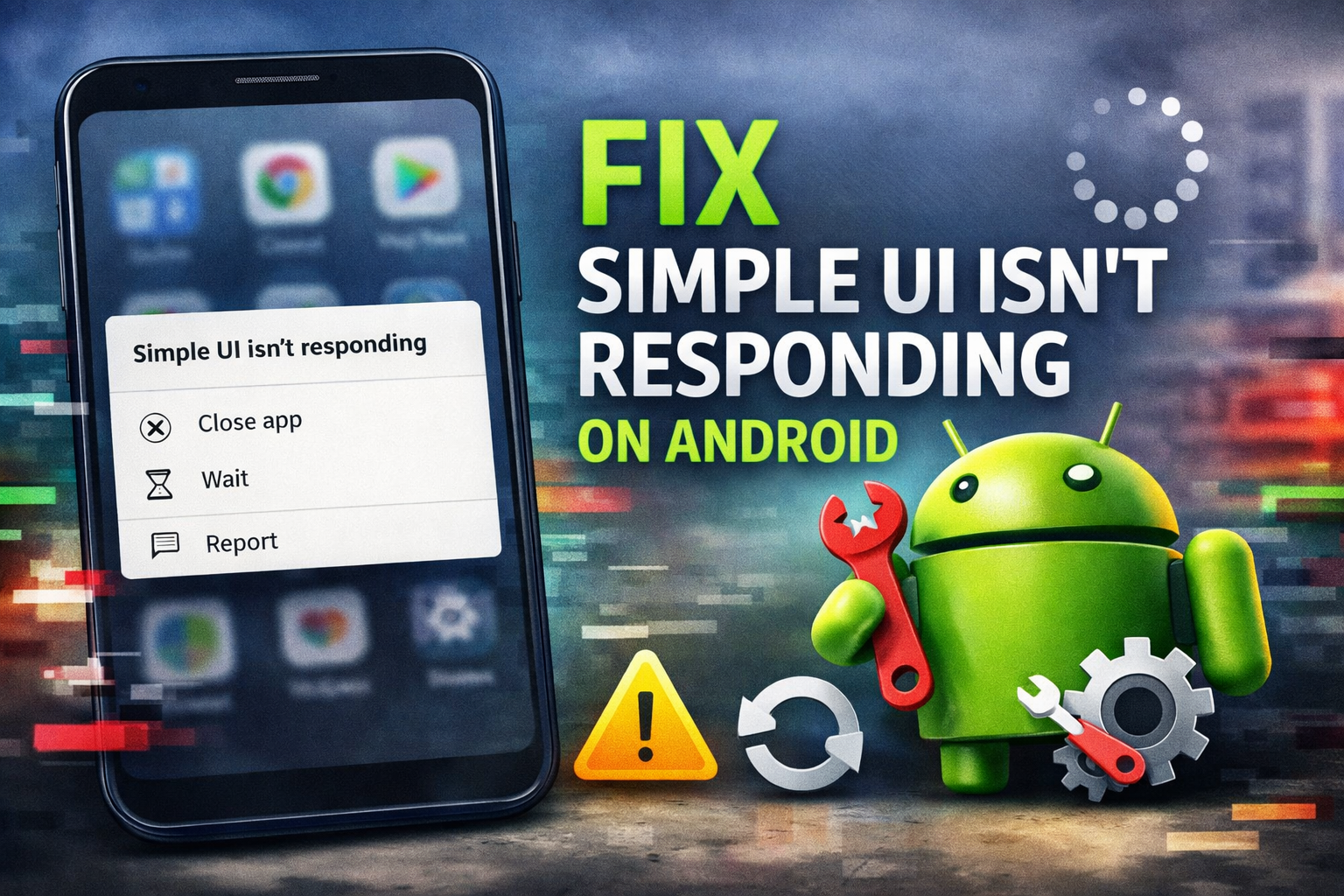
If you see the “Simple UI isn’t responding” message on Android, the launcher or simplified interface has frozen. Corrupted cache, recent updates, or app conflicts usually cause the issue. You can fix it in minutes without losing personal data by following the steps in this guide.
Table of contents
Quick checks before deeper fixes
Start with these fast checks. They resolve temporary glitches and save time.
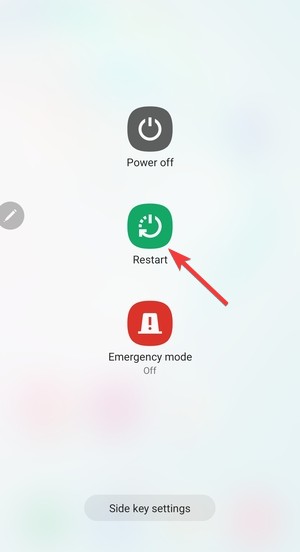
Restart your phone
Restarting clears stuck processes and reloads Simple UI cleanly. Many freezes disappear after a single reboot.
Check available storage
Android slows UI components when storage runs low. Keep at least 1–2 GB free to prevent Simple UI crashes.
Fix Simple UI isn’t responding (basic methods)
These steps fix most cases and require no technical knowledge.
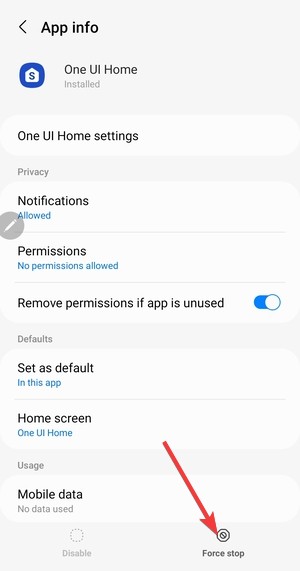
Force stop Simple UI
Force stopping ends the frozen process so Android can relaunch it properly.
Steps:
- Start by opening Settings on your Android device.
- Tap Apps or Apps & notifications.
- Find Simple UI, Easy Mode, or One UI Home.
- Tap Force stop, then confirm.

Clear Simple UI cache
The cache stores temporary UI files that often get corrupted after updates.
Steps:
- Open Settings → Apps.
- Select Simple UI.
- Tap Storage.
- Tap Clear cache.
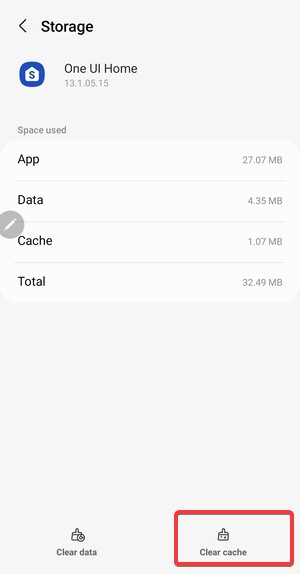

This action does not remove personal data.
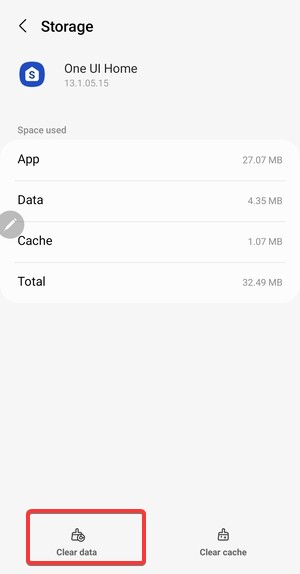
Clear Simple UI data
Use this if clearing the cache does not help. This resets Simple UI settings only.
Steps:
- Open Settings → Apps.
- Select Simple UI.
- Tap Storage.
- Tap Clear data.
Fix Simple UI isn’t responding after an update
Android or OEM updates often trigger UI conflicts.
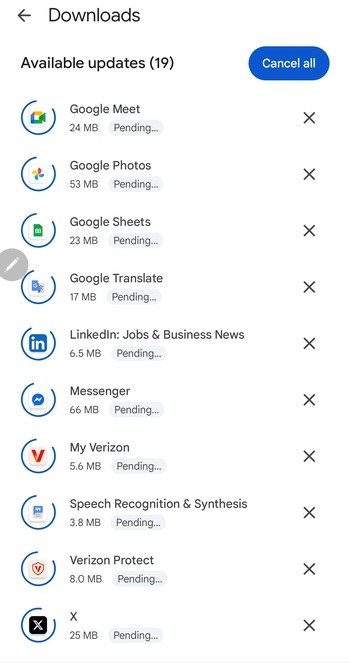
Update all system apps
Mismatched system components can break Simple UI after updates.
Steps:
- Open Google Play Store.
- Tap your profile icon.
- Tap Manage apps & device.
- Install all pending updates.

Uninstall recent app updates
Launcher apps, accessibility tools, or theme engines frequently cause UI freezes.
Steps:
- Open Settings → Apps.
- Sort by Recently updated.
- Uninstall or disable suspicious apps.
- Restart the phone and test Simple UI.
Fix Simple UI using Safe Mode
Safe Mode disables third-party apps to isolate conflicts.
Boot Android into Safe Mode
Safe Mode helps confirm whether another app breaks Simple UI.
Steps:
- Press and hold the Power button.
- Tap and hold Power off.


- Tap Safe mode to confirm.
Remove conflicting apps
If Simple UI works in Safe Mode, uninstall recently added apps after rebooting normally. Focus on launchers, screen recorders, and accessibility apps.
Manufacturer-specific notes
Samsung Easy Mode vs Simple UI
Samsung devices often label Simple UI as Easy Mode or One UI Home. You can manage it under Settings → Display → Easy Mode.

Xiaomi, Huawei, and budget Android devices
Some OEMs embed Simple UI into custom launchers. Look for it under system apps or default launcher settings.
Advanced fixes if Simple UI still isn’t responding
Use these steps only when basic fixes fail.
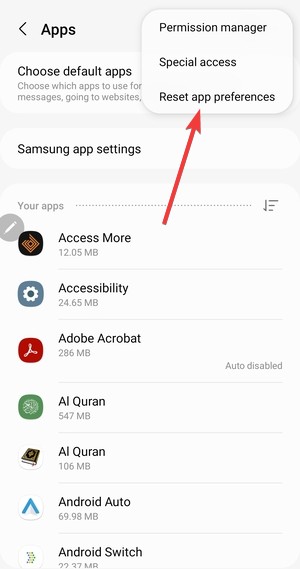
Reset app preferences
This restores default app permissions and bindings without deleting files.
Steps:
- Open Settings → Apps.
- Tap the three-dot menu.
- Tap Reset app preferences.

Factory reset as a last resort
A factory reset fixes deep system corruption. Back up your data before proceeding.
Tips to prevent Simple UI from freezing again
- Keep at least 2 GB of free storage.
- Avoid running multiple launchers together.
- Update system apps regularly.
- Reboot the phone weekly to clear background buildup.
FAQs
What is Simple UI on Android?
Simple UI is a simplified interface designed for easier navigation, often used on budget phones or accessibility-focused setups.
Is Simple UI the same as System UI?
No. System UI controls core Android elements, while Simple UI acts as a simplified launcher layer.
Will clearing Simple UI data delete my files?
No. It only resets Simple UI settings and layout preferences.
Can I disable Simple UI permanently?
Yes. You can switch back to the default launcher in Settings → Apps → Default apps.
Summary
- Restart the phone and check free storage.
- Force stop and clear Simple UI cache or data.
- Check update-related conflicts and test Safe Mode.
- Use advanced resets only if other fixes fail.
Simple UI freezes rarely signal hardware failure. Most users restore normal operation within minutes by following these steps. Finally, you should stop troubleshooting once the interface responds normally again.


Discussion (0)
Be the first to comment.