



If iMessage works with everyone except one contact, the issue almost never involves Apple’s servers. In most cases, a blocked contact, incorrect phone number or email, or an iMessage Send & Receive mismatch causes messages to fail or switch to SMS.
The fixes below walk through the exact checks that resolve one-contact iMessage issues without resetting your iPhone or losing data.
Table of contents
Why iMessage fails with only one contact
This problem almost always ties to how iOS matches a contact’s phone number or email with iMessage. A block, outdated contact field, or Apple ID mismatch can silently force messages to fall back to SMS or fail entirely.
Quick checks before deeper fixes
These checks solve many cases in seconds and help you avoid advanced troubleshooting.
Confirm the contact uses iMessage
Ask the contact to send you a message first and confirm they still use iMessage. If they switched phones or disabled iMessage, blue bubbles will never appear.
Check if the contact is blocked
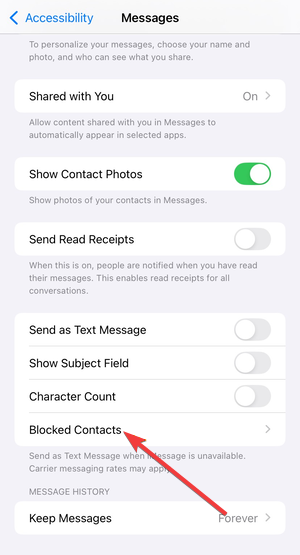
Open Settings → Apps → Messages → Blocked Contacts and confirm the contact does not appear there. iOS blocks messages without showing obvious errors.
Verify you are messaging the correct number or email
Open the contact card and check every phone number and email address. If multiple options exist, iMessage may target the wrong one.
Reset the conversation with the affected contact
Corrupted message threads often cause one-contact failures.
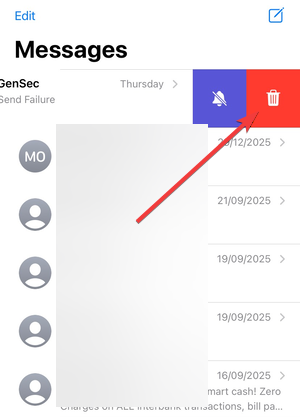
Delete the existing conversation thread
Open Messages, swipe left on the conversation, and delete it. This clears cached routing data linked to that contact.
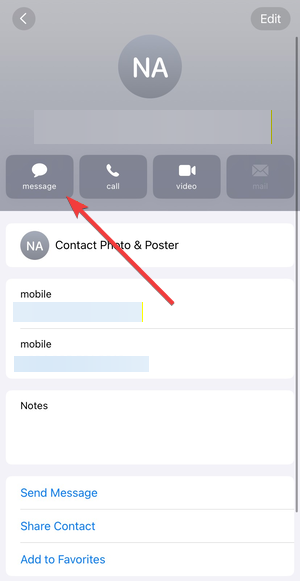
Start a new iMessage thread from Contacts
Open Contacts, tap the person’s name, then tap Message. This forces iOS to reassess iMessage availability.
Check iMessage Send & Receive settings
Apple ID routing problems frequently affect only specific contacts.
Verify your Send & Receive configuration
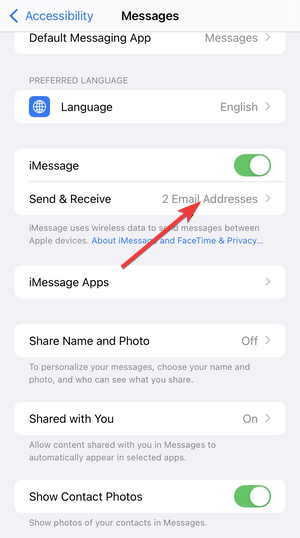
Go to Settings → Apps → Messages → Send & Receive. Make sure your phone number and the correct Apple ID email appear and are checked.
Set your phone number as the default sender
Under Start New Conversations From, select your phone number. This prevents replies from targeting inactive email addresses.
Fix contact data issues
Incorrect or inconsistent contact fields often break iMessage delivery.
Remove and re-add the contact
Delete the contact, restart your iPhone, then add the contact again manually. This clears hidden formatting issues.
Standardize the phone number format
Edit the number to include the correct country code and remove extra spaces or symbols. Consistent formatting improves iMessage recognition.
Reset iMessage activation
If the issue persists, refresh your iMessage registration.
Toggle iMessage off and back on
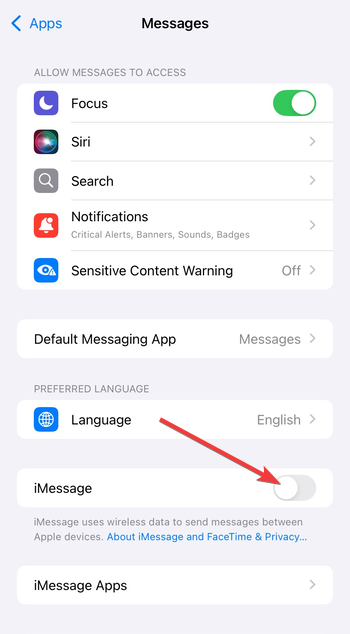
Go to Settings → Messages, turn off iMessage, wait 30 seconds, then turn it back on. This triggers a fresh activation request.
Sign out of Apple ID and sign back in
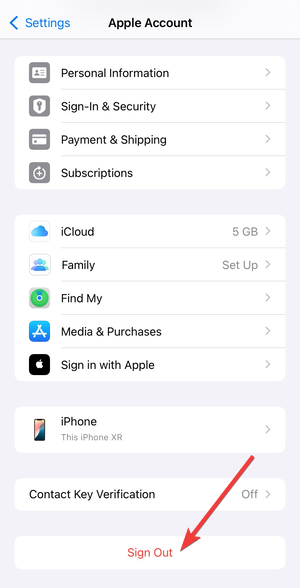
Open Settings → Apple ID → Sign Out, restart the phone, then sign back in. This fixes authentication issues tied to selective delivery failures.
Use Apple’s iMessage deregistration tool
If a number or email remains stuck, deregister it and re-enable iMessage. This resets Apple’s server-side association.
Check network and system settings
iMessage relies on secure network validation to work properly.
Verify date and time are set automatically
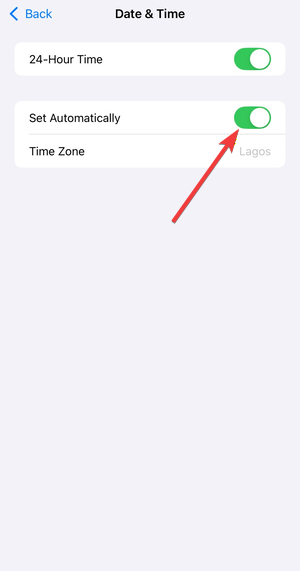
Go to Settings → General → Date & Time and enable automatic settings. Incorrect time can block Apple service authentication.
Switch networks or disable VPNs
Connect to a different Wi-Fi network or use cellular data. VPNs and restricted networks can interfere with iMessage traffic.
Test across devices
Cross-device testing helps isolate the problem fast.
Test messaging the contact from another Apple device
Send a message from a Mac or iPad using the same Apple ID. If it fails everywhere, the issue ties to the account.
Check iMessage behavior in group chats
Add the contact to a group iMessage. If messages work there, the issue likely affects only one-to-one routing.
Tips
- Restart your iPhone after each major change to apply settings cleanly
- Keep iOS updated to avoid known iMessage bugs
- Avoid duplicate contacts with the same number or email
- Confirm the contact has not blocked you on their device
FAQs
Why does iMessage work with everyone except one person?
This usually happens because of incorrect contact data, blocking, or Apple ID routing issues tied to that contact.
Can the other person cause this issue?
Yes. If they disabled iMessage, changed numbers, or removed their Apple ID, messages will fail on your end.
Will resetting network settings help?
Only use it as a last resort. Most one-contact issues resolve without resetting all network data.
Does deleting a conversation remove message history permanently?
Yes. Make sure you no longer need the messages before deleting the thread.
Summary
- Check blocks, contact details, and iMessage availability first
- Reset the conversation and verify Send & Receive settings
- Fix contact formatting and refresh iMessage activation
- Test across devices and networks
iMessage problems limited to one contact usually come from data mismatches, not system-wide failures. By fixing contact details, refreshing iMessage settings, and testing across devices, you can restore blue bubbles quickly without drastic resets.
Finally, if you are facing other issues like the iMessage needs to be enabled to send this message error, check our detailed guide to fix it.


Discussion (0)
Be the first to comment.