




Bluetooth turning on by itself on Android usually comes from system features designed to improve connectivity, location accuracy, or device pairing. The fixes below stop Android from re-enabling Bluetooth without breaking core features like calls, navigation, or accessories.
Table of contents
- Why Bluetooth keeps turning on by itself on Android
- Quick checks before changing advanced settings
- Turn off Bluetooth scanning and nearby features
- Stop Google services from re-enabling Bluetooth
- Fix Bluetooth auto-turning on after connecting to a car
- Brand-specific fixes for Android phones
- Check automation and third-party apps
- Reset Bluetooth settings as a last resort
- When Bluetooth turning on automatically is normal behavior
- Tips to prevent Bluetooth from turning on again
- FAQs
- Summary
Why Bluetooth keeps turning on by itself on Android
Android uses Bluetooth beyond manual connections. Several background services can toggle it back on, even when you turn it off from Quick Settings.
Location and nearby device scanning
Android uses Bluetooth scanning to improve location accuracy and detect nearby devices. This behavior works independently from the main Bluetooth toggle.
Google and system services
Google Play services, Fast Pair, and system intelligence features can activate Bluetooth to search for accessories or suggest device connections.
Connected devices and profiles
Cars, smartwatches, earbuds, and trackers often request Bluetooth access automatically when they detect the phone nearby.
Automation apps and routines
Automation tools and built-in routines can override manual Bluetooth settings based on location, time, or activity.
Quick checks before changing advanced settings
Start with these fast checks. They often resolve the issue immediately.
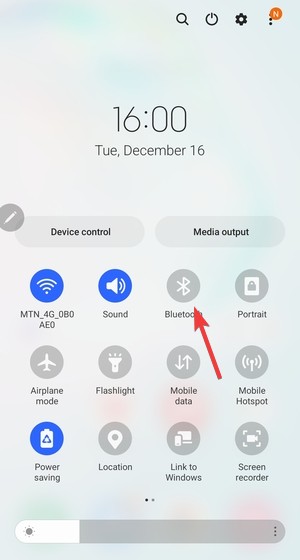
Restart the phone and toggle Bluetooth once
Restart your phone, then turn Bluetooth on your Android and turn it off manually. This clears temporary system states that can force Bluetooth back on.
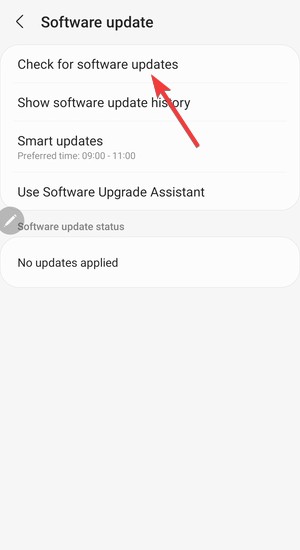
Check for pending Android or security updates
Open Settings, go to System, then check for updates. Many Bluetooth bugs get fixed through monthly patches.
Turn off Bluetooth scanning and nearby features
This step stops the most common hidden trigger on Android 12 and newer.
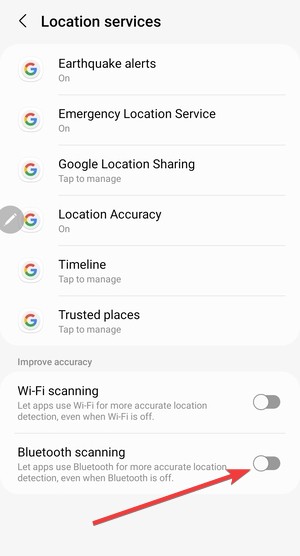
Disable Bluetooth scanning in location services
Open Settings, tap Location, select Location services, then disable Bluetooth scanning. Android will stop waking Bluetooth for location tasks.
Turn off Nearby device scanning
In Location services, turn off Nearby device scanning. This prevents background device discovery.
Stop Google services from re-enabling Bluetooth
Google features frequently override user preferences.
Disable Fast Pair and device suggestions
Open Settings, tap Google, select Devices and sharing, then disable Fast Pair or Scan for nearby devices and nearby device suggestions.
Review Google Assistant routines
Open Google Assistant settings and check Routines. Remove any routine that includes Bluetooth actions.
Fix Bluetooth auto-turning on after connecting to a car
Cars remain one of the most common triggers.
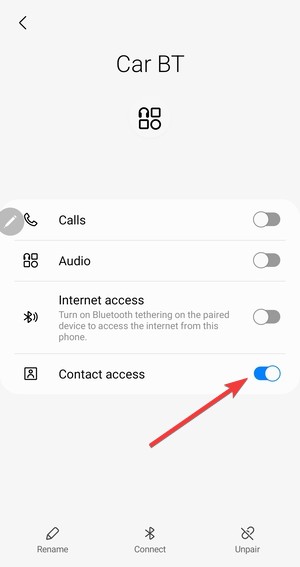
Check car Bluetooth permissions and profiles
Open Bluetooth settings, tap the car device, then disable media or contact syncing if you do not need them.
Disable auto-connect for specific devices
In the device’s Bluetooth settings, turn off auto-connect. This stops Bluetooth from enabling itself near that device.
Brand-specific fixes for Android phones
Some Android skins add extra connectivity features.
Samsung Galaxy
Open Settings, tap Connected devices, then turn off nearby scanning and smart connectivity features under advanced options.
Google Pixel
Open Settings, tap System, then review adaptive connectivity and system intelligence options that affect Bluetooth behavior.
Xiaomi, Oppo, and other Android skins
Check battery optimization and smart connection menus. Disable any feature that manages Bluetooth automatically.
Check automation and third-party apps
Apps can silently control Bluetooth.
Review installed automation apps
Uninstall or disable Tasker, MacroDroid, or similar apps temporarily to confirm they do not control Bluetooth.
Test in Safe Mode
Restart the phone in Safe Mode. If Bluetooth stays off, a third-party app causes the issue.
Reset Bluetooth settings as a last resort
Use this option only after other fixes fail.
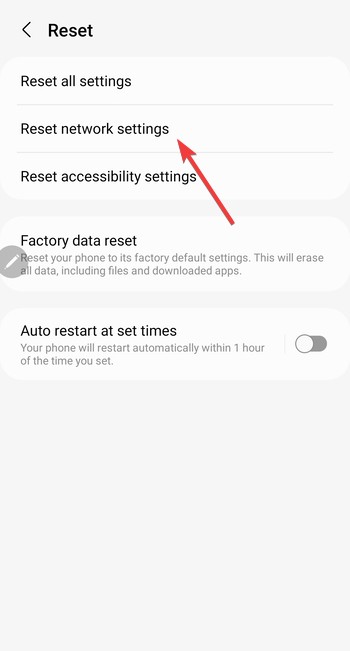
Reset network and Bluetooth settings
Open Settings, tap System, select Reset options, then Reset network settings. This removes Bluetooth pairings but keeps personal data.
When Bluetooth turning on automatically is normal behavior
Android may enable Bluetooth for emergency services, device safety features, or system pairing during setup. You cannot always disable this behavior.
Tips to prevent Bluetooth from turning on again
- Keep Android updated with the latest security patches.
- Limit paired devices to ones you actively use.
- Review automation and assistant routines monthly.
- Disable nearby and scanning features you do not need.
FAQs
Why does Bluetooth turn on after I disable it? Android background services and connected devices often trigger Bluetooth automatically.
Does turning off location stop Bluetooth completely? No. You must also disable Bluetooth scanning and nearby features.
Can a car force Bluetooth to turn on? Yes. Many car systems request Bluetooth as soon as the phone comes into range.
Will resetting network settings delete my data? No. It removes Wi-Fi and Bluetooth connections only.
Summary
- Disable Bluetooth and nearby scanning features.
- Turn off Google Fast Pair and Assistant routines.
- Check car and accessory auto-connect settings.
- Audit automation and third-party apps.
Fixing Bluetooth turning on automatically on Android usually takes only a few setting changes. Once you disable scanning, automation, and auto-connect triggers, Bluetooth stays under your control without affecting daily phone use.


Discussion (0)
Be the first to comment.