




Bluetooth support comes built into most Windows 10 laptops, but some PCs require the correct drivers before Bluetooth features appear in Settings. If Bluetooth is missing, unavailable, or not working, you can download Bluetooth on Windows 10 by installing the right drivers and enabling the proper system settings.
This guide shows you how to enable Bluetooth, install Bluetooth drivers, and fix missing Bluetooth options. These steps work for Windows 10 desktops, laptops, and older devices that need a manual driver download. Once Bluetooth is available, you can connect headphones, speakers, keyboards, phones, and other wireless accessories.
Enable Bluetooth Support In Windows 10
Start by confirming whether Bluetooth is disabled, hidden, or missing from the Settings menu. These steps help you reveal or activate the feature if it is available but turned off.
- Open the Start menu and select Settings.
- Choose Devices.
- Select Bluetooth & other devices.
- Turn on the Bluetooth toggle if it appears.
- If the toggle is missing, continue to the driver installation steps below.
Install Bluetooth Drivers On Windows 10
If Bluetooth is not visible in Settings, Windows 10 may be missing the correct Bluetooth drivers. You can download them through Device Manager or your PC manufacturer’s support page.
- Open the Start menu and type Device Manager.
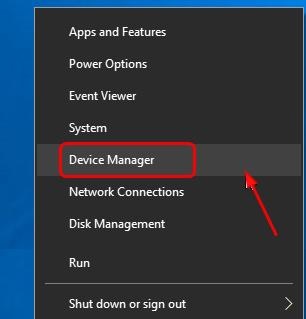
- Select Device Manager from the results.
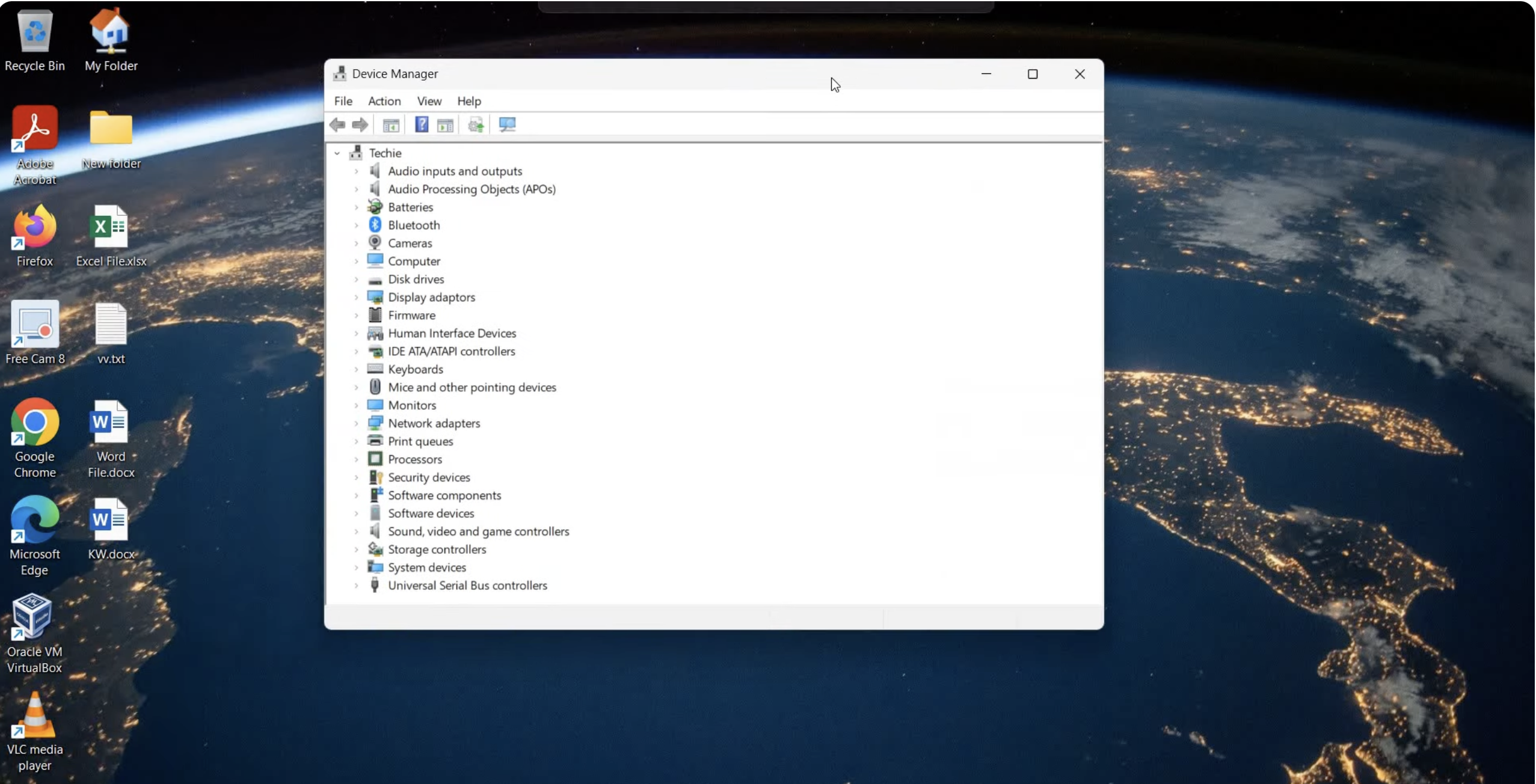
- Expand Bluetooth or Network adapters.

- If you see an item labeled Unknown device or Bluetooth Peripheral, right-click it.
- Select Update driver and choose Search automatically for drivers.
If no drivers are found, download the Bluetooth driver directly from your manufacturer’s support site. Each brand provides its own Windows 10 Bluetooth driver package.
- Search your PC model on the manufacturer’s support site.
- Download the Bluetooth or Wireless driver for Windows 10.
- Run the installer and restart your computer.
Turn On Bluetooth Support Services
If drivers are installed but Bluetooth still does not appear, the Bluetooth Support Service may be disabled. Enabling it restores Bluetooth functionality.
- Press Windows + R and type services.msc.
- Scroll down and double-click Bluetooth Support Service.
- Set Startup type to Automatic.
- Click Start and then OK.
- Restart your PC.
Pair Bluetooth Devices On Windows 10
Once Bluetooth appears and is enabled, you can pair wireless accessories. Windows 10 supports Bluetooth speakers, headphones, mice, keyboards, and phones.
- Open Settings and select Devices.
- Choose Bluetooth & other devices.
- Click Add Bluetooth or other device.
- Select Bluetooth from the device type list.
- Choose your device and confirm pairing.
Troubleshooting Common Problems
- Bluetooth toggle missing: Install the latest Windows 10 Bluetooth driver.
- Device not pairing: Restart both devices and remove old pairings.
- Bluetooth disappears after restart: Enable Bluetooth Support Service.
- No sound from Bluetooth headphones: Select the headphones as the audio output device.
- Driver update fails: Download the official driver manually from the manufacturer.
Tips
- Keep Windows 10 fully updated for the best driver compatibility.
- Download Bluetooth drivers only from your official PC manufacturer.
- Remove older paired devices to avoid hardware conflicts.
- Restart your PC after every driver installation.
- Use Device Manager to verify whether Bluetooth hardware is detected.
FAQ
Why is Bluetooth not showing up in Windows 10?
Missing drivers or disabled Bluetooth services often cause this issue. Installing the correct driver usually restores the feature.
Can I install Bluetooth on a PC that does not have it?
Yes. You can add Bluetooth using a USB Bluetooth adapter if your computer does not include built-in hardware.
Why does my Bluetooth keep turning off?
Power-saving settings may disable Bluetooth. Adjust Power Management settings in Device Manager.
Does Windows Update install Bluetooth drivers?
Yes, but the manufacturer’s driver often provides better performance and stability.
Summary
- Enable Bluetooth in Settings if available.
- Install Bluetooth drivers through Device Manager or your manufacturer.
- Activate Bluetooth Support Service if Bluetooth is missing.
- Pair devices through the Bluetooth & other devices menu.
- Use troubleshooting steps to fix missing or unstable Bluetooth.
Downloading Bluetooth on Windows 10 requires the right drivers and system settings. Once everything is installed, Windows 10 supports wireless headphones, keyboards, speakers, and other Bluetooth accessories. Proper driver installation and Bluetooth service configuration ensure smooth and reliable connections across all Bluetooth devices.

Discussion (0)
Be the first to comment.