




Firefox Container Tabs let you separate websites into isolated environments inside the same browser. They help you stay logged into multiple accounts, reduce tracking, and keep work and personal browsing apart without switching browsers.
This feature works best for users who juggle multiple logins, care about privacy, or want cleaner browsing sessions in Mozilla Firefox.
Table of contents
- What Firefox container tabs are
- Why Firefox container tabs exist
- How Firefox container tabs work
- How to enable Firefox container tabs
- How to use Firefox container tabs
- Real-world use cases for container tabs
- Limitations of Firefox container tabs
- Tips to get the most out of container tabs
- FAQs about Firefox container tabs
- Summary
What Firefox container tabs are
Firefox Container Tabs create separate “containers” inside one browser window. Each container stores its own cookies, site data, and login sessions.
Websites opened in one container cannot read data from another container. Facebook in one container cannot see cookies from Google in another.
What containers isolate and what they don’t
Containers isolate cookies, local storage, and active logins. They do not isolate your IP address, installed extensions, or browser fingerprint.
Downloads and bookmarks remain shared across all containers.
Why Firefox container tabs exist
Mozilla designed Containers to reduce cross-site tracking and account conflicts. Many users need multiple logins without running multiple browsers.
Containers give you that separation while keeping everything in one place.
Containers vs private browsing

Private browsing deletes your history and other browser data when you close the window. Containers keep data persistent but isolated.
Use private browsing for temporary sessions and containers for long-term separation.
Containers vs Firefox profiles
Profiles fully separate everything, including extensions and settings. Containers separate only site data.
Use profiles for different users and containers for different accounts.
How Firefox container tabs work
Each container uses its own cookie storage. Firefox assigns every tab to exactly one container.
When you open a site, Firefox checks whether it belongs to a specific container and loads it there automatically if configured.
How site data stays separated
Firefox stores cookies in container-specific “jars.” Tabs from different containers cannot access each other’s jars.
This prevents login leaks and reduces tracking across sites.
How to enable Firefox container tabs
Firefox requires the official container extension to use this feature.
Installing the Firefox Multi-Account Containers extension
- Open Firefox.
- Visit the Firefox Add-ons site and search for multi-account containers.
- Next, select the Firefox Multi-Account Containers extension.
- Now, click the Add to Firefox button.


- Finally, confirm the installation and the extension will be added to your browser.

After installation, a container icon appears in the toolbar.
How to use Firefox container tabs
Once enabled, Containers work immediately with minimal setup.
Opening a new container tab
- Click the container icon in the toolbar.
- Choose a container type such as Work or Personal.


- A new tab opens with a colored underline.


That color shows which container the tab uses.
Assigning websites to specific containers
- Open a site inside a container.
- Next, click the Always open site in container icon on the address bar.
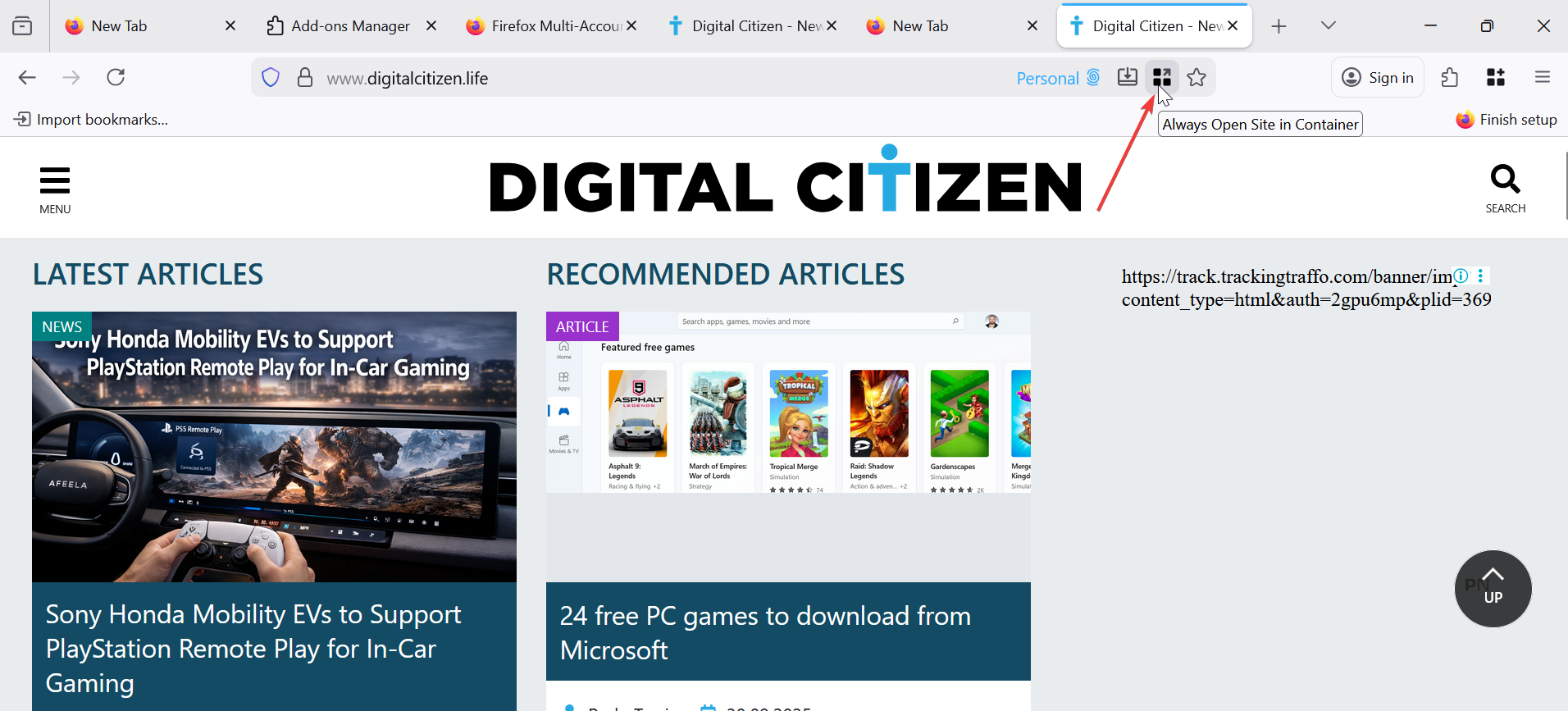

- Finally, select the container type.


Firefox will remember this rule.
Switching containers for an open tab
- Right-click the tab.
- Choose Open in New Container Tab.


- Select the desired container.
Firefox reloads the site inside the new container.
Real-world use cases for container tabs
Containers shine when you use the same services for different purposes.
Using multiple accounts on the same website
Log into multiple Gmail or social media accounts simultaneously. Each container keeps its own session.
No logouts, no incognito juggling.
Separating work and personal browsing
Keep work tools in one container and personal sites in another. This reduces distractions and mistakes.
Safer browsing for shopping and social media
Place high-tracking sites in dedicated containers. This limits how much data they collect.
Limitations of Firefox container tabs
Containers improve privacy but do not replace full anonymity tools.
What containers cannot protect you from
Containers do not hide your IP address. They also do not block fingerprinting techniques.
For protection, use a VPN or hardened browser settings for stronger protection.
Common mistakes users make
Some users often assume containers block all tracking, while others forget to assign sites permanently. Ensure to set clear rules to prevent confusion.
Tips to get the most out of container tabs
Small tweaks make Containers easier to manage.
Naming and color-coding containers
Rename containers to match real tasks and use distinct colors to avoid mistakes. This helps for quick identification during fast browsing.
Using containers with extensions
Most extensions work across containers. While privacy extensions still help, they do not isolate per container. Just make sure to test critical extensions after setup.
FAQs about Firefox container tabs
Are container tabs the same as private browsing?
No. Containers persist data but keep it isolated.
Can extensions see data across containers?
Yes. Extensions usually access all containers.
Are container tabs available on mobile?
No. Firefox mobile does not support Containers.
Summary
- Firefox Container Tabs isolate cookies and logins inside one browser.
- They help manage multiple accounts and reduce tracking.
- Containers differ from private browsing and profiles.
- The Multi-Account Containers extension enables the feature.
- Containers work best with clear rules and realistic expectations.
Firefox Container Tabs offer a practical balance between convenience and privacy. They solve real problems like account conflicts and tracking without adding complexity.
If you manage multiple logins or want cleaner browsing habits, Containers deliver immediate value once configured.



Discussion (0)
Be the first to comment.