



If your Kindle freezes, refuses to sync, or feels unusably slow, a factory reset often fixes the problem. Resetting a Kindle eReader also matters before selling, gifting, or returning the device, since it removes your Amazon account and personal data.
This guide shows how to factory reset a Kindle eReader safely, explains what data gets erased, and covers locked or unresponsive devices. You’ll also learn how to back up important files and restore your library after the reset, so nothing important gets lost.
Table of contents
- What a factory reset does on a Kindle
- When you should factory reset your Kindle
- Back up your Kindle before resetting
- How to factory reset a Kindle from settings
- How to factory reset a locked or unresponsive Kindle
- Factory reset differences by Kindle model
- What to do after resetting your Kindle
- Troubleshooting factory reset problems
- Tips to avoid future Kindle issues
- FAQs
- Summary
What a factory reset does on a Kindle
A factory reset deletes local files, settings, and your Amazon account from the device. Amazon keeps purchased books and notes tied to your account, so you can restore them later.
Data removed vs data kept
The reset erases downloaded books, PDFs, Wi-Fi settings, and preferences. Amazon stores purchased content, highlights, and most reading progress in your account.
When you should factory reset your Kindle
A reset fixes many stubborn issues but should not be your first step.
Fixing performance, freezing, or syncing issues
Use a reset if restarts fail, the Kindle stays stuck on a screen, or books refuse to sync.
Preparing to sell, gift, or return a Kindle
A reset deregisters your account and removes personal data before handoff.
Back up your Kindle before resetting
Protect anything Amazon does not store automatically.
Save sideloaded books and documents
Connect your Kindle to a computer with a USB cable. Copy PDFs, EPUBs, and documents from the Kindle storage to a safe folder. With this, you can access your books using the Kindle app on your PC and retrieve them later on your Kindle device.
Check cloud sync for purchased content
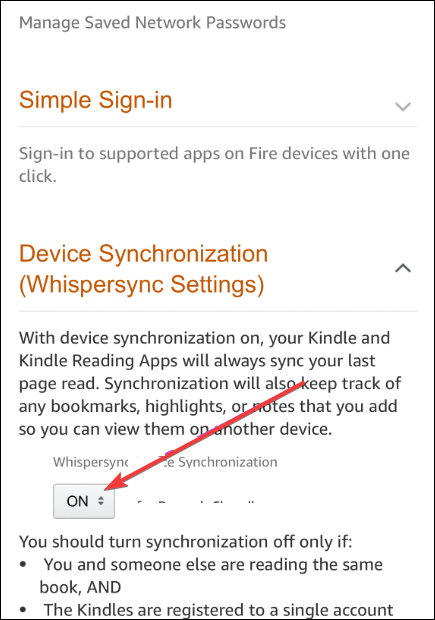
Open your Kindle settings and confirm Whispersync is on. This ensures notes and progress uploaded before the reset.
How to factory reset a Kindle from settings
This method works for most modern Kindle models.
Reset steps for modern Kindle models
- Tap the top of the screen and open Settings.
- Select Device options.


- Now, select Reset to Factory Defaults.
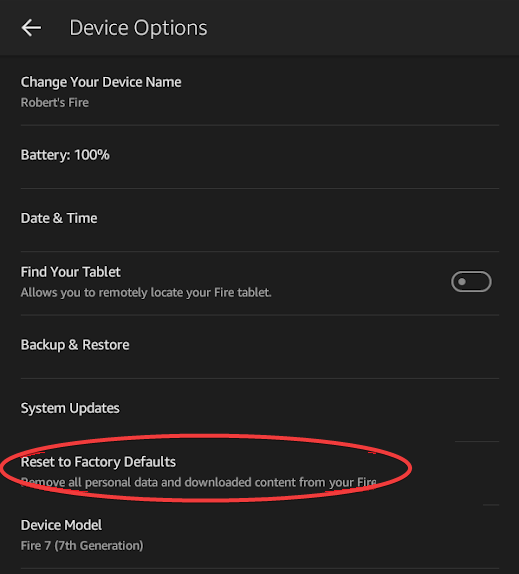

- Tap Reset.
- Confirm by tapping Reset again.
Your Kindle restarts and shows the initial setup screen after a few minutes.
How to factory reset a locked or unresponsive Kindle
Some resets require extra steps when the device does not respond.
Reset when you forgot the Kindle PIN
Enter an incorrect PIN several times until the reset prompt appears. Confirm the reset to remove the lock and wipe the device.
Force restart vs full factory reset
Hold the power button for 40 seconds to force a restart. Use this first if the Kindle freezes. Choose a factory reset only if problems persist.
Factory reset differences by Kindle model
Menu names and behavior vary by generation.
Older Kindle models (legacy devices)
Older Kindles may place reset under Settings > Menu > Reset. Some early models require a full power drain before the reset option appears.
What to do after resetting your Kindle
Finish setup to restore your library and settings.
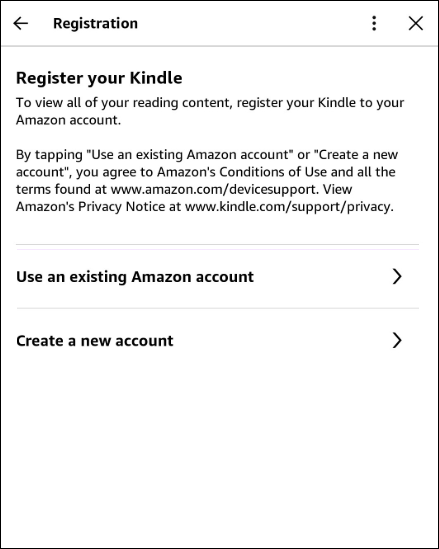
Re-register your Amazon account
Sign in with your Amazon email and password during setup. The Kindle links back to your library automatically.
Restore books and personalize settings
Download books from All or Library. Adjust font, brightness, and Wi-Fi to match your preferences.
Troubleshooting factory reset problems
- Reset option missing or greyed out: Charge the Kindle to at least 30 percent. Connect to Wi-Fi and restart the device, then check settings again.
- Kindle stuck during reset or setup: Force restart the device and retry setup. If the issue continues, contact Amazon support for account-side checks.
Tips to avoid future Kindle issues
- Restart your Kindle once a week.
- Keep firmware updated over Wi-Fi.
- Avoid filling storage completely.
- Sync before long offline periods.
FAQs
Does a factory reset delete Amazon books?
No. Amazon keeps purchased books in your account and lets you re-download them.
Can I reset a Kindle without Wi-Fi?
Yes. You only need Wi-Fi to sign in and restore content after the reset.
How long does a Kindle factory reset take?
Most resets finish within five minutes.
Summary
- Back up sideloaded files before resetting.
- Reset from Settings > Device options > Reset.
- Use PIN recovery or force restart for locked devices.
- Re-register your Amazon account after setup.
A factory reset solves persistent Kindle problems and prepares the device for a new owner. Complete the backup first, follow the correct reset path for your model, and finish setup to restore your library safely.


Discussion (0)
Be the first to comment.