




Eye tracking on a PC sounds futuristic, but in reality, it’s already built into Windows 11 as an accessibility feature.
If you have a compatible eye-tracking device, you can:
- Control your cursor
- Type using an on-screen keyboard
- Navigate your system without a mouse
But getting it to feel natural depends entirely on how you configure the settings.
What Eye Tracking in Windows Actually Does
Windows includes a feature called Eye Control.
It allows you to:
- Move the cursor using your gaze
- Click, scroll, and interact with UI elements
- Type using a gaze-based keyboard
It’s designed primarily for accessibility, but it’s also a glimpse into a different way of interacting with computers.
What You Need Before You Start
Eye tracking doesn’t work with a webcam alone.
You need a supported device, typically from brands like:
- Tobii
These devices:
- Track eye movement precisely
- Integrate directly with Windows
Once connected, Windows can detect and use them.
How to Enable Eye Tracking in Windows
Step-by-step
- Open Settings
- Go to Accessibility
- Click Eye control
- Turn Eye control ON
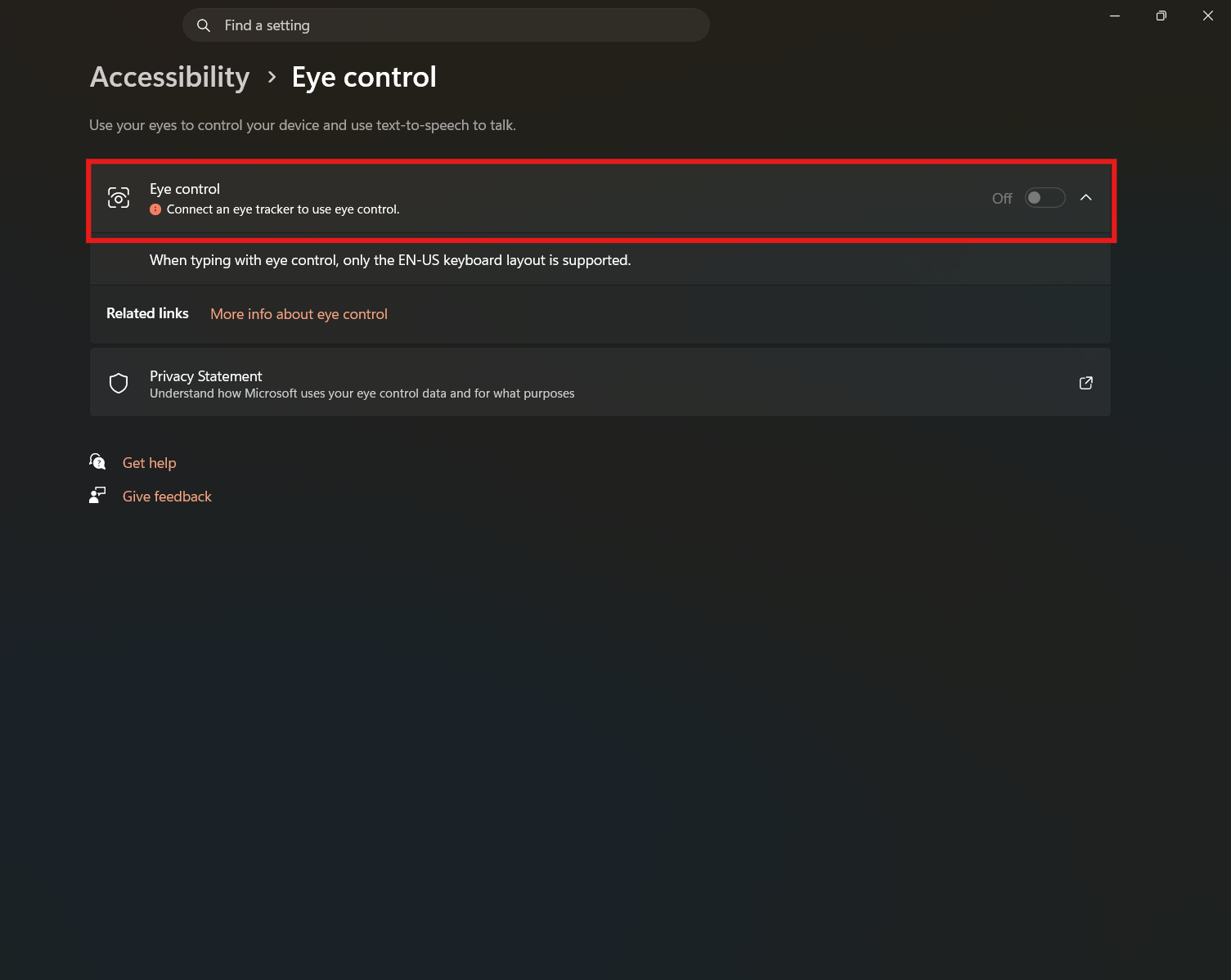
Once enabled, a control bar appears on your screen.
This is your main interface for:
- Clicking
- Typing
- Scrolling
Understanding the Eye Control Toolbar
When Eye Control is active, you’ll see a floating menu.
It includes options like:
- Mouse control
- Keyboard
- Text-to-speech
- Settings
You select options by looking at them and holding your gaze briefly.
This is called “dwell time.”
Adjusting Dwell Time (The Most Important Setting)
Dwell time determines how long you need to look at something before it activates.
Short dwell time
- Faster interaction
- Higher chance of accidental clicks
Longer dwell time
- More control
- Slightly slower response
Finding the right balance is key.
Most users start with default and adjust based on comfort.
Calibration (Why It Matters More Than You Think)
Eye tracking only works well if it’s calibrated properly.
Calibration:
- Teaches the system how your eyes move
- Improves accuracy
- Reduces misclicks
If your cursor feels off or inconsistent, recalibration usually fixes it.
Cursor Control and Precision
Using your eyes to control a cursor feels very different from a mouse.
At first:
- Movement may feel less precise
- Small targets are harder to hit
Over time:
- You adapt
- Accuracy improves
You can also:
- Adjust pointer speed
- Use larger UI elements for easier targeting
Typing with Eye Tracking
Windows includes an on-screen keyboard designed for gaze input.
You:
- Look at keys
- Hold gaze to select
It’s slower than traditional typing, but functional.
For users who rely on it, it becomes a primary input method.
Real-World Insight
Eye tracking is not about speed. It’s about control without physical input.
For accessibility users, it’s transformative.
For others, it’s:
- Interesting
- Usable
- But not a full replacement for mouse and keyboard
Understanding that expectation makes the experience much better.
Common Issues (And How to Fix Them)
Cursor Feels Inaccurate
- Recalibrate the device
- Adjust lighting conditions
Too Many Accidental Clicks
- Increase dwell time
Device Not Detected
- Check drivers
- Ensure compatibility with Windows
Most issues come down to calibration or settings, not hardware failure.
When Eye Tracking Makes the Most Sense
It’s most useful if:
- You need hands-free control
- You’re using accessibility features
- You want to experiment with alternative input methods
For everyday users, it’s more of a secondary tool.
Final Thoughts
Eye tracking in Windows 11 is one of those features that feels subtle until you realize what it enables.
It’s not about replacing your mouse. It’s about giving you another way to interact with your system when needed.
Once configured properly, it becomes:
- Predictable
- Usable
- And in some cases, essential
FAQs
Does Windows support eye tracking natively
Yes, through the Eye Control feature.
Do I need special hardware
Yes, compatible devices like those from Tobii.
Is it accurate
Yes, with proper calibration.
Can I type using eye tracking
Yes, using the on-screen keyboard.
Is it useful for everyday users
Mostly for accessibility, but usable for others as well.



Discussion (0)
Be the first to comment.