



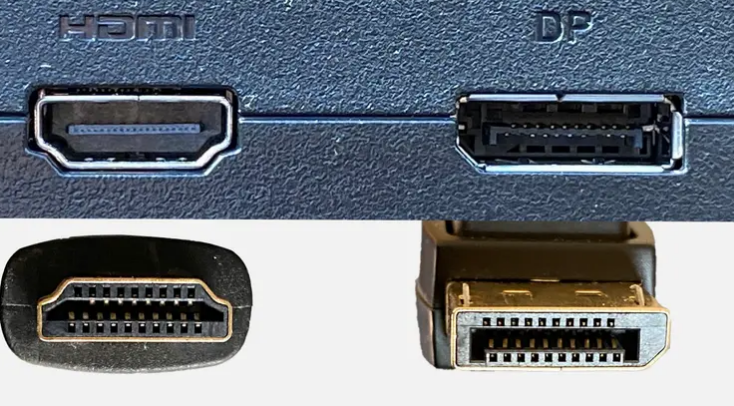
Most people connect a monitor to a PC by reaching for whatever cable came in the box or whichever port is most accessible on the back of the GPU. For a lot of setups at moderate resolutions and refresh rates, this works out fine. But when you are running a 1440p 165Hz gaming monitor, or a 4K display with HDR, or a multi-monitor setup, the cable you use can be the difference between accessing every feature you paid for or silently missing some of them.
DisplayPort and HDMI are not the same thing with different connectors. They handle bandwidth differently, they were designed for different primary use cases, and they have meaningfully different feature sets at various versions. Understanding those differences is not as complicated as the version numbers suggest.
Where Each One Came From
HDMI, which stands for High-Definition Multimedia Interface, launched in 2002 and was designed primarily for consumer electronics. Televisions, Blu-ray players, soundbars, set-top boxes, and later games consoles. The design goal was a single cable to replace the tangle of separate audio and video cables running between living room devices. It succeeded comprehensively. HDMI is now the most universally recognised display connection in the world. Virtually every TV made in the last fifteen years has multiple HDMI ports.
DisplayPort came along in 2006, developed by VESA, and was built with computers and high-performance monitors in mind from the start. Its design priorities were higher bandwidth, multi-monitor support, and compatibility with the demanding requirements of professional displays and gaming monitors. It is almost universally present on dedicated graphics cards and high-end PC monitors. It is essentially absent from televisions and game consoles, which is the single most important thing to understand about where each standard belongs.
The Version Numbers That Actually Matter
Both standards have gone through multiple versions and the version numbers matter enormously. A cable advertising HDMI or DisplayPort without specifying the version can mean something very different depending on which generation it represents.
For HDMI, the meaningful progression for modern use is:
- HDMI 1.4: Caps out at 4K 30Hz. Usable for video but not for gaming at any comfortable frame rate at 4K.
- HDMI 2.0: Supports 4K 60Hz and 1080p 120Hz. The minimum for a modern 4K setup.
- HDMI 2.1: The current standard worth having. Supports 4K at 120Hz, 8K at 60Hz, and introduces Variable Refresh Rate, Auto Low Latency Mode, and Enhanced Audio Return Channel. This is what the PlayStation 5 and Xbox Series X use.
For DisplayPort, the relevant versions are:
- DisplayPort 1.2: Supports 4K 60Hz and introduced daisy-chaining multiple monitors.
- DisplayPort 1.4: The current PC gaming workhorse. Supports 4K at 144Hz natively, and 4K at 240Hz using Display Stream Compression. Also adds proper HDR support.
- DisplayPort 2.1: Beginning to appear on newer graphics cards and monitors. Provides enough bandwidth for 4K at 240Hz uncompressed or 8K at 120Hz.
The practical takeaway is that matching the version to your monitor's requirements matters more than picking a brand of cable. An HDMI 2.0 cable connecting a GPU to a 4K 144Hz monitor will not deliver 4K at 144Hz. Physics does not negotiate.
Bandwidth: Where DisplayPort Has the Edge
Raw bandwidth determines how much information can travel down the cable per second. More bandwidth means more room for high resolutions, high refresh rates, more colour depth, and HDR.
| Standard | Maximum Bandwidth |
|---|---|
| HDMI 2.0 | 18 Gbps |
| HDMI 2.1 | 48 Gbps |
| DisplayPort 1.4 | 32.4 Gbps |
| DisplayPort 2.1 | 80 Gbps |
DisplayPort 1.4 sits below HDMI 2.1 in raw bandwidth, but HDMI 2.1 took until 2017 to be specified and has taken years to become widely adopted in monitors. DP 1.4 has been the workhorse for PC gaming monitors since well before HDMI caught up. DisplayPort 2.1 now leads significantly.
For most setups today, a monitor running at 1440p 165Hz or 4K 60Hz will work equally well with either a good HDMI 2.0 cable or DisplayPort 1.4. The bandwidth gap only becomes relevant at combinations of high resolution and high refresh rate simultaneously, and for the very highest refresh rates at 4K.
Adaptive Sync: The Practical Gaming Difference
This is the area where the choice between DisplayPort and HDMI has historically mattered most for PC gamers. Adaptive sync technology, which eliminates screen tearing by matching the monitor's refresh rate to the GPU's output, works differently across the two standards.
DisplayPort has had Adaptive Sync built into the specification since version 1.2a, released in 2014. This is the open standard that both AMD FreeSync and Nvidia's G-Sync Compatible certification are built on. If a monitor supports FreeSync or G-Sync Compatible, that support is accessed via DisplayPort. It works reliably, it is well established, and it is almost universally supported by gaming monitors and graphics cards.
HDMI added Variable Refresh Rate as part of the HDMI 2.1 specification, which is the HDMI equivalent. For console gaming this works well, and both the PS5 and Xbox Series X use HDMI 2.1 VRR. For PC gaming with Nvidia GPUs in particular, VRR over HDMI on monitors has historically been more inconsistent than Adaptive Sync over DisplayPort, with some monitors not fully supporting G-Sync over HDMI even when they have HDMI 2.1 ports. The situation has improved but the safe recommendation for PC gaming with adaptive sync remains DisplayPort unless your monitor specifically documents full VRR support over HDMI.
Audio Return Channel: Where HDMI Has the Advantage
This is where HDMI has a genuine and meaningful exclusive feature. Audio Return Channel, and its more capable successor Enhanced Audio Return Channel in HDMI 2.1, allows audio to flow back from a display to an audio device. This is what makes it possible to connect a TV to a soundbar with a single HDMI cable and have the soundbar receive audio from both the TV's built-in apps and external sources connected to the TV.
DisplayPort carries audio from source to display but does not support audio return. This is irrelevant for most PC monitor setups where audio goes through the computer's own audio output or headphones rather than back through the display connection. But for home theatre setups where a soundbar is connected via the television, HDMI's eARC is an important practical feature that DisplayPort simply does not have.
Multi-Monitor Setups: DisplayPort's Exclusive Advantage
DisplayPort includes a feature called Multi-Stream Transport that allows a single DisplayPort output to carry signals for multiple monitors by daisy-chaining them. One monitor connects to the GPU via DisplayPort, the next monitor connects from the first monitor's output, and so on. This can significantly reduce cable management complexity in multi-monitor setups.
HDMI does not support daisy-chaining. Each monitor in an HDMI setup requires its own cable and its own port on the source device. For a two-monitor desktop this is a minor inconvenience. For larger setups it is a more meaningful limitation.
Which One to Use in Practice
For the majority of decisions, the choice is simpler than all the version numbers suggest:
Use DisplayPort for any PC gaming monitor setup, particularly when running at high refresh rates, using adaptive sync, or managing multiple monitors. It is what gaming monitors are primarily designed around, and it provides the cleanest path to every feature those monitors support.
Use HDMI when connecting a console to a monitor or television, since PlayStation and Xbox have only HDMI outputs and the HDMI 2.1 ports on modern consoles and televisions handle everything those devices need. Also use HDMI when audio return channel is required for a home theatre audio setup.
Either works for connecting a PC to a monitor at 1080p or 1440p at standard refresh rates, or at 4K 60Hz, assuming both the cable version and monitor version are appropriate. At these specifications, the practical experience is identical and you will not perceive a difference.
The cable version matters more than the brand. A cheap HDMI 2.1 cable from a reputable source will outperform an expensive HDMI 2.0 cable for 4K gaming regardless of the price premium on the older cable. Check the version, not the marketing language on the packaging.
Adapters and Conversions
One question comes up regularly: can you use an adapter to convert between the two? The honest answer is that passive adapters, which are simple physical connectors with no active electronics, generally do not work reliably for modern high-bandwidth signals. HDMI and DisplayPort use fundamentally different signalling, and simply connecting the pins together without conversion electronics does not produce a reliable signal.
Active adapters, which contain actual conversion hardware, work but they introduce complexity and limitations. They typically do not pass through features like adaptive sync or higher HDR modes. If you find yourself needing a DisplayPort to HDMI adapter regularly, it is worth evaluating whether the setup can be redesigned to avoid it rather than relying on active adaptation as a permanent solution.
Final Thoughts
For a PC gaming monitor connected to a desktop GPU, DisplayPort is the right choice for almost every reason: better adaptive sync support, higher refresh rate headroom at high resolutions, multi-monitor daisy-chaining, and the fact that it is what gaming monitors are primarily designed to use. For consoles and televisions, HDMI 2.1 is the standard and there is no choice in the matter anyway.
The version matters far more than the brand or the price of the cable. A well-made cable of the correct version will deliver every feature your equipment supports. A premium cable of the wrong version will not unlock capabilities the specification does not include. Check the version number, match it to what your monitor and GPU support, and the rest takes care of itself.



Discussion (0)
Be the first to comment.