



Discord audio problems have a way of appearing at the worst possible moment. You join a voice channel and hear nothing. Your friends tell you your mic has cut out mid-game. You start a screen share and the audio is completely silent on the other end.
The good news is that most Discord audio problems are caused by something inside Discord's own settings, not a deeper system issue. The three fixes below solve the problem in the vast majority of cases and take less than two minutes each to try.
Fix 1: Set the Correct Input and Output Device in Discord
This is the single most common cause of Discord audio breaking overnight. Discord stores your last audio device, and the moment you plug in a different headset, connect a new monitor with built-in speakers, or update your audio drivers, it can silently switch to the wrong device without telling you.
Step 1: Open Voice and Video Settings
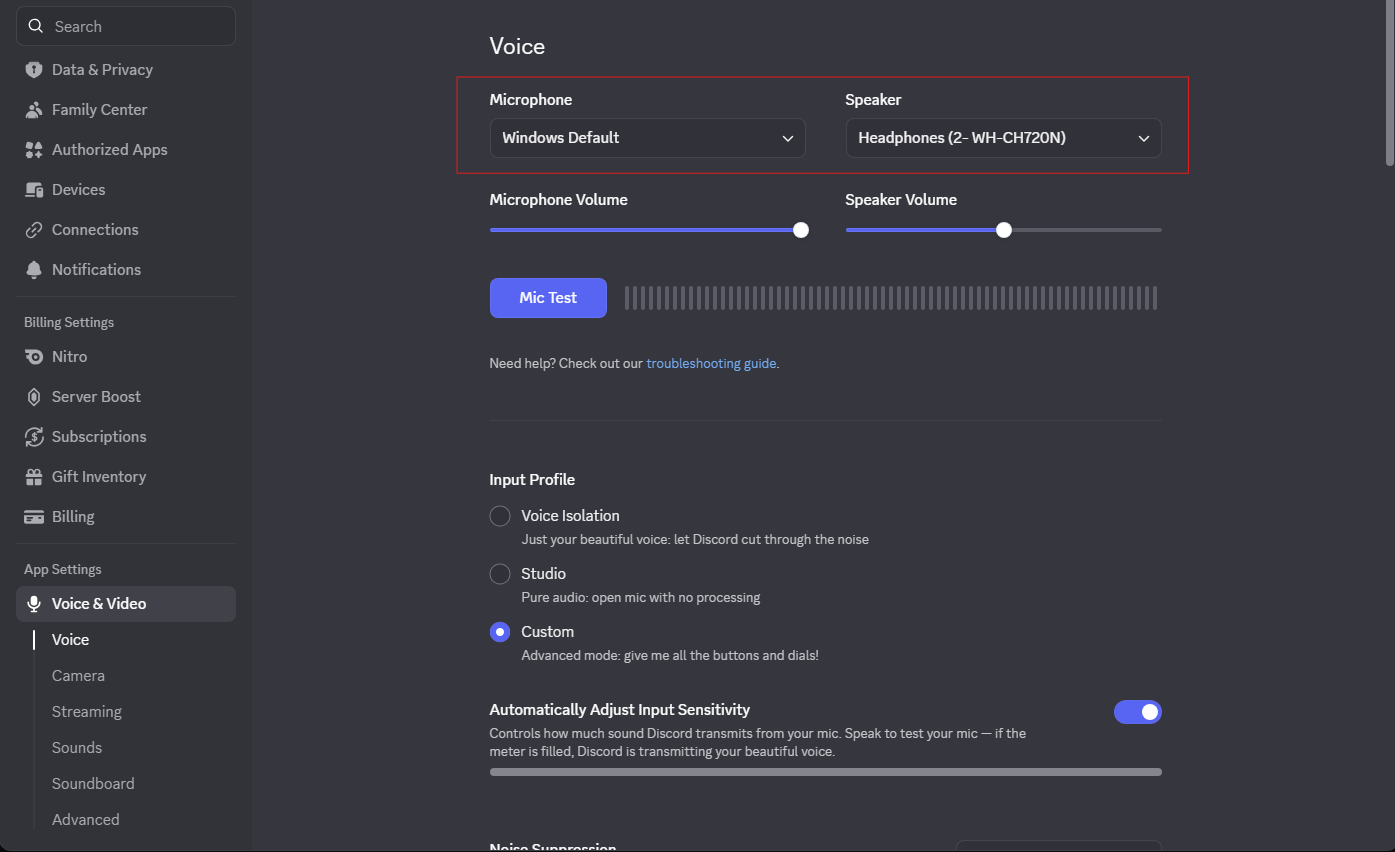
Open Discord and click the gear icon next to your username in the bottom left corner to open User Settings. In the left sidebar, click Voice and Video.
Step 2: Set Your Input and Output Devices
Under Input Device, open the dropdown and select your microphone from the list. Under Output Device, open the dropdown and select your headphones or speakers. Do not leave either on Default unless you are certain Windows is routing audio correctly.
Step 3: Test Your Microphone
Click the Let's Check button under the Input Device section and speak into your microphone. Discord will play your voice back through your selected output device. If you can hear yourself, your microphone is working correctly inside Discord.
While you are here, check that your Input Volume slider is not sitting near zero. It is easy to accidentally drag it all the way down and mistake it for a broken microphone.
Fix 2: Reset Discord Voice Settings
If the correct devices are already selected but audio is still not working, the issue is likely corrupted or misconfigured voice settings that have accumulated over time. Discord's built-in reset wipes all voice configuration back to default and fixes a surprising number of problems that individual setting changes cannot.
Step 1: Open Voice and Video Settings
Click the gear icon next to your username to open User Settings, then click Voice and Video in the left sidebar.
Step 2: Reset Voice Settings
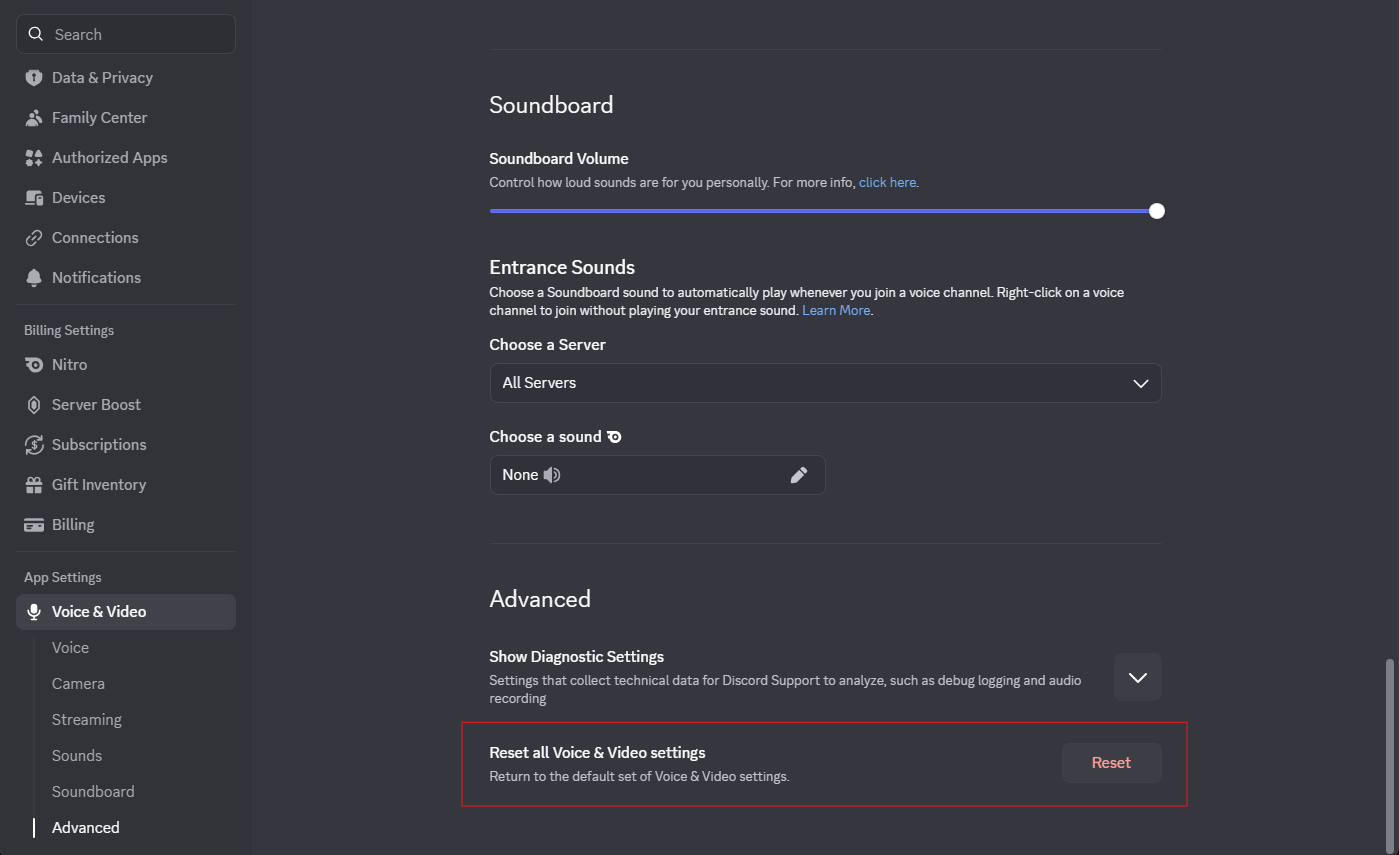
Scroll all the way to the bottom of the Voice and Video page. Click Reset Voice Settings. When Discord asks you to confirm, click Okay.
Step 3: Reselect Your Devices
After the reset, Discord clears your device selections. Go back to the Input Device and Output Device dropdowns and reselect your microphone and speakers. Test again using the Let's Check button. In most cases where the first fix did not work, this one will.
If None of These Work
If all three fixes above have failed, the problem is likely outside Discord's settings entirely. Check that Windows itself has microphone access enabled by going to Settings, Privacy and Security, then Microphone, and confirming that both Microphone Access and Let apps access your microphone are switched on, and that Discord is listed and allowed.
If you are on Windows 11 and your microphone cuts out specifically when gaming, another application may be taking exclusive control of your audio device. Open Sound Settings, click your microphone, select Device Properties, go to Additional Device Properties, click the Advanced tab, and uncheck Allow applications to take exclusive control of this device. This prevents games and other software from locking your microphone away from Discord mid-session.
As a last resort, right-click the Discord shortcut and select Run as Administrator, then test audio again. Some system configurations block Discord from accessing audio hardware unless it is running with elevated permissions.
Frequently Asked Questions
Why does Discord audio stop working after a Windows update?
Windows updates occasionally reset audio device permissions or change which device Windows treats as the default. After any Windows update, open Discord's Voice and Video settings, reselect your input and output devices, and check that microphone permissions are still granted under Windows Privacy and Security settings.
Why can I hear some people in a voice channel but not others?
Right-click on the specific user's icon in the voice channel. There is a per-user volume slider that can be accidentally dragged to zero. Raising it back up makes them audible again. This slider is completely separate from your master Discord or Windows volume.
Why does my microphone work in every other app but not Discord?
This almost always points to Discord's Voice and Video settings having the wrong input device selected, or Windows exclusive mode blocking Discord's access to the microphone while another application holds it. Work through Fix 1 and then check the exclusive mode setting described in the section above.
Why does Discord audio cut out randomly when I start a game?
Games frequently claim exclusive control of audio devices when they launch, which can lock your microphone away from Discord mid-session. Disabling exclusive mode on your microphone in Windows Sound Settings as described above resolves this in most cases.



Discussion (0)
Be the first to comment.