




Leaving Facebook can be temporary or permanent, depending on what you need. At the time of writing, Meta still offers two official options: deactivating your Facebook account to take a break, or deleting it to remove your profile, posts, and data after a short grace period.
This guide explains how to deactivate or delete a Facebook account on iPhone, iPad, and the web, what happens to your data, and what you should do before making the change.
Things To Do Before Deactivating Or Deleting Facebook
Before you proceed, review a few key items to avoid losing important information or access to connected services.
- Download your Facebook data from the Accounts Center to save photos, posts, messages, and profile details.
- Transfer admin roles for any Facebook Pages or Groups if you are the only administrator.
- Review apps and websites that use Facebook Login and update their sign-in methods.
- Save important comment threads, business receipts, or two-factor authentication backup codes.
How To Deactivate A Facebook Account On iPhone Or iPad
Deactivation hides your profile and activity while keeping your data intact. You can reactivate your account at any time by signing back in.
- Open the Facebook app and tap the Menu icon.

- Select Settings & Privacy, then tap Settings.
- Tap See More In Accounts Center.
- Choose Personal Details, then Account Ownership And Control.
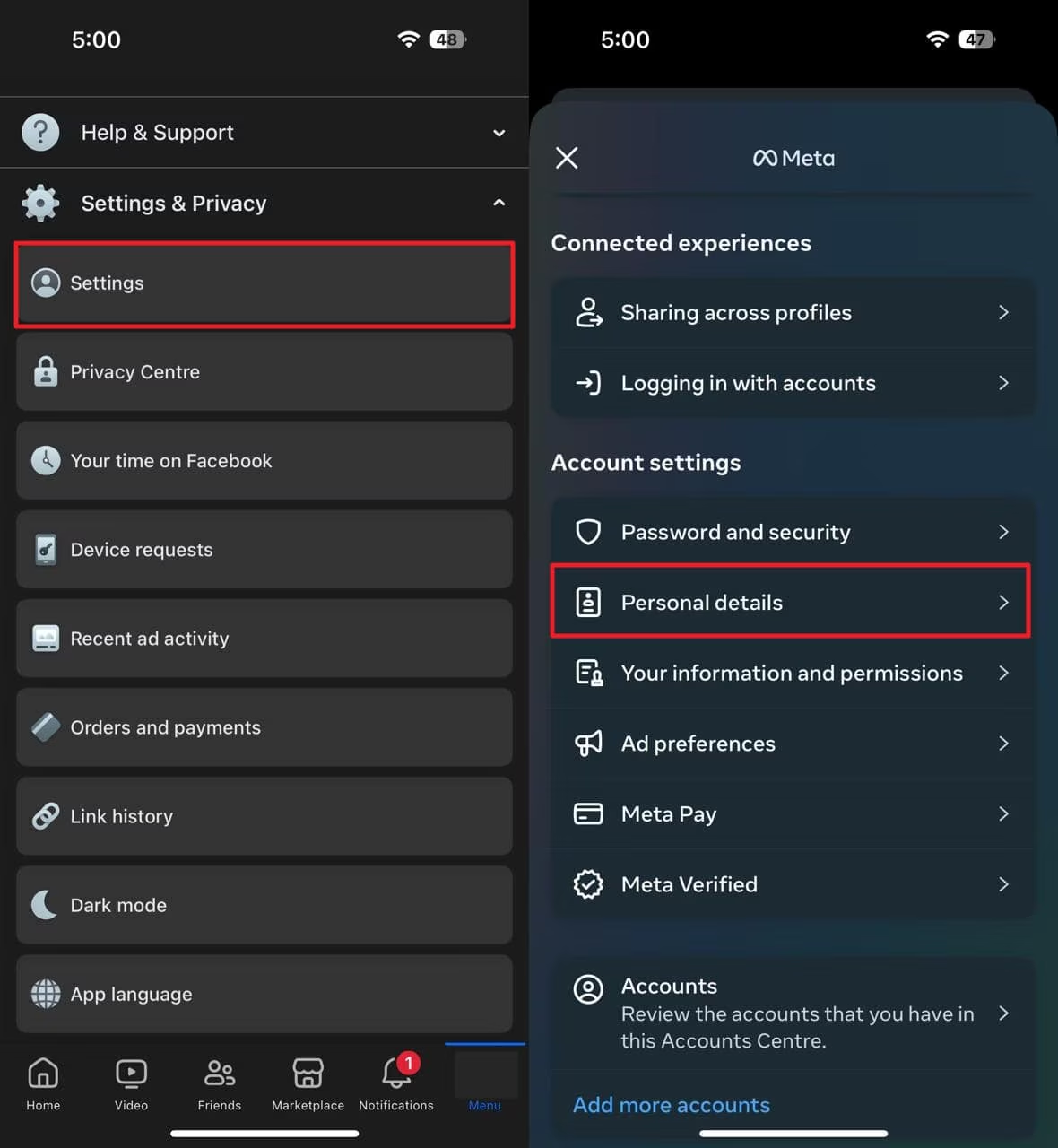
- Select Deactivation Or Deletion.
- Choose Deactivate Account and follow the on-screen prompts.
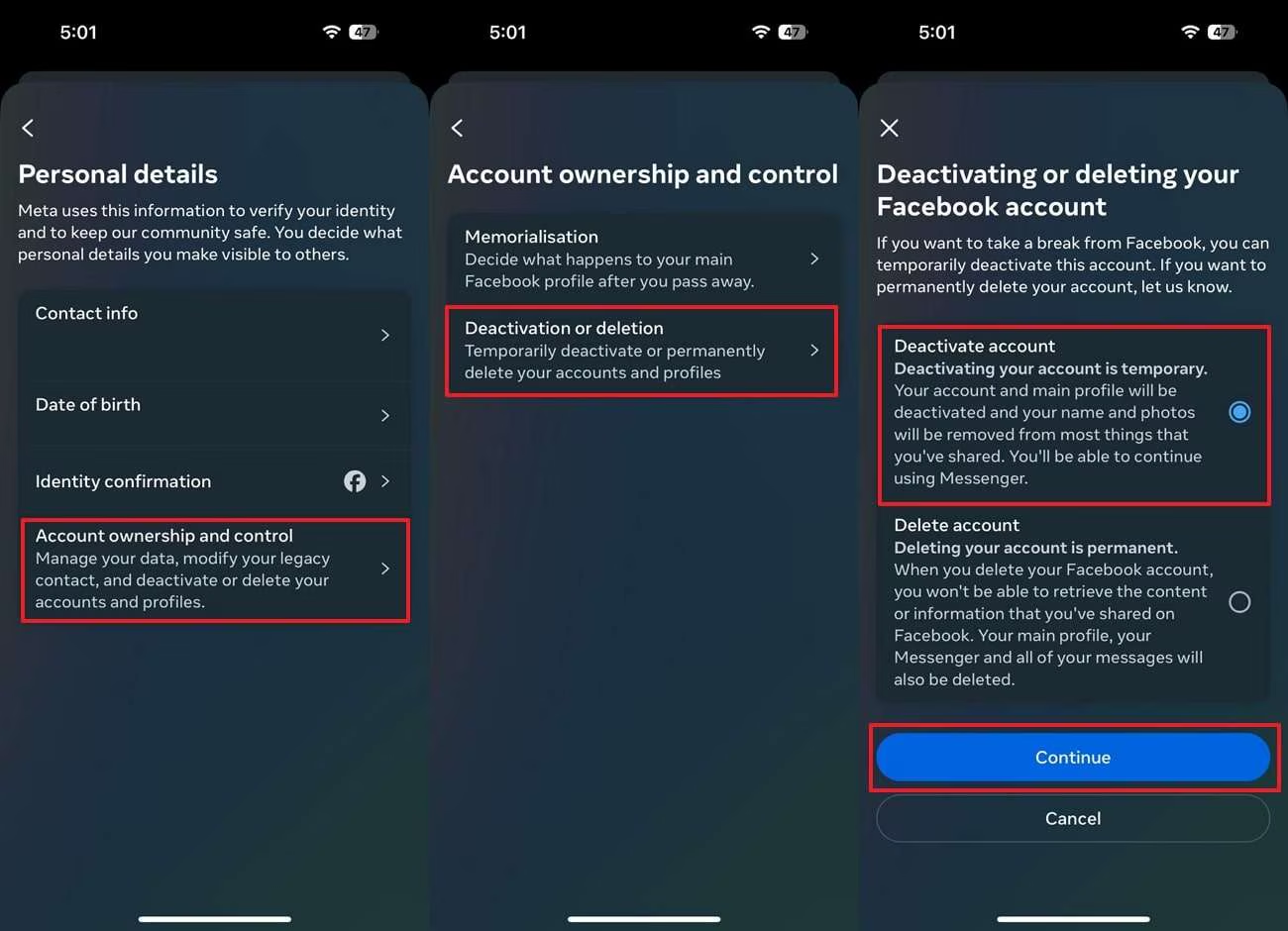
You can keep Messenger active during deactivation, allowing people to continue messaging you while your Facebook profile remains hidden.
How To Deactivate A Facebook Account On The Web
If you prefer using a browser, deactivation works the same way through Facebook’s website.
- Go to Facebook.com and click your profile picture.
- Select Settings & Privacy, then Settings.
- Open Accounts Center from the sidebar.
- Click Personal Details, then Account Ownership And Control.
- Select Deactivation Or Deletion and choose Deactivate Account.
How To Permanently Delete A Facebook Account
Deleting your Facebook account removes your profile, photos, posts, and messages after a 30-day grace period. If you log in during that window, the deletion is automatically canceled.
- Open the Facebook app or website.
- Go to Settings & Privacy and open Accounts Center.
- Select Personal Details, then Account Ownership And Control.
- Choose Deactivation Or Deletion.
- Select Delete Account and follow the confirmation steps.
After confirmation, your account enters a deletion queue. Once the grace period ends, recovery is no longer possible.
Troubleshooting Common Problems
If you cannot find the deletion option, make sure the Facebook app is updated and check whether you are the only admin of a Page or Group. Transferring ownership often resolves the issue.
If your password does not work, reset it first and try again. Logging in at any point during the grace period cancels deletion automatically.
Tips
- Use deactivation first if you are unsure about deleting your account permanently.
- Avoid opening Messenger or third-party apps that use Facebook Login during the deletion grace period.
- Keep a local copy of your downloaded Facebook data for long-term access.
FAQ
Can I recover a deleted Facebook account?
You can recover your account only within the 30-day grace period by logging back in.
What happens to Messenger when I deactivate Facebook?
Messenger can remain active, allowing you to send and receive messages.
Does deleting Facebook remove my comments everywhere?
Comments may remain visible but appear under a generic or deleted user label.
Will deleting Facebook affect Instagram?
Deleting Facebook does not automatically delete Instagram, even if the accounts are linked.
Summary
- Deactivation hides your profile and keeps your data.
- Deletion permanently removes your account after a grace period.
- Downloading data and transferring admin roles prevents data loss.
Conclusion
Whether you want a short break or a clean exit, Facebook provides clear tools to deactivate or delete your account. Taking a few minutes to back up data and review connected services ensures the process stays smooth and reversible when needed.


Discussion (0)
Be the first to comment.